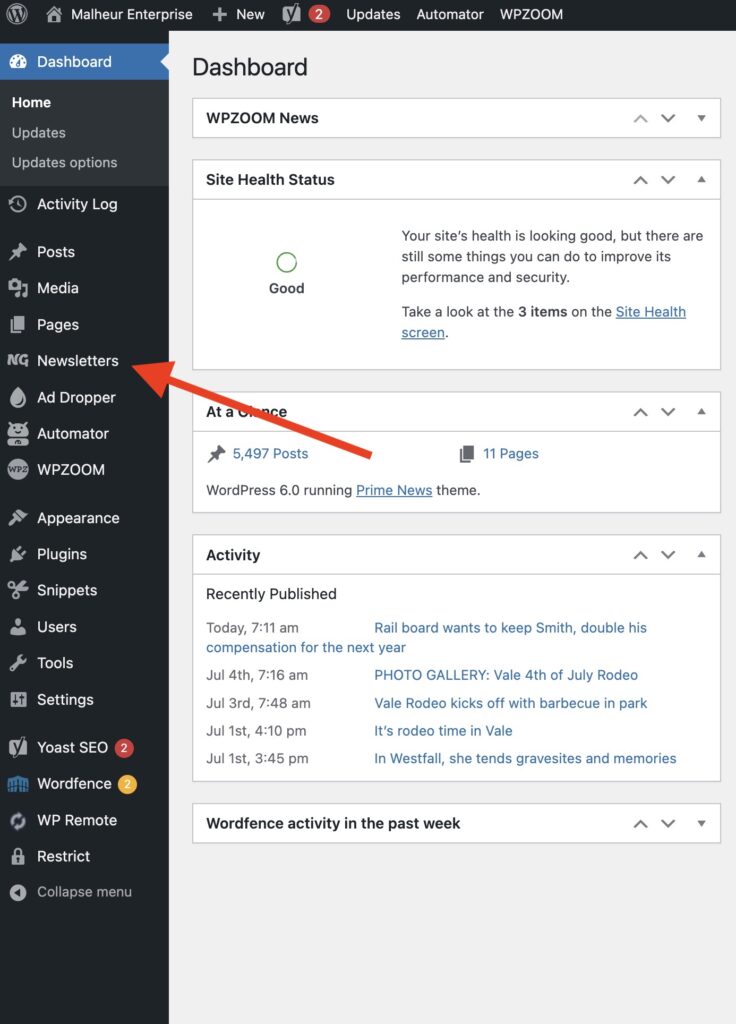
Select “Newsletters” from the WordPress dashboard
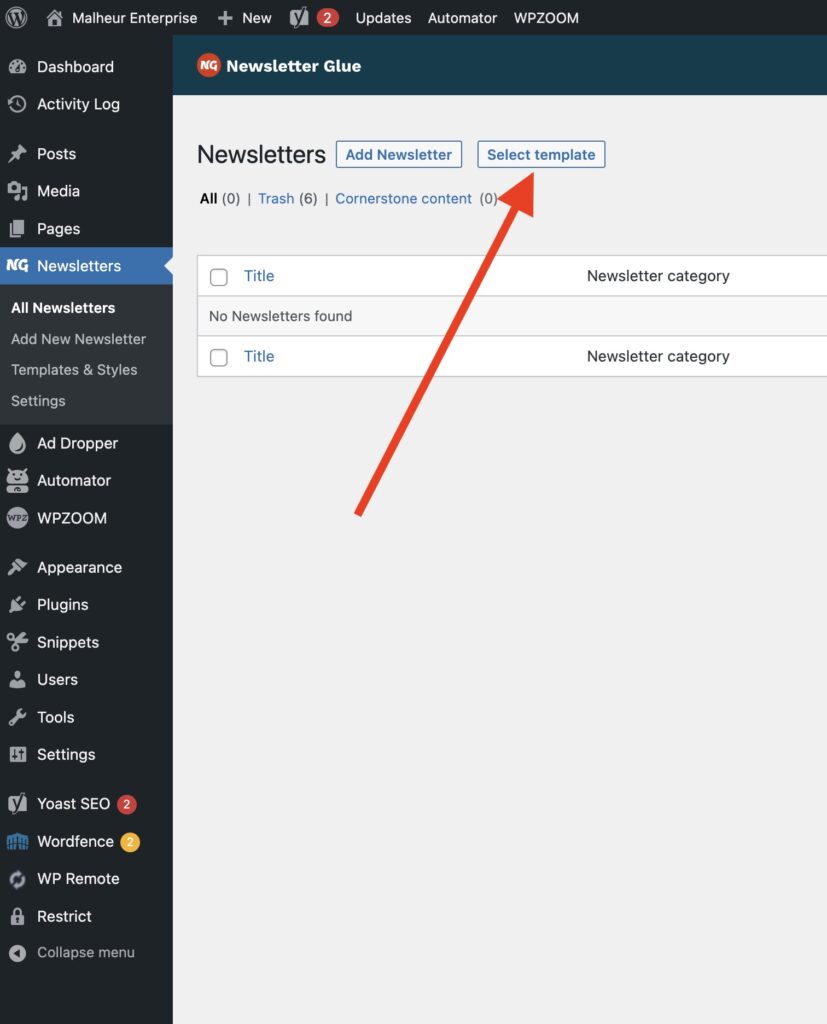
Select “select template”.
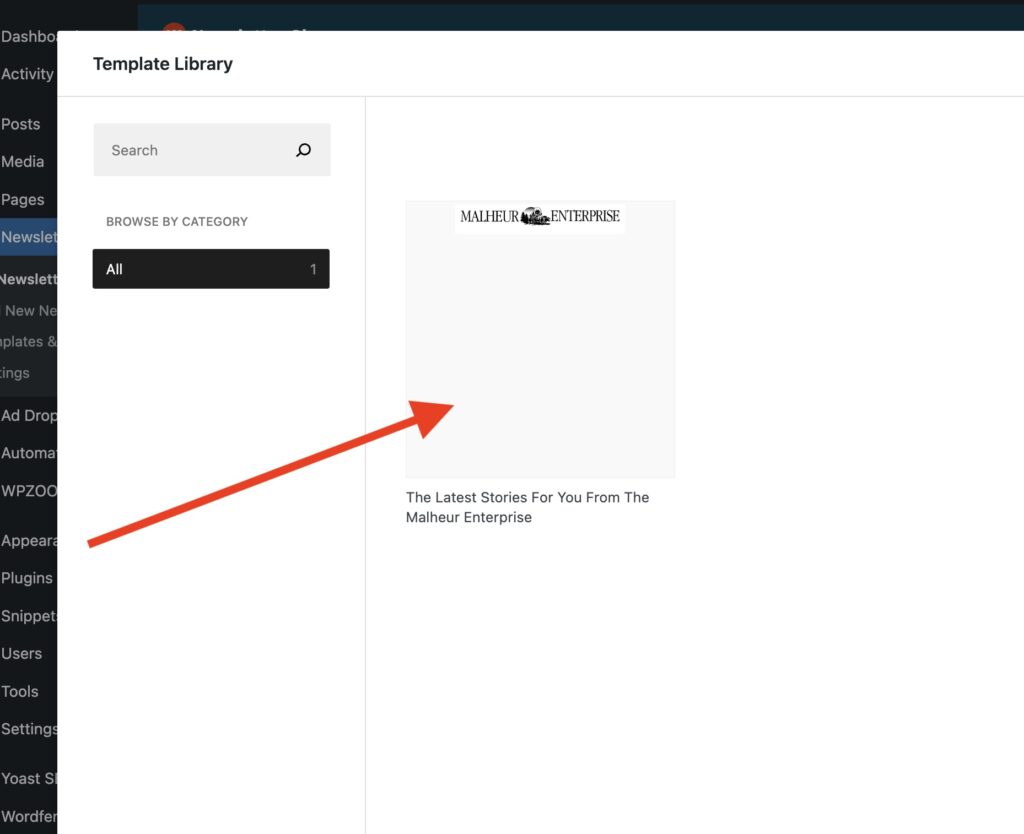
Choose the template for your publication.
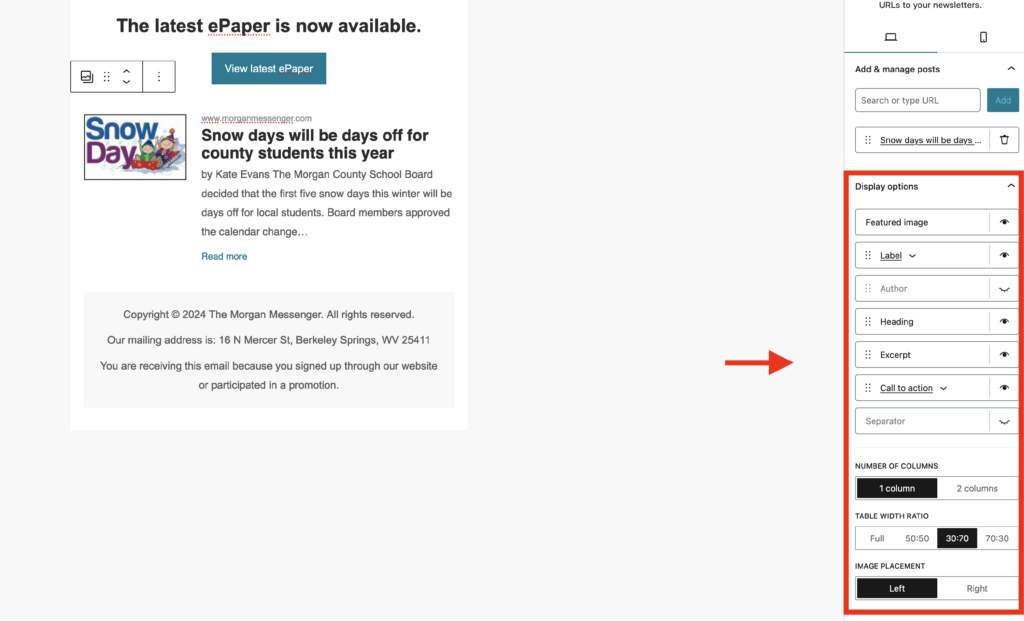
Use the Post Embeds block to easily pull in existing published content from your site into your newsletter.
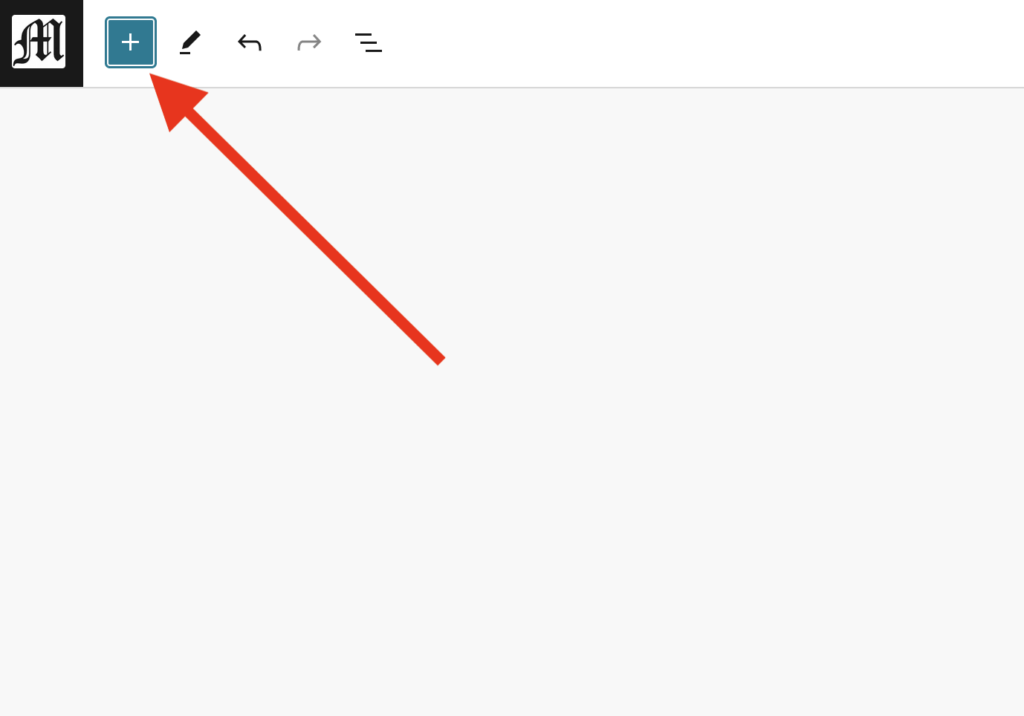
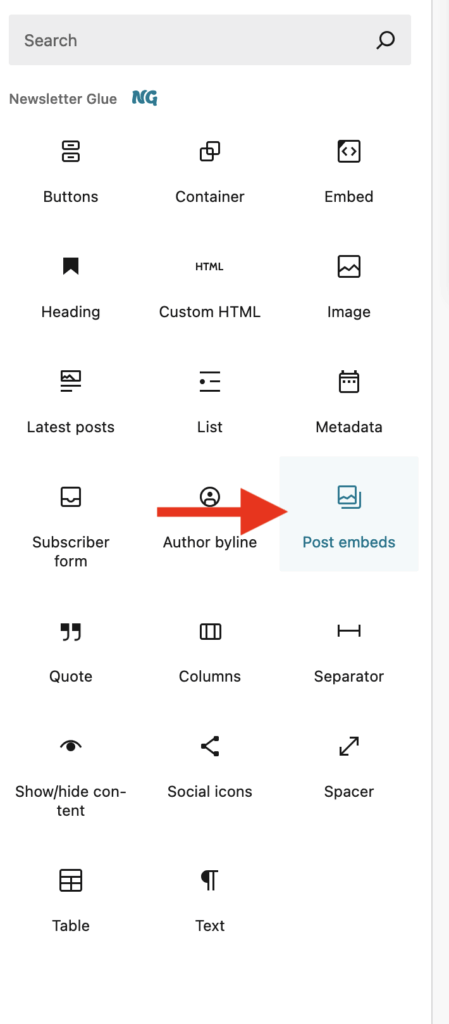
With Post Embeds, you can search for the post you’d like to include in your newsletter and it will be placed with the featured image and excerpt.
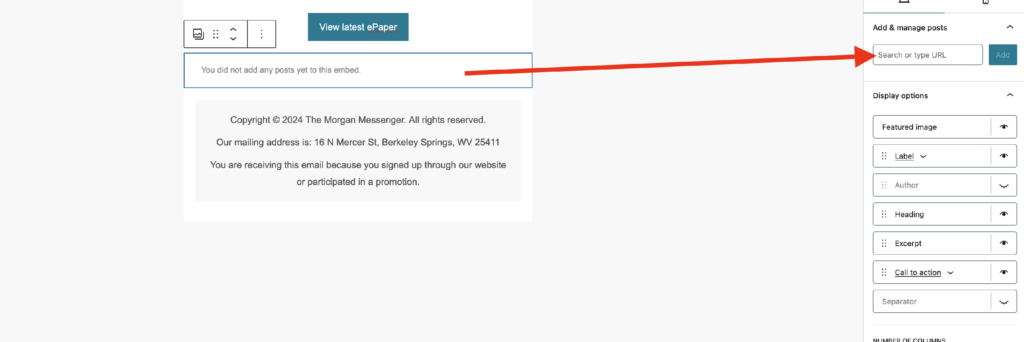
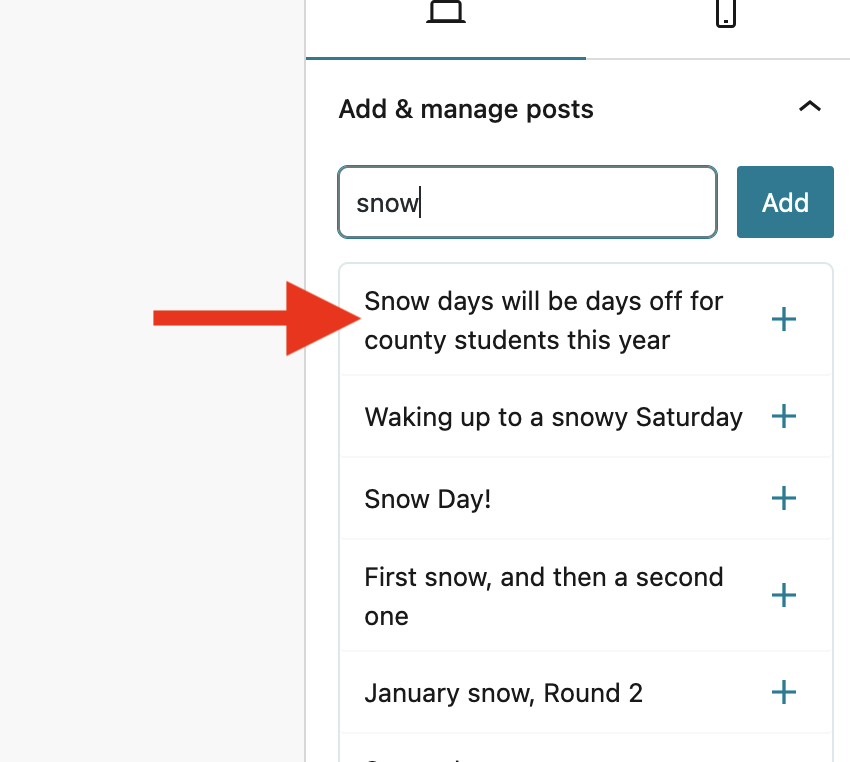
Continue to add as many posts as you’d like. Use the sidebar editor on the right to adjust the display of your posts.
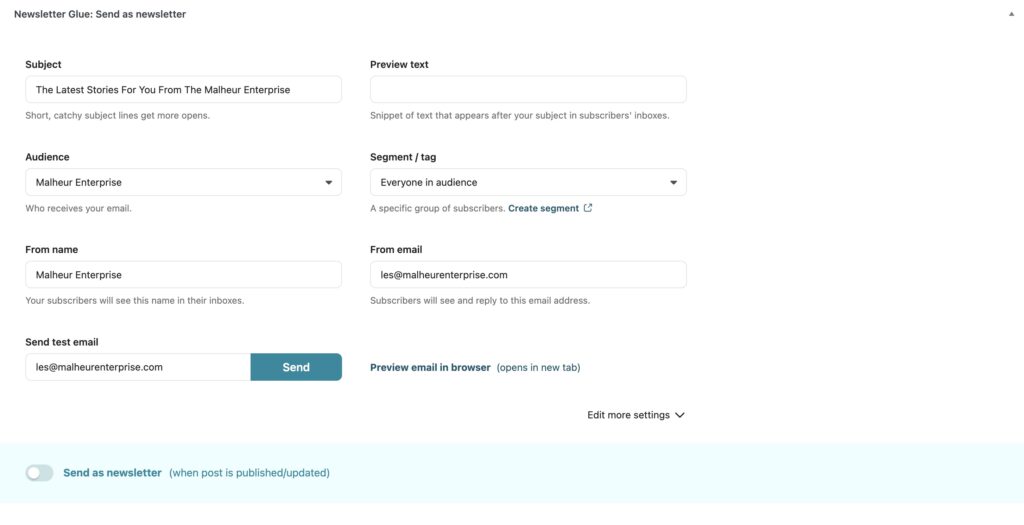
When you’re ready to send, scroll to the bottom where you’ll find a myriad of settings. You’ll see settings for Subject, Preview text, Audience from MailChimp, Segment/tagged audience from MailChimp, From name, From email, and Send test email. Once you have everything set, make sure to test things first with “Send test email” to an email of your choice.
If everything checks out, select “Send as newsletter” and publish post at the top right using the blue Publish button. This will send the newsletter.