
Drip campaigns make it easy to automatically fire emails to your subscribers based on actions that they take. For example, if someone signs up for free, perhaps you’d like to send them a welcome series over the course of a week that highlights your news organization. Let’s go over the details.
First, navigate to Newsletters -> Emails -> Add New Campaign

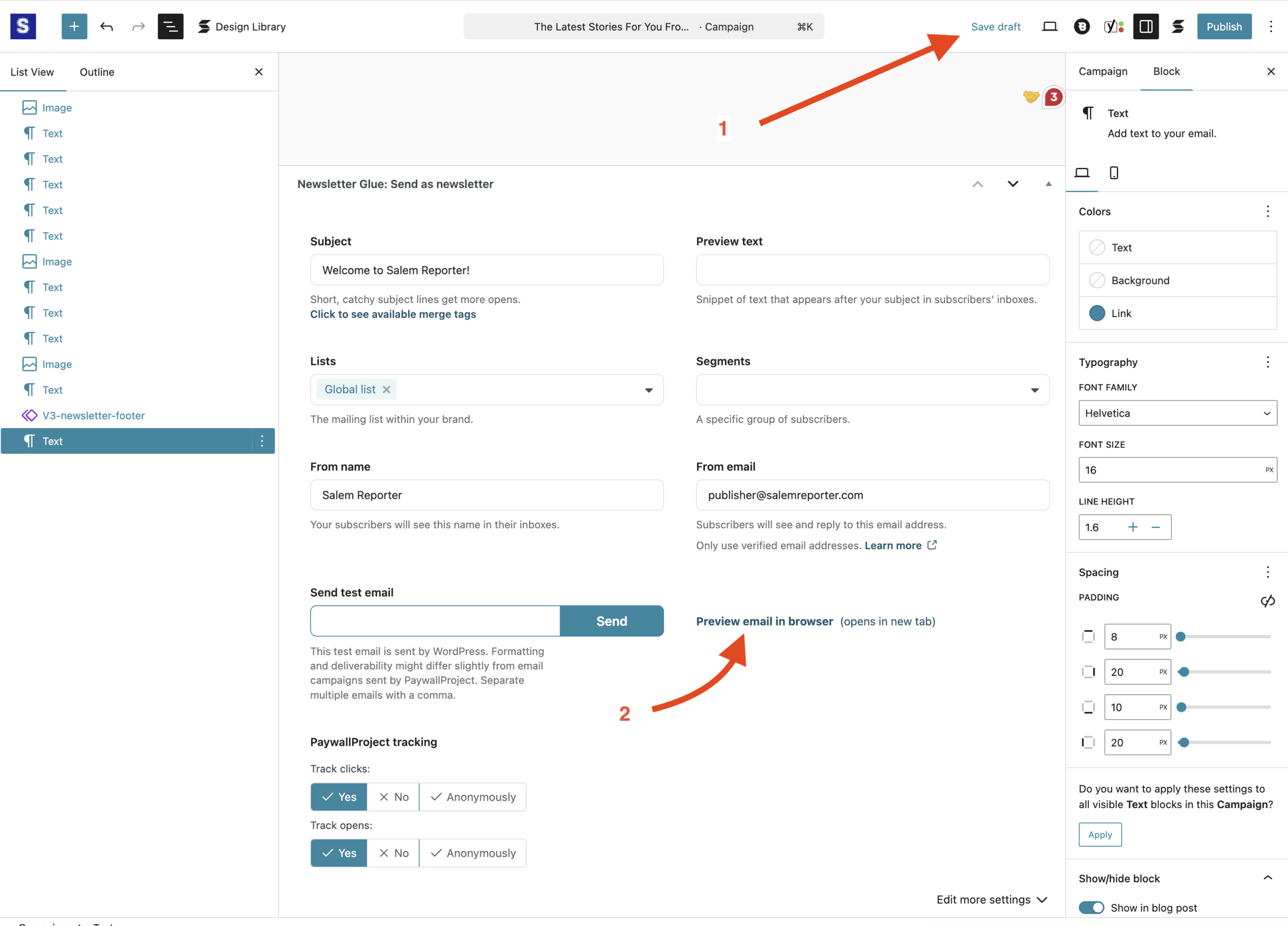
Design the first email that you want to go out in your drip campaign and save it as a draft in Newsletter Glue. Then, scroll to the bottom and select Preview email in browser. This is where we’ll grab the HTML to use over at newsletter.paywallproject.com.
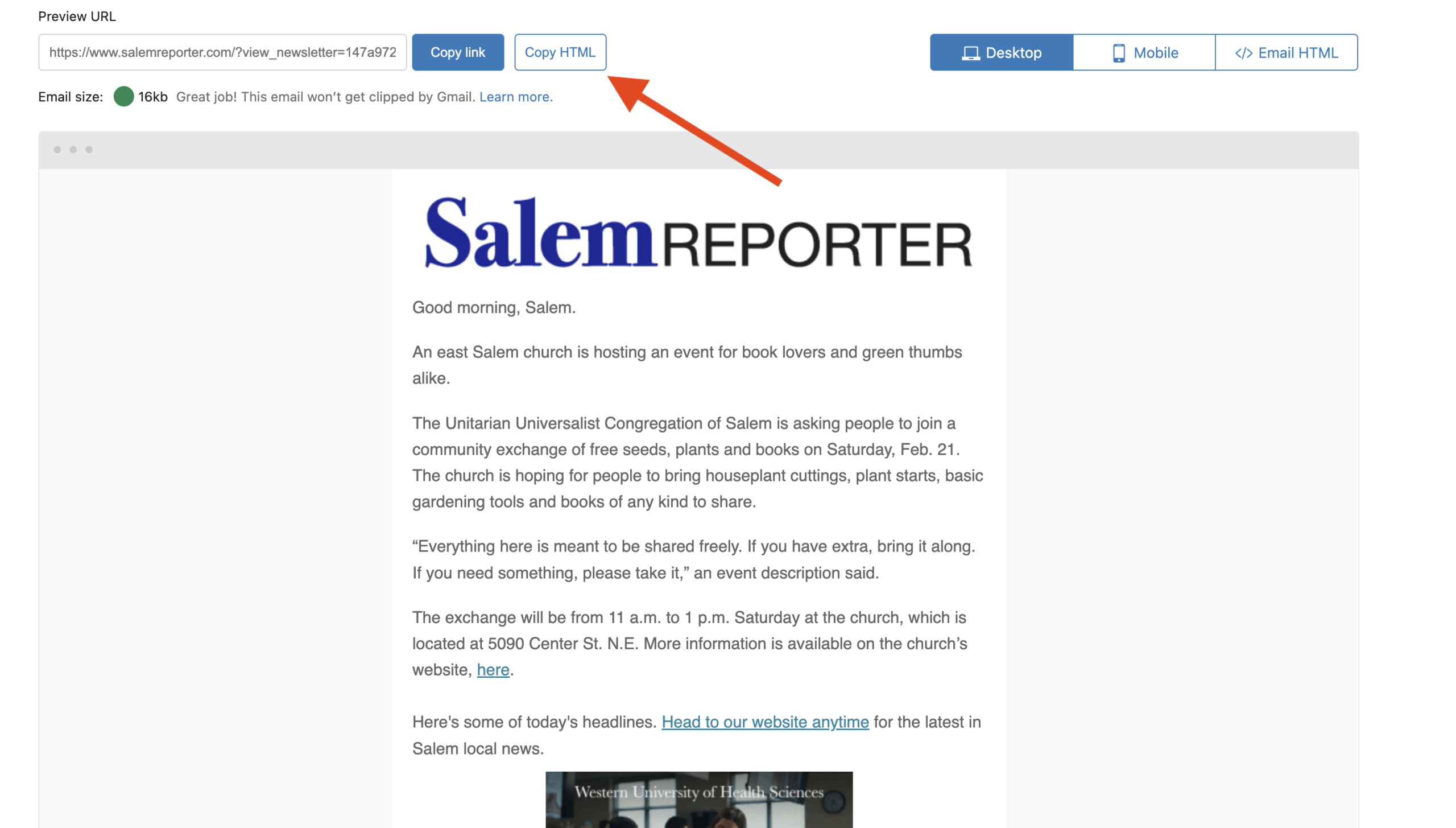
Select Copy HTML.
Log in to your newsletter portal account at newsletter.paywallproject.com. Select the list where the drip campaign will target.

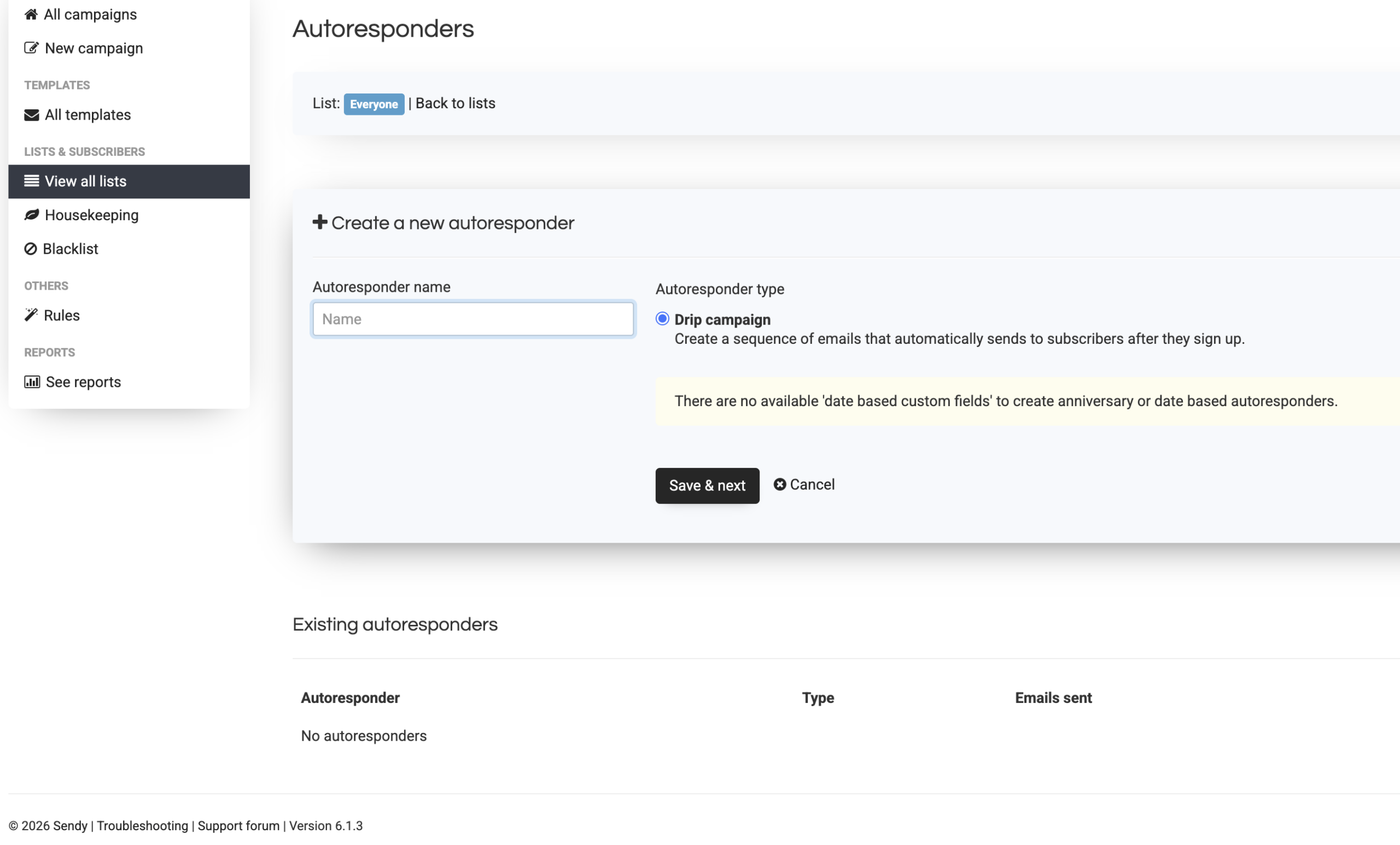
Select Autoresponders.

Enter a name for the drip campaign series. This will only be visible to you.
Select the desired time to send the email and which segment should receive it.

In this example, subscribers who are tagged Free will receive the drip email 5 minutes after signing up.

Enter a From name, From email, and Reply to email, and then select Save and switch to HTML editor.

Remove all existing HTML that you see in the box.
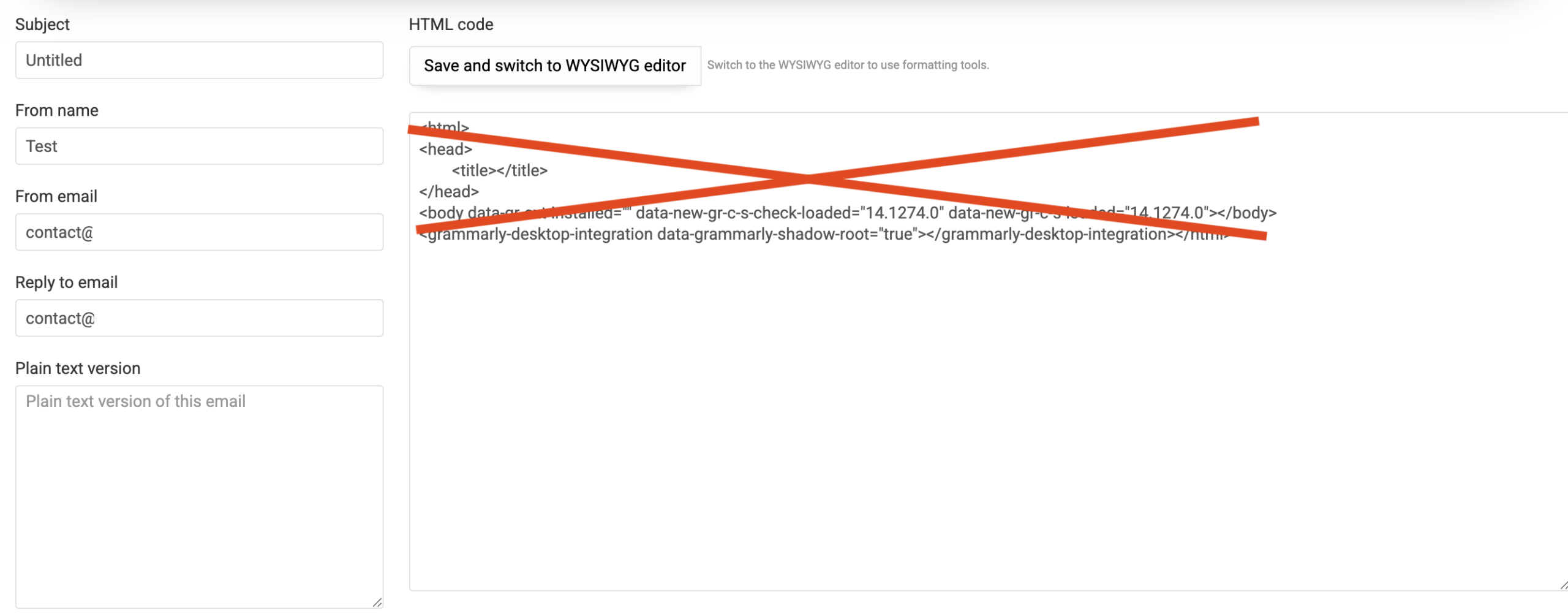
Paste the HTML from Newsletter Glue and select Save and switch to WYSIWYG editor.

Select Save & exit.

Don’t forget to enable the drip campaign by selecting Yes.

That’s it! Now, 5 minutes after signing up, you free subscribers will receive a custom drip campaign.