
If you’ve published a PDF (like an e-edition or newsletter) and later find an error, you can replace the file without breaking links that have already gone out in newsletters or elsewhere. The key is to keep the same file name and clear the site cache after uploading the corrected version.
Follow the steps below.
1. Prepare the corrected PDF
- Export the corrected PDF from your layout tool.
- On your computer, rename the corrected file to match the exact name of the existing file in WordPress.
- Example: if the current file is
Hdwk-Gaz-0520.pdf, rename your corrected file toHdwk-Gaz-0520.pdf.
- Example: if the current file is
This is what keeps your existing links working.
2. Delete the old file in WordPress
- Log in to your WordPress dashboard as an admin.
- Go to Media → Library.
- Find the original PDF (for example:
Hdwk-Gaz-0520.pdf). - Click the file, then select Delete permanently.
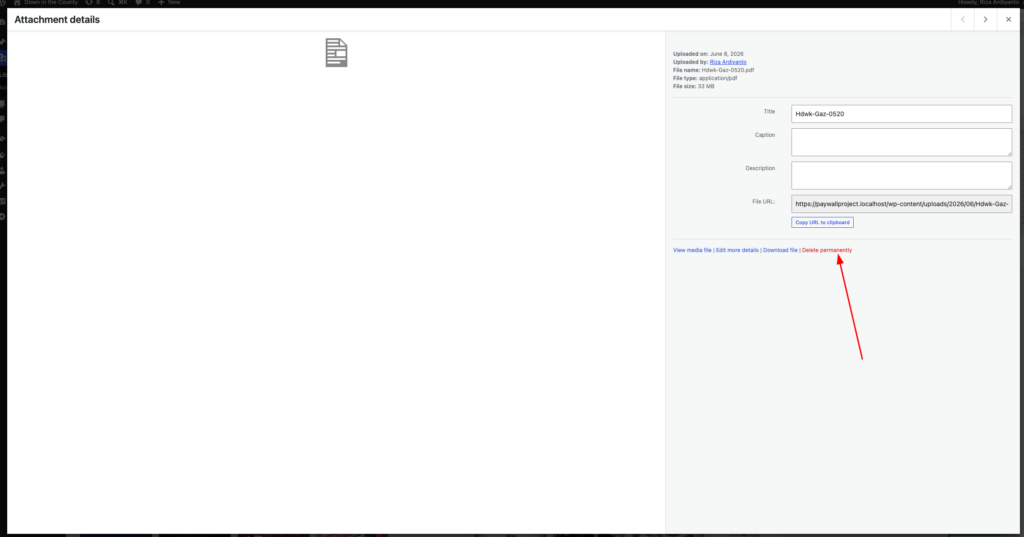
At this point, WordPress no longer has the old file stored, but any links that were copied earlier will still point to the same URL path.
3. Clear the cache
If your site uses the a cache plugin, you’ll want to clear the cache so visitors see the updated file.
4. Upload the corrected PDF with the same name
- In Media → Library, click Add New.
- Upload your corrected PDF (with the exact same file name as the one you just deleted).
- Once uploaded, click the file and confirm the File URL matches the original path (for example:
/wp-content/uploads/2026/05/Hdwk-Gaz-0520.pdf).
Because the path and file name are the same, any previously shared links (including newsletter links) will now serve the corrected PDF.
5. Double-check the final result
- Open the PDF URL in a private/incognito window to confirm the content is the corrected version.
- If the PDF was linked from a newsletter or page, click through from there as well and verify the correct file loads.
If everything looks good, you’ve successfully replaced the PDF without breaking any existing links.