
Coupons let you offer discount codes on your subscription levels — a percentage off or a fixed amount off, with optional redemption caps, expiration dates, and level restrictions. Subscribers enter the code at checkout, or you can send them a link that applies it for them.
Create a coupon
- In your WordPress admin, go to PaywallProject → Coupons.
- Click Add coupon.
- Fill in the fields described below, then click Save coupon.
Code
The code subscribers type at checkout, for example SUMMER25. Use letters, numbers, hyphens, or underscores. Codes are saved in uppercase and aren’t case-sensitive, so summer25 works too. Click Generate to create a random 8-character code.
Type and value
- Percent — takes a percentage off the price. Enter
25for 25% off. The maximum is 100%. - Fixed amount — takes a set amount off the price. Enter
5.00for $5 off.
Limits
- Max redemptions — the total number of times the coupon can be used across all subscribers. Once it’s reached, the code stops working.
- Expires — the last day the coupon can be used. It works through the end of that day.
Leave either field blank for no cap or no expiration.
Limit to levels
Check one or more levels to restrict the coupon to those levels only. Leave every level unchecked to allow the coupon on all levels.
Show the coupon field on checkout
The coupon field is controlled per level, so you choose which levels accept codes.
- Go to PaywallProject → Levels and edit the level.
- Scroll to Subscribe form fields.
- Set Coupon code to Optional (or Required), then save the level.
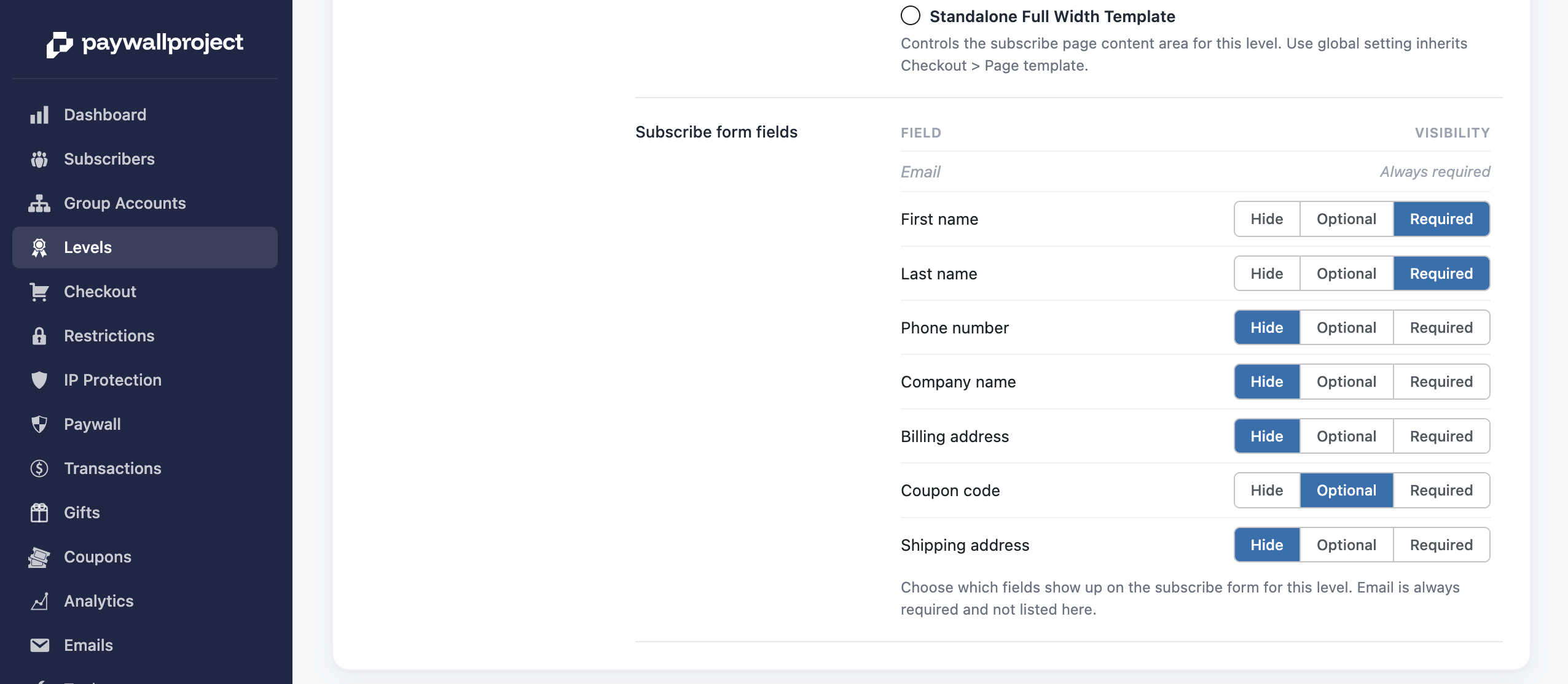
- Hide — no coupon field on this level’s checkout.
- Optional — subscribers can enter a code if they have one. This is the most common choice.
- Required — subscribers must enter a valid code to subscribe. Useful for invite-only or partner levels.
What subscribers see
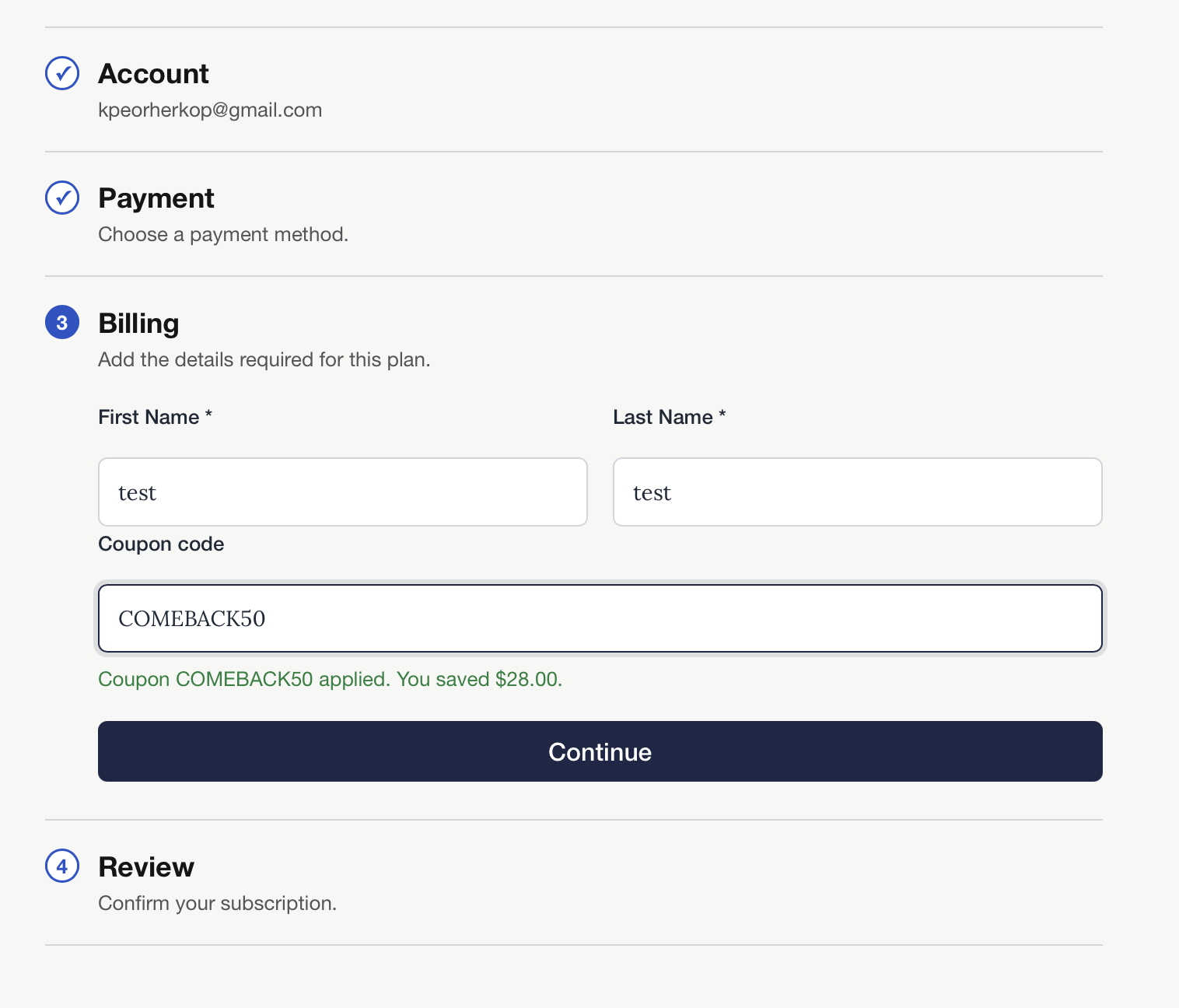
The Coupon code field appears in the Billing step of checkout. When a subscriber enters a valid code, they see a confirmation with how much they saved.
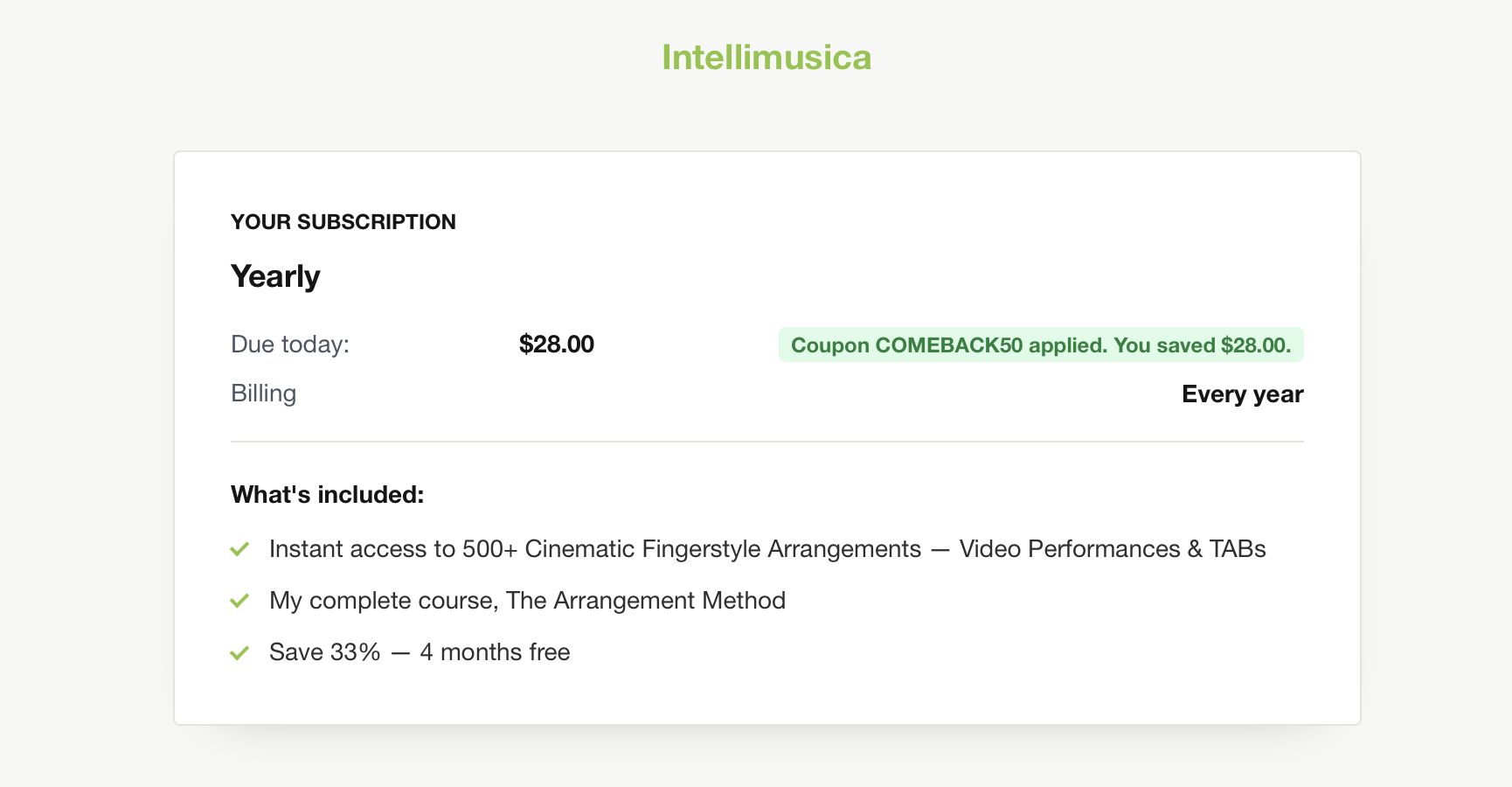
The order summary shows the discounted amount due today.
Share a link that applies the coupon
You can send subscribers a link that opens checkout with the coupon already filled in — handy for emails, social posts, and win-back campaigns.
If a coupon is limited to exactly one level, the Subscribe link column on the Coupons page shows a ready-made link. Click Copy link to copy it.
For coupons that apply to several levels, build the link yourself by adding two parameters to your subscribe page URL:
https://yoursite.com/subscribe/?ppaccess_level=yearly&ppaccess_coupon=COMEBACK50ppaccess_level— the slug of the level to check out.ppaccess_coupon— the coupon code.
The coupon field must be set to Optional or Required on that level for the code to be applied.
How discounts are applied
- Recurring levels — the discount applies to the first payment only. Renewals are charged at the level’s regular price.
- One-time levels — the discount comes off the purchase price.
- Gift subscriptions — coupons work on gift purchases too, using the same level restrictions.
A redemption is counted once the payment succeeds, so abandoned checkouts don’t use up your redemption cap.
Manage your coupons
The Coupons page lists every coupon with its type, value, how many times it’s been redeemed (and the cap, if set), expiration date, and status.
- Edit — change a coupon’s limits, expiration, or levels. To change the discount amount, we recommend creating a new coupon instead.
- Delete — removes the coupon from the list. The code stops working right away. Subscribers who already used it keep their subscription.
Troubleshooting
“That coupon is not valid.”
The code doesn’t exist, has been deleted, has expired, or has reached its max redemptions. Check the coupon’s row on the Coupons page.
“That coupon does not apply to the selected level.”
The coupon is limited to other levels. Edit the coupon and check this level under Limit to levels, or uncheck all levels to allow it everywhere.
“That coupon is not valid for this currency.”
Fixed-amount coupons are tied to a currency. Use a percent coupon for levels priced in a different currency.
I don’t see the coupon field at checkout
Edit the level and make sure Coupon code under Subscribe form fields is set to Optional or Required.