

What does the PaywallProject reCAPTCHA add-on do?
The reCAPTCHA add-on helps prevent automated bots and spam accounts from completing your registration forms. This is especially important at checkout, as fraudulent credit card testing bots can trigger chargebacks with Stripe, costing you time and money.
Your PaywallProject managed set up uses invisible reCAPTCHA v3, which means:
- There is no visible “I’m not a robot” checkbox
- No challenges (traffic lights, buses, crosswalks, etc.)
- The system works entirely in the background
Google silently assigns every visitor a score based on how “human” their interaction appears. If the score is too low, PaywallProject doesn’t let the form go through straight away. Instead, it emails the reader a 6-digit code. Once they enter the right code, the form goes through.
We keep it simple: good scores pass, and anyone reCAPTCHA can’t confirm has to prove they own their email address first. A real reader is never stuck. A bot would need a working inbox for every address it tries.
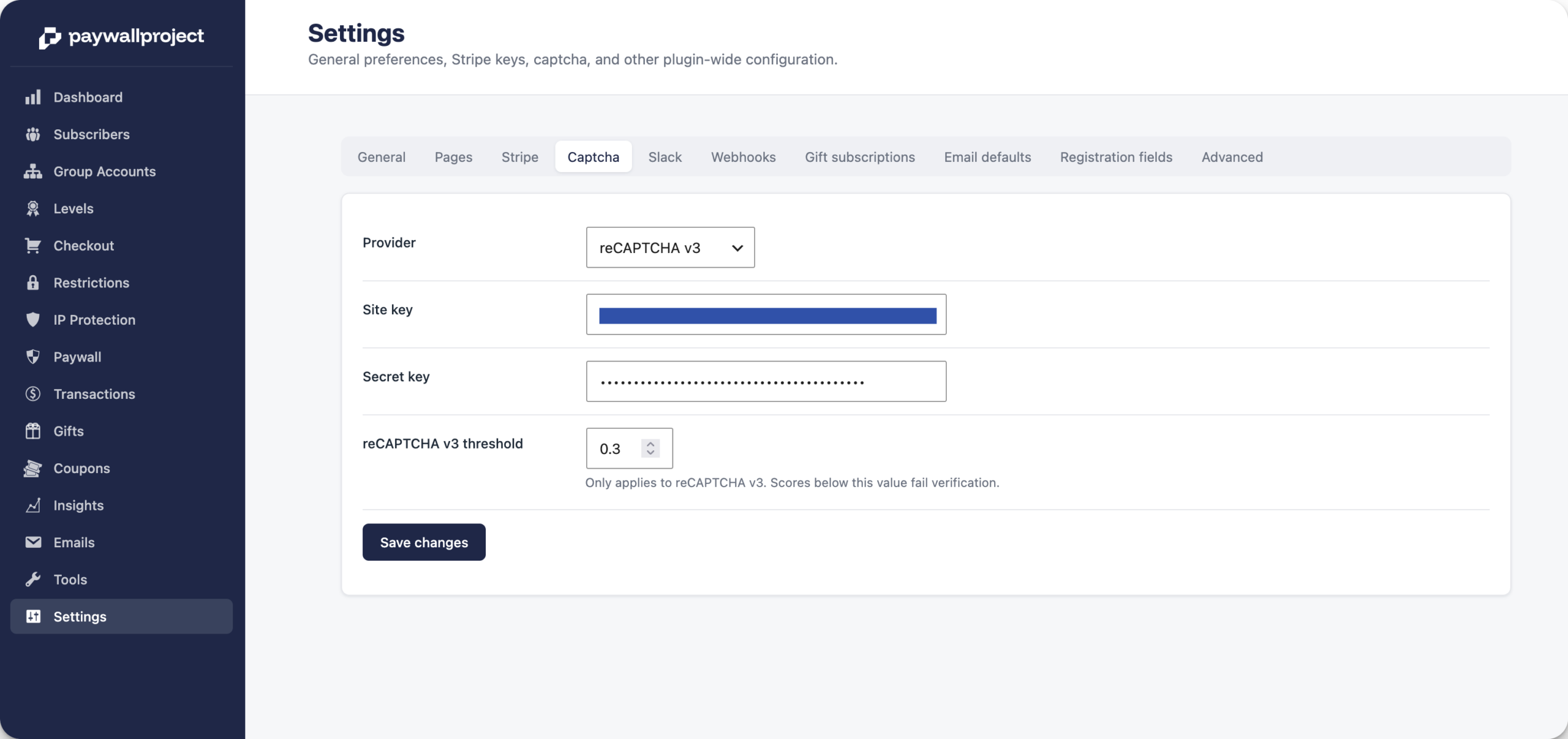
How PaywallProject uses Invisible reCAPTCHA v3
When the registration form loads:
- Google evaluates user behavior (movement patterns, browser signals, IP reputation, etc.).
- A score between 0.0 and 1.0 is returned.
- 1.0 = very likely human
- 0.0 = very likely a bot
- PaywallProject checks your chosen threshold (the reCAPTCHA v3 threshold setting under PaywallProject → Settings → Captcha). It is 0.4 unless you change it.
- If the score is below your threshold, the form doesn’t go through until the reader enters a 6-digit code that PaywallProject emails them.
When reCAPTCHA can’t confirm a reader
Sometimes a real reader gets a low score, or an ad blocker stops reCAPTCHA from running. These readers aren’t turned away. Here is what they see:
- The reader fills in the form and clicks the button as usual.
- A box called One more quick step appears above the button. It says “We couldn’t confirm this automatically, so we’ve emailed a 6-digit code to [email].”
- The reader types the code into Enter your code and clicks the form’s button again.
- The form goes through. If the email doesn’t arrive, the reader can click Resend code.
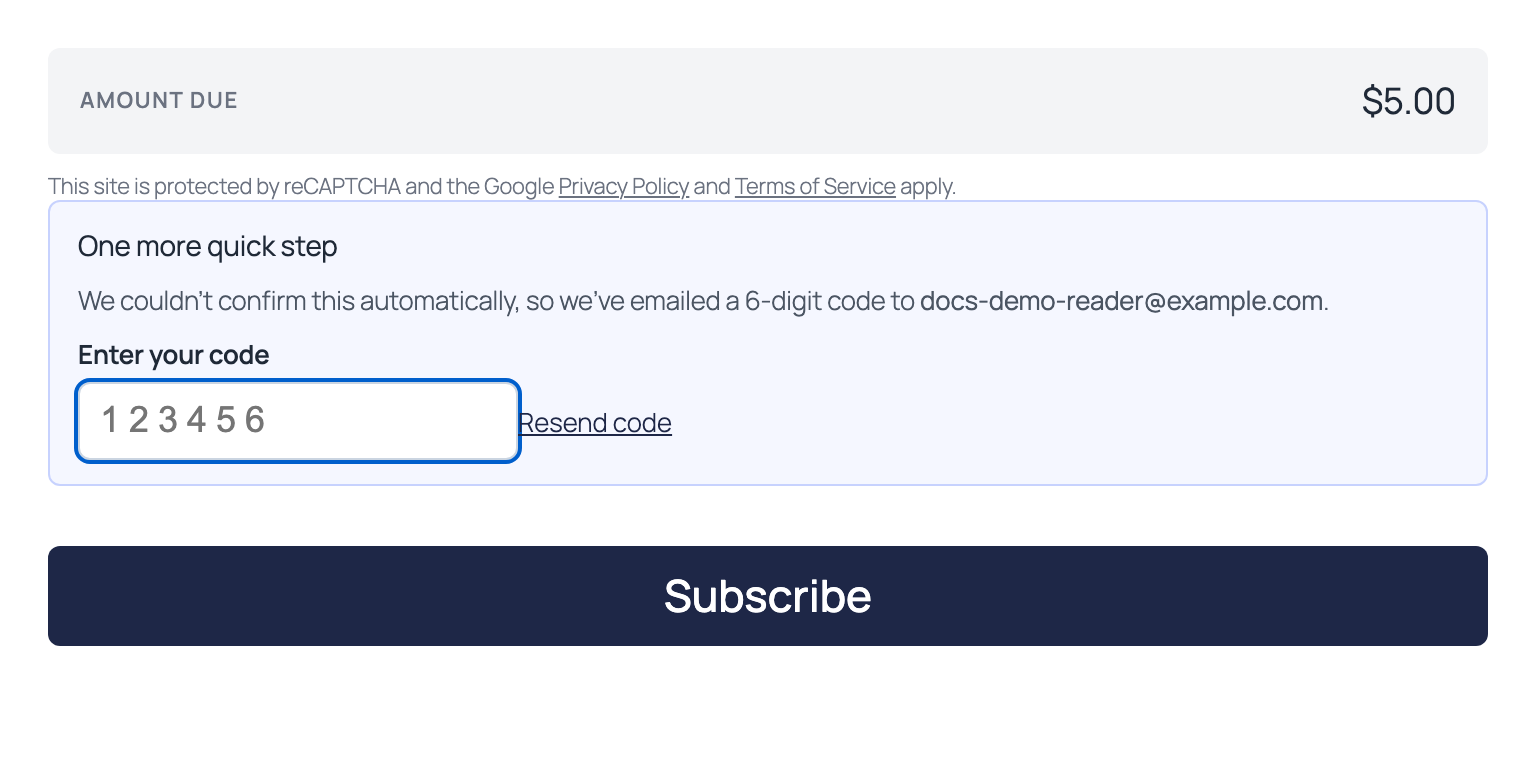
This works on every form reCAPTCHA protects:
- Claiming a free plan.
- Registering for an account.
- Paid checkout, in every layout: the standard form, the stepped form, and checkout hosted by Stripe. The card isn’t charged, and the reader isn’t sent to Stripe, until they enter the right code.
- The free registration prompt on the paywall. This prompt already confirms every new reader with an emailed code, so a low score doesn’t add an extra step there. See How the free registration funnel works.
A reader who is signed in gets the code at the email address on their account.
The same thing happens if you use reCAPTCHA v2 or Cloudflare Turnstile instead of reCAPTCHA v3.
About the code
- Each code works for 15 minutes.
- After 5 wrong codes, the reader must ask for a new one.
- An email address can get up to 10 codes per hour, and one network up to 20. These limits are shared with the free registration prompt.
Throwaway email addresses can’t get a code
Anyone can read the inbox of a throwaway email service. So PaywallProject won’t send a code to one. The reader sees “We can’t send a code to this email address. Please use a different one.”
This covers two lists:
- A built-in list of well-known throwaway services, such as mailinator.com, yopmail.com, guerrillamail.com and 10minutemail.com.
- Your own list in Blocked email domains under PaywallProject → Paywall.
A reader at one of these domains whose reCAPTCHA check passes isn’t affected by this. It only matters when reCAPTCHA can’t confirm them.
A limit on payment attempts
Card testers try stolen cards over and over. To stop them, one network can start up to 30 checkouts per hour. After that, the reader sees “Too many payment attempts from your network. Please try again later.”
This is well above what one reader needs, even with a few declined cards. It allows for many readers sharing one network, such as an office or a school.
If Google’s script is blocked or slow
Ad blockers, privacy tools and some office firewalls block Google’s reCAPTCHA script. Forms no longer wait for it forever. After about 10 seconds, the form sends without the reCAPTCHA result, and PaywallProject decides what happens next. On a protected form, that means the reader gets the code box described above.
The paywall’s email check
When a reader enters their email in the free registration prompt, PaywallProject checks whether that email already has an account. This check also uses reCAPTCHA.
- If reCAPTCHA can’t confirm the reader, the check still answers. An existing subscriber is asked to sign in, and isn’t sent a sign-up code they don’t need.
- These unconfirmed checks have a smaller allowance: 5 per network per hour. Confirmed checks allow up to 30 per network every 15 minutes.
- If the allowance is used up, the reader is emailed a code, as for any new reader.
Messages readers may see
- “We couldn’t confirm this automatically, so we’ve emailed a 6-digit code to [email].” The reader should check their inbox and enter the code.
- “We can’t send a code to this email address. Please use a different one.” The address is on a throwaway or blocked list.
- “Too many code requests. Please try again later.” or “Too many requests from your network. Please try again later.” A code limit was reached.
- “Too many payment attempts from your network. Please try again later.” The checkout limit was reached.
- “Please tick the security check box first.” Only with reCAPTCHA v2 or Cloudflare Turnstile, when the reader clicks the button before ticking the box.