
How to delete a user in WordPress
This guide will walk you through the process of deleting a user in WordPress
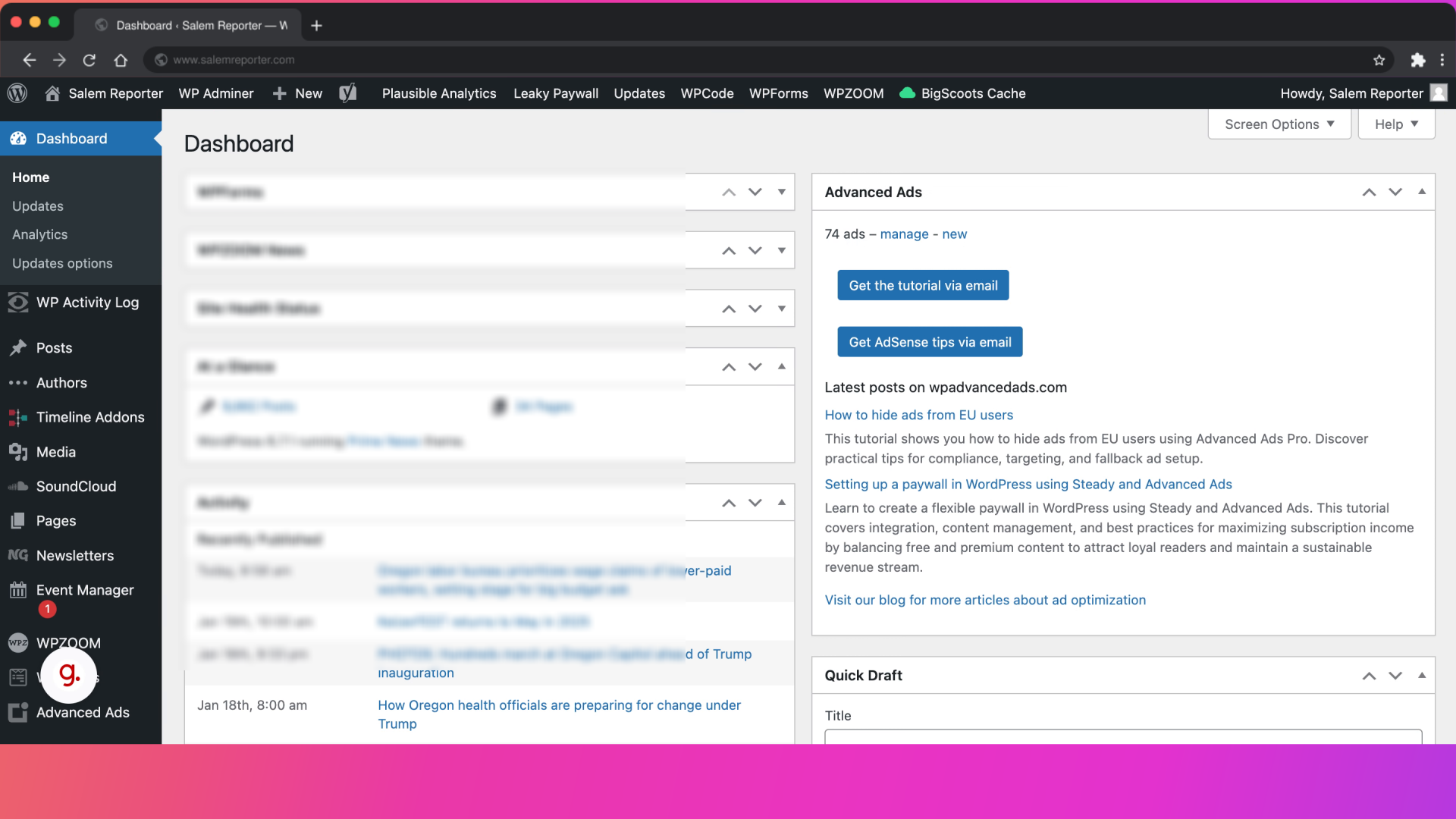
Go to www.salemreporter.com
1. Introduction
Whether you need to manage your team or clean up your user list, these steps will help you quickly remove unwanted accounts. Deleting a user will also delete the Leaky Paywall account. If an account has an active subscription in Stripe, please cancel it first.
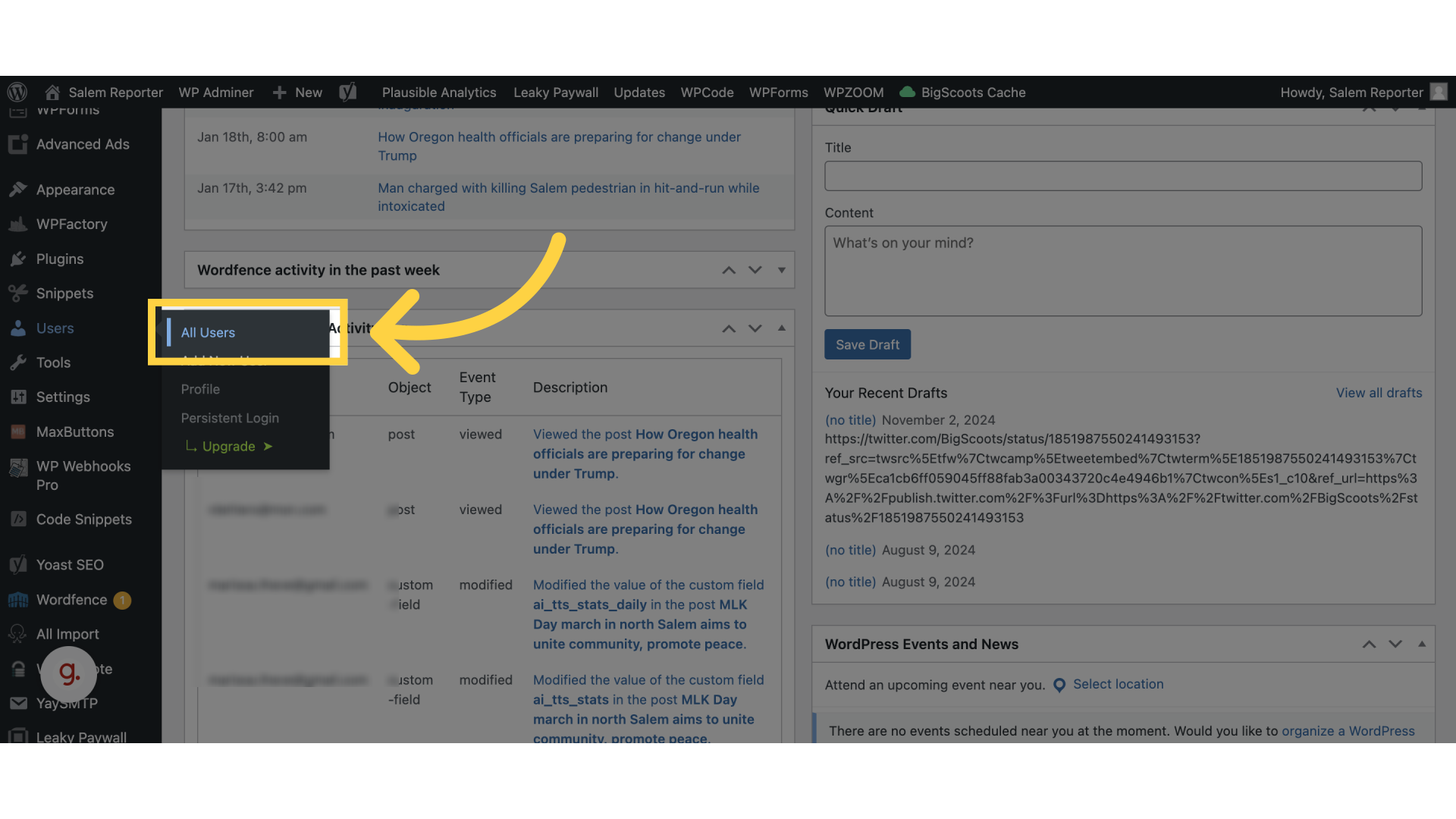
2. Click “All Users”
Navigate to the user management section.
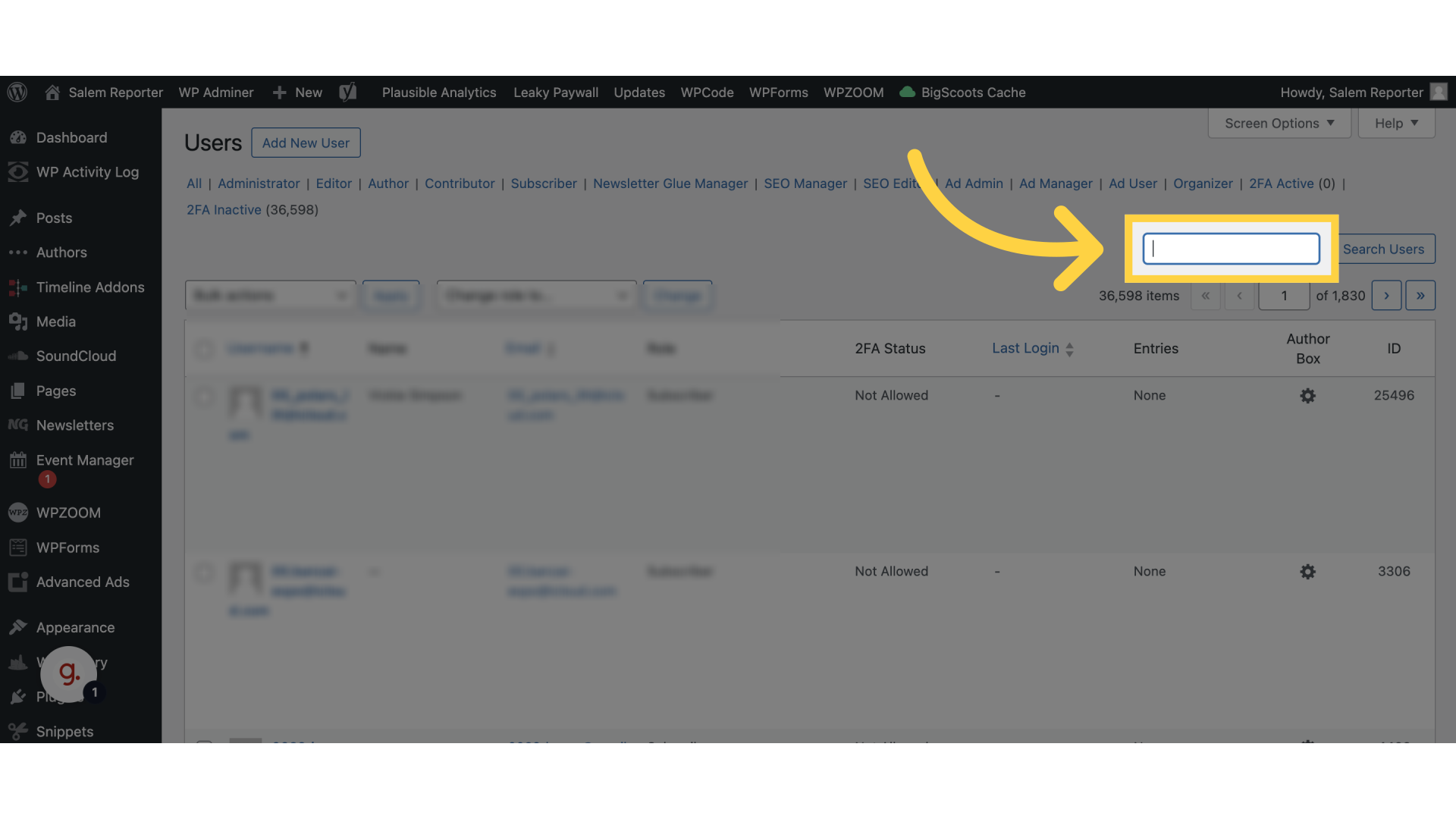
3. Click “Search Users:”
Locate the user you want to delete.
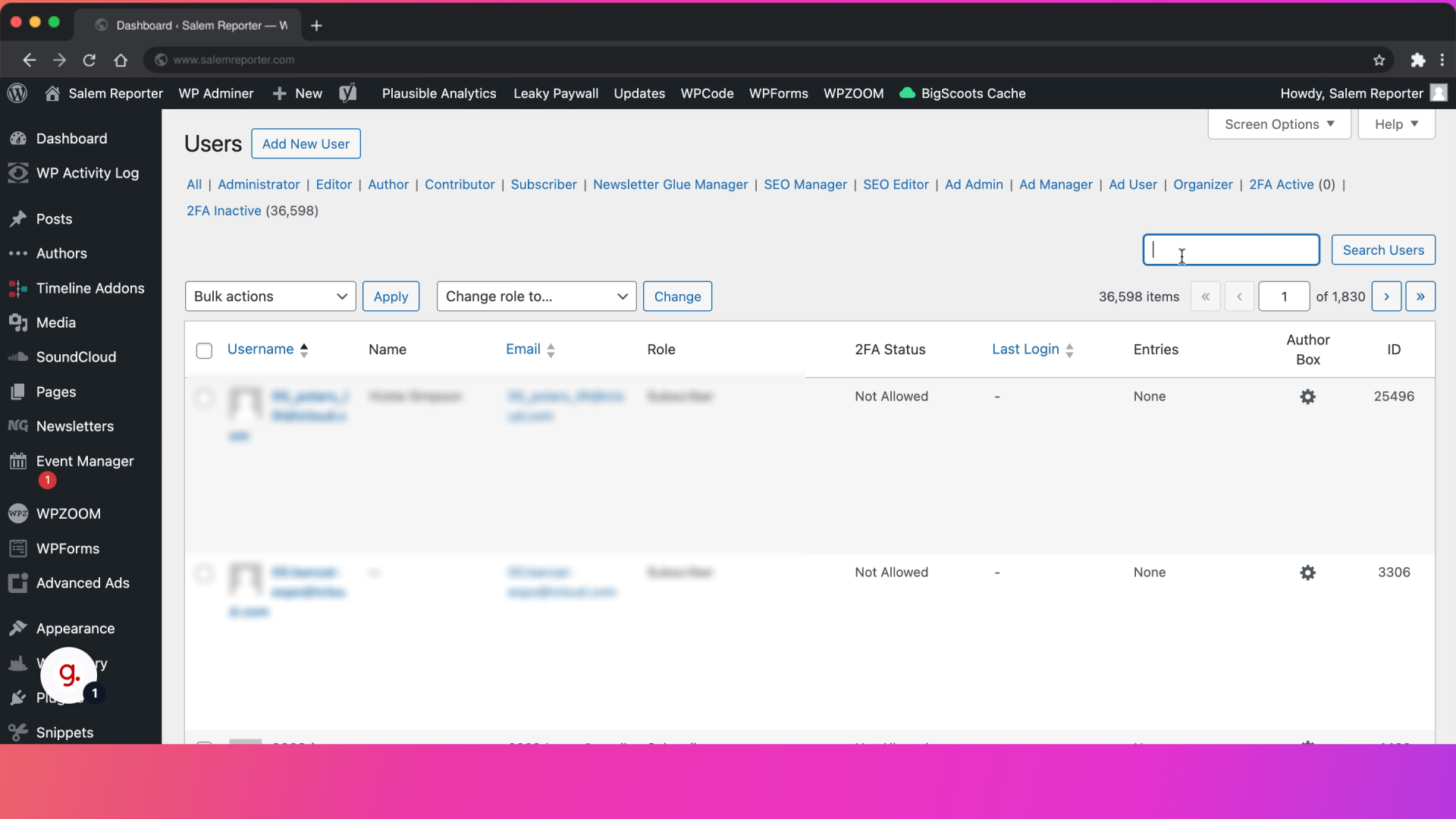
4. Fill “[email protected]”
Fill in “[email protected]”
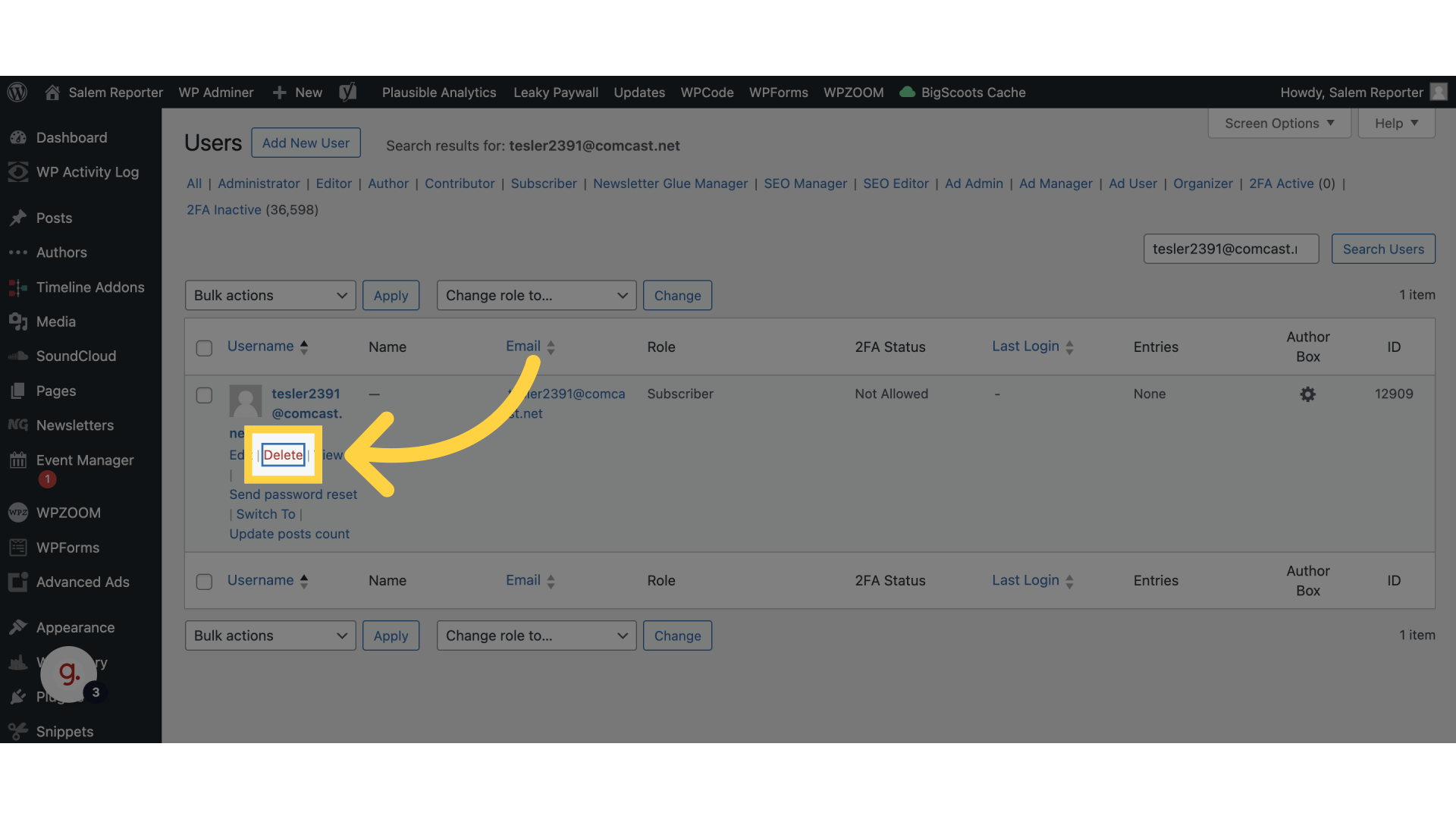
5. Click “Delete”
Initiate the deletion process for the selected user.
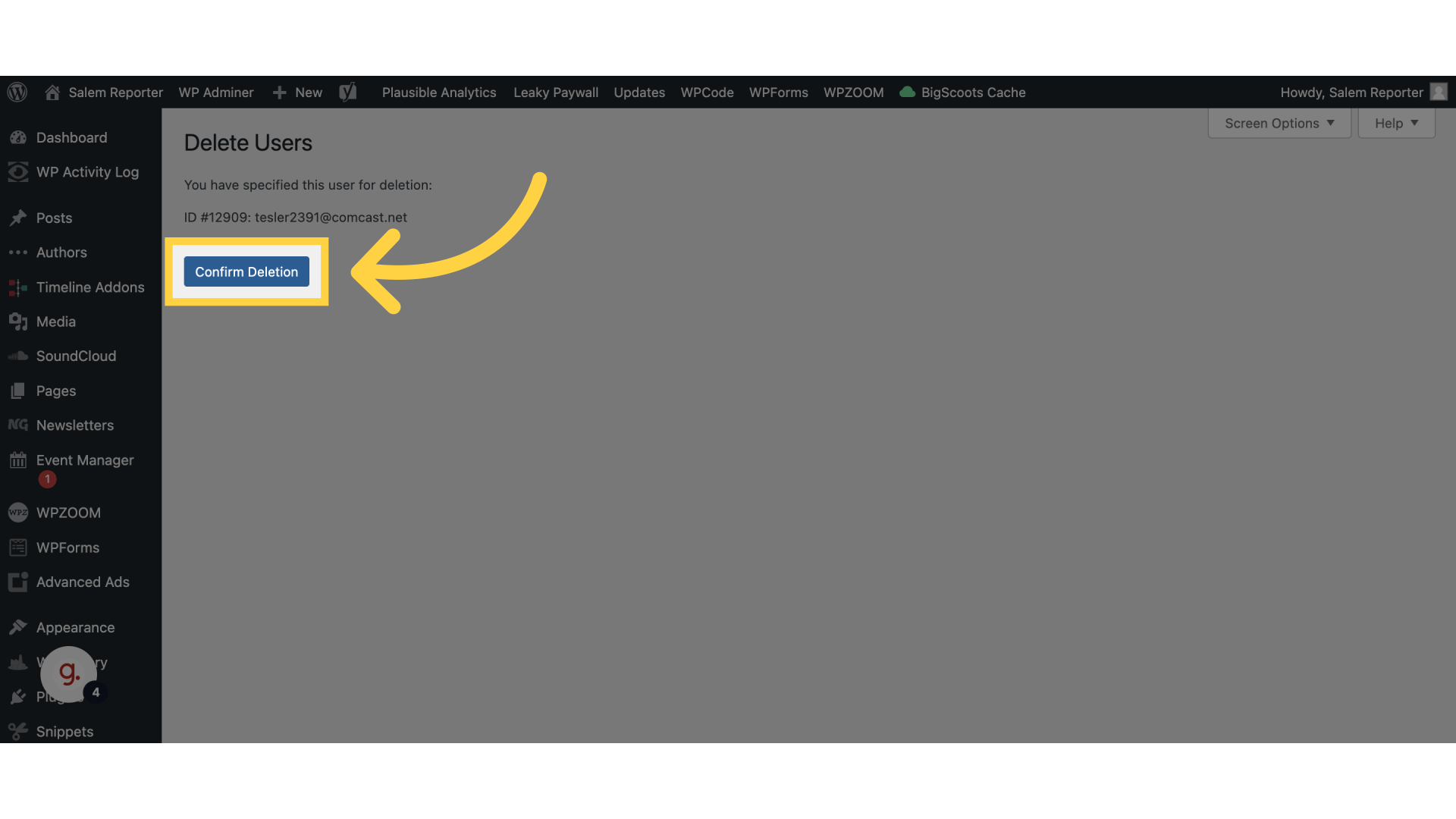
6. Click “Confirm Deletion”
Finalize the deletion of the user account.
This guide covered the steps to delete a user in WordPress efficiently. From navigating to user management to confirming the deletion, you can now easily manage your user list with these clear instructions.