1. Home
  2. Paywall
  3. How to update an expiration date in Leaky Paywall for a Stripe based customer
  1. Home
  2. Stripe
  3. How to update an expiration date in Leaky Paywall for a Stripe based customer

How to update an expiration date in Leaky Paywall for a Stripe based customer

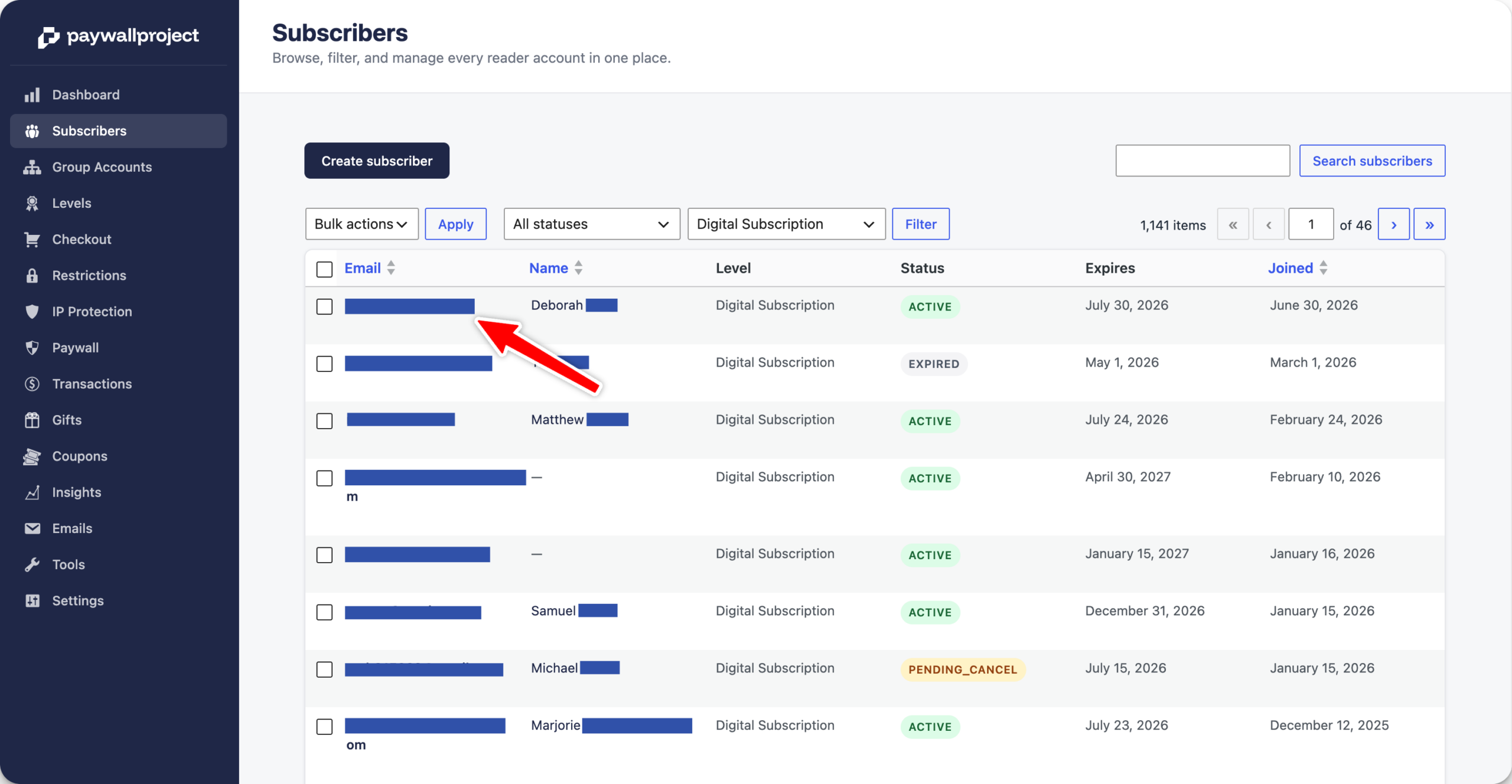
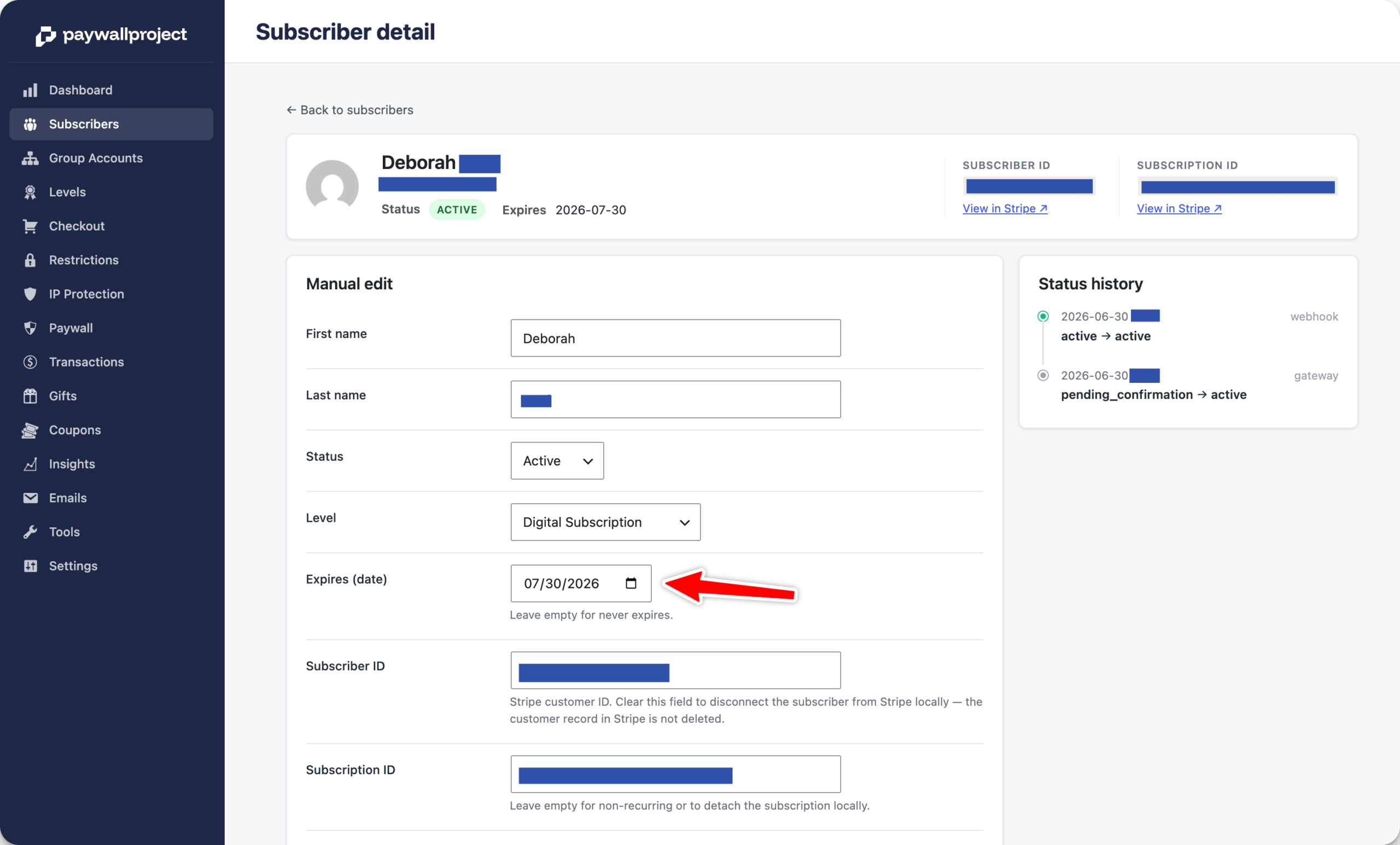
Important Note: If a Leaky Paywall subscriber doesn’t have an active Stripe subscription, you can update the subscription directly in Leaky Paywall within your site.

In order to update the expiration date for a user in Leaky Paywall that has an active Stripe-based subscription, please log in to your Stripe account.

Next, locate the customer in Stripe using the email or customer ID from Leaky Paywall.

Edit the active subscription by selecting the pencil icon that appears to the right when hovering over the active subscription.

Select “Add trial days” and select the date that should be the expiration date for the subscriber.

Don’t forget to select “Update subscription” button. And that’s it, Leaky Paywall will automatically update with the new expiration date.

Updated on January 12, 2026
Was this article helpful?
Get more help
Can't find the answer you're looking for? Get in touch.
Contact support