

You can give a plan to everyone at one organization, such as a school district, an employer or an association, without handing out a coupon to each person. You list the organization’s email domains on the plan. Readers with an address at those domains confirm it with a one-time code, and they get the plan at no charge.
This works on free plans and on paid plans. On a free plan, only readers at the listed domains can sign up. On a paid plan, readers at the listed domains get it free, and everyone else pays the normal price.
Before you start
- You need administrator access to your WordPress dashboard.
- Get the email domains the organization uses. In this article, the organization is Example County Schools and its domain is
example.com. Ask the organization if you’re not sure. Some use more than one. - Make sure the code email is on. Go to PaywallProject → Emails, open Email verification code and check that Send this email when triggered is ticked. Readers can’t claim the plan without this email. Free registration uses the same email.
Set up the plan
- In your WordPress admin, go to PaywallProject → Levels.
- Click Add level to make a new plan, or click Edit next to an existing one.
- Give the level a Name, for example “Staff Plan”.
- Under Pricing, choose the Payment type. For a plan that only the organization’s people can take, choose Free (account required). To give a paid plan free to the organization and sell it to everyone else, keep the paid type and price.

- Under Access, find Free for these email domains. Type each domain on its own line, for example
example.com. Don’t type the@. Subdomains are included, soexample.comalso coversstaff.example.com. - When you type a domain, the What readers at those domains are told box appears. Write a short line that says who the plan is for, for example: “Free for Example County Schools staff. Enter your school email and we will send a code to confirm it.”
- Optional: if the plan shouldn’t appear in your public list of plans, tick Hide from subscribe page. You can then share the plan’s direct link with the organization instead.
- Click Save level.
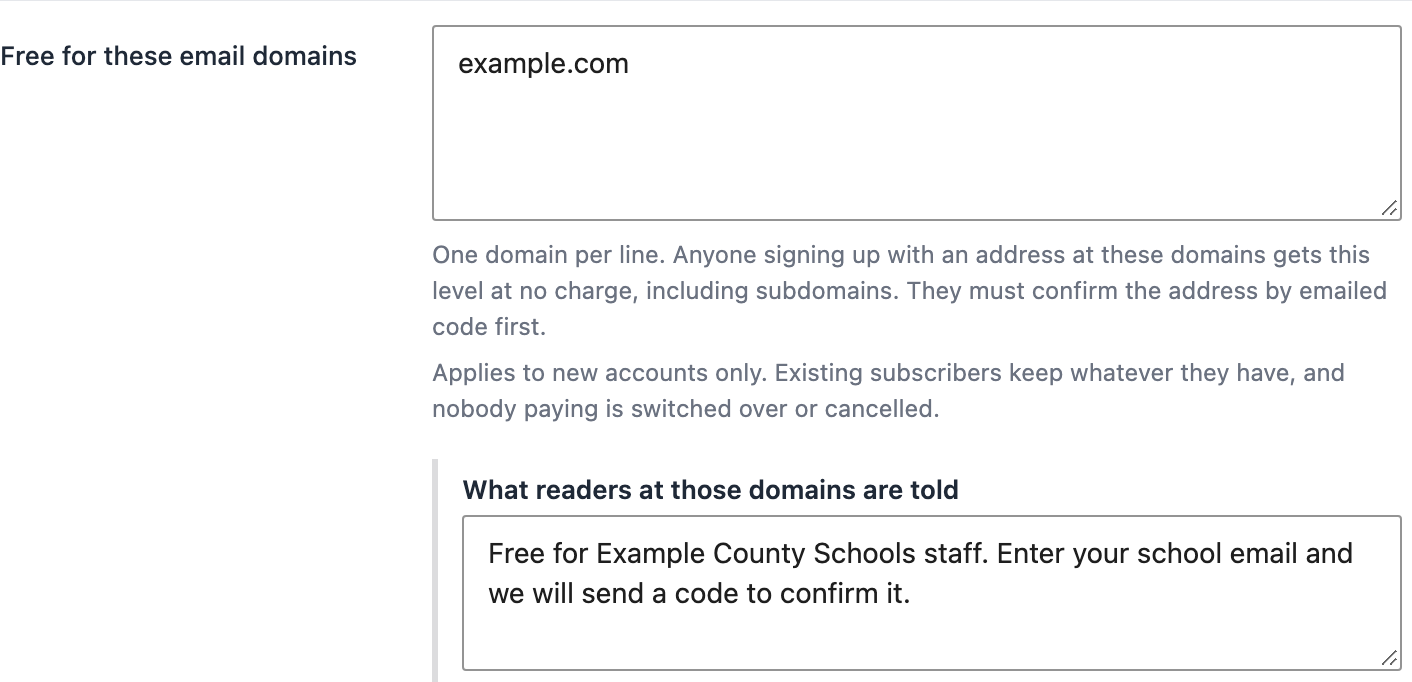
If you leave What readers at those domains are told blank, readers see the general wording: “This plan is for members of specific organizations. Enter your organization email address and we will send a 6-digit code to confirm it is yours.” Your own wording is better, because it can name the organization.
Share the plan
On PaywallProject → Levels, the Direct link column shows a link that opens the checkout for this plan. Click Copy link and send it to the organization, for example in a staff newsletter.
What the reader sees
Since PaywallProject 4.0, free plans use the same checkout layout as your paid plans, including the standalone checkout. You choose the layout under PaywallProject → Checkout → Page template, or per plan under Checkout page template in the level’s Checkout section.
On a free plan with email domains, the reader sees your text above the sign-up form:
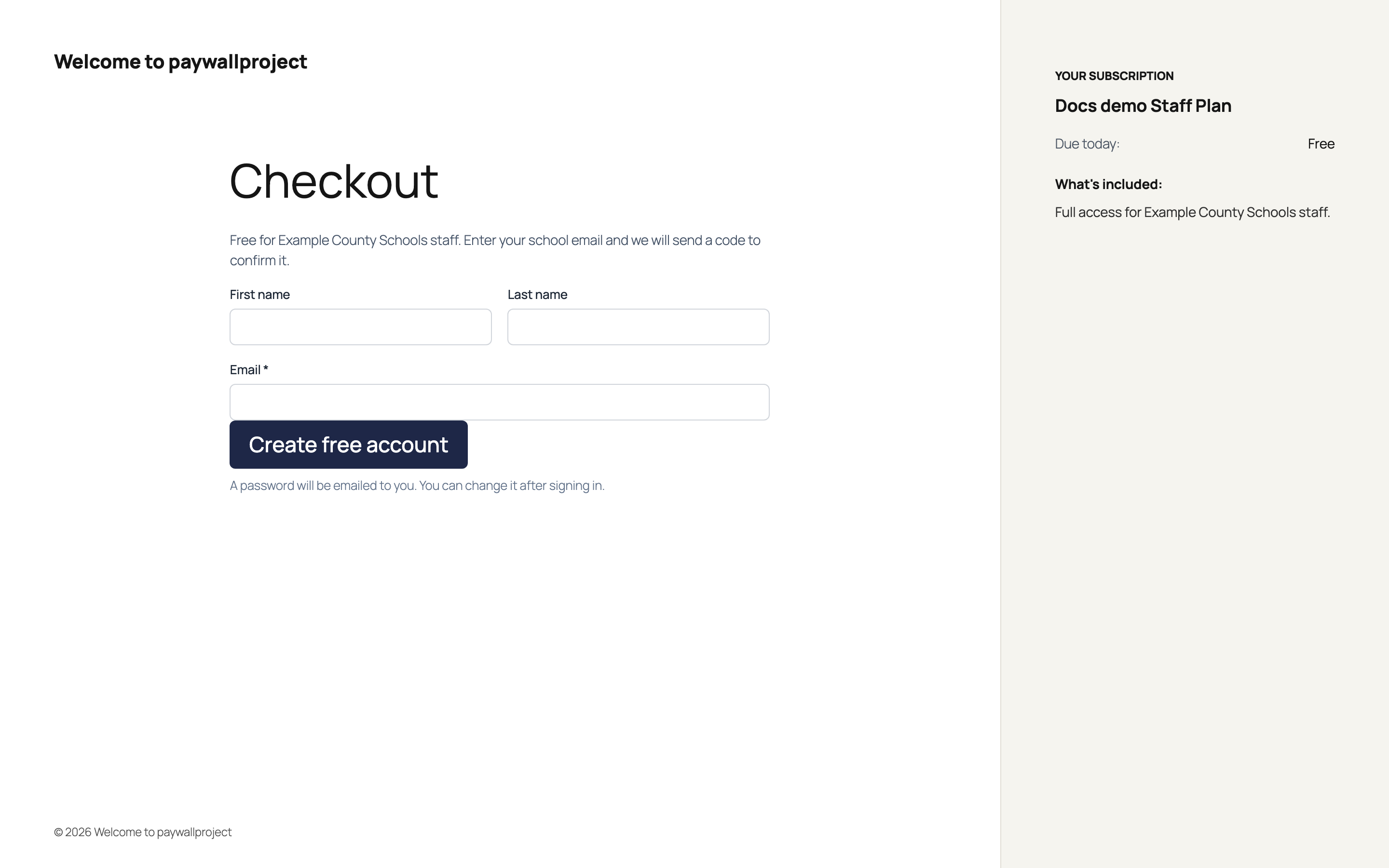
- The reader fills in the form with their work email and clicks Create free account.
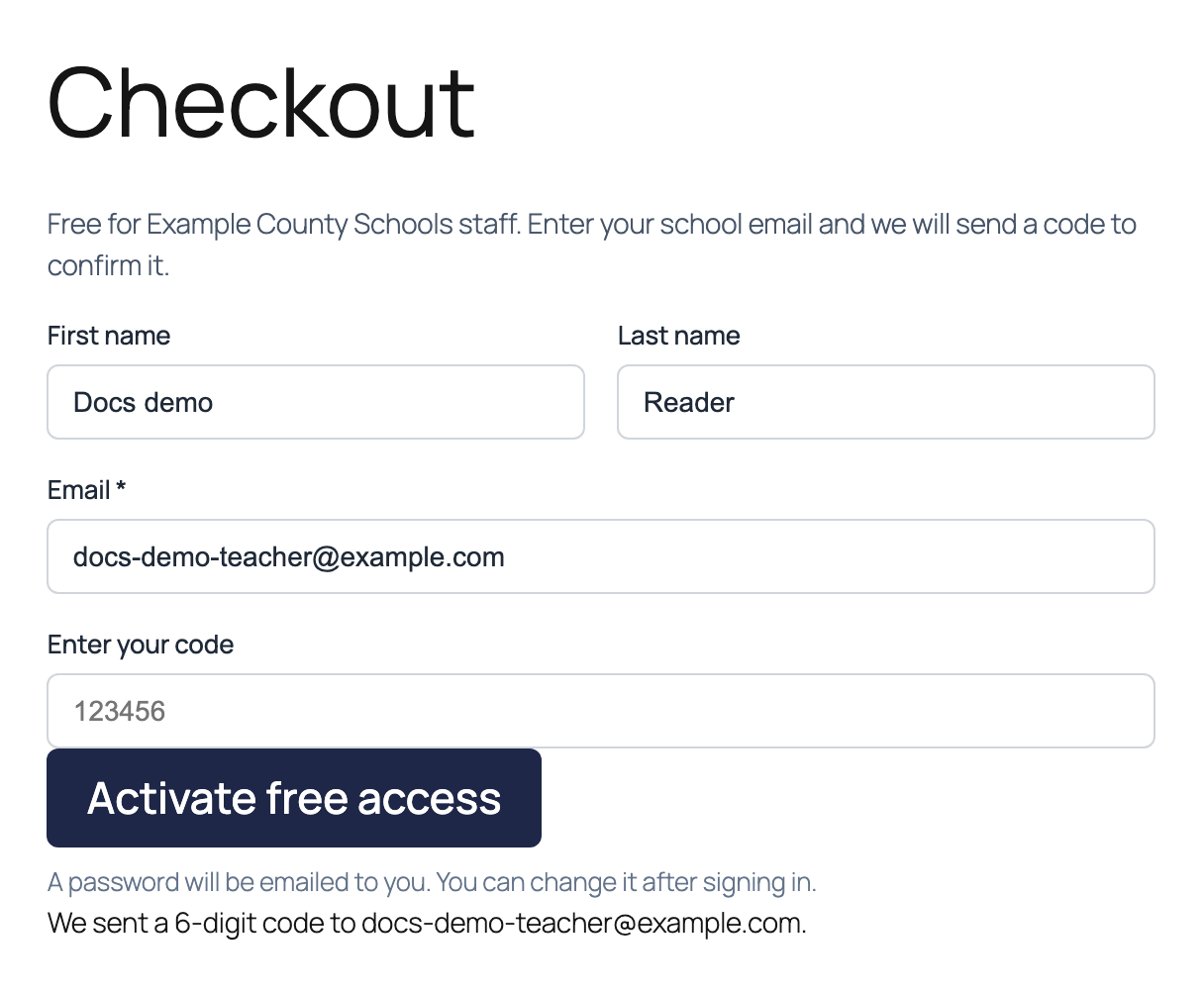
- PaywallProject checks the address. If it’s at one of your domains, it emails a 6-digit code and shows an Enter your code field.
- The reader types the code and clicks Activate free access. Their account is created, they’re logged in, and the plan starts. If your welcome email is on, they get it too.
The reader doesn’t choose a password during sign-up, and no password is emailed to them. PaywallProject gives the account a random password that nobody sees. The welcome email doesn’t contain a password either. To sign in again later, the reader sets their own password in one of two ways:
- While still logged in: go to the My Account page. In the Profile card, type a password of at least 8 characters in New password and Confirm new password, then click Save profile.
- After logging out: on the My Account page, click Forgot password?, enter the work email and click Send reset link. The email has a link to choose a new password.
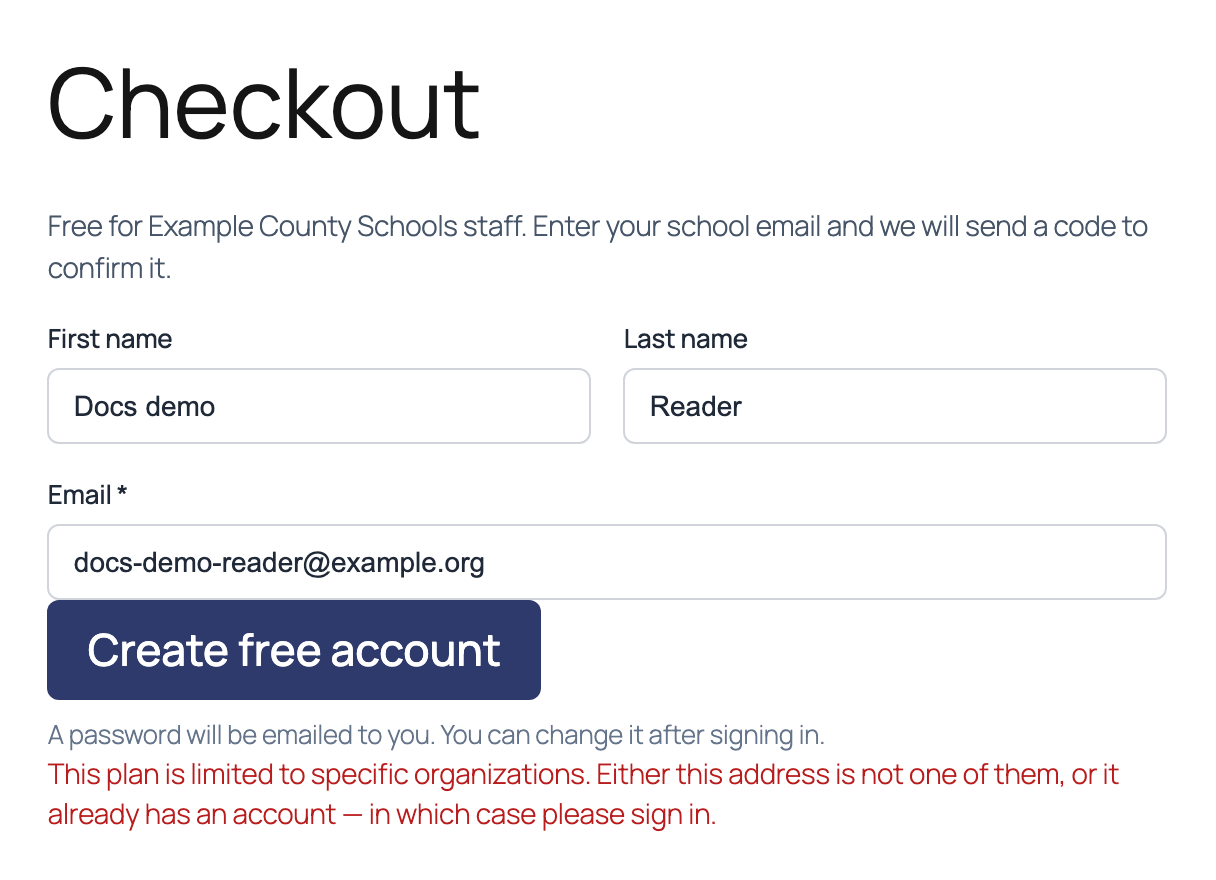
If the address isn’t at one of your domains, or it already has an account, the reader sees a message and no code is sent:
On a paid plan with email domains, the checkout looks the same as always. When a reader types an address at one of your domains, a You’re eligible for free access box appears. They click Send the code to this email, enter the code, and click Activate free access. They can also click No thanks, I will pay for this plan and pay as usual.
Good to know
- New accounts only. The free access applies only while a new account is being created. A reader who is logged in, or who already has an account with that address, can’t claim it. Existing subscribers keep what they have, and nobody who pays is switched over or cancelled. To move an existing reader onto the plan, open them under PaywallProject → Subscribers and change their Level yourself.
- The code is required. Typing an address isn’t enough. The reader must prove it’s theirs with the emailed code. The code works for 15 minutes. After 5 wrong tries, the reader must ask for a new code.
- Ignore “A password will be emailed to you”. The sign-up form shows this line under the button, but no password email is sent. If readers ask, point them to the two ways to set a password above.
- Check the code email arrives. Some school and company mail systems filter outside email. If readers say no code came, ask them to check spam, or ask the organization’s IT staff to allow email from your site.
- A free plan with no domains stays open to anyone. Domains are what limit it.
- Page template needs inline checkout. The full page and standalone templates apply when PaywallProject → Checkout → Checkout style is set to Inline checkout.
- Removing a domain stops new sign-ups from that domain. Readers who already joined keep their plan.