

PaywallProject follows your WordPress site language. Set the site to Spanish and readers see the paywall, checkout, sign-in, account and gift pages in Spanish. This article covers Spanish, how to change any wording, and how to use another language.
Show PaywallProject in Spanish
- In WordPress, go to Settings → General.
- Set Site Language to Español (Spain) or Español de México. PaywallProject includes both, and both use the same translation.
- Select Save Changes. WordPress downloads its own Spanish files the first time, if your host allows it.
- If your site uses a page cache, clear it so readers get the Spanish pages.

Readers now see PaywallProject in Spanish:
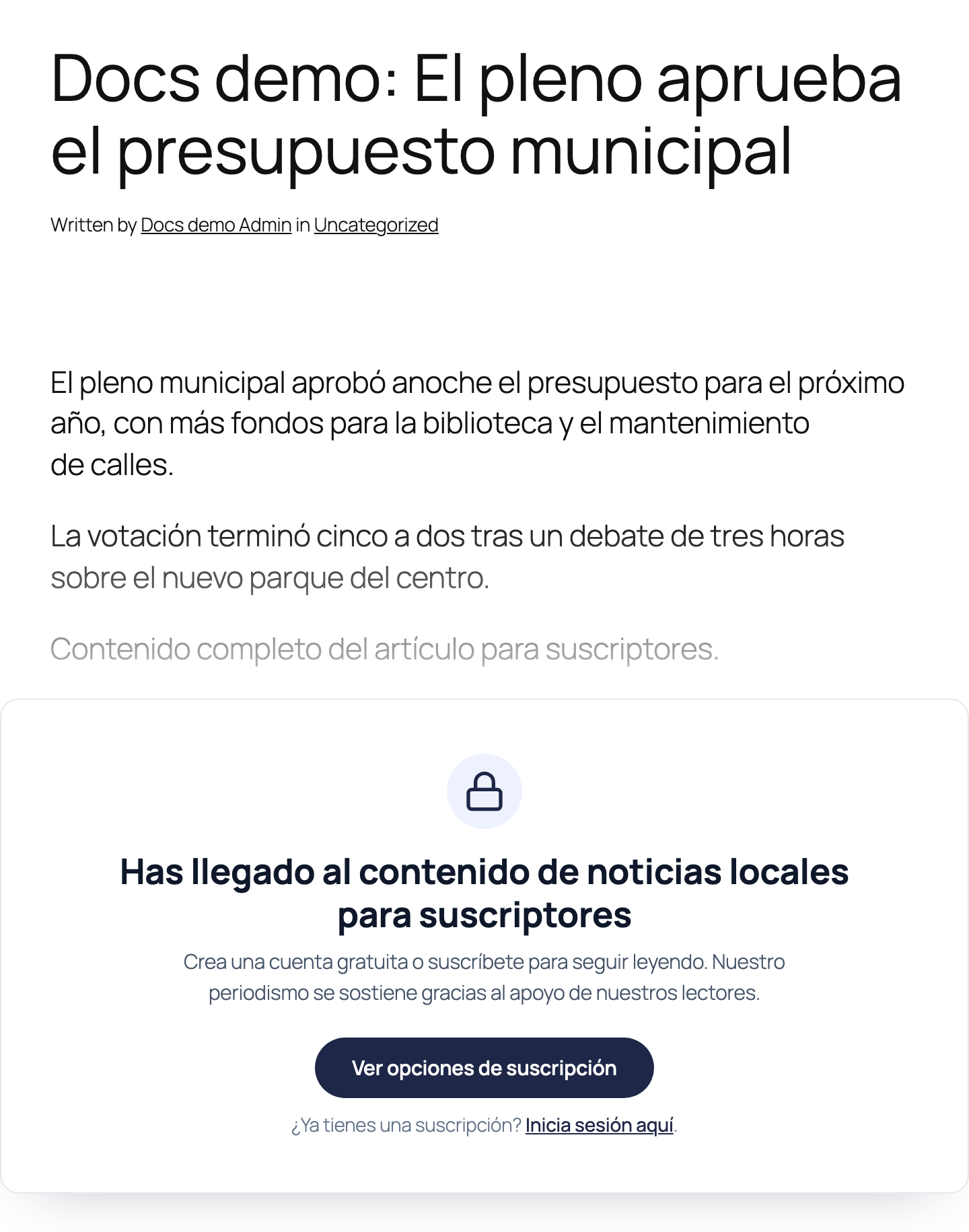
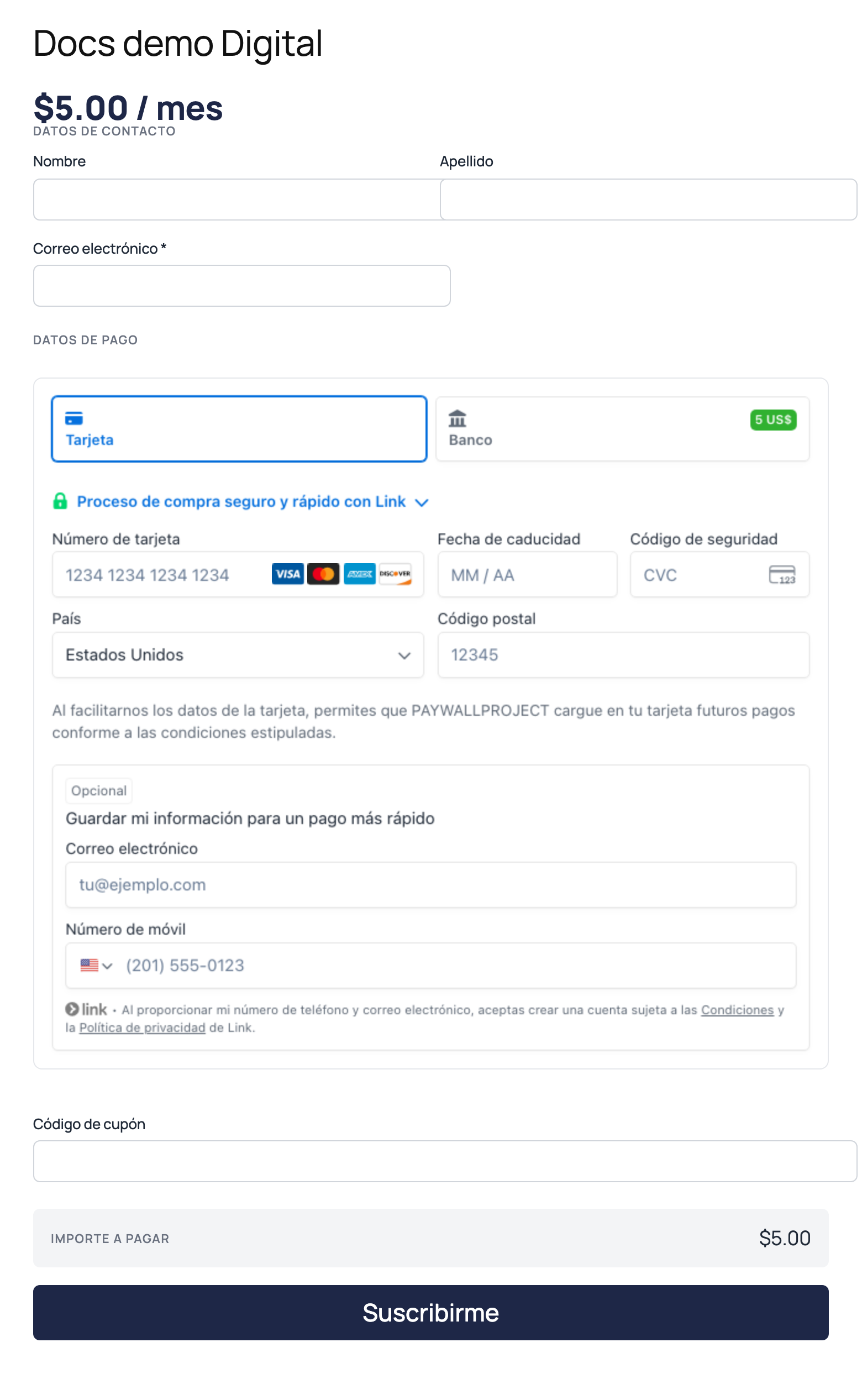
Your own admin screens can stay in English. Go to Users → Profile, set Language to English (United States) and save. Each person on your team can pick their own admin language this way. The site language only decides what readers see.
What is translated
- The paywall and free registration boxes, when you haven’t typed your own text for them.
- Plan lists and checkout, including billing words such as “/ mes” and every message checkout shows while a reader types, such as coupon checks and the sign-in step.
- Sign-in, password reset, My Account, gift subscription and gift article pages.
- The default email templates, such as the welcome email and renewal reminders.
- The PaywallProject admin screens, for anyone whose admin language is Spanish.
What you translate yourself
Anything you typed stays exactly as you typed it, in any language. Check these after you switch:
- Paywall text. Go to PaywallProject → Paywall. In Free registration box, Subscribe box, Upgrade box (capped subscribers) and the comment boxes, any field you filled in is shown as written. Empty fields use the translated default. Rewrite your text in Spanish, or clear a field to use the default. Per category overrides work the same way.
- Level names, descriptions and button text. Edit each level under PaywallProject → Levels.
- Emails you have edited. A template you saved on the Emails screen keeps your wording. Go to PaywallProject → Emails, open the template, and rewrite the Subject and Body, then select Save template. Or select Revert to default to use the translated default. Check any custom version you made for a single level too. Keep merge tags such as
{first_name}and{site_name}exactly as they are; don’t translate them. - Page titles and menus, such as your Subscribe and My Account pages. Edit them in WordPress like any other page.
- Your theme and other plugins. They have their own translations. Text such as “Written by” in the screenshot above comes from the theme.
Stripe card fields
You don’t set a language for Stripe. The card fields on your checkout and Stripe’s own checkout page follow each reader’s browser language. A reader whose browser is set to Spanish sees Spanish card fields, whatever language your site uses.
Change a word or translate another language
PaywallProject keeps its translations in its languages folder. The Spanish files are paywallproject-es_ES.po and paywallproject-es_MX.po, with matching .mo, .l10n.php and .json files. Don’t edit those files directly: every PaywallProject update replaces them.
To change a word in the Spanish translation, or to add a language PaywallProject doesn’t include, use the free Loco Translate plugin.
- Install and activate Loco Translate.
- Go to Loco Translate → Plugins and choose PaywallProject.
- To change Spanish, select Copy next to the Spanish file, and save the copy in the Custom location. To add a language, select New language, pick it, and choose the Custom location. Files in Custom aren’t replaced when PaywallProject updates.
- Find the text, type your translation and select Save. Loco Translate also writes the files that checkout’s scripts read, so messages shown while a reader types change too.
- Set that language as your Site Language under Settings → General, and clear your page cache.
You can also help translate PaywallProject for every publisher on translate.wordpress.org. Once a language has enough approved translations there, WordPress downloads it to sites in that language automatically.
Good to know
- Only Español and Español de México are included. Other Spanish choices, such as Español de Argentina or Español de Colombia, show PaywallProject in English. To use one of them, copy the Spanish file into that language with Loco Translate, as described above.
- Dates and prices follow your settings. The date format is under Settings → General. Currency, its position and separators are under PaywallProject → Settings → General.
- One site shows one language to readers. PaywallProject doesn’t switch language per reader.
- If WordPress has also downloaded a PaywallProject translation from translate.wordpress.org for your language, WordPress uses it for the text it builds on the server. Loco Translate’s Custom files take priority over both.