
In some instances, you may find yourself needing to manually change the subscription for a customer in order to change pricing.
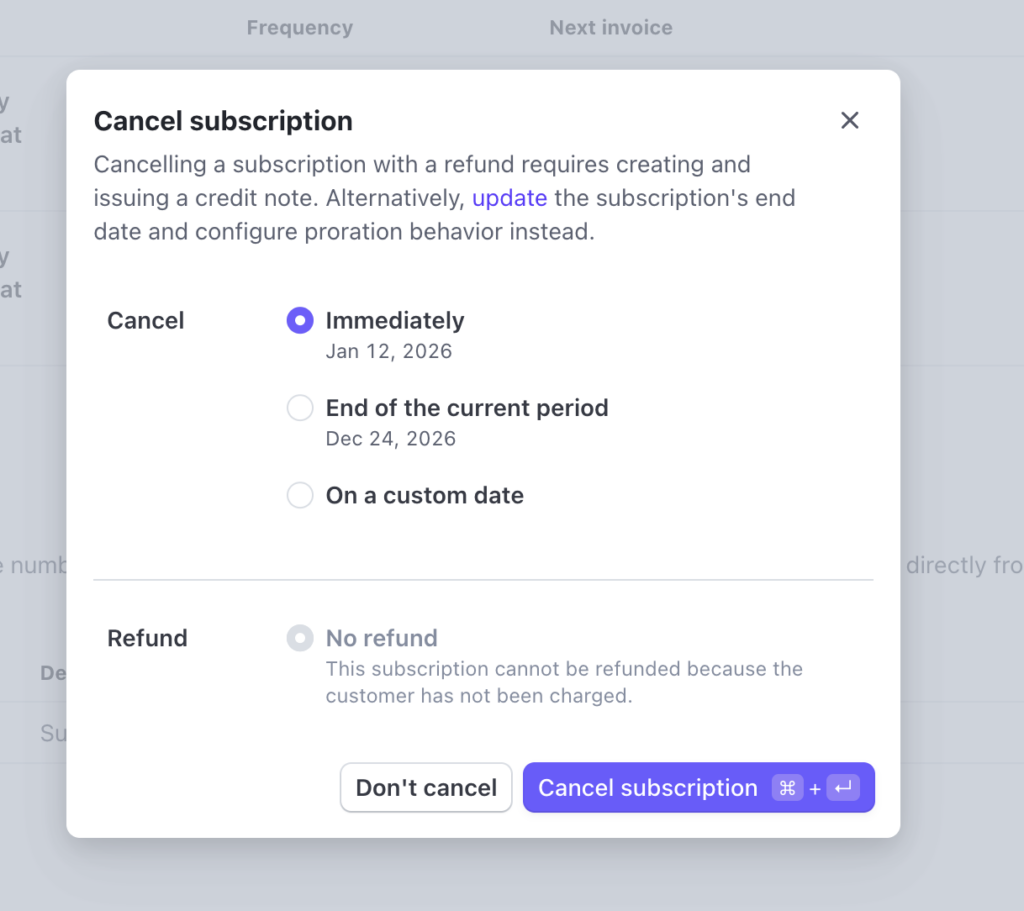
Locate the customer in Stripe and cancel the subscription.

Cancel the subscription Immediately.
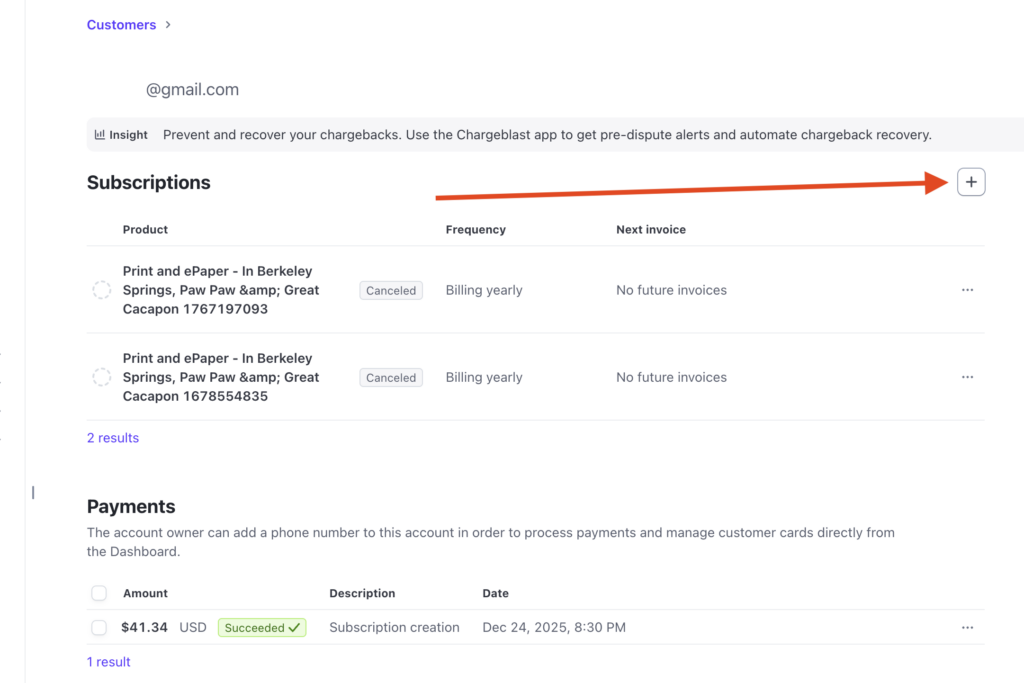
Now that the old subscription is canceled, lets add the new one. Select the + icon.
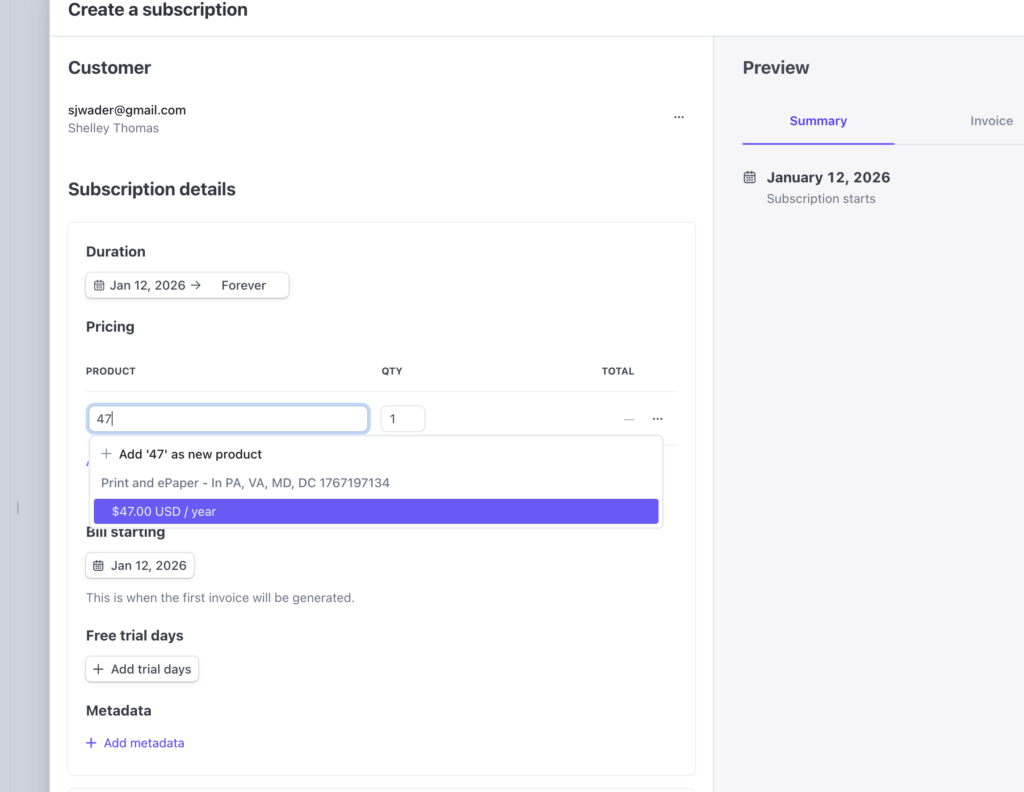
Locate the new subscription you’d like to apply. Searching by the subscription’s price makes it easier to find.
Disable the “Collect tax automatically” option.

Select the date for the next payment. This also acts as the expiration date.

Don’t forget to “Create subscription” button and that’s it! Leaky Paywall will automatically update the expiration date.