

When you connect an AI app to your site with MCP, the app gets a set of PaywallProject tools. You ask in plain words, for example “Find the subscriber [email protected] and tell me why their card failed,” and the app picks the right tool. This article lists what the app can look up and what it can change, and how PaywallProject protects actions that move money.
To connect an app first, see Connect Claude, Cursor or another AI app to PaywallProject (MCP).
How it works
- The app acts as the WordPress user who made the connection. It can do only what that user’s account can do. Every tool checks the user’s permissions each time it runs. Subscribers can’t use the tools.
- PaywallProject has its own MCP server on your site, at the endpoint shown under PaywallProject → Settings → AI and MCP. The tools aren’t on the MCP Adapter’s default server.
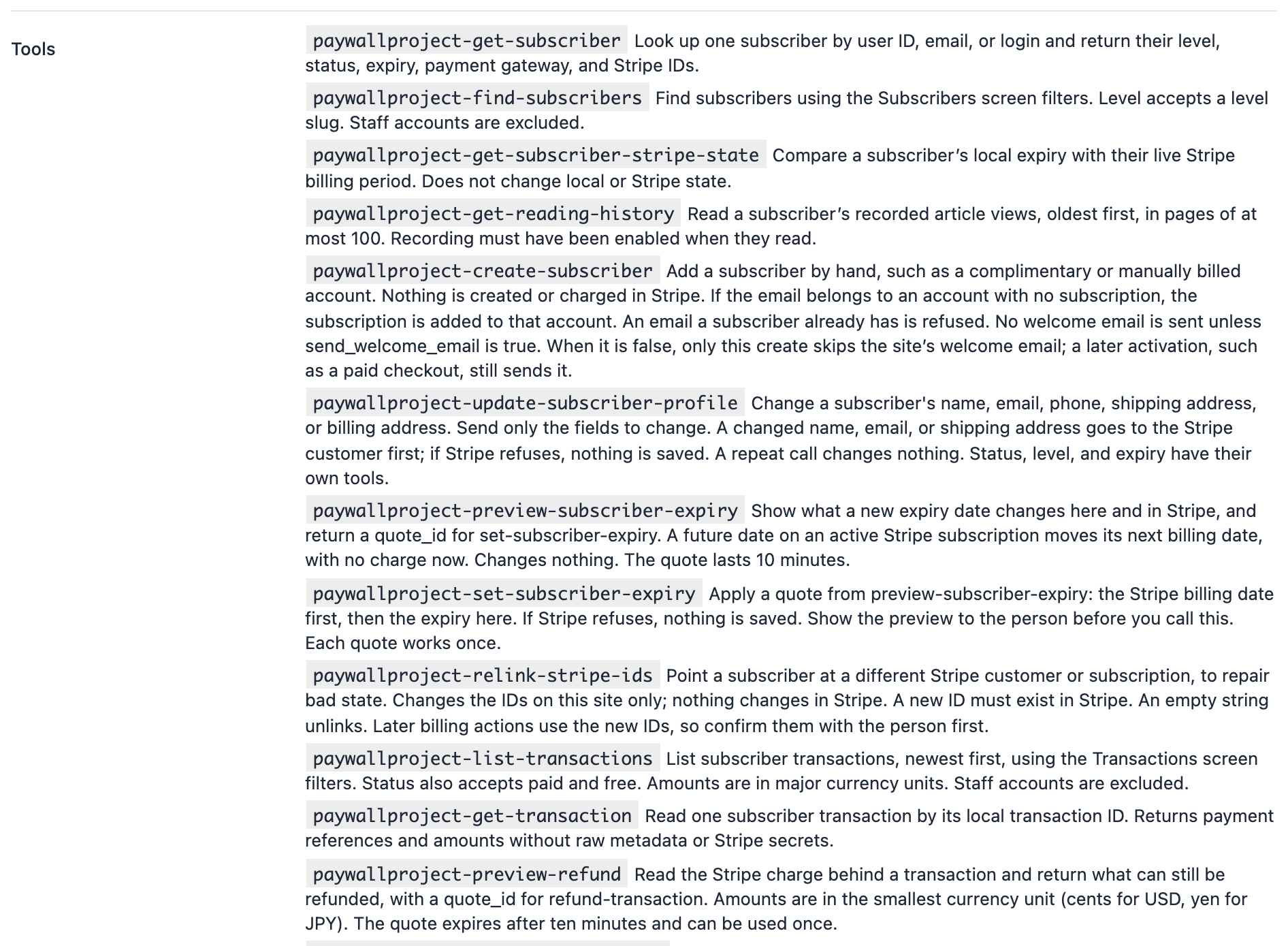
- There are 63 tools. You can see every tool’s name and a short description: on the AI and MCP tab, open Advanced: set up by hand and look under Tools.
What the app can look up
Looking things up changes nothing.
- Subscribers: find subscribers with the same filters as the Subscribers screen. Read one subscriber’s level, status, expiry and Stripe IDs. Compare their expiry with their billing period in Stripe. Read their reading history.
- Payments: list transactions with the Transactions screen filters, and read one transaction.
- Your plans and offers: levels, coupons, gift subscriptions, group accounts and their members, and IP exceptions.
- Article access: explain whether a reader can read a post and why, using the same decision the paywall makes.
- Emails: read an email template, including a level’s own version.
- Reports: the Dashboard numbers for the last 30 days, reader activity, warm leads and the gifted-article report.
- Checks and logs: the system status (plugin, WordPress and PHP versions, and the Stripe mode), the event log from the Tools screen, and the audit log of changes.
- Settings: read one settings tab. Stripe keys, webhook secrets, captcha keys and other passwords always read as
[redacted].
What the app can change
Subscribers
- Add a subscriber by hand, for example a free or manually billed account. Nothing is created or charged in Stripe. No welcome email is sent unless you ask for one.
- Import subscribers from another platform. The app can read the old system directly: MemberPress, Paid Memberships Pro, Restrict Content Pro or WooCommerce Subscriptions data on your site (even with the plugin deactivated), your connected Stripe account, or Ghost and Memberful with an API key you paste in PaywallProject → Tools → Import subscribers. The app never sees that key. It can also preview a whole export. Either way, you approve a preview first, and only the rows you approved are imported, with their existing Stripe IDs linked. Nothing is charged or created in Stripe, and no email is sent. In PaywallProject 4.2.0 and later. See Move subscribers to PaywallProject with an AI app (MCP).
- Change a subscriber’s name, email, phone, shipping address or billing address. A changed name, email or shipping address goes to Stripe first. If Stripe refuses, nothing is saved.
- Change a subscriber’s expiry date. This can move their next billing date in Stripe. It needs a preview first.
- Point a subscriber at a different Stripe customer or subscription, to repair bad data. This changes only your site, not Stripe.
- Check a subscriber against Stripe and, if you ask, move a lagging expiry date forward to match Stripe.
Subscriptions and billing
- Cancel a subscription, now or at the end of the paid period. The app must say which. Ask for one clearly: “now” ends access and billing at once. WooCommerce subscriptions can’t be canceled this way.
- Undo a cancel at the end of the period, so the subscription renews as normal.
- Change a subscriber’s plan, with a preview first.
- Bring back a canceled or expired subscriber, or start a subscription for a subscriber who has none, with a preview first.
- Refund a payment, with a preview first.
- Apply one of your coupons to a subscription, or remove a discount. This changes future invoices. It doesn’t charge anything now.
- Void an open invoice, so Stripe stops trying to collect it. This can’t be undone, and it doesn’t cancel the subscription.
- Create a Stripe billing portal link, where the subscriber updates their own card. The app never asks for or accepts card details.
Gifts, groups and emails
- Give a subscriber extra gift articles this month, restart their count, or remove the extras.
- Resend a paid gift subscription’s email to its recipient.
- Resend the welcome email, or a group invitation.
- Create a group account, add or remove members, and change the number of seats.
Levels, coupons and content
- Create, change or delete a level. A new price applies to new checkouts only. Existing subscribers stay on their old price.
- Create, change or delete a coupon. Subscriptions that already have a deleted coupon’s discount keep it.
- Set who can read a post or page, as the Paywall visibility box in the post editor does.
- Add or delete an IP exception.
Settings and emails
- Change settings on one settings tab. The app can’t change Stripe keys, webhook URLs and secrets, captcha keys, the Slack URL, the restriction rules, bypass roles, comment gate levels, newsletter lists, paywall category copy or AI Shield bots. Change those on the Settings screen.
- Add a registration field.
- Change an email template, and send a test email or a test webhook.
Previews for money actions
Five changes can charge, credit or refund money, or move a billing date. For these, the app can’t act in one step. It must ask for a preview first:
- Refund: the preview shows what’s left to refund on the payment.
- Plan change: the preview shows what Stripe charges or credits today, prorated.
- Bring back a subscriber: the preview shows what Stripe charges now. A subscription set to cancel at the end of the period resumes with no charge.
- Start a subscription: the preview shows the first charge and when it happens.
- New expiry date: the preview shows what changes on your site and in Stripe.
Here’s how it goes:
- You ask, for example: Refund the last payment for [email protected].
- The app gets the preview and shows you the subscriber and the amount. Nothing has changed yet.
- You check it and tell the app to go ahead. Your app asks you to allow the tool. Allow it only if the details are right.
- Stripe acts first. Only when Stripe succeeds does your site save the change. If Stripe refuses, for example because a card is declined, nothing is saved.
A preview is valid for 10 minutes and works once. It belongs to one subscriber (and, for a refund, one payment) and to the Stripe mode it was made in. PaywallProject refuses it, and the app has to get a new preview, when:
- it’s older than 10 minutes, or was already used;
- it’s used for a different subscriber, payment or level;
- the Stripe mode changed between test and live;
- something it was based on changed, such as the price, the discount, the subscription, or a refund made in the meantime.
For a refund, the app can refund part of the amount. If it doesn’t give an amount, it refunds everything the preview allows. When the app brings back a subscriber or starts a subscription, previews also belong to the person who made them, so one staff member can’t use another’s preview.
PaywallProject can’t make your app show you the preview. It makes the preview a required step and marks the tools that charge, cancel or delete things, so your app knows to ask you. Keep your app’s permission prompts turned on.
Some billing changes have no preview: a cancel, applying or removing a coupon discount, and voiding an invoice. Read what the app wants to do before you allow these.
More safety rules
- Check the Stripe mode. Ask the app for the system status to see if your site is in test or live mode. The tools can’t switch the mode.
- A refund doesn’t cancel. Refunding a payment doesn’t cancel the subscription or remove access. Ask for a cancellation on its own.
- Write limit. Each connection can make 30 changes per minute. Lookups and previews don’t count. See The write limit.
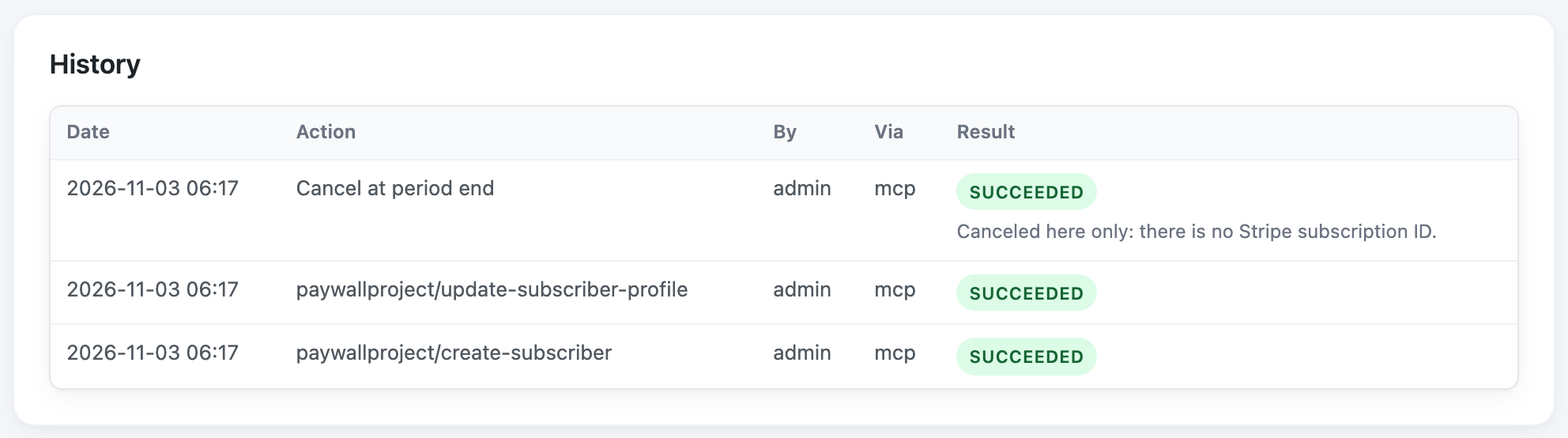
- Audit log. Every change records who made it, through which connection, what was asked and the result. A subscriber’s changes show in the History box on their page. See The audit log.
Who can use which tools
- Administrators can use every tool.
- PaywallProject Support is a role for support staff. It can look up everything except settings. It can change subscriber profiles, cancel, resume and change plans, manage gift articles, resend gift emails, and resend welcome emails and group invitations.
- The Support role can’t refund, add or import subscribers, change expiry dates, bring back subscribers, start subscriptions, apply discounts, void invoices, create billing portal links, relink Stripe IDs, edit levels, coupons, groups, post access or IP exceptions, or change settings and email templates.
- The Support role has no PaywallProject screens in wp-admin. Staff with this role use MCP only, from their Profile page.
Note that a plan change can charge the subscriber, and the Support role can do it. It still needs a preview first.