
The setup wizard gets your site ready to sell subscriptions in six steps. It takes about ten minutes.
What you need
- WordPress 6.5+ and PHP 8.1+
- PaywallProject installed and activated
- A Stripe account (you can create one in step 1)
Go to PaywallProject → Setup to start. You can skip any step and come back later. Anything unfinished is listed on your PaywallProject screens.
1. Connect Stripe
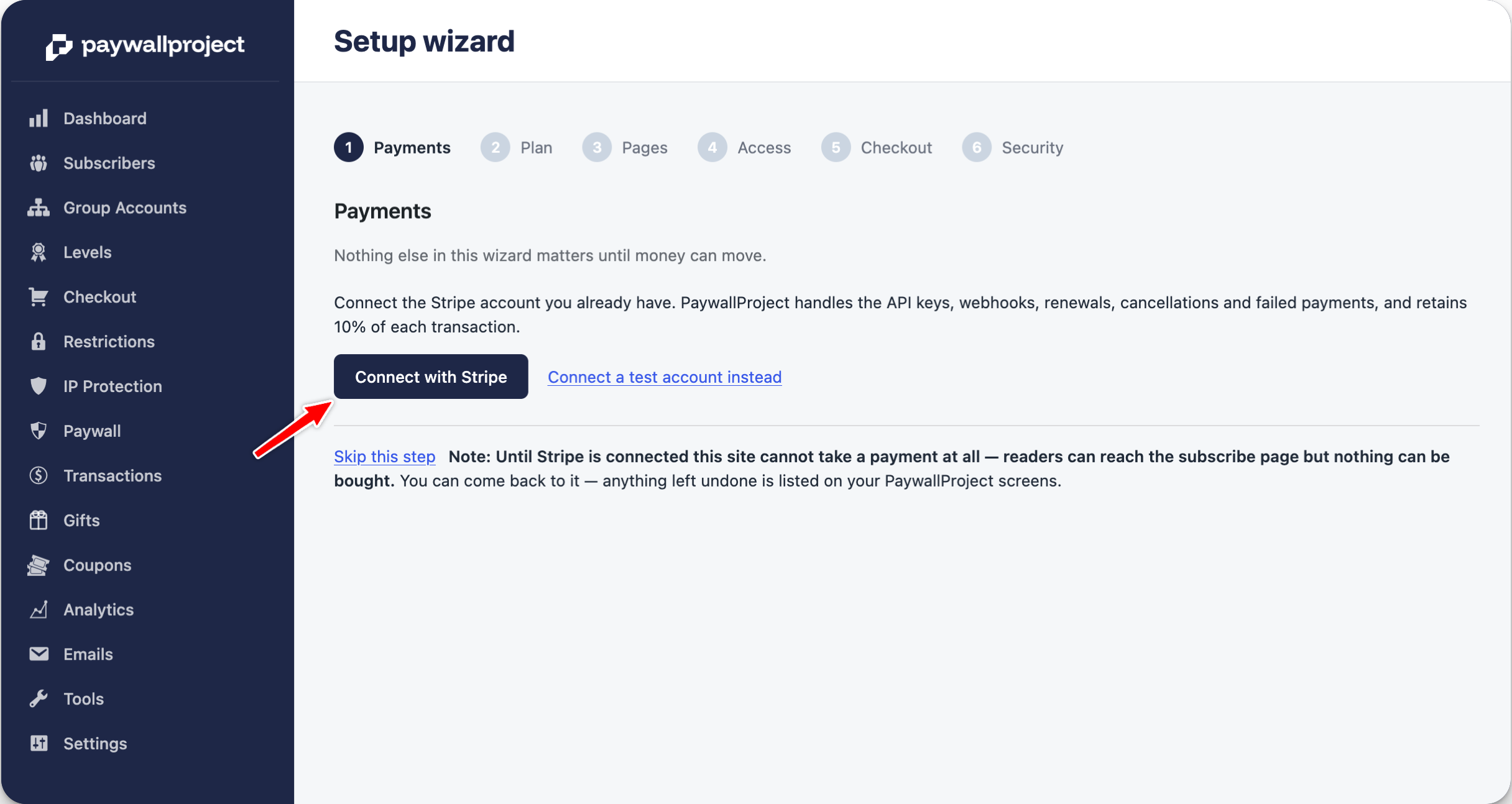
Click Connect with Stripe. To try things out first, click Connect a test account instead.
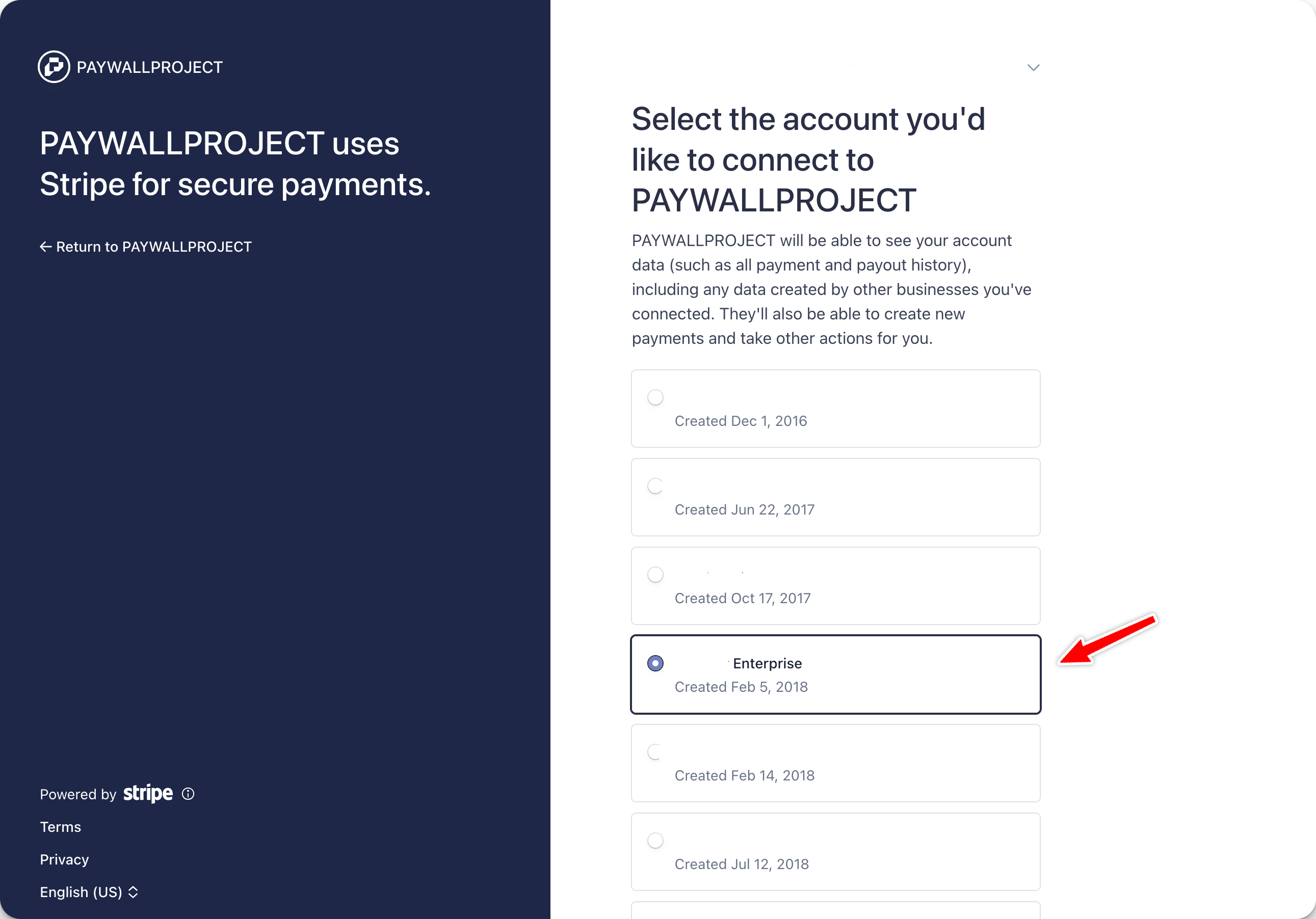
Choose the Stripe account that should receive your payments.
Click Connect, or Create a new account if you don’t have one. Stripe then returns you to the wizard.
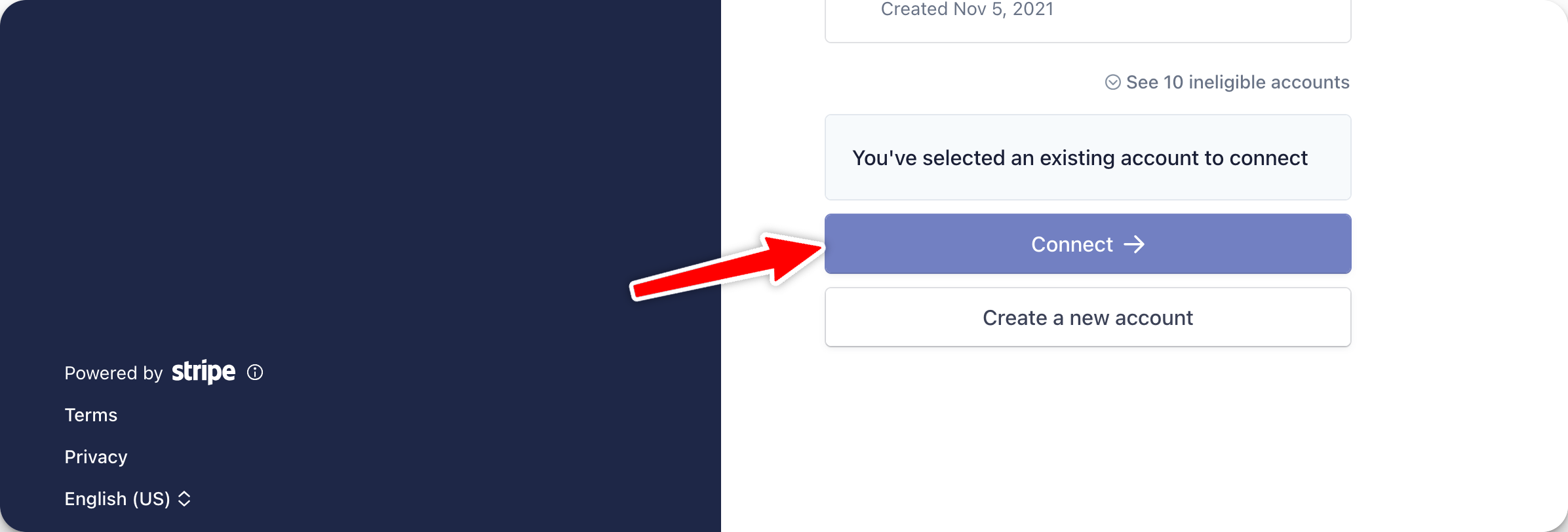
That’s all Stripe needs. You don’t have to set up API keys or webhooks. Your customers and payouts stay in your own Stripe account.
2. Create a plan
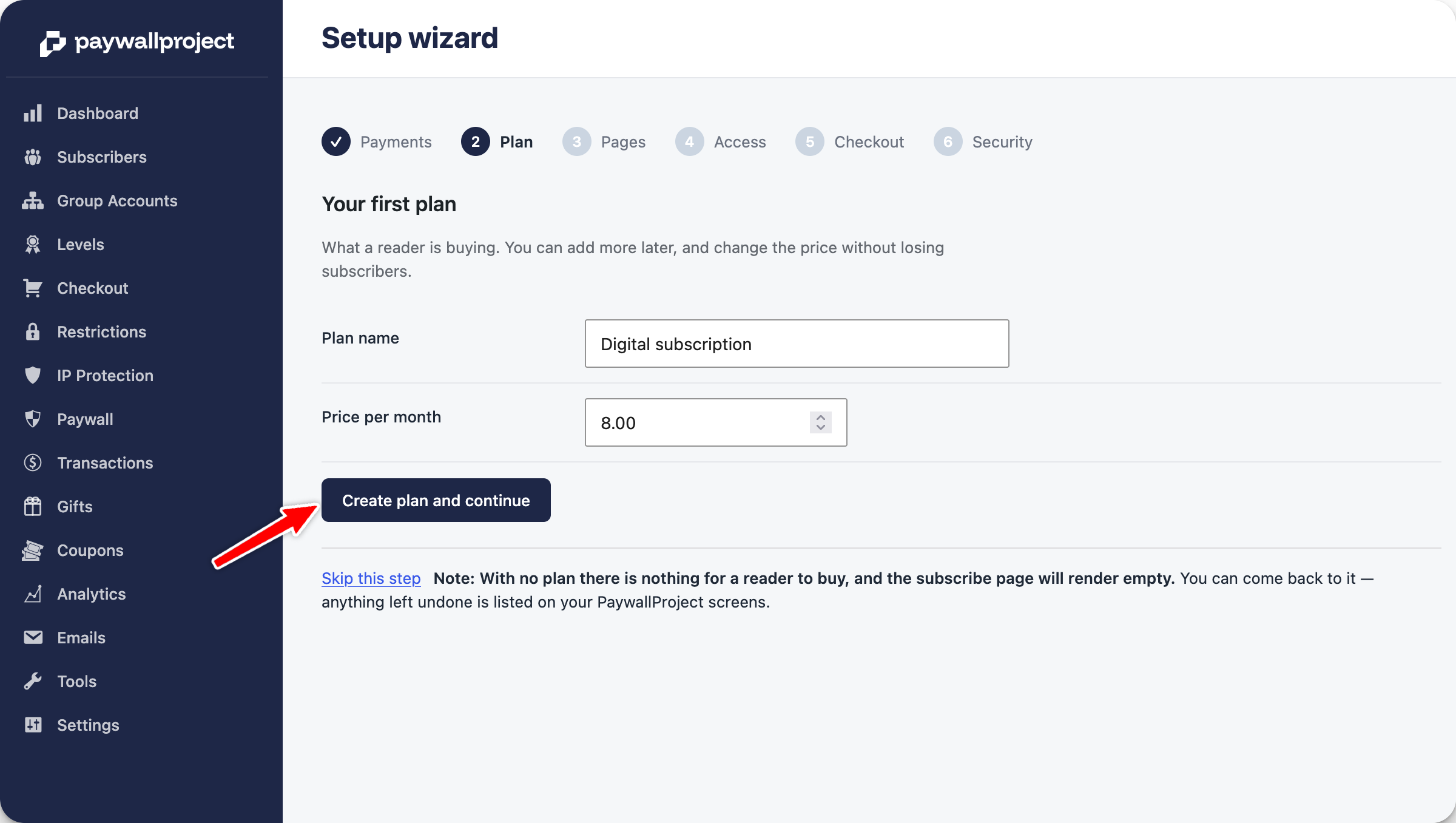
Enter a plan name and monthly price, then click Create plan and continue. You can add more plans or change the price later.
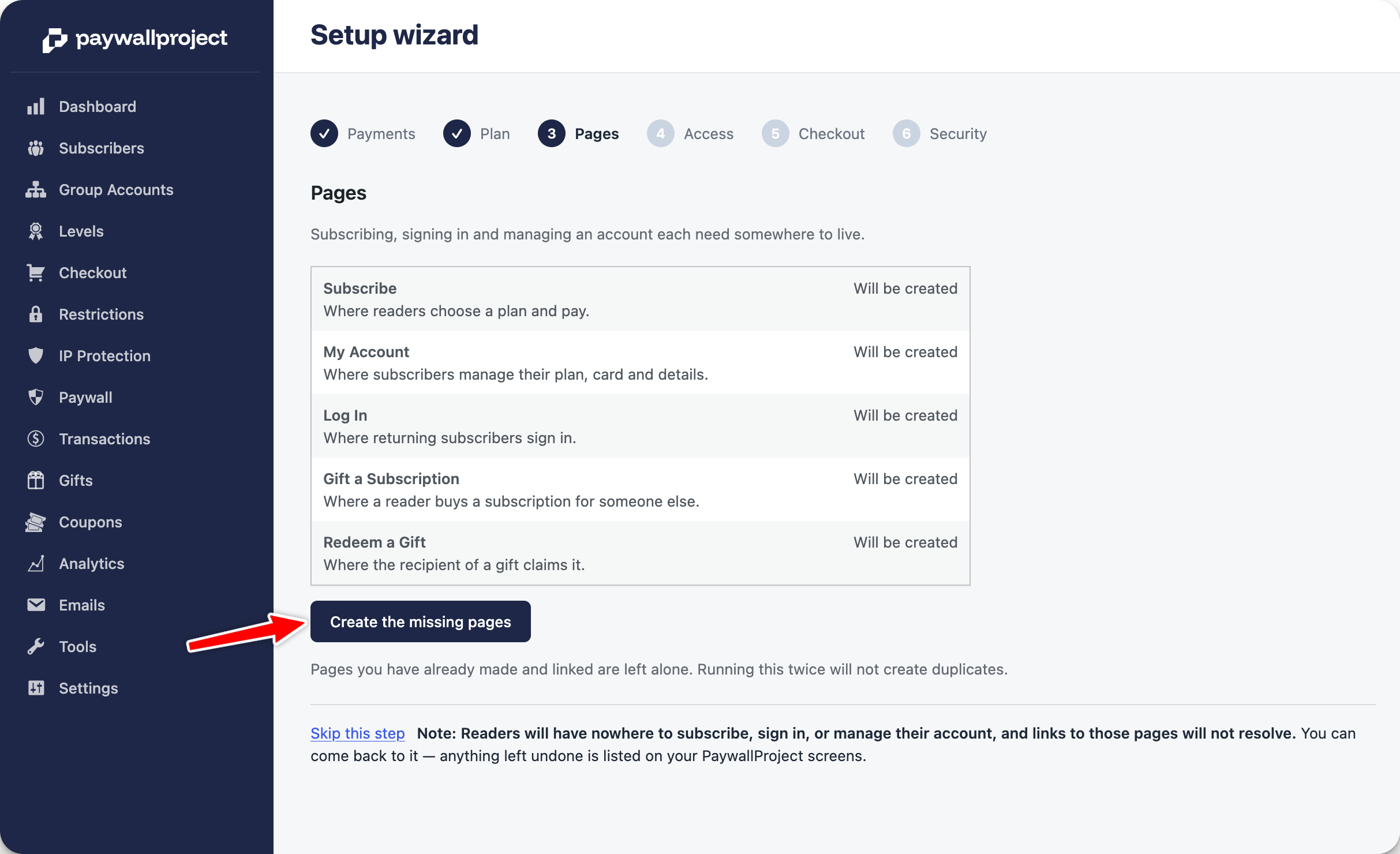
3. Create pages
Click Create the missing pages. This adds Subscribe, My Account, Log In, Gift a Subscription and Redeem a Gift. Any of these pages you already have are left alone.
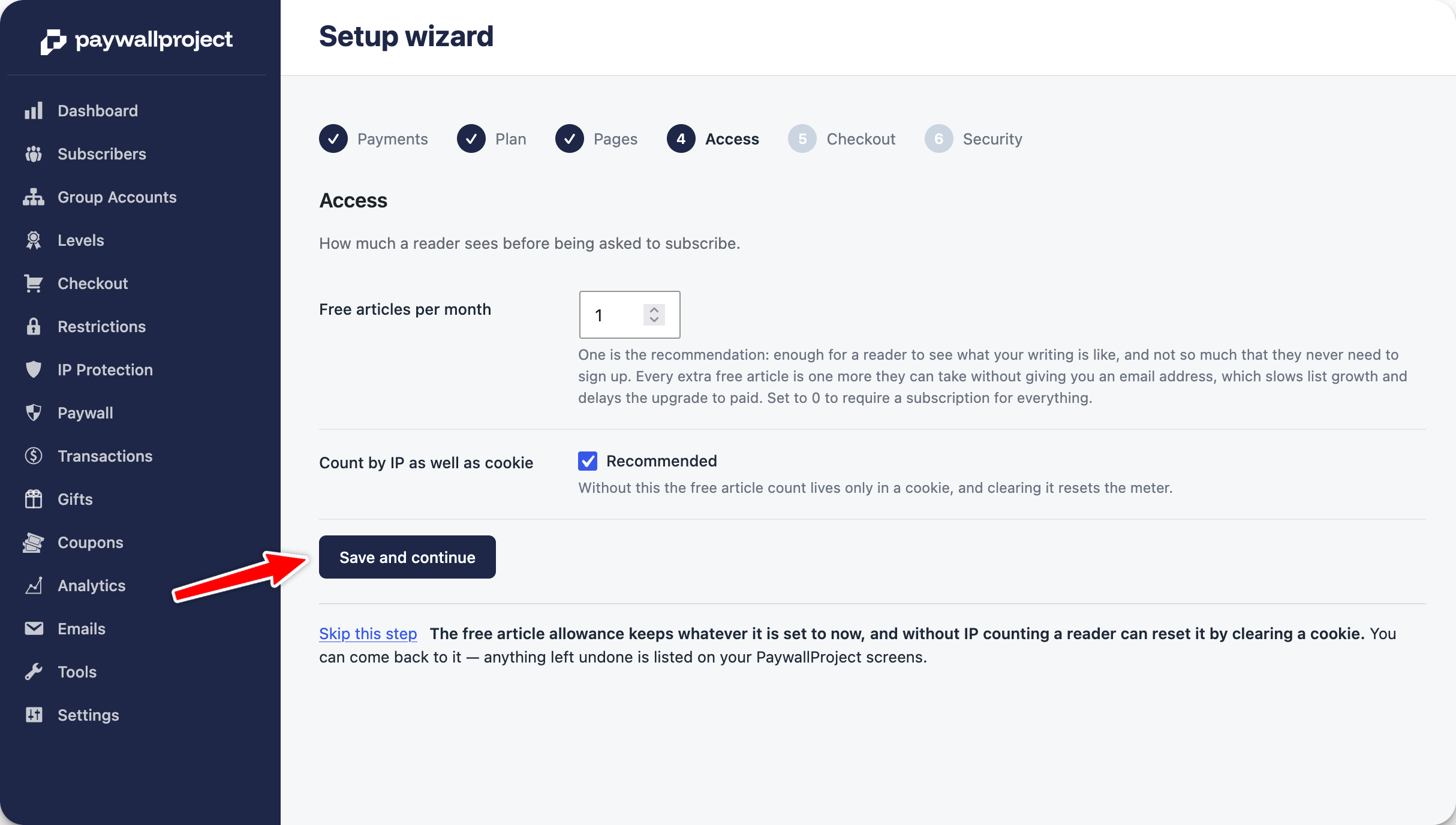
4. Set free articles
Choose how many free articles a reader gets each month before seeing the paywall. We recommend 1. Set it to 0 to put everything behind the paywall. Leave Count by IP as well as cookie on, so readers can’t reset their count by clearing cookies. Click Save and continue.
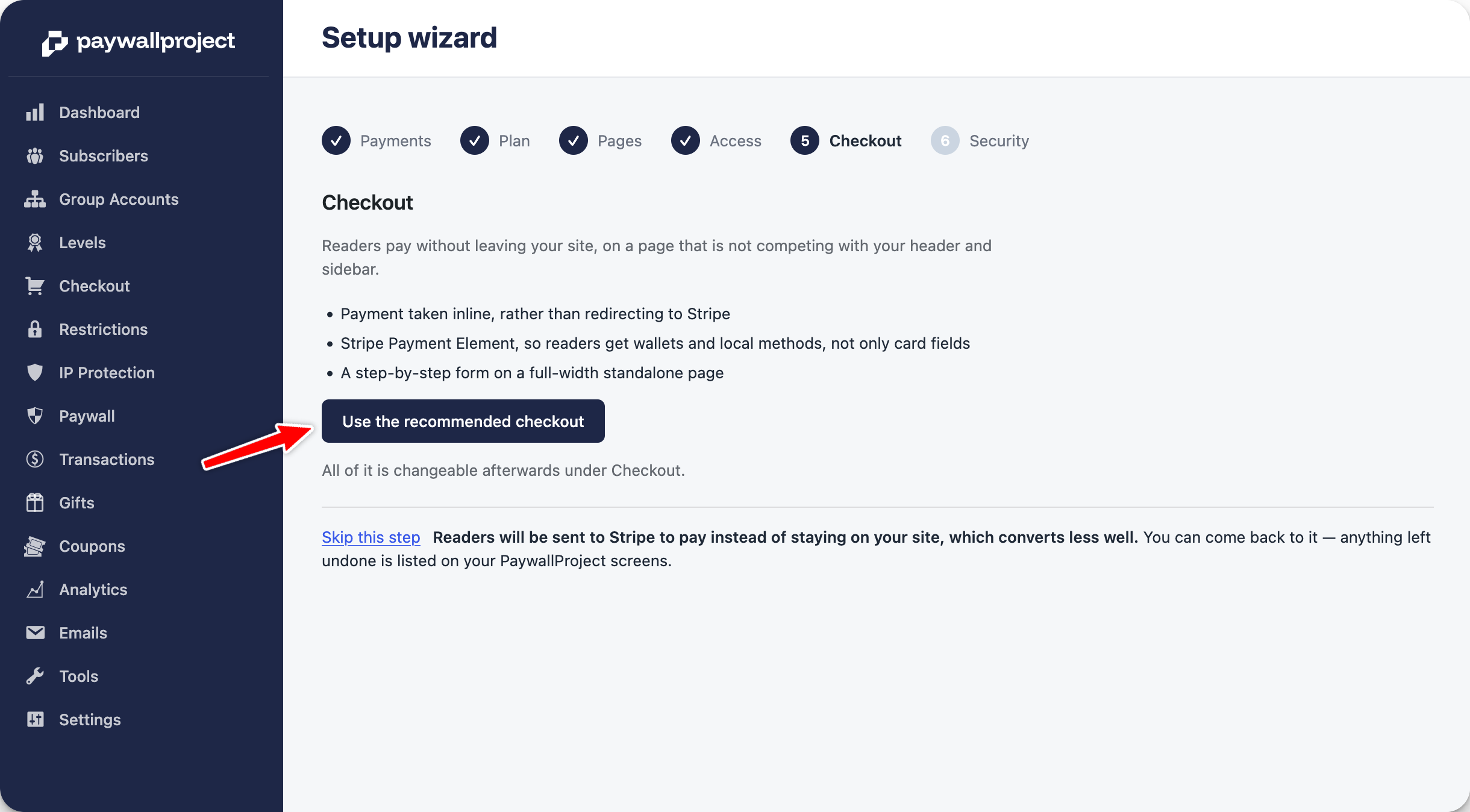
5. Choose a checkout
Click Use the recommended checkout. Readers pay on your site without being sent to Stripe, and they can use cards, Apple Pay, Google Pay and local payment methods. You can change this later under PaywallProject → Checkout.
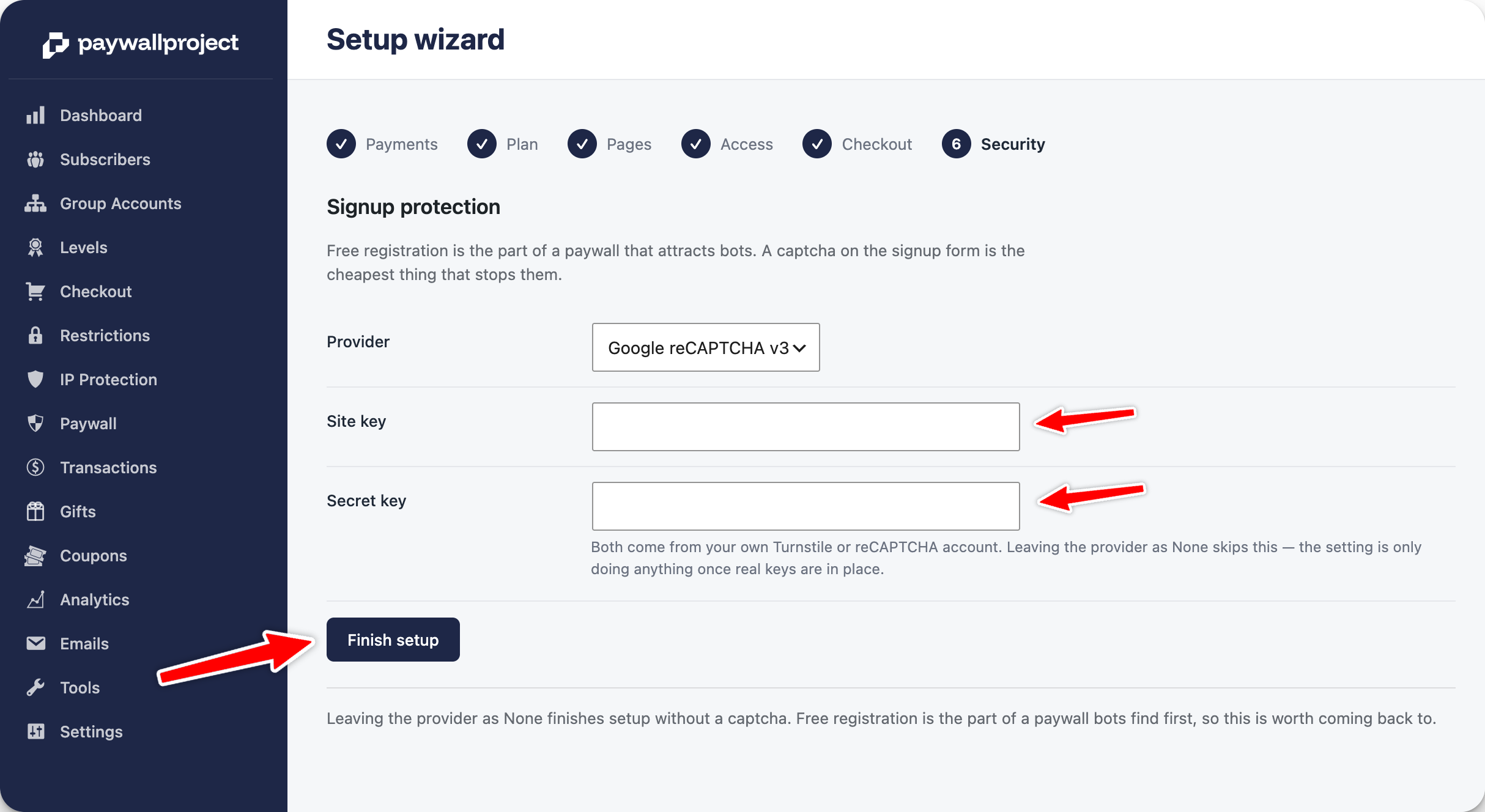
6. Add a captcha
A captcha keeps bots from signing up for free accounts. Choose Google reCAPTCHA v3, paste in your site key and secret key, then click Finish setup. If you don’t have keys yet, leave the provider set to None and add them later.
Getting your reCAPTCHA keys
- Open the reCAPTCHA admin console and sign in.
- Enter a label, such as your site’s name.
- Choose Score based (v3). Checkbox (v2) keys won’t work.
- Add your domain without
https://, for exampleexample.com. - Click Submit. If Google asks for a Cloud project, accept the default.
- Copy the site key and secret key into the wizard.
Keep the secret key private. The only place it should go is PaywallProject.
Next steps
Open your Subscribe page in a private window to check that it works. Then use Restrictions to choose which content is paywalled, and Levels to add more plans.