

PaywallProject can keep a Newsletter Glue list in step with your subscribers. Each subscriber’s status, access, level and expiry date go into the list as custom fields, so you can send one newsletter to paying readers and another to lapsed readers. Readers can also join and leave your newsletters from their My Account page. This article is for site admins who send newsletters with Newsletter Glue.
Since PaywallProject 4.0, this integration is built in. It’s off until you turn it on.
Before you start
- You need administrator access to your WordPress dashboard.
- Newsletter Glue Pro must be installed and active on the same site.
- Newsletter Glue must send through its own sending engine. Connect it under Newsletter Glue → Settings → Connections. Other email services don’t work with this integration.
- Create the list you want to use in Newsletter Glue first. See How to manage newsletter list.
Turn on the sync and pick a list
- Go to PaywallProject → Settings and open the Newsletter Glue tab.
- Tick Sync subscribers to Newsletter Glue.
- Check the Connection row. It should say Connected. If it says Not connected, Newsletter Glue Pro isn’t active or isn’t using its own sending engine. Fix that first; the list options only appear once you’re connected.
- In List, choose the Newsletter Glue list your subscribers should go into.
- Click Save changes.
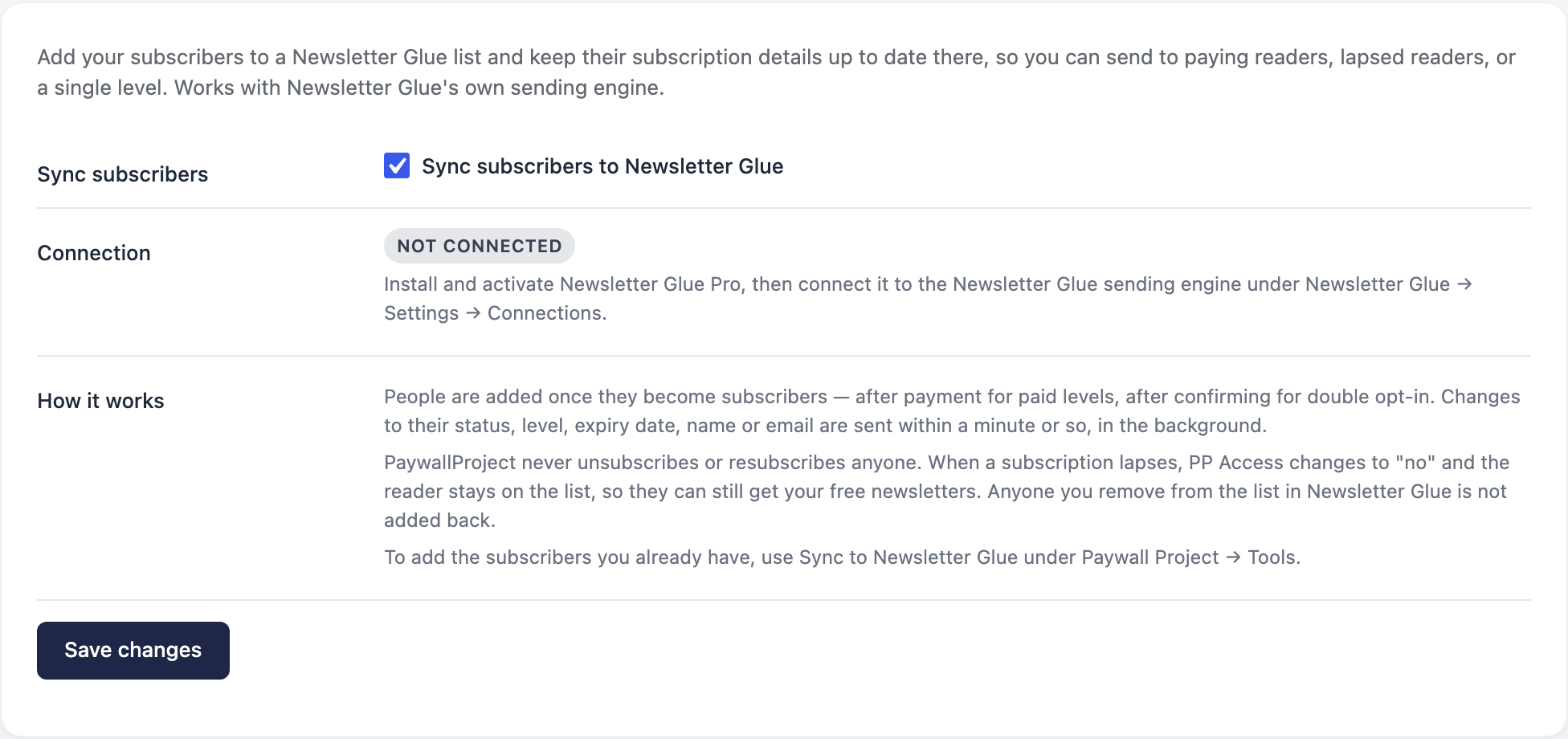
When you save, PaywallProject sets up the list for you. A notice at the top of the page tells you what it added.
The fields and segments PaywallProject adds
Saving adds four custom fields to the list:
- PP Status: the subscription status, for example
active,trialing,past_due,canceledorexpired. - PP Access:
yesif the reader can read your paid stories right now,noif not. - PP Level: the name of their level.
- PP Expires: their expiry date, as YYYY-MM-DD. It’s empty for subscriptions with no end date.
It also adds two ready-made segments:
- PaywallProject: has access: everyone whose PP Access is
yes. Use it for subscriber-only newsletters. - PaywallProject: no access: everyone whose PP Access is
no. Use it for win-back emails to lapsed readers.
If the list already has a field or segment with one of these names, PaywallProject leaves it as it is. If you delete one by mistake, save the tab again and it’s put back. To build your own segments from these fields (for example, one level only), see How to tie custom fields to segments in newsletter lists.
Add the subscribers you already have
New sign-ups and changes sync on their own. Subscribers you had before you turned the sync on are not added until you run a one-time sync.
- Go to PaywallProject → Tools.
- Find the Sync to Newsletter Glue card. It only shows while the sync is turned on.
- Click Sync all subscribers.
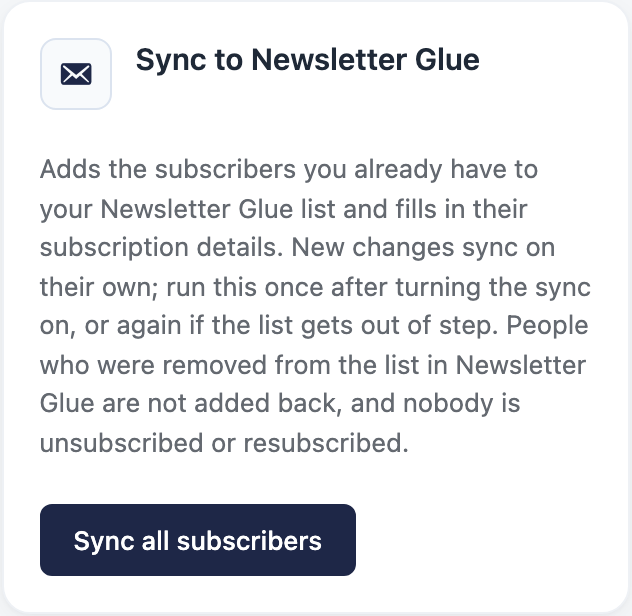
The sync runs in the background, so you can leave the page. Reload the Tools page to see progress. The card shows how many people were processed, and how many were added, updated, skipped or failed. You can run it again any time the list gets out of step.
If you see “Turn on the Newsletter Glue sync and choose a list under Settings → Newsletter Glue first”, go back to the settings tab and pick a list.
Let readers manage newsletters from My Account
You can add a Newsletters card to the My Account page. Logged-in readers use it to join or leave your newsletters, and to pick topics inside each one.
- Go to PaywallProject → Settings → Newsletter Glue. Make sure Sync subscribers to Newsletter Glue is ticked.
- Under My Account preferences, tick each list you want readers to see.
- Optional: type a short description under each ticked list, for example “Our best stories, every Friday”.
- Click Save changes.
Topics come from Newsletter Glue. Any segment you’ve made manageable by subscribers in Newsletter Glue shows as a topic under its list. See How to manage segments in your newsletter lists.
You can offer the My Account card without syncing subscribers. Leave List empty (no list chosen) and tick only the lists under My Account preferences.
What the reader sees
The Newsletters card lists each newsletter you offered, with its description and topics. Changes save as soon as the reader ticks or unticks a box. Topics stay greyed out until the reader joins that newsletter.
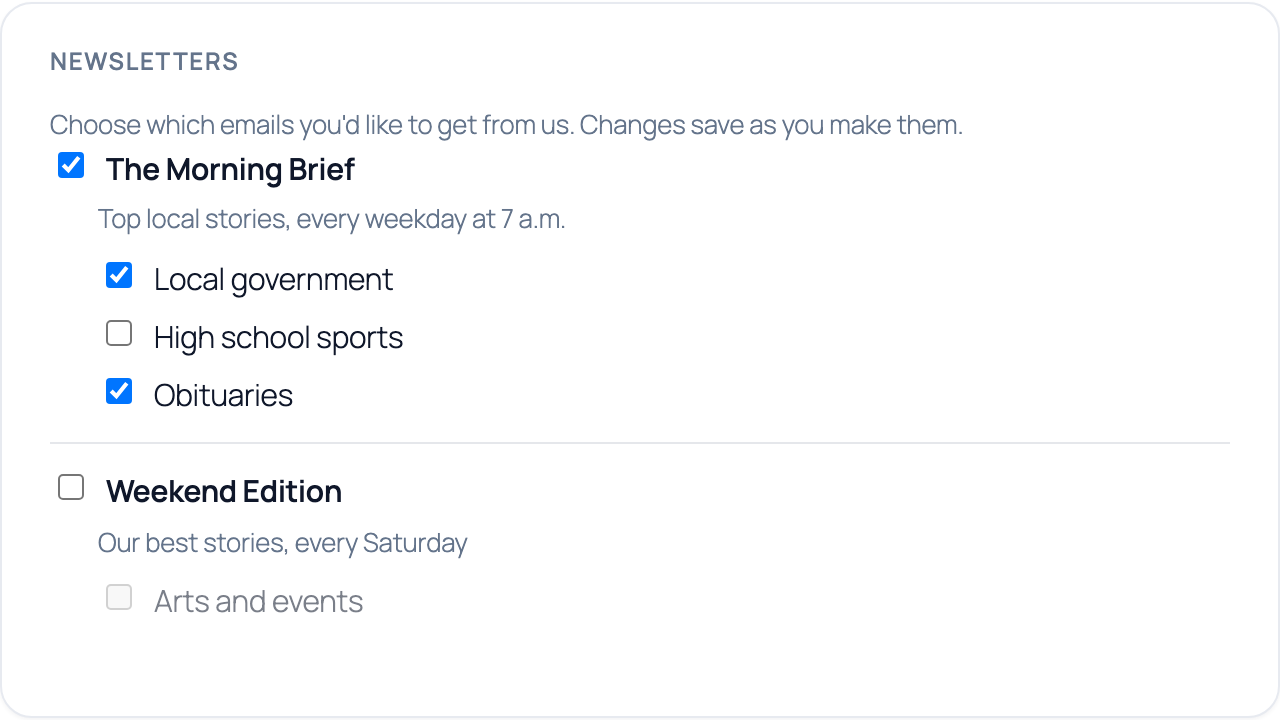
If a newsletter asks new readers to confirm their email, joining from My Account sends that confirmation email too. The reader sees a message asking them to check their inbox.
Good to know
- The sync never unsubscribes anyone. When a subscription lapses, PP Access changes to
noand the reader stays on the list. They still get your free newsletters. - Removed people stay removed. If you remove someone from the list in Newsletter Glue, PaywallProject doesn’t add them back.
- Who gets added: people are added once they become subscribers. That’s after payment for paid levels, and after they confirm their email for double opt-in levels.
- Timing: changes to status, level, expiry date, name or email reach Newsletter Glue within a minute or so. Failed requests to Newsletter Glue are retried a few times over the next few hours. If the integration is disconnected, changes aren’t queued for later: reconnect it, then run Sync all subscribers under PaywallProject → Tools.
- Group accounts: active group members get the group owner’s status, level and expiry date.
- Email changes: when a reader changes their email in My Account, their existing Newsletter Glue entry is updated. They don’t get a second entry.
- Blocked addresses: if a reader’s address bounced or was marked as spam, My Account tells them to contact you. It doesn’t resubscribe them. See Subscriber does not appear on newsletter list.