

This guide is for publishers who sell straight through Stripe, with Payment Links, Stripe Checkout or the Stripe Dashboard. You don’t need accounts or a membership plugin first: the import creates them. Readers keep their card, price and renewal date.
What happens to each subscriber
For each Stripe subscriber, PaywallProject looks for a WordPress account with the same email:
- Found: it updates that account. The login and password don’t change.
- Not found: it creates a new account.
Either way, the Stripe subscription is linked to the account. Readers don’t re-enter a card, and nobody is charged.
Tell your readers
New accounts have a random password, so readers need a way in. Use one or both:
- Welcome email (PaywallProject 4.2.0 and later). On the import’s last step, tick Email new accounts a welcome message with a link to set their password. Each new account with access gets your New subscriber welcome email with a link to set a password. Existing accounts get nothing. It’s off by default, and the step shows how many emails it sends.
- Your newsletter. Tell readers their subscription carries over and to sign in with the same email, using Forgot password?.
The link works once and expires after a day. After that, readers use Forgot password? (all the ways in).
Before you start
- Update to PaywallProject 4.2.0 or later. You need administrator access to WordPress and to your Stripe account.
- Connect the Stripe account your readers already pay into, under PaywallProject → Settings → Stripe.
- Create one level for each old plan, with the same price and billing interval. The level can have a new name (see Renaming a plan). Steps 1 and 2 of the walkthrough show how.
- Do a test run on a staging copy of your site first.
Method 1: Import directly from Stripe (recommended)
- Go to PaywallProject → Tools. On the Import subscribers card, select Start an import.
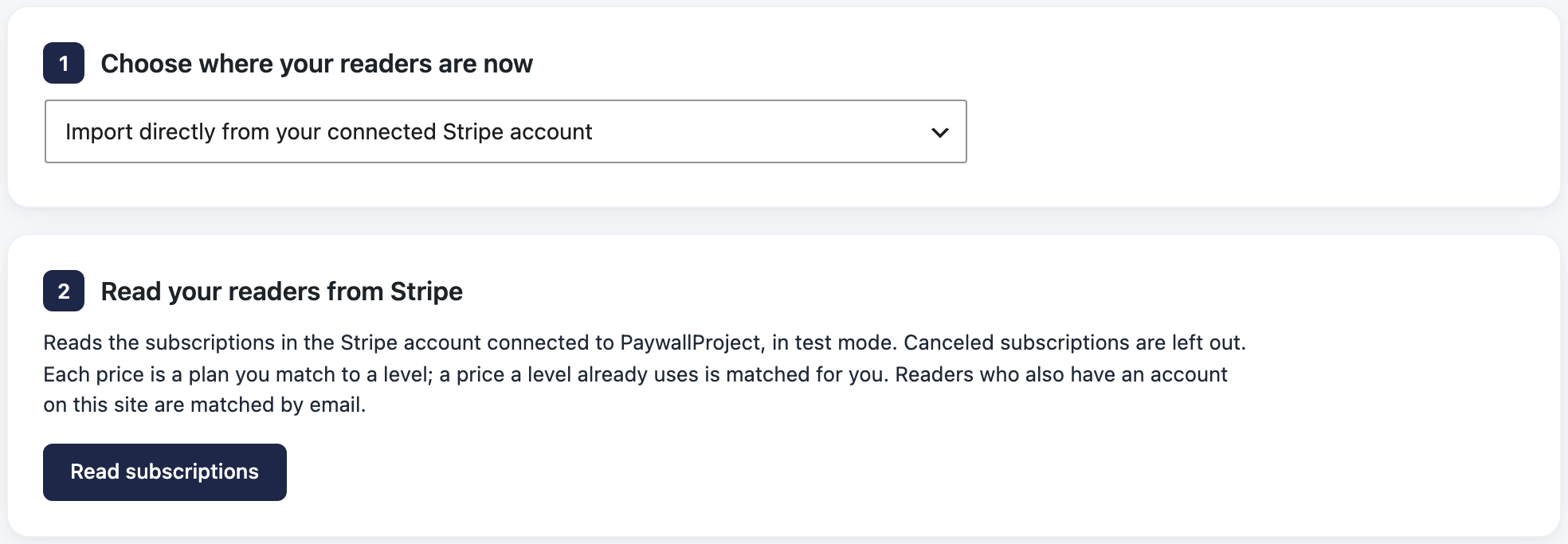
- Under Where are your readers now?, choose Your connected Stripe account, then select Next.
- Check the Stripe mode shown (live or test), then select Read subscriptions. PaywallProject reads every subscription that isn’t canceled.
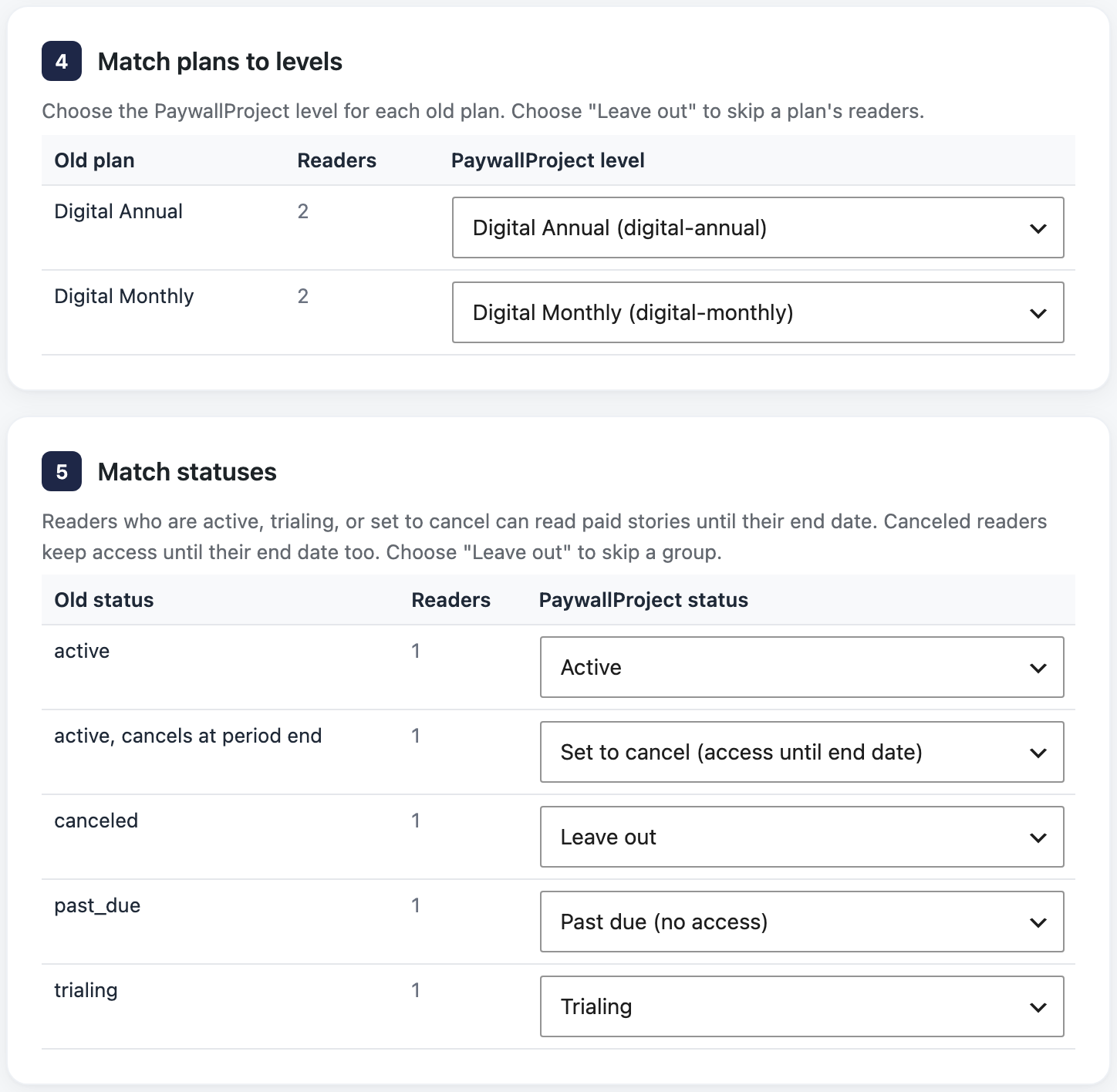
- Under Match plans to levels, check the level for each Stripe price. A price a level already bills is chosen for you. Choose Leave out for prices of other products you sell.
- Under Match statuses, check the status chosen for each old status. Change any you want.
- Select Next until you reach Review, and read the preview. Nothing is saved until the last step.
- On Confirm, optionally tick Email new accounts a welcome message with a link to set their password. Then tick I’ve reviewed the preview and want to import and select the red Import … readers button.
- Select Download report (CSV) to keep a record.
Method 2: Import an export file
Use this to move only some subscriptions, filtered in the Stripe Dashboard.
- In Stripe, go to Billing → Subscriptions and filter to the subscriptions you want. Most publishers pick Active, Past due and Trialing.
- Select Export, choose All columns and the UTC time zone, and export.
- Go to PaywallProject → Tools. On the Import subscribers card, select Start an import.
- Under Where are your readers now?, choose Stripe only (Payment Links, Checkout, or the Dashboard), then select Next.
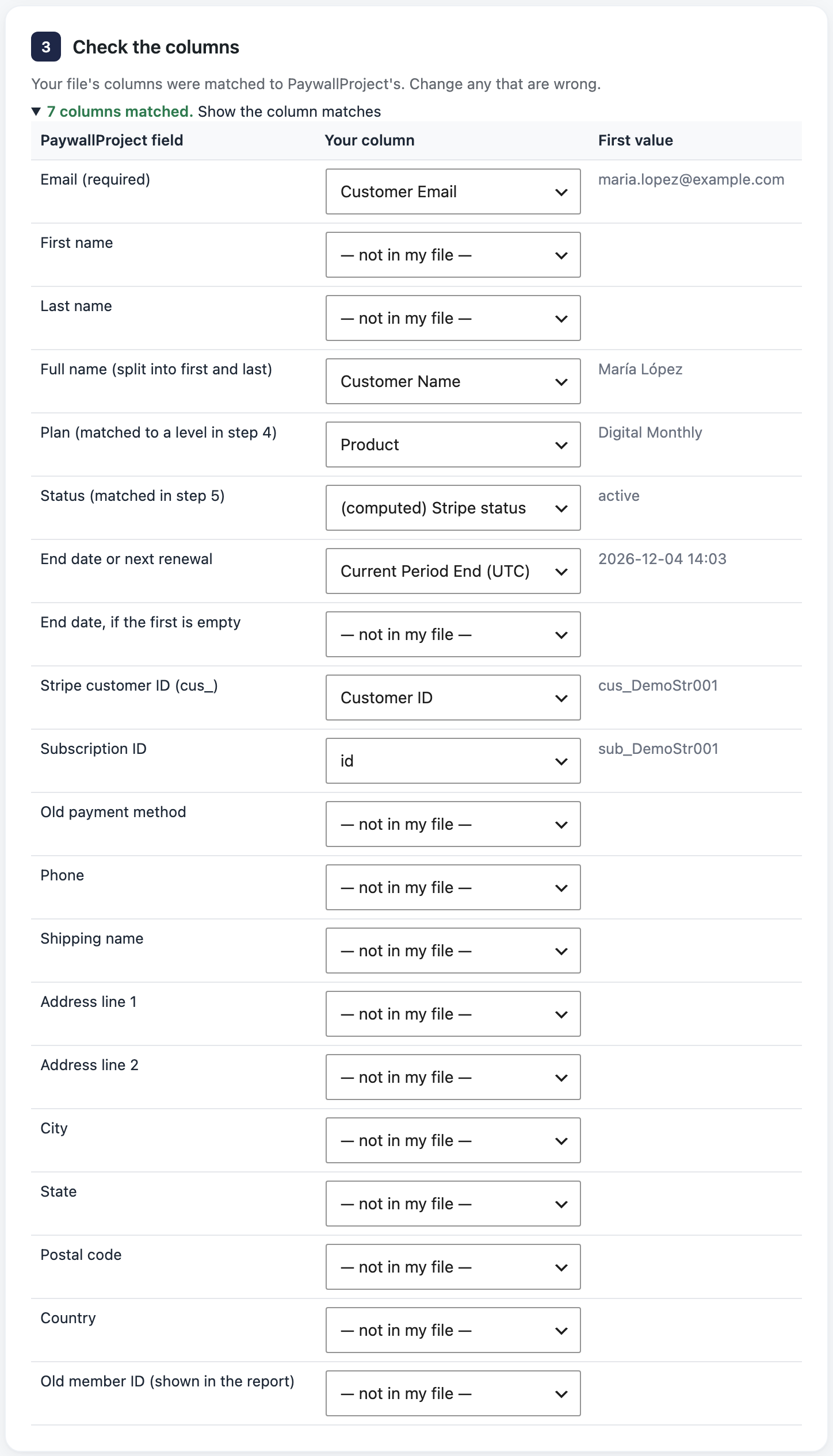
- Under Add your export file, add the Stripe export. To check how its columns were matched, open More options.
- Under Match plans to levels, check the level for each old plan. A level with the same name is chosen for you. Choose Leave out to skip a plan.
- Under Match statuses, check the status chosen for each old status. Change any you want.
- Select Next until you reach Review, and read the preview. Nothing is saved until the last step.
- On Confirm, optionally tick Email new accounts a welcome message with a link to set their password. Then tick I’ve reviewed the preview and want to import and select the red Import … readers button.
- Select Download report (CSV) to keep a record.
After the import
- Deactivate your old Payment Links in Stripe (Payment Links, open each, Deactivate). Remove old buy buttons from your site.
- Turn off any webhook, Zapier step or other automation you built for the old setup.
- Turn off plan switching in Stripe’s customer portal. PaywallProject doesn’t see a plan switched there, so the reader keeps their old level.
- Open a few readers under PaywallProject → Subscribers. Each should have a
sub_subscription ID, or renewals won’t reach them. - If you didn’t send the welcome email, tell readers how to sign in (see Tell your readers above).
Renaming a plan
Moving a reader to a different level in WordPress never changes their Stripe subscription. They keep the same price and renewal date, and only their access on your site changes. So you need one level per plan, not one for the old name and one for the new. Give the level the new name and match the old plan to it on Match plans to levels.
Stripe changes only if readers switch plans themselves on their account page. Stripe receipts keep the old product name until you rename the product in Stripe.
Good to know
- A Stripe customer without an email can’t be matched to an account. The preview says so.
- A subscription with several prices uses its first price as the plan.
- Read the preview explains every result and warning.
- Prefer an AI app? Claude, ChatGPT or another connected app can run the same import. See Move subscribers with an AI app.