

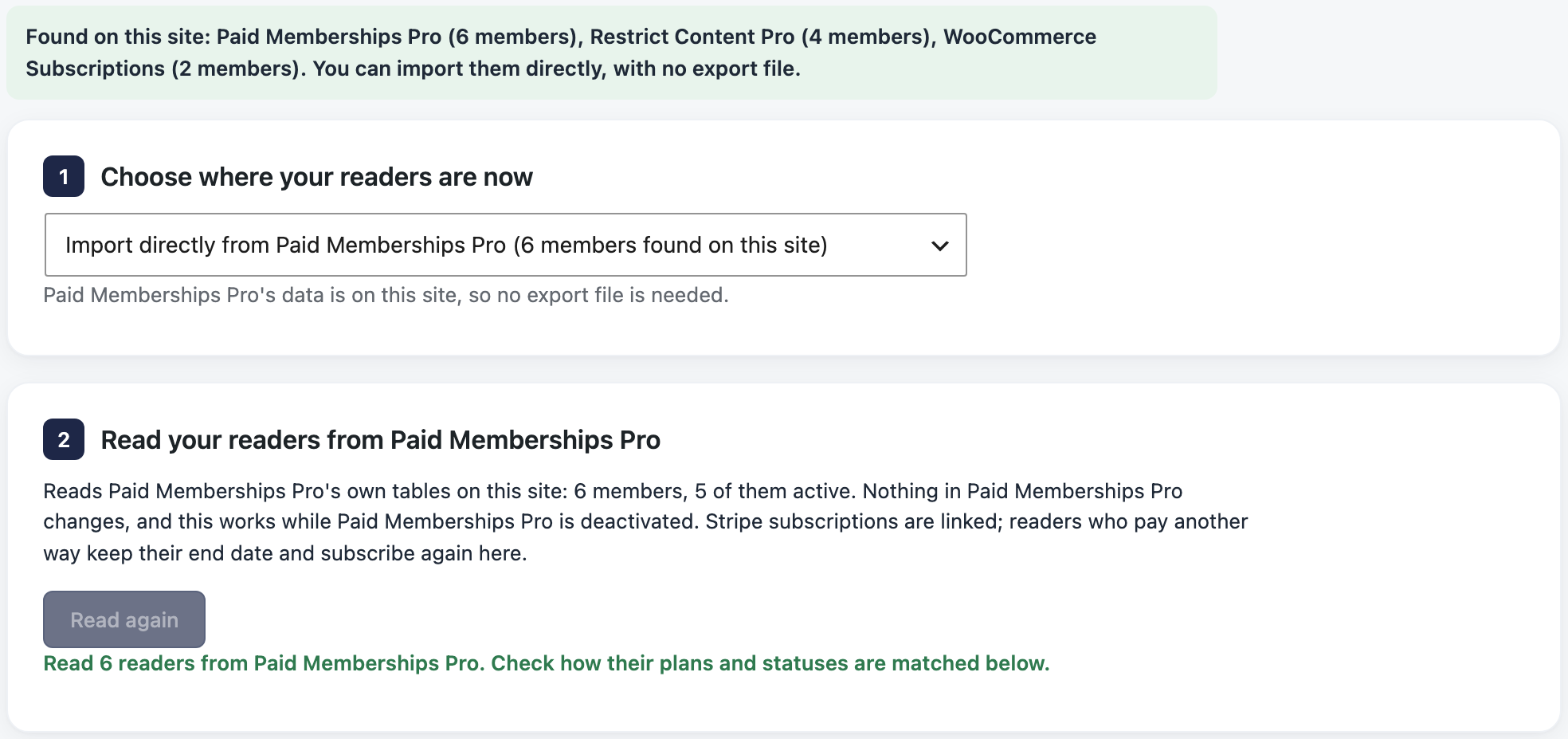
This guide moves your readers from Paid Memberships Pro (PMPro) to PaywallProject on the same WordPress site. Members who pay with Stripe keep their card, price and renewal date, and everyone keeps their login. PaywallProject reads PMPro’s data directly, even while PMPro is deactivated.
Before you start
- Update to PaywallProject 4.2.0 or later. You need administrator access to WordPress and to your Stripe account.
- Connect the Stripe account your readers already pay into, under PaywallProject → Settings → Stripe.
- Create one level for each old plan, with the same price and billing interval. Steps 1 and 2 of the walkthrough show how.
- Do a test run on a staging copy of your site first.
Method 1: Import directly from Paid Memberships Pro (recommended)
- Go to PaywallProject → Tools. On the Import subscribers card, select Start an import.
- Check that Import directly from Paid Memberships Pro is chosen. PaywallProject reads your members at once.
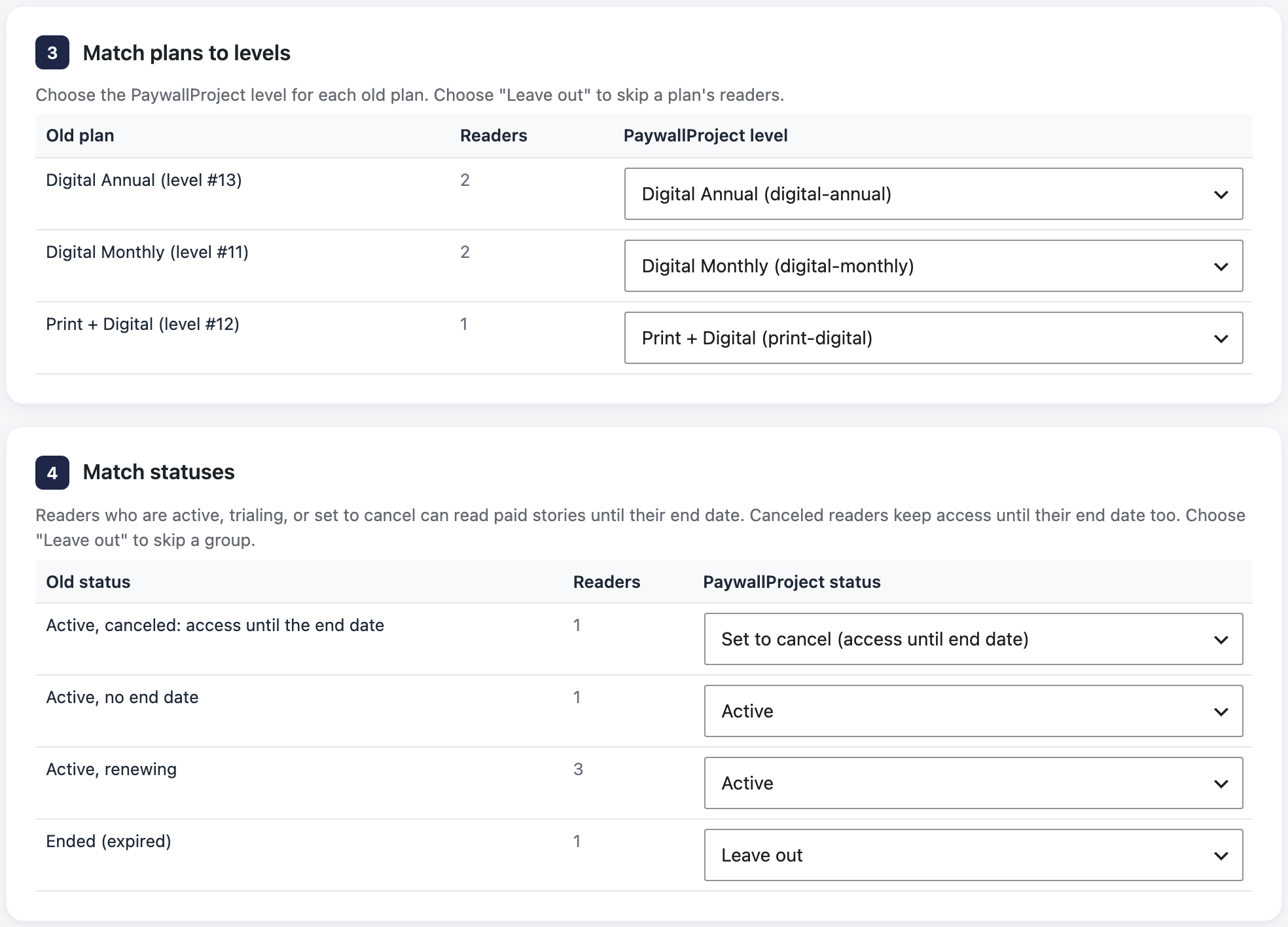
- Under Match plans to levels, check the level for each old plan. A level with the same name is chosen for you. Choose Leave out to skip a plan.
- Under Match statuses, check the status chosen for each old status. Change any you want.
- Select Preview import and read the preview. Nothing is saved yet.
- Select Import now and confirm. Then select Download report (CSV) to keep a record.
Method 2: Import an export file
Use this if PMPro ran on a different WordPress site. Add both files: PMPro’s has the subscription IDs, and Stripe’s adds each subscription’s status and paid-up date.
- In PMPro, go to Memberships → Members and select Export to CSV (PMPro: exporting members).
- In Stripe, go to Billing → Subscriptions, select Export, choose All columns and the UTC time zone, and export.
- Go to PaywallProject → Tools. On the Import subscribers card, select Start an import.
- Under Upload an export file, choose Paid Memberships Pro.
- Under Add your export file, add the PMPro export. Add the Stripe export under Stripe subscriptions export.
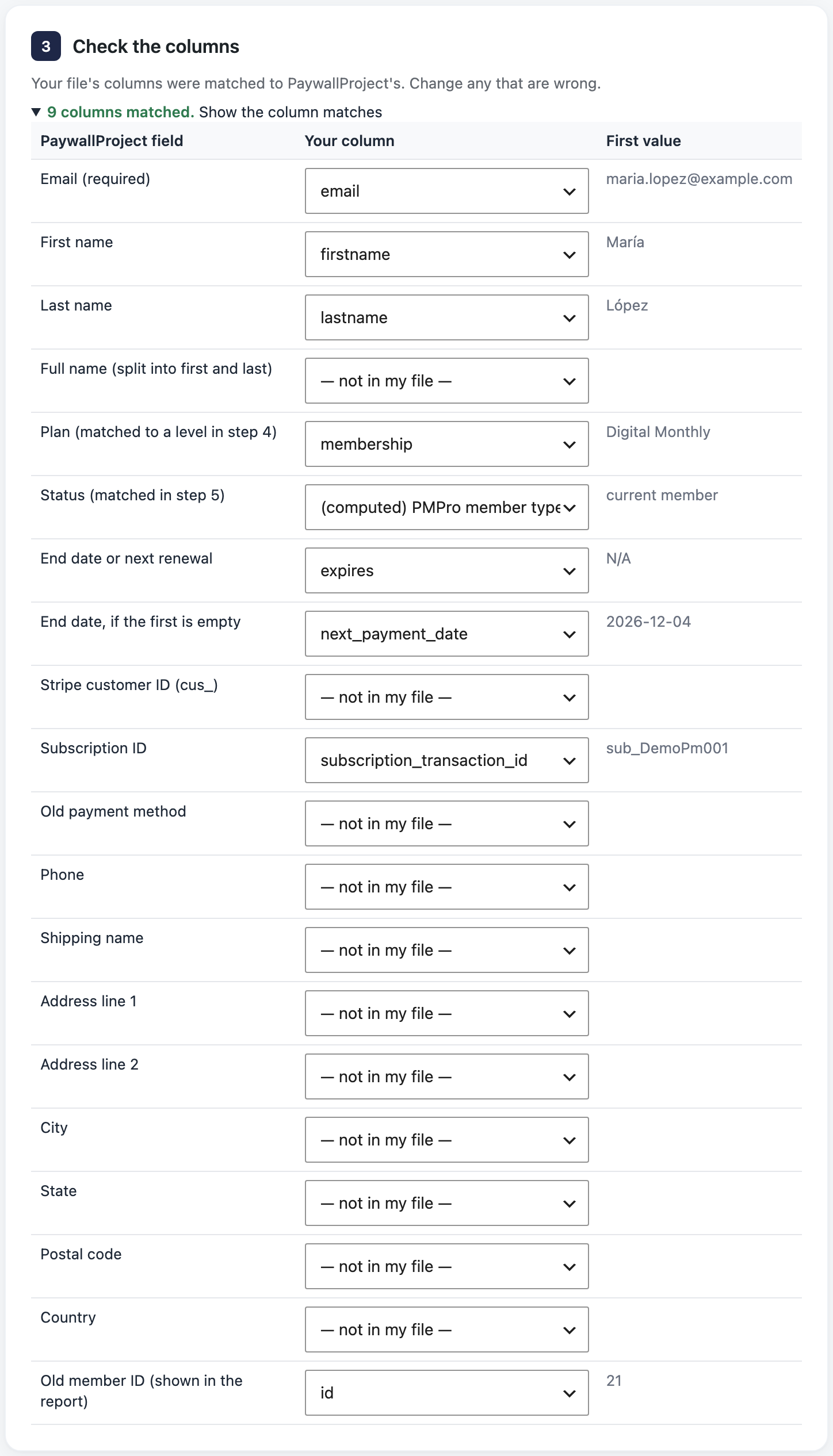
- Under Check the columns, select Show the column matches and fix any wrong match.
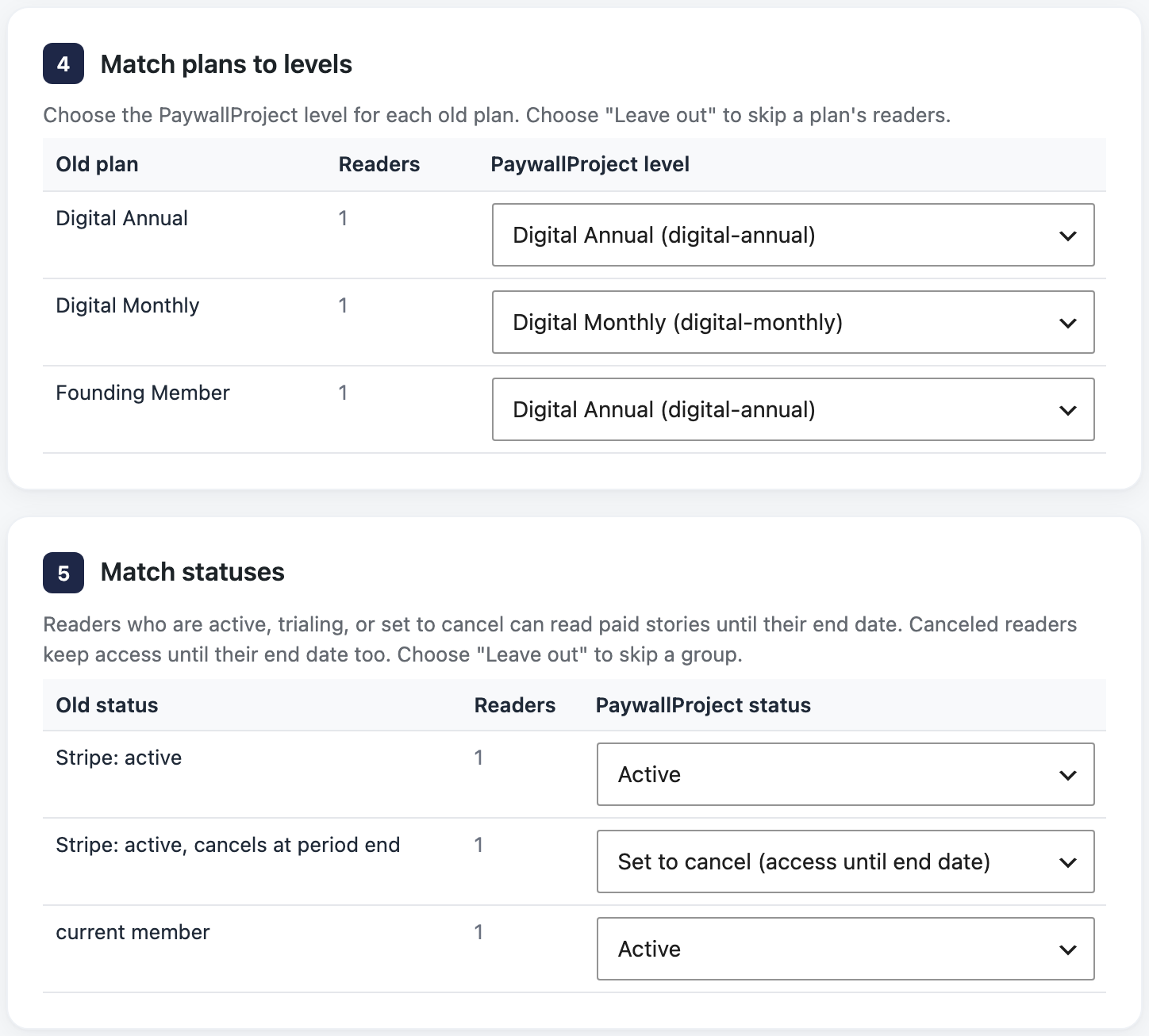
- Under Match plans to levels, check the level for each old plan. A level with the same name is chosen for you. Choose Leave out to skip a plan.
- Under Match statuses, check the status chosen for each old status. Change any you want.
- Select Preview import and read the preview. Nothing is saved yet.
- Select Import now and confirm. Then select Download report (CSV) to keep a record.
After the import
Do this right after the import. While PMPro is active, a membership it cancels or expires is also canceled in Stripe.
- In PMPro’s payment settings, select Disable Webhook, or disable the endpoint ending in
admin-ajax.php?action=stripe_webhookunder Developers → Webhooks in Stripe. - Deactivate PMPro, which cancels nothing in Stripe. Until then, don’t cancel, change or delete members in PMPro.
- Cancel the recurring payments of members who pay with PayPal, in your PayPal account.
- Remove PMPro’s fee. Without a PMPro license, subscriptions created before PMPro 3.6.2 can carry a 2%
application_fee_percent. Ask PMPro to remove it before you disconnect, or Stripe keeps paying it on every renewal (details). - Tell readers their subscription carries over. They sign in as before.
Good to know
- Logins: the import matches readers by email and never changes a username, password or user ID. Moving to a new WordPress site too? See Readers who get a new account.
- PMPro can give a member several memberships, but each reader gets one level: the membership with the best status and latest end date. The preview names the others (“Also had: …”). Change the level by hand if needed.
- Members who pay with PayPal or another gateway keep their end date and are marked to subscribe again. PaywallProject sends them the Renewal reminder email before that date (details).
- If PMPro used Stripe’s sandbox mode and PaywallProject uses live mode, or the other way round, the preview says so.
- When you delete a WordPress user while PMPro is active, leave the option to cancel their subscriptions unticked.
- If you connected Stripe with PMPro’s Connect button, only PMPro can change its subscriptions through Stripe. If a cancellation or plan change from WordPress doesn’t go through, make it in your Stripe Dashboard (why).
- Read the preview explains every result and warning.
- Prefer an AI app? Claude, ChatGPT or another connected app can run the same import. See Move subscribers with an AI app.