

This guide is for publishers who sell with WooCommerce Subscriptions, WooCommerce Memberships, or both. WooCommerce keeps handling checkout and renewals, and PaywallProject controls who can read what. Readers don’t need to do anything, and they keep their login.
Before you start
- Update to PaywallProject 4.2.0 or later. You need administrator access to WordPress.
- Do a test run on a staging copy of your site first.
- Go to PaywallProject → Settings → WooCommerce. Tick Grant and maintain Paywall Project access from paid WooCommerce orders. and save.
- Create one level for each subscription product. In the level’s WooCommerce section, choose its products under Products / variations. PaywallProject uses this to suggest levels.
From then on, new orders and renewals give readers their level. Import your existing subscribers to give them access right away.
Method 1: Import directly from WooCommerce Subscriptions (recommended)
- Go to PaywallProject → Tools. On the Import subscribers card, select Start an import.
- Check that Import directly from WooCommerce Subscriptions is chosen. PaywallProject reads your members at once.
- Under Match plans to levels, check the level for each old plan. A level with the same name is chosen for you. Choose Leave out to skip a plan.
- Under Match statuses, check the status chosen for each old status. Change any you want.
- Select Preview import and read the preview. Nothing is saved yet.
- Select Import now and confirm. Then select Download report (CSV) to keep a record.
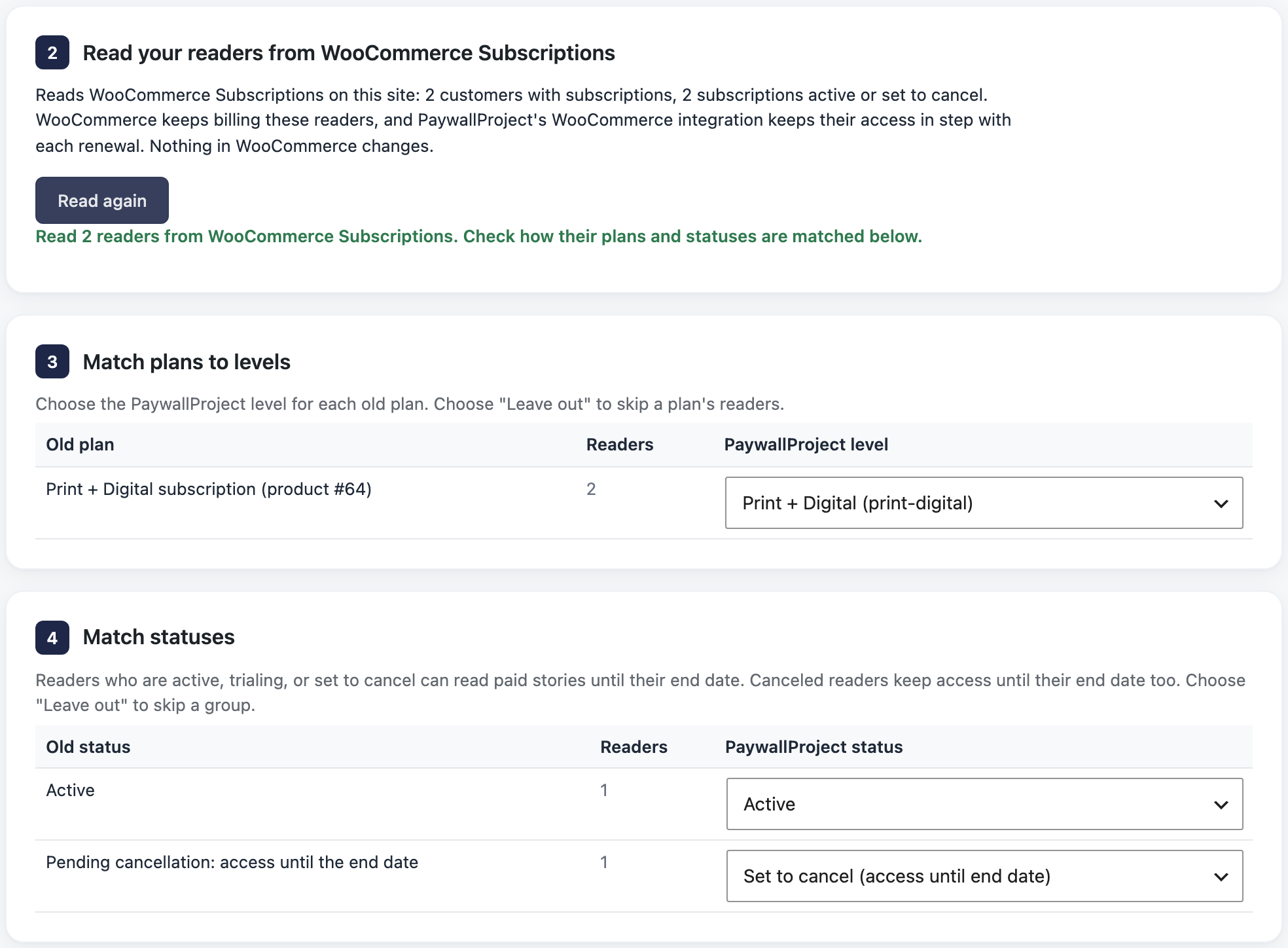
If the WooCommerce setting above is off, the import warns you. Turn it on first, so renewals keep readers’ access up to date.
Method 2: Import an export file
Use this if WooCommerce ran on a different WordPress site.
- Check that each subscriber’s billing email matches their account email. If it doesn’t, the import creates a second account that renewals never update.
- Install WooCommerce’s free Subscriptions Importer and Exporter plugin.
- Go to WooCommerce → Subscription Exporter and select Export Subscriptions.
- Go to PaywallProject → Tools. On the Import subscribers card, select Start an import.
- Under Upload an export file, choose WooCommerce Subscriptions.
- Under Add your export file, add the Subscription Exporter file.
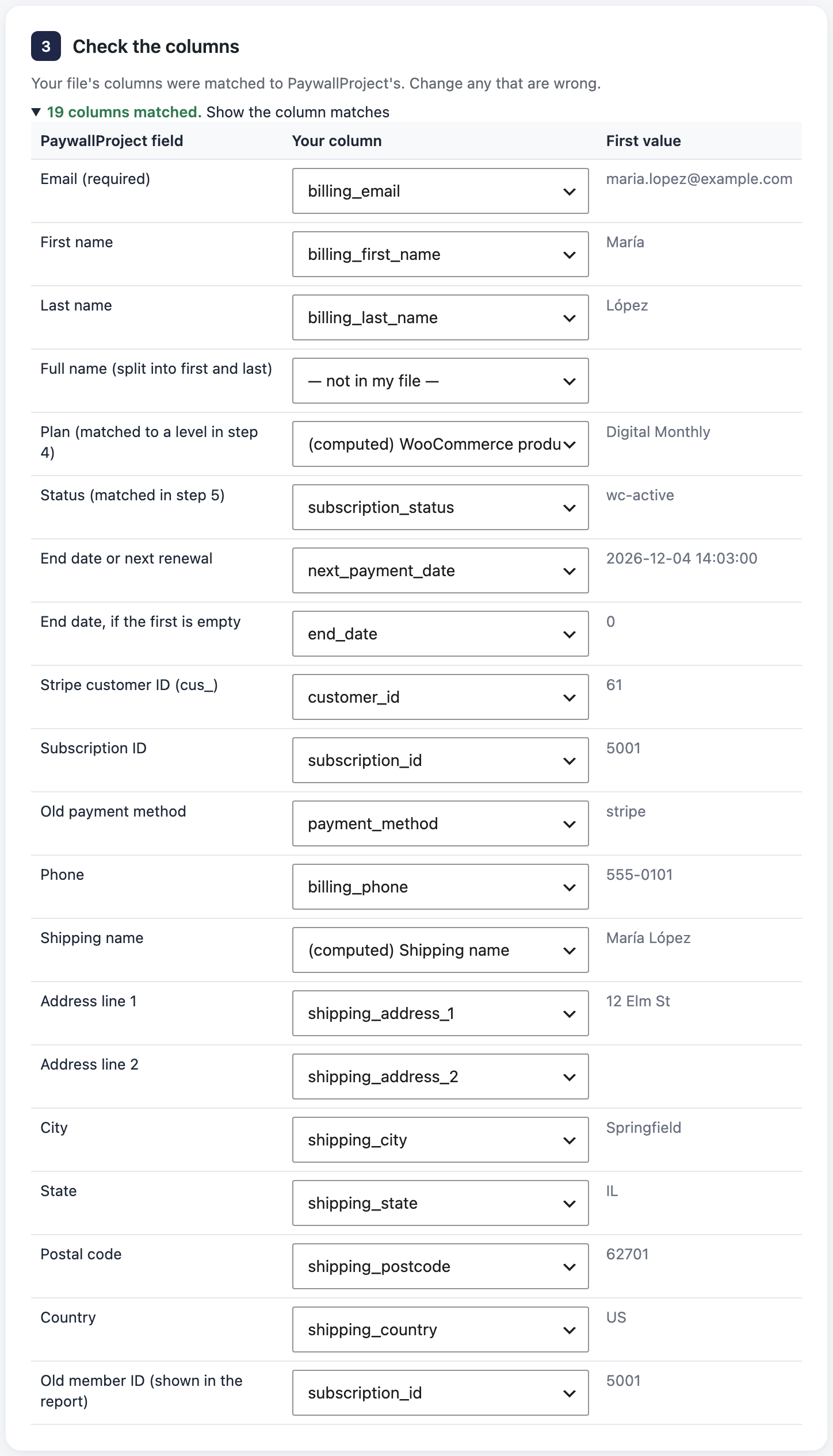
- Under Check the columns, select Show the column matches and fix any wrong match.
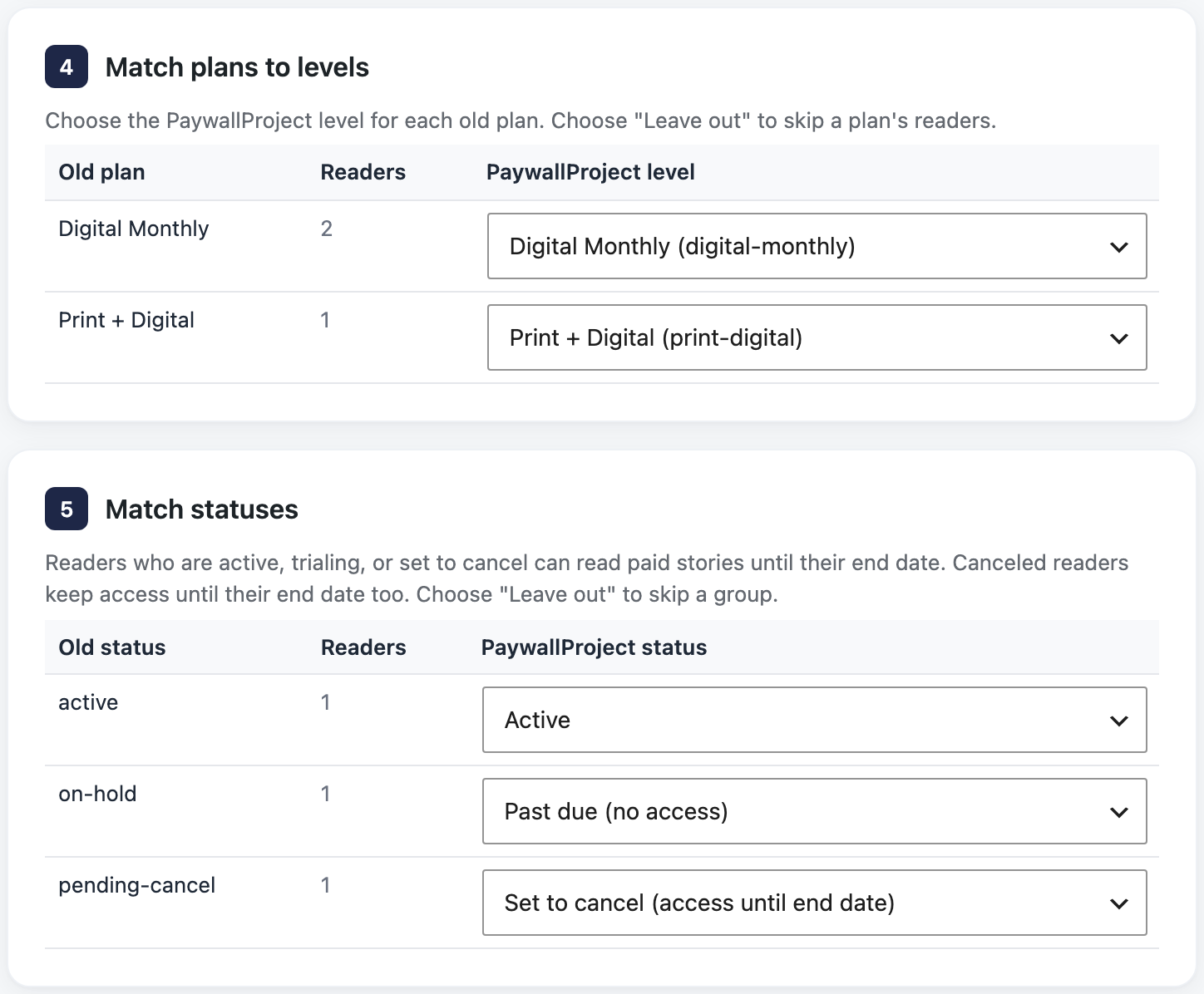
- Under Match plans to levels, check the level for each old plan. A level with the same name is chosen for you. Choose Leave out to skip a plan.
- Under Match statuses, check the status chosen for each old status. Change any you want.
- Select Preview import and read the preview. Nothing is saved yet.
- Select Import now and confirm. Then select Download report (CSV) to keep a record.
WooCommerce Memberships
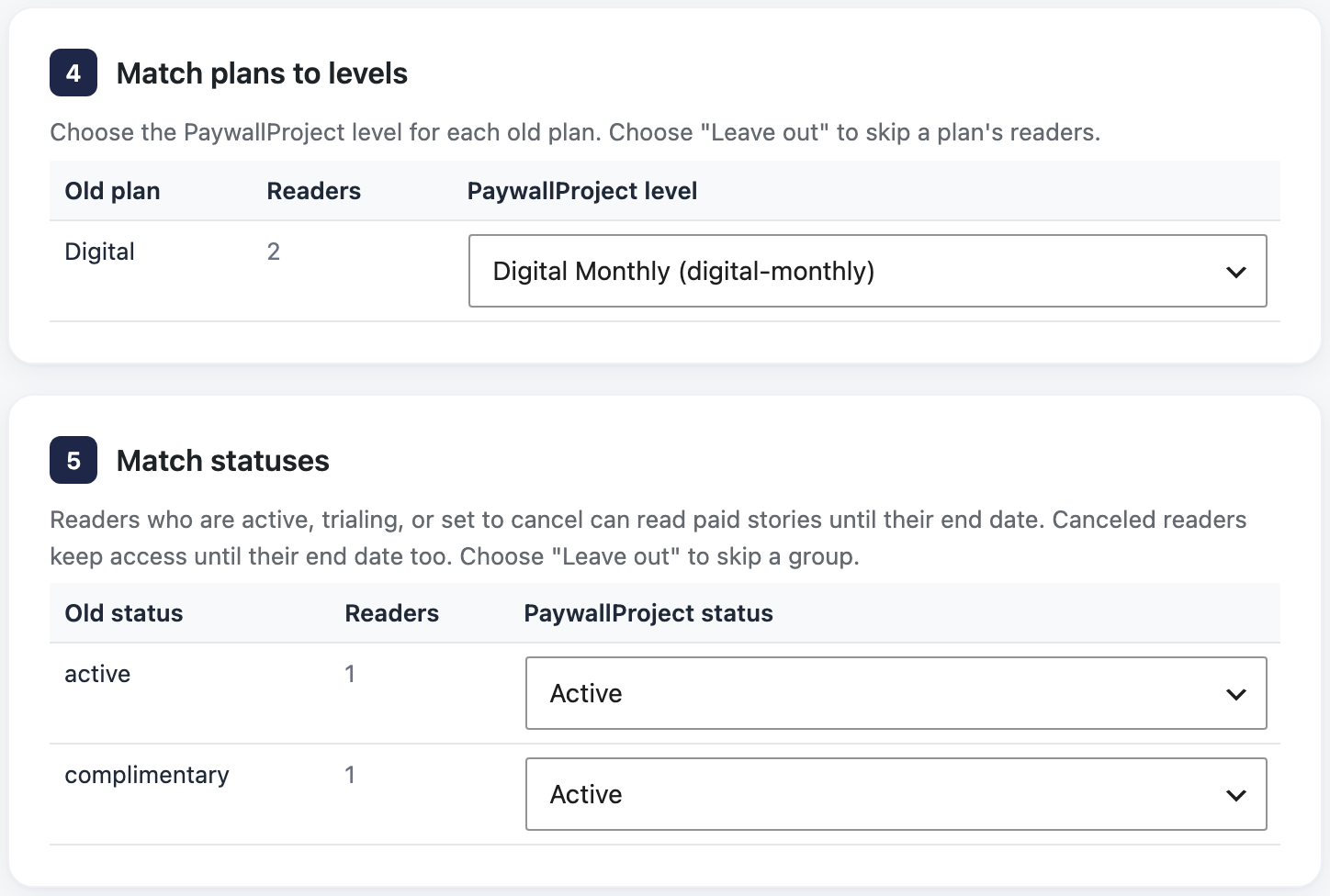
The subscriptions import covers memberships that a subscription pays for. Import the Memberships export only for memberships without one, such as complimentary or fixed-term ones.
- Go to WooCommerce → Memberships → Import / Export and select Export to CSV (WooCommerce: Memberships import and export).
- Go to PaywallProject → Tools. On the Import subscribers card, select Start an import.
- Under Upload an export file, choose WooCommerce Memberships, add the file, and follow the same steps as Method 2.
After the import
- Keep WooCommerce and WooCommerce Subscriptions active. Their renewals, failed payments and cancellations update each reader in PaywallProject.
- Turn off WooCommerce Memberships’ content restrictions, or the plugin, so readers aren’t blocked twice.
- Tell readers their subscription carries over. They sign in as before.
Good to know
- WooCommerce Subscriptions charges saved cards on its own schedule, without Stripe subscriptions (WooCommerce Subscriptions). That’s why WooCommerce keeps billing. To move readers to Stripe Billing later, contact PaywallProject support.
- Logins: the import matches readers by email and never changes a username, password or user ID. Moving to a new WordPress site too? See Readers who get a new account.
- A subscription with several products uses its first product, and the preview notes it.
- Phone numbers and shipping addresses come along for print readers.
- Read the preview explains every result and warning.
- Prefer an AI app? Claude, ChatGPT or another connected app can run the same import. See Move subscribers with an AI app.