

When a reader prints one of your articles, PaywallProject gives them a clean copy of the story. The printout keeps the story and drops everything else on the screen. You don’t have to set anything up for this. You can also add an optional Print button to your articles, so readers don’t have to look for their browser’s print menu.
What a printed article includes
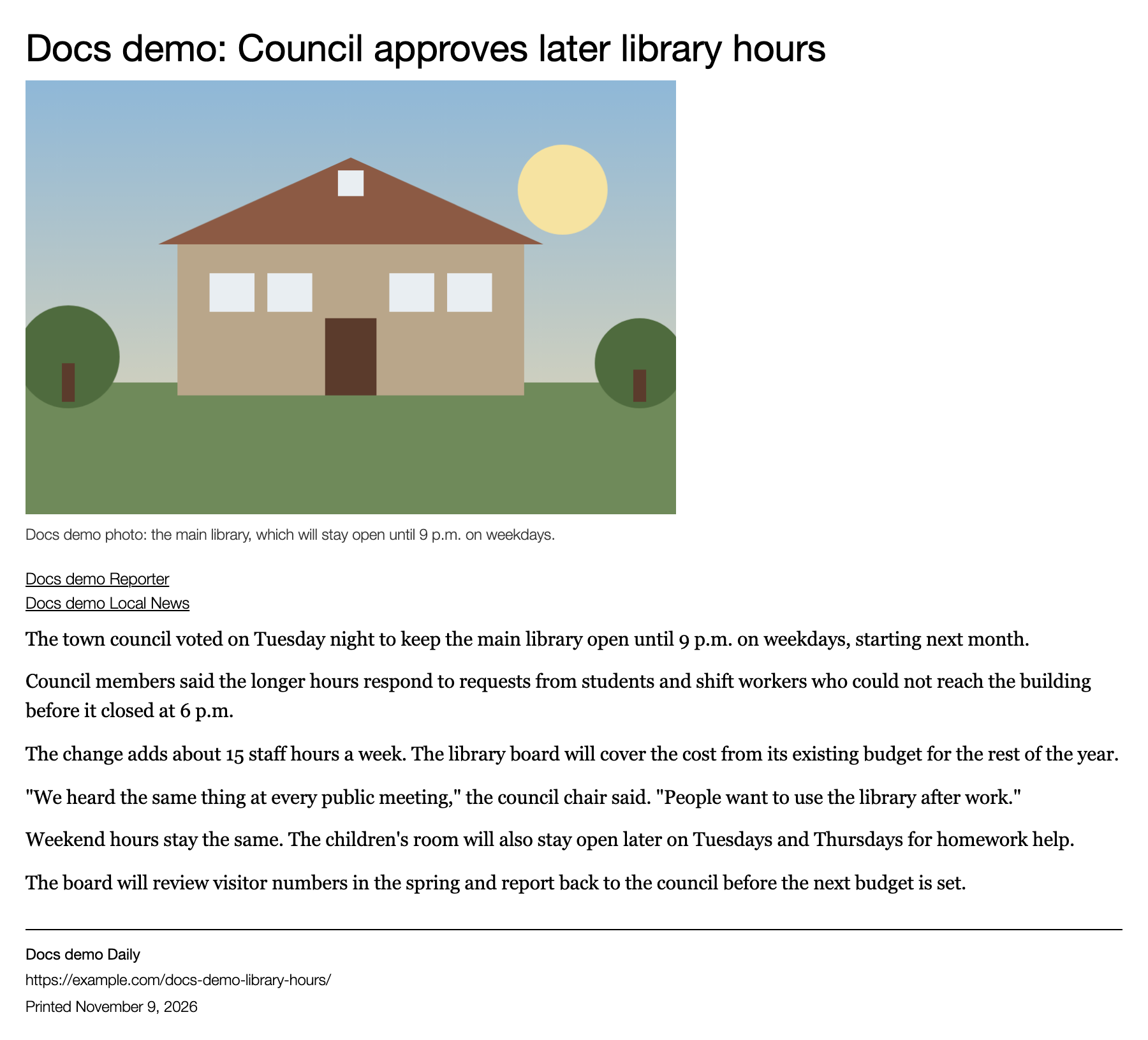
Single articles always load a print layout. It works whether the reader uses the Print button or their browser’s own print command (Ctrl+P, or Cmd+P on a Mac). The printout keeps:
- The headline, kicker or category, byline and date, as your theme shows them.
- The featured image with its caption. The caption prints even if your theme doesn’t show it on screen.
- The story, in one full-width column.
- At the bottom: your site name, the article’s web address and the date it was printed.
It leaves out your site header, menus, sidebars and footer, ads, comments, share buttons, related stories, popups and cookie banners, and PaywallProject’s own paywall messages.
Turn on the Print button
The Print button is off by default.
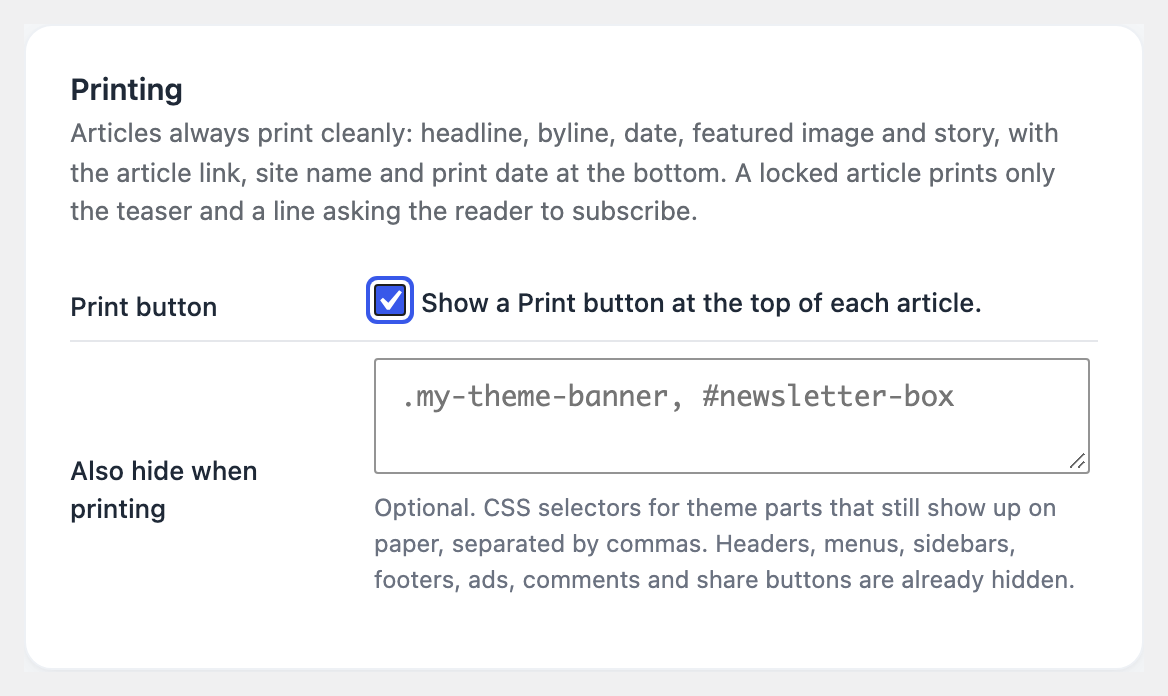
- Go to PaywallProject → Paywall and scroll to the Printing section.
- Next to Print button, select Show a Print button at the top of each article.
- Select Save changes.
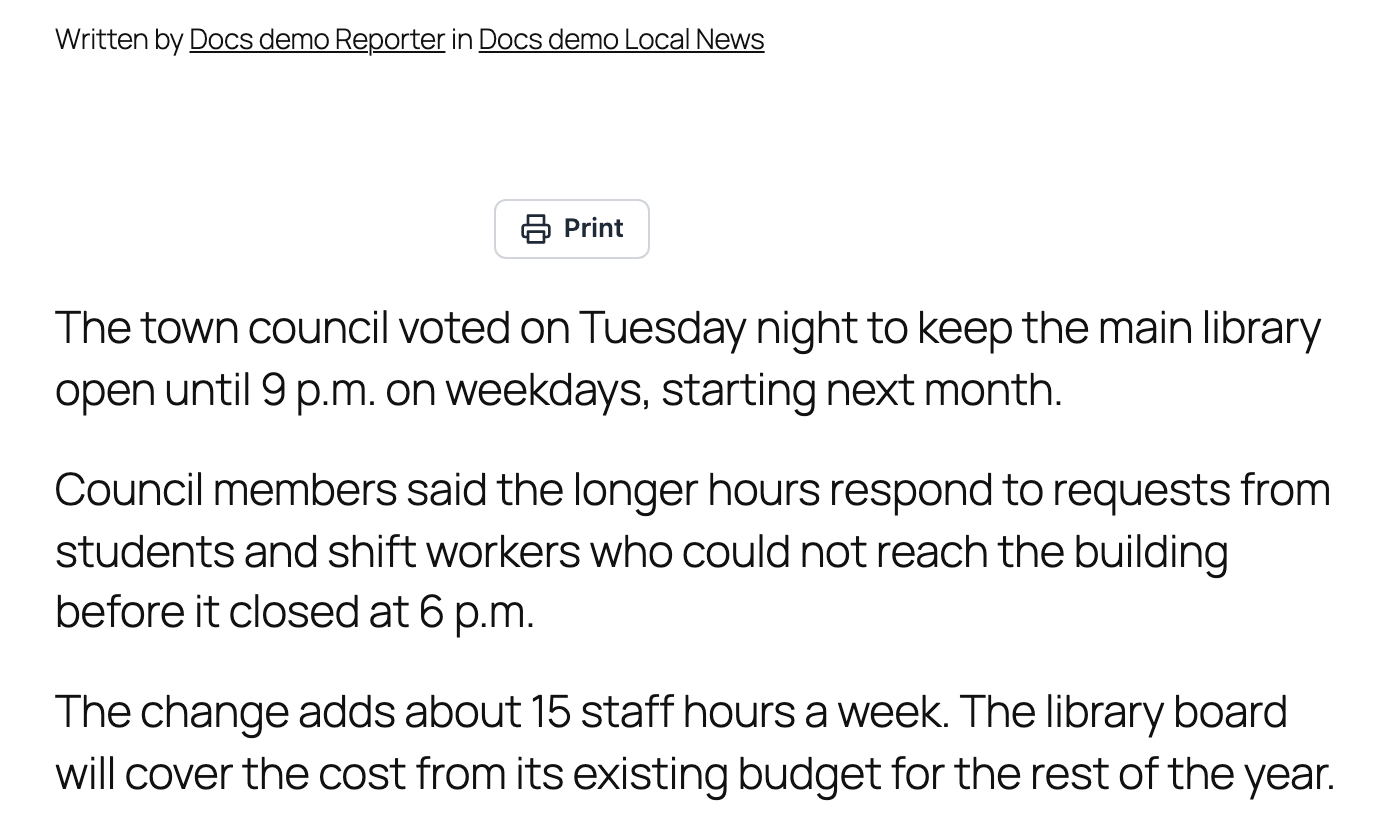
A small Print button now appears above the first paragraph of every article. Every visitor sees it, including readers who haven’t subscribed. Selecting it opens the reader’s print window. The button itself doesn’t appear on paper.
What a locked article prints
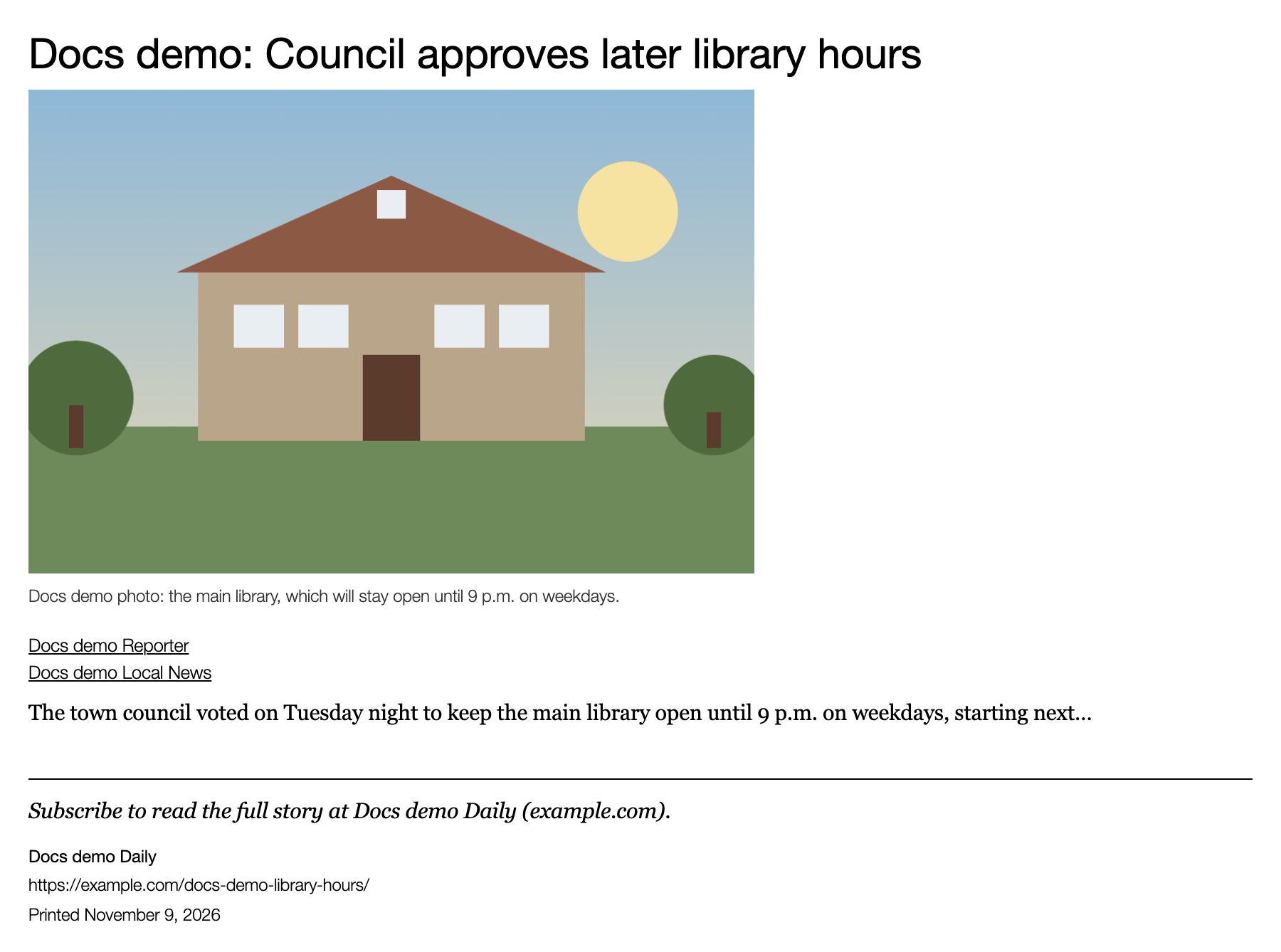
Printing never gets around your paywall. A reader who can’t read the full article only prints what they can see: the headline, image, byline and the teaser. Instead of the paywall box, the printout ends with a line asking them to subscribe, for example “Subscribe to read the full story at Your Site Name (yoursite.com).”
Hide something else from printouts
PaywallProject already hides the usual parts of most themes. If a part of your theme still shows up on paper, such as a newsletter box or a banner, you can hide it:
- Go to PaywallProject → Paywall and scroll to Printing.
- In Also hide when printing, enter the CSS selectors for those parts, separated by commas. For example:
.my-theme-banner, #newsletter-box. Your web developer can help you find them. - Select Save changes.
Good to know
- The print layout applies to single articles of every post type your paywall covers. Pages don’t use it and don’t get the Print button.
- The web address at the bottom is always the article’s normal address. If the reader opened the article through a gift link or a staff share link, that link isn’t printed.
- What prints depends partly on your theme. If your theme doesn’t show the date or the category on the article, they won’t print either.
- If you use Advanced Ads, its ads are hidden from printouts automatically.