

Staff share links let your newsroom share a paywalled article for free. An editor creates a link in wp-admin and sends it to a source, a partner, a reader who wrote in, or a social post. Anyone who opens the link can read that one article, with no account needed. Staff share links don’t use a subscriber gift, and editors don’t need a subscription level to create them.
Before you start
- Staff share links are off by default. An administrator turns them on once for the whole site (see the next section). While they’re off, editors don’t see any share controls.
- Anyone who can edit posts can create links. In a standard WordPress setup, that’s Administrators, Editors, Authors and Contributors.
Turn on staff share links
- Go to PaywallProject → Settings → Advanced.
- Next to Staff share links, select the Let editors create free links to paywalled articles checkbox.
- Select Save changes.

Create a link from the post list
- Go to Posts → All Posts and hover over a published, paywalled article.
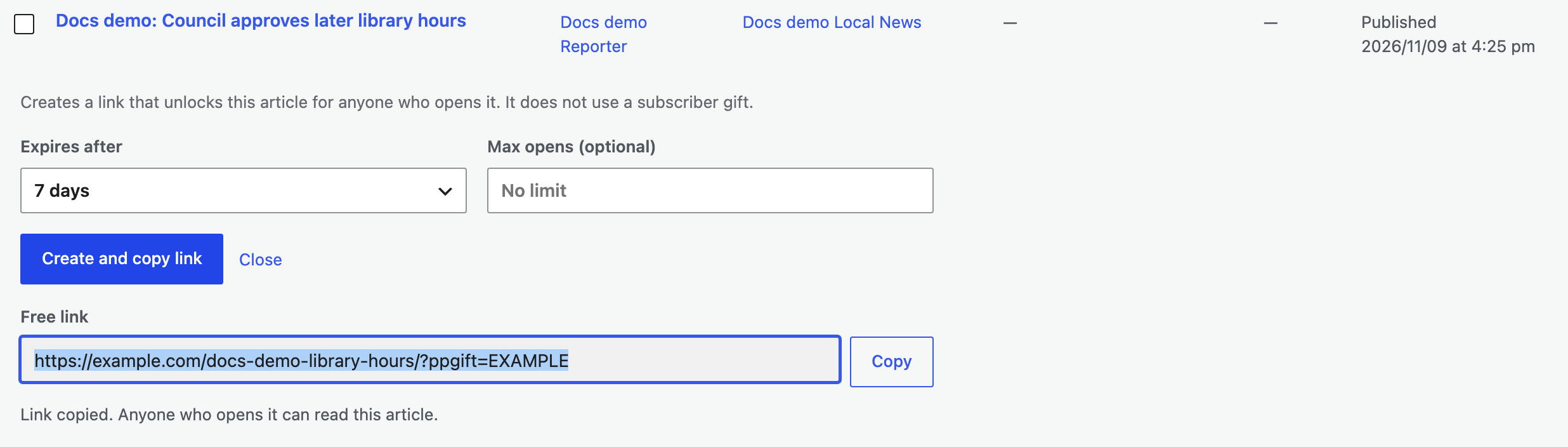
- Select Share free link in the row actions. A small form opens under the row.
- Choose when the link stops working under Expires after: 1 day, 7 days, 30 days or Never. The default is 7 days.
- If you want to limit how many people can use the link, enter a number in Max opens (optional). Leave it blank for no limit. The highest limit is 100,000.
- Select Create and copy link.

The link appears under Free link and is copied for you. Paste it wherever you want to share it. If your browser doesn’t allow copying, select Copy or press Ctrl+C (Cmd+C on a Mac). Select Close to fold the form away.
Create a link in the post editor
You can also create a link while you’re editing an article. Open the article and find the Share free link box in the Post sidebar. It has the same Expires after and Max opens (optional) fields and the same Create and copy link button.
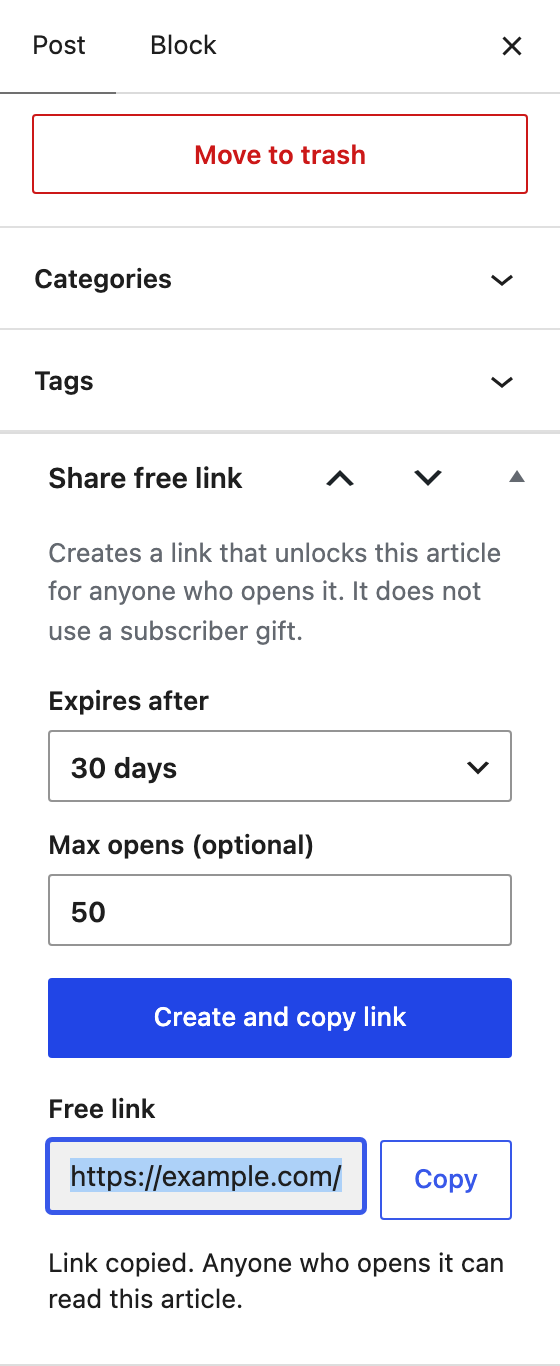
The box only creates links for published articles that are behind your paywall. On a draft, it says “Publish the article first, then create a free link here.” On a free article, it says “This article is not behind the paywall, so anyone can already read it.”
What readers see
Anyone who opens the link reads the full article, with no account and no subscription. The link works for that one article only. Each new browser that opens it counts as one open. Reloading the page, or coming back later in the same browser, doesn’t count again.
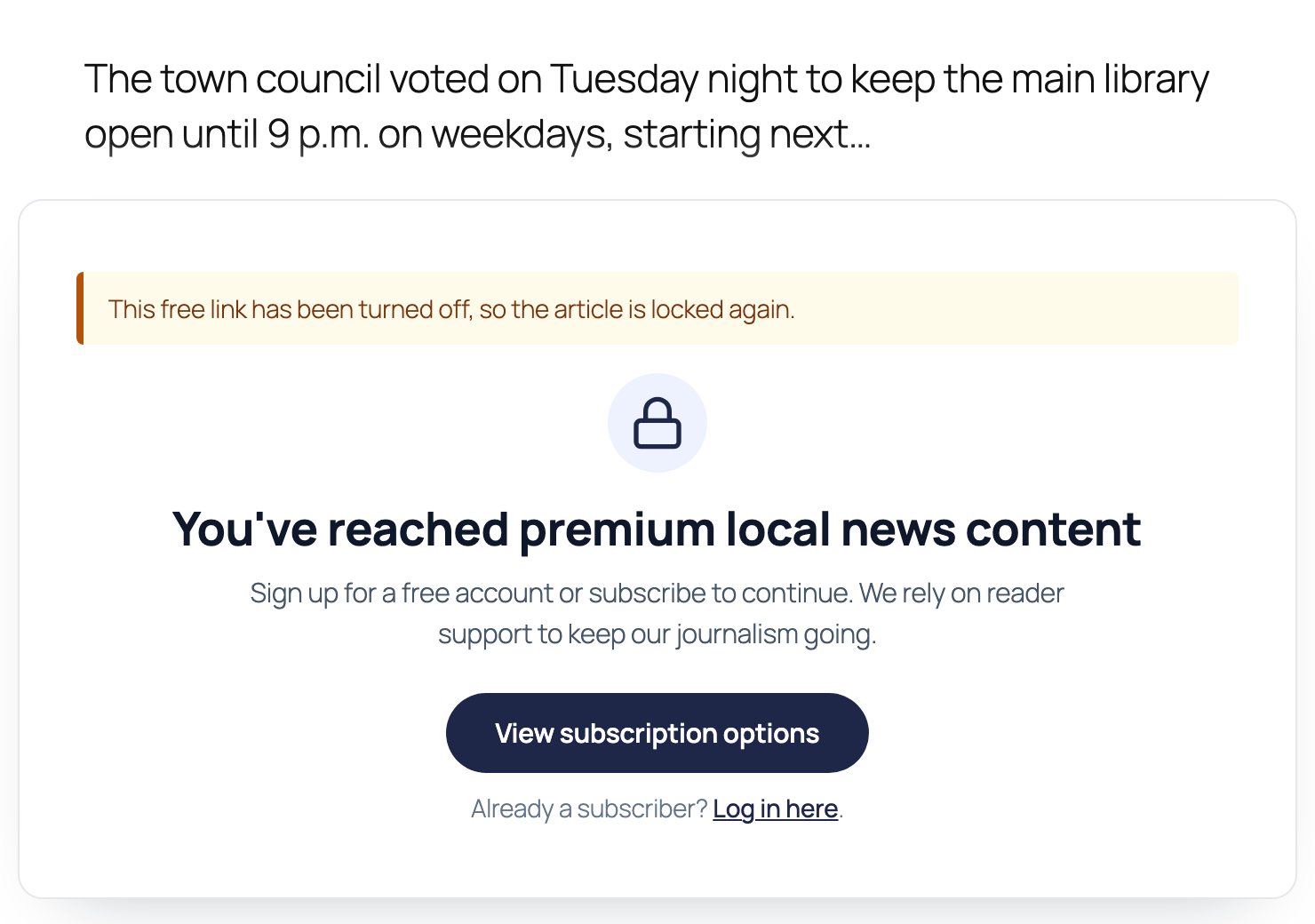
When a link stops working, readers see your normal paywall with a short note above it:
- Revoked: “This free link has been turned off, so the article is locked again.” This also applies to readers who opened the link before you revoked it.
- Expired: “This free link has expired, so the article is locked again.”
- Max opens reached: new readers see “This free link has been opened as many times as it allows.” Readers who already got in keep reading until the link expires.
See and revoke staff share links
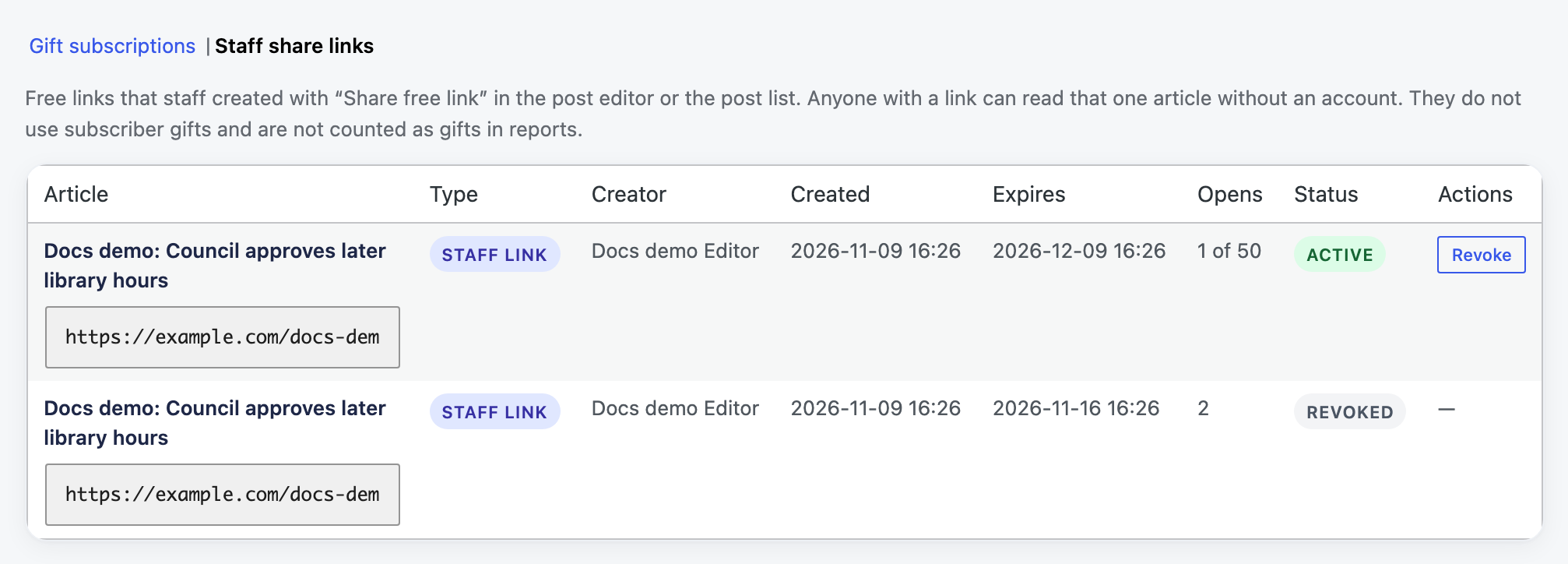
Administrators can see every staff share link in one place. Go to PaywallProject → Gifts and select Staff share links at the top of the page.
The list shows each link’s article, the link itself, who created it, when it was created and when it expires, how many times it was opened (for example, “1 of 50” when it has a limit), and its status: Active, Expired, Revoked or Max opens reached.
To stop a link, select Revoke in its row. You’ll see “Staff share link revoked. Readers who open it now see the paywall.” You can’t undo a revoke, but you can create a new link at any time.
Good to know
- The share controls are only in wp-admin. Nobody sees a “Share free link” button on your site, not even logged-in staff.
- Only administrators can open the Staff share links list. Editors create links but can’t see or revoke them there.
- Turning the setting off stops anyone from creating new links. Links already sent keep working until they expire or you revoke them. The Staff share links list still shows them, so you can revoke them.
- A link set to Never works until you revoke it. Use it with care, because anyone the link is passed on to can read the article.
- Staff share links don’t count as subscriber gifts in quotas or reports. PaywallProject → Analytics shows them on their own Staff share links card, with the number of reader opens, once at least one link has been created in the period you’re viewing.
- Paywalled pages work the same way. Find Share free link in the row actions under Pages → All Pages, or in the page editor.
- Each person can create up to 30 links an hour.
- For developers: the
ppaccess_staff_share_capabilityfilter changes which capability can create links. The default isedit_posts.