

A free plan can ask new readers for a little more when they sign up. You can let them choose their own password, and you can make them confirm their email address with a 6-digit code before their account is created. Use one option, both, or neither. This article is for publishers and staff who run a free plan, such as a free newsletter tier or a free registered-reader level.
These options change the sign-up form on the plan’s own checkout page, for example /subscribe/?ppaccess_level=free-reader. They don’t change the paywall’s “Create a free account, or log in” box. See The paywall’s free registration box works differently below.
Before you start
- You need administrator access to your WordPress dashboard.
- You need a level with the Payment type set to Free (account required). The options only show on free levels.
- If you turn on the code, make sure the code email is on. Go to PaywallProject → Emails, open Email verification code and check that Send this email when triggered is ticked. Readers can’t finish signing up without it.
Turn the options on
- In your WordPress admin, go to PaywallProject → Levels.
- Click Edit next to your free level.
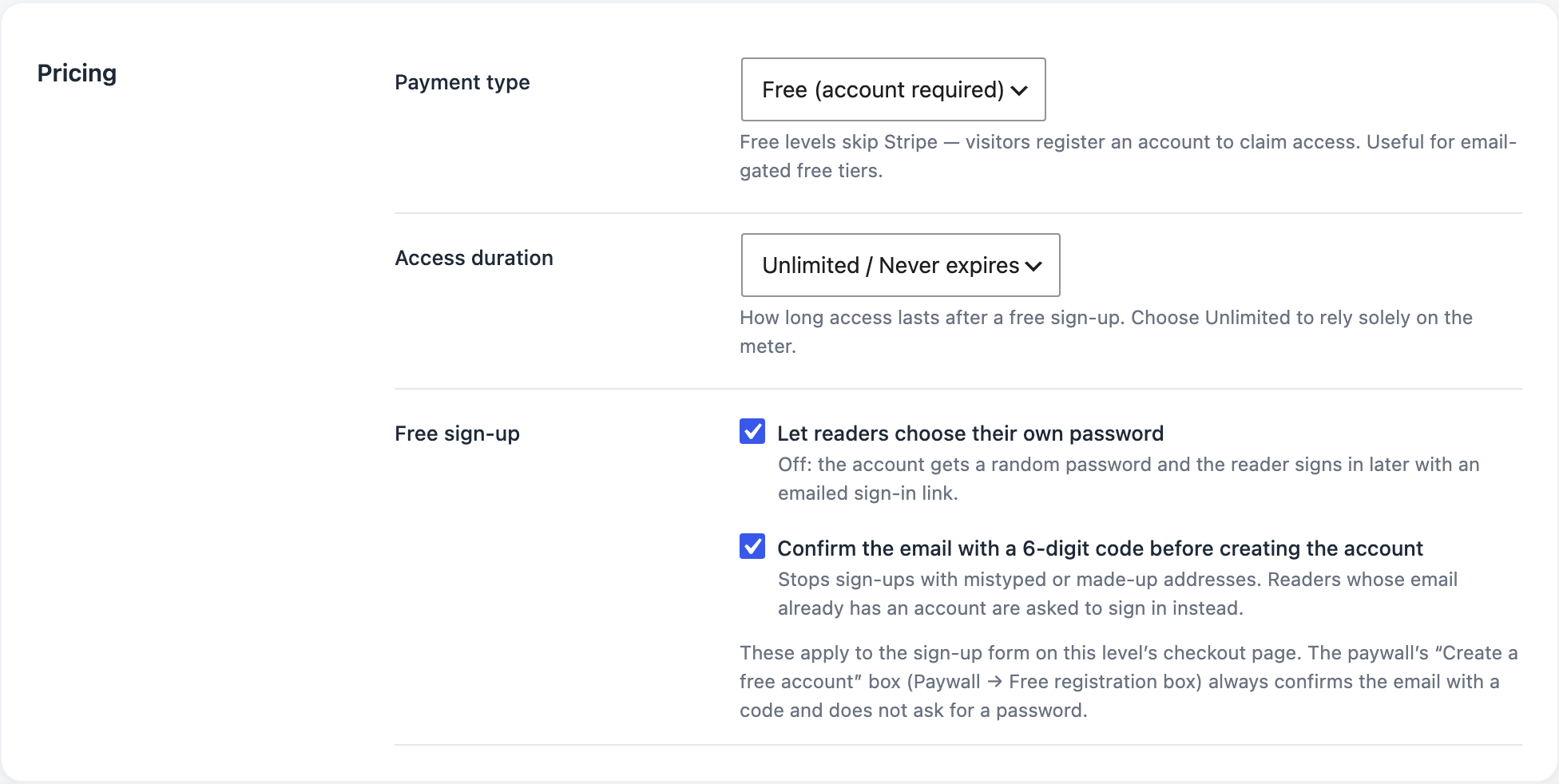
- In the Pricing section, check that Payment type is Free (account required). The Free sign-up row appears below it.
- Tick Let readers choose their own password to add a password field to the sign-up form.
- Tick Confirm the email with a 6-digit code before creating the account to email a code to the reader first. This stops sign-ups with mistyped or made-up addresses.
- Click Save level.
What each choice does
- Both off. This is how free sign-up worked before. The account is created as soon as the reader clicks Create free account, and they’re signed in right away. The account gets a random password that nobody sees. The reader signs in later with an emailed sign-in link.
- Password only. The reader chooses a password on the form. The account is created at once, and they’re signed in right away. They sign in later with that password.
- Code only. The reader gets a 6-digit code by email and must enter it before the account is created. The account gets a random password, as with both off.
- Both on. The reader chooses a password and confirms their email with the code. The account is created only after the code is entered.
What the reader sees
With Let readers choose their own password on, the form has a Password field. The password must be at least 8 characters. The line under the button tells the reader what happens next. With the code on, it says “We will email you a 6-digit code to confirm your address.”
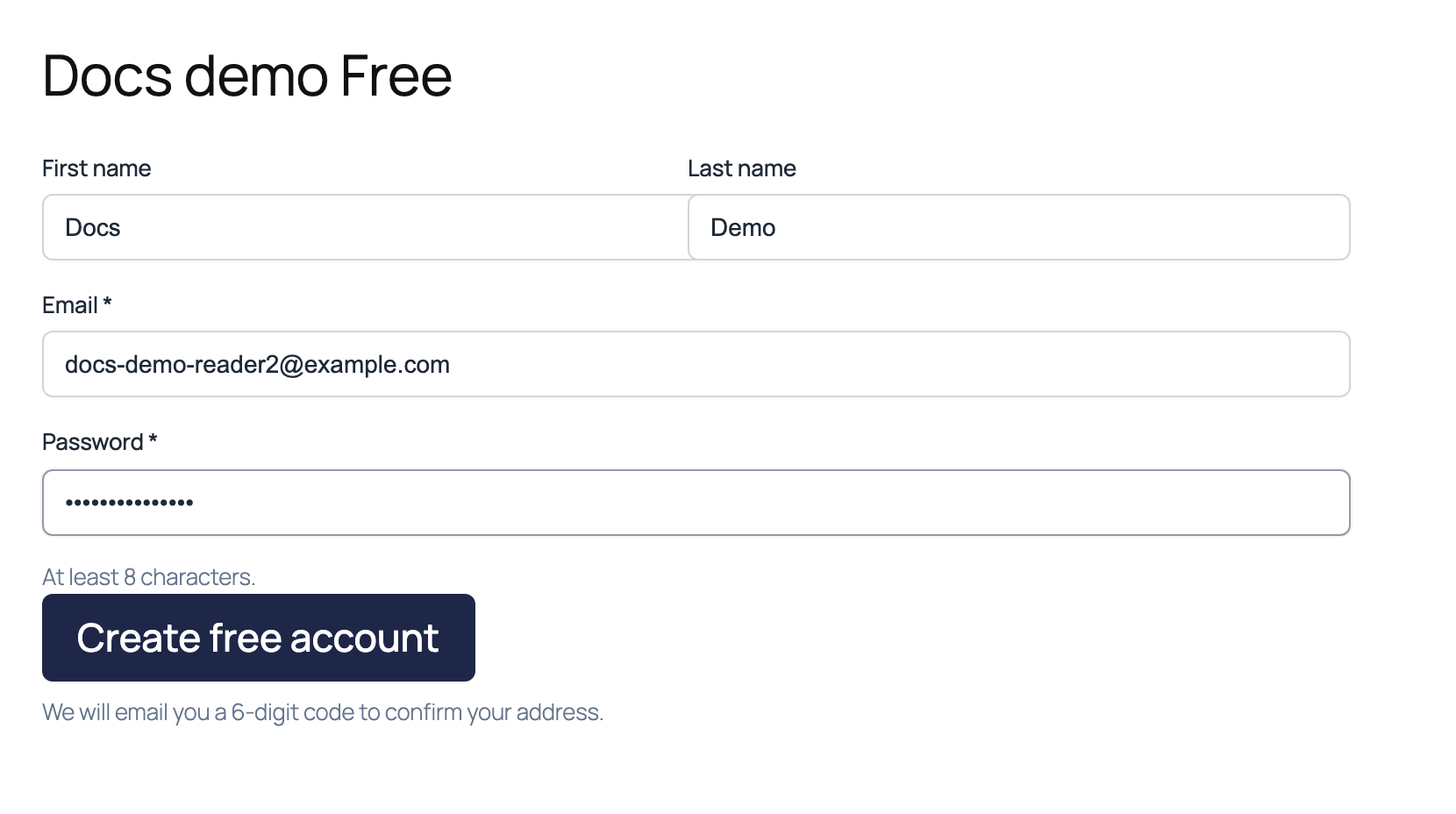
With the code on, the reader goes through these steps:
- The reader fills in the form and clicks Create free account.
- PaywallProject emails a 6-digit code. The form shows “We sent a 6-digit code to [email].” and adds an Enter your code field.
- The reader types the code and clicks Activate free access. Their account is created, they’re signed in, and the plan starts.
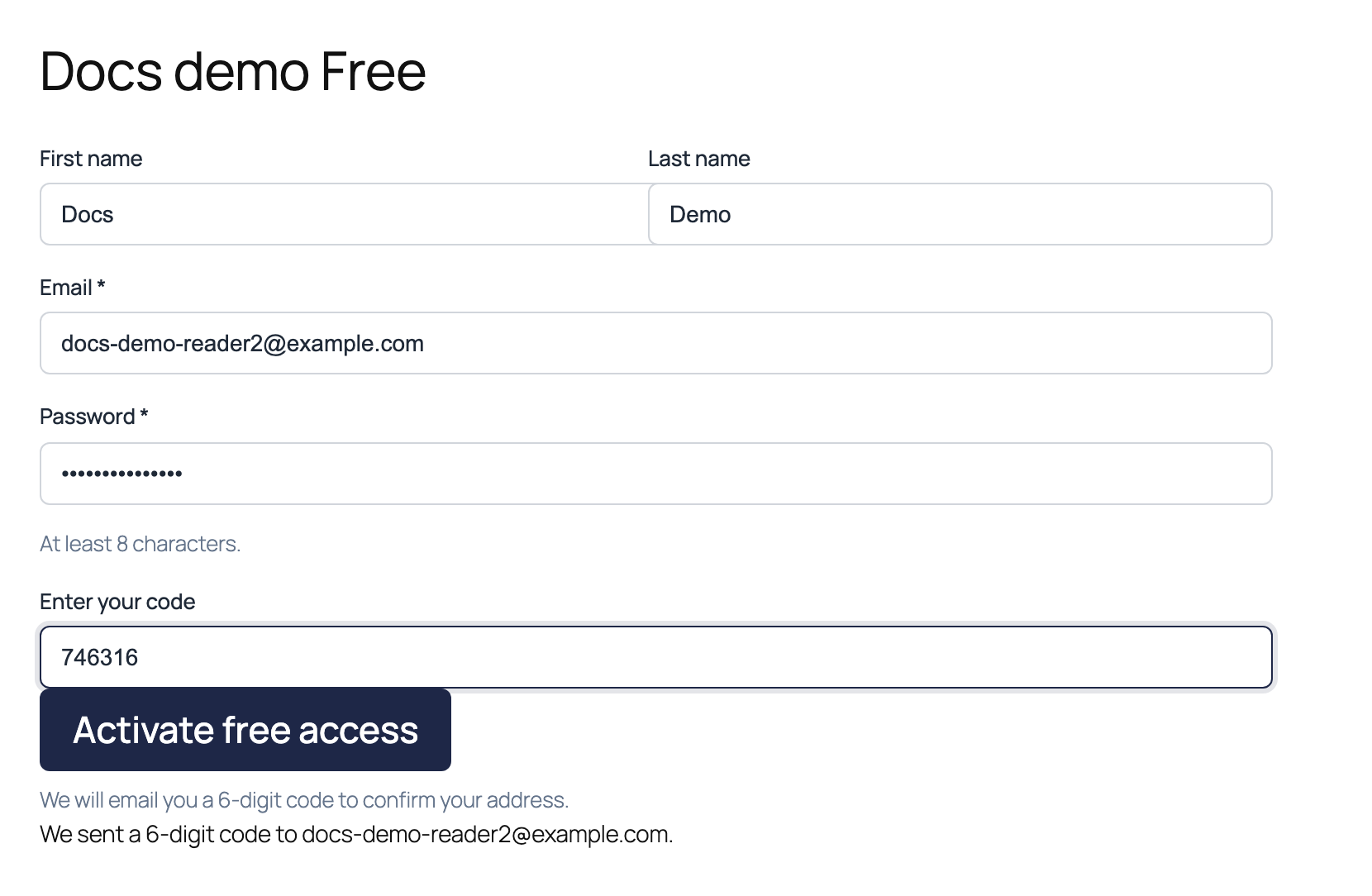
If the reader changes the email address after the code was sent, the code field goes away. The next click on Create free account sends a new code to the new address.
If the email already has an account
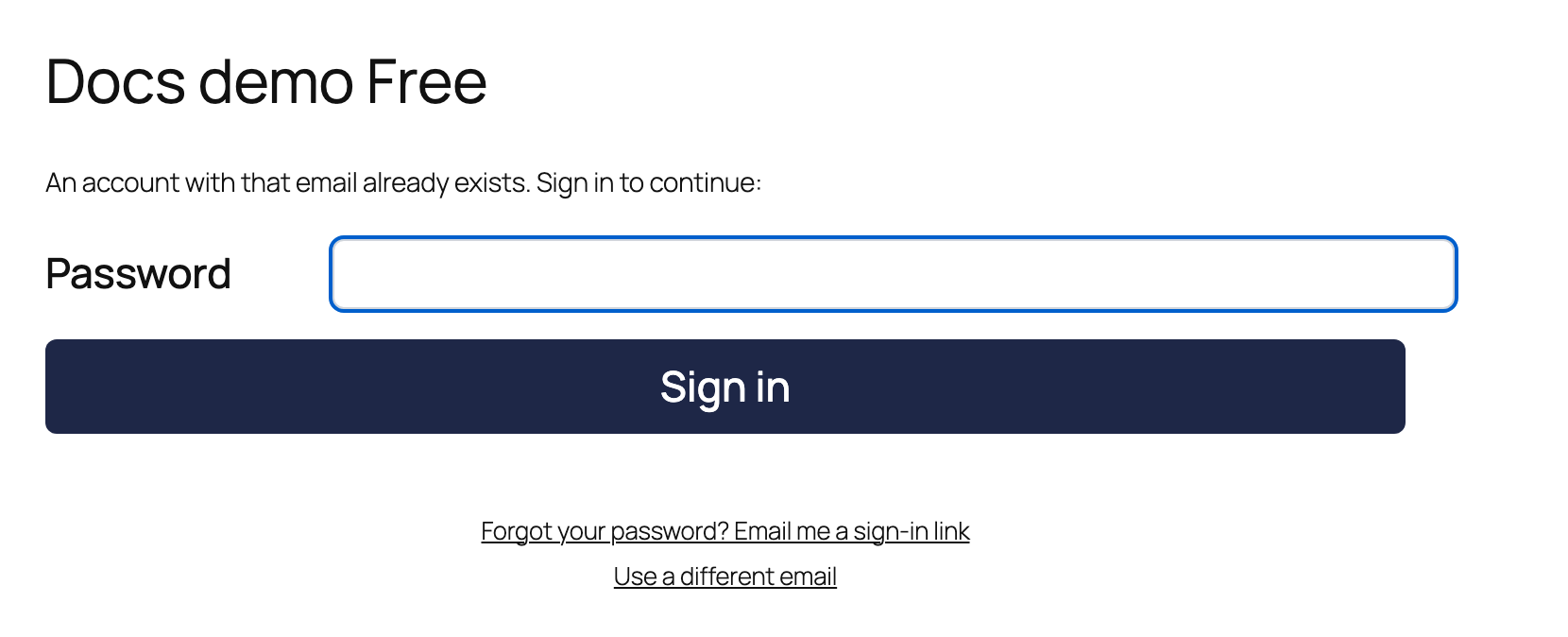
When the email already has an account, no code is sent and no new account is made. The form changes to “An account with that email already exists. Sign in to continue:”. The reader enters their password and clicks Sign in. They can also click Forgot your password? Email me a sign-in link, or Use a different email to go back to the form.
A plan limited to email domains works differently. There the reader sees no sign-in form. Instead, the form says “This plan is limited to specific organizations. Either this address is not one of them, or it already has an account, in which case please sign in.” No code is sent. The message never says which of the two it is, so nobody can use the form to find out who has an account. See Give free access to a school, employer or association by email domain.
The paywall’s free registration box works differently
The “Create a free account, or log in” box that readers see on the paywall is set up under PaywallProject → Paywall → Free registration box. That box always confirms the email with a 6-digit code and never asks for a password. This stays true even when Assign free level on sign-up gives readers the same level you set up here. Both admin screens say so under the setting.
So a reader who signs up from the paywall box confirms by code and gets a random password. A reader who signs up on the level’s checkout page follows the level’s Free sign-up options. To see how the paywall box works, read How the free registration funnel works.
Good to know
- Plans limited to email domains always use the code. If the level lists domains under Access → Free for these email domains, the code box is ticked and can’t be unticked. A note says it’s always on while the level is limited to email domains. If you delete every domain, the box goes back to what you had saved. See Give free access to a school, employer or association by email domain.
- Paid plans aren’t affected. The row is hidden on paid levels. A paid checkout already asks the buyer to choose a password.
- Readers who are already signed in don’t see the email, password or code fields. They click Activate free access to add the plan to their account.
- Code limits. Each code works for 15 minutes. After 5 wrong tries, the reader must ask for a new code.
- Check the code email arrives. If readers say no code came, ask them to check spam.
- Changing the options later only affects new sign-ups. Readers who already have an account keep their password.