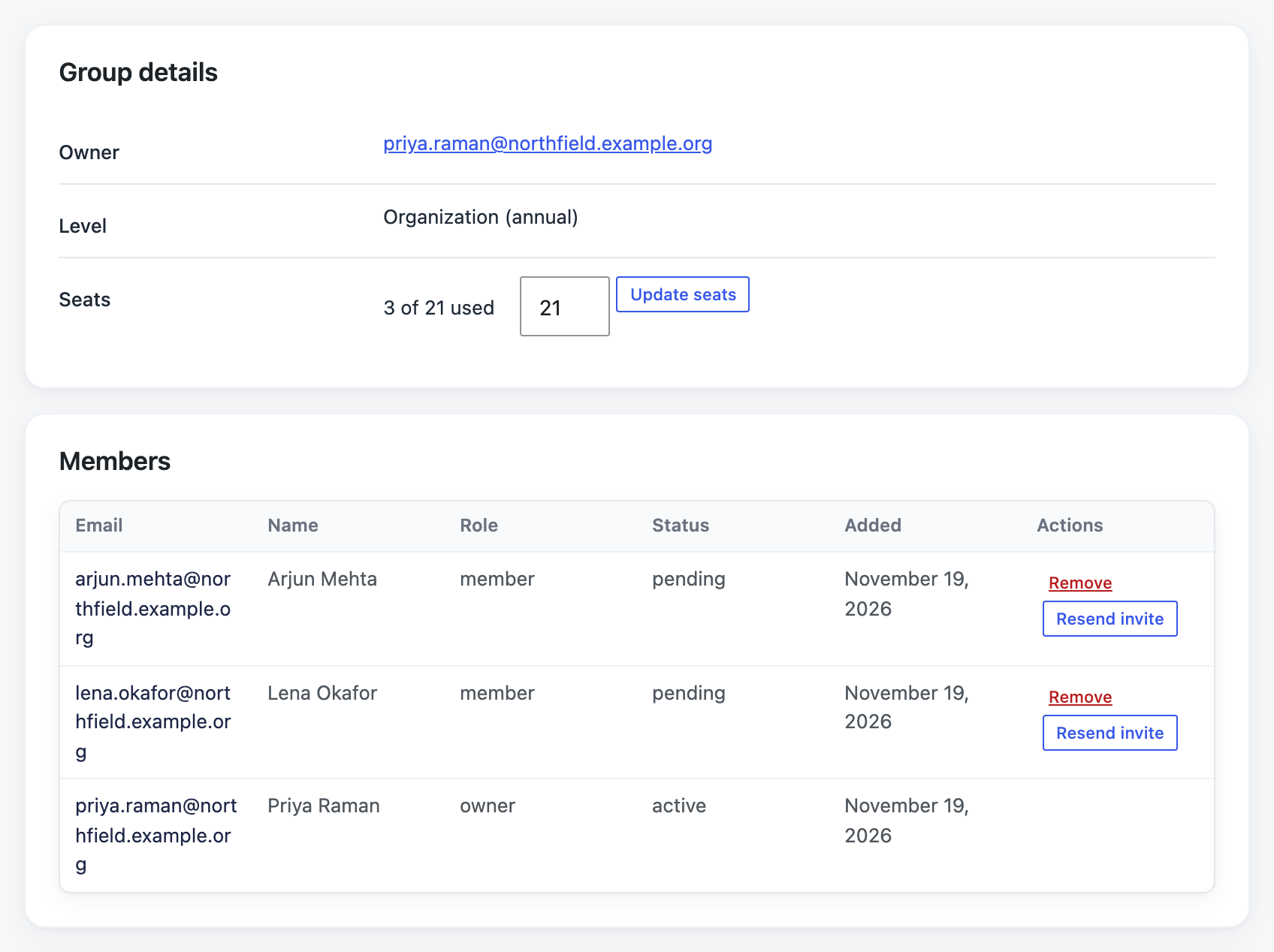
Use this when an organization pays you outside your site, for example by invoice or purchase order, and needs access for several people. You add the organization’s group manager in PaywallProject. The manager then invites the rest of their team.
(Readers who buy a group level on your site get their group automatically. You don’t need to do anything for them.)
Step 1: Turn on group accounts for a level
- Go to PaywallProject → Levels and edit the level the group should get, or add a new one.
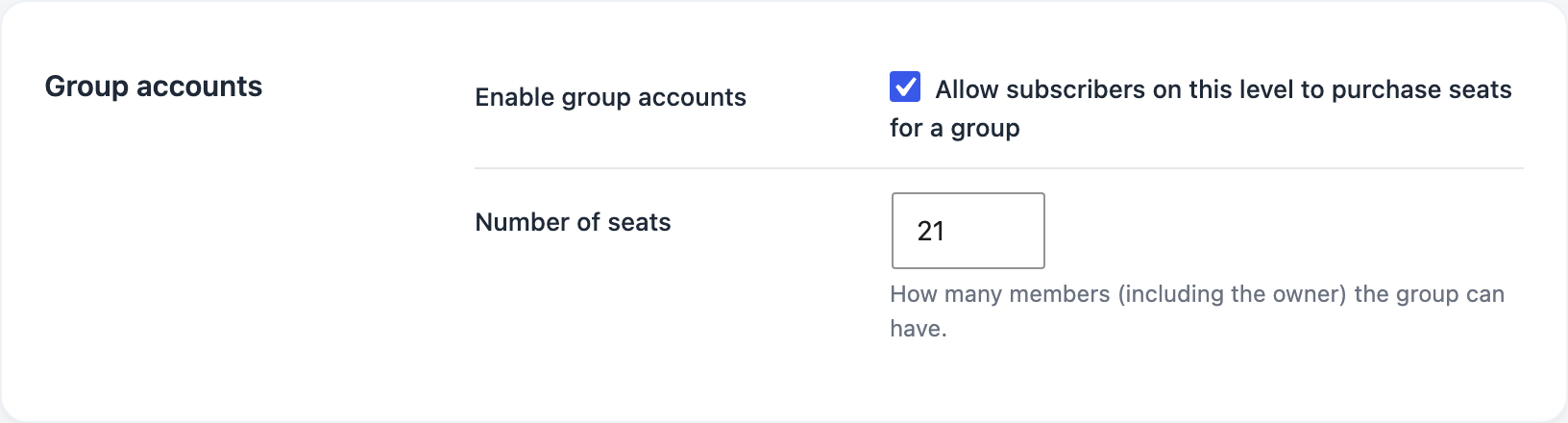
- Select Enable group accounts.
- Enter the Number of seats. The manager uses one seat, so for a manager plus 20 people, enter 21.
- If it’s a new level just for invoiced groups, also select Hide from subscribe page and Disable direct sign-up link so nobody can buy it on your site.
- Save.
Step 2: Add the group manager
- Go to PaywallProject → Subscribers → Create subscriber.
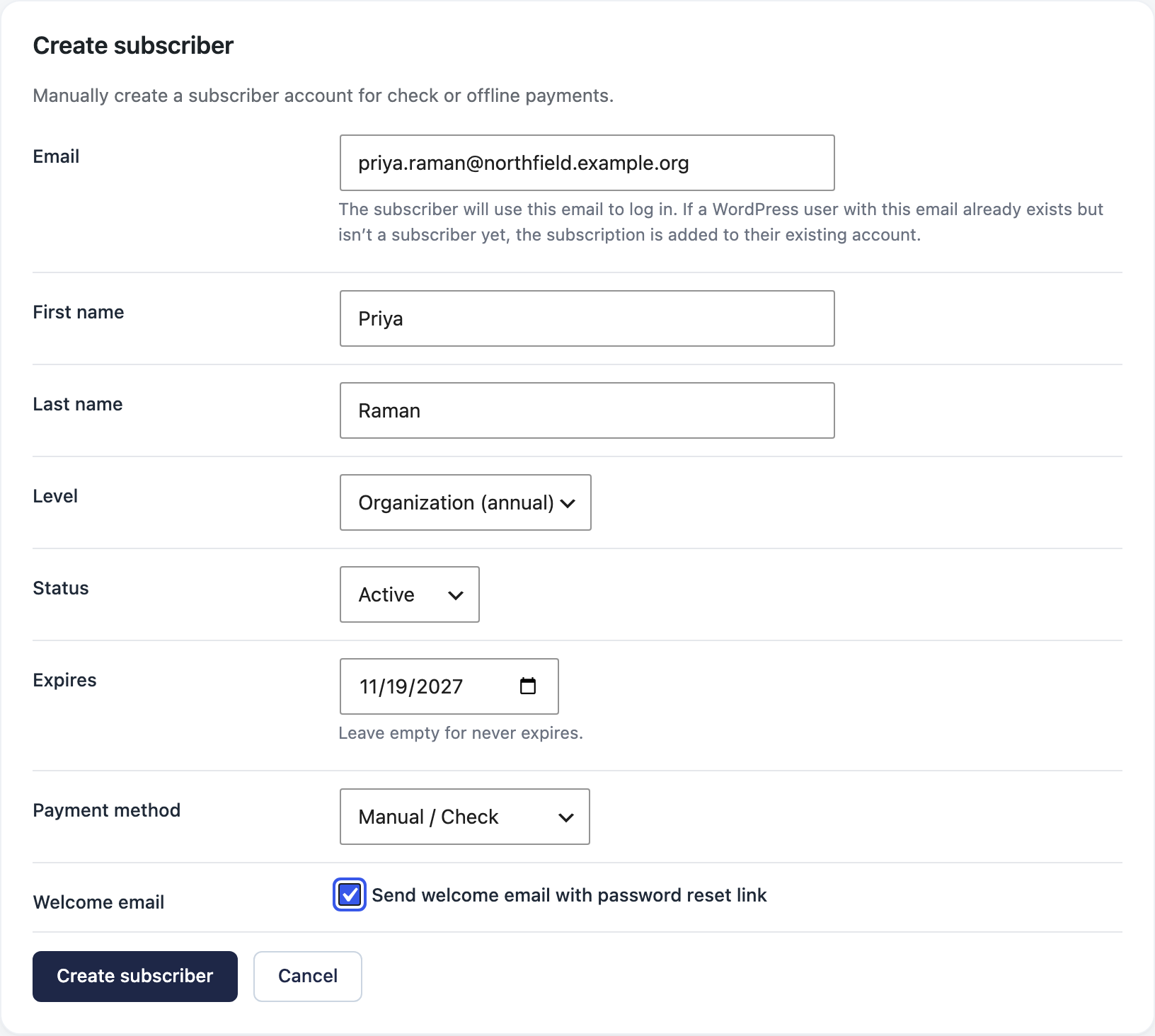
- Enter the manager’s email and name.
- Choose the level from Step 1.
- Set Status to Active, Expires to the end of the period they paid for, and Payment method to Manual / Check.
- Select Send welcome email and click Create subscriber.
PaywallProject creates the group for them right away. You’ll see it under PaywallProject → Group Accounts.
Step 3: The manager invites their team
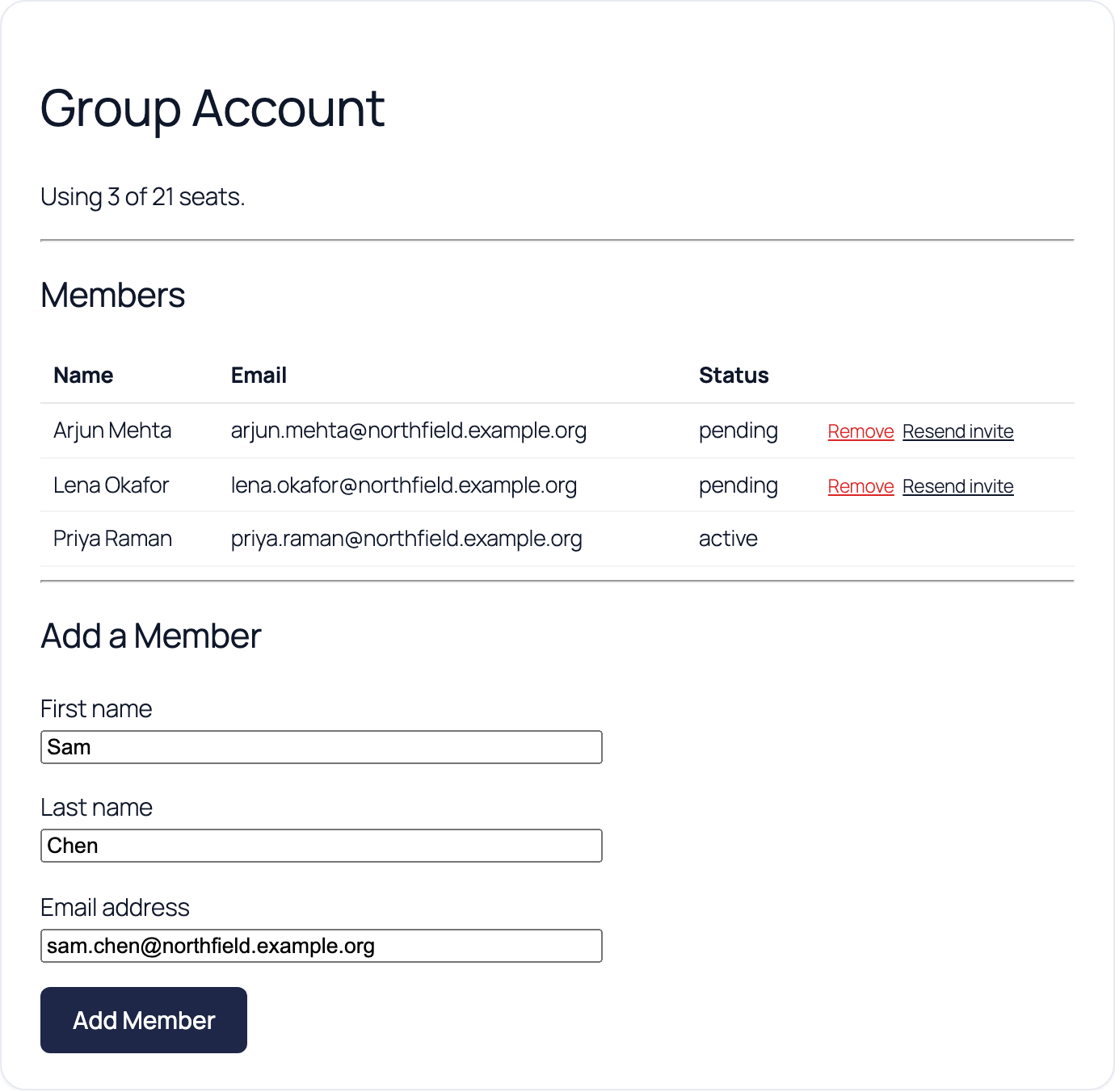
The manager sets a password from the welcome email and goes to your My Account page. Under Add a Member, they enter each person’s name and email. Each person gets an email with a link that signs them in.
Renewing or ending the group
The whole group has access until the manager’s Expires date. To renew, edit the manager under Subscribers and move the date forward. To add seats or remove people, go to PaywallProject → Group Accounts and click View.