

Each subscriber’s page in wp-admin has buttons to cancel or resume their subscription. You can also reactivate a canceled subscriber there. PaywallProject changes Stripe first and only then updates your site, so the two stay in step. This guide is for site administrators who handle subscriber requests.
Before you start
- You need to be a WordPress administrator.
- Stripe must be connected under PaywallProject → Settings. Without Stripe, a cancel is recorded on your site only, and nothing changes in Stripe.
- These buttons are for Stripe subscriptions. A subscription that WooCommerce manages shows “This subscription is managed in WooCommerce. Change it in WooCommerce.” instead.
Open a subscriber’s page
- Go to PaywallProject → Subscribers.
- Search for the reader, then click their email address or name.
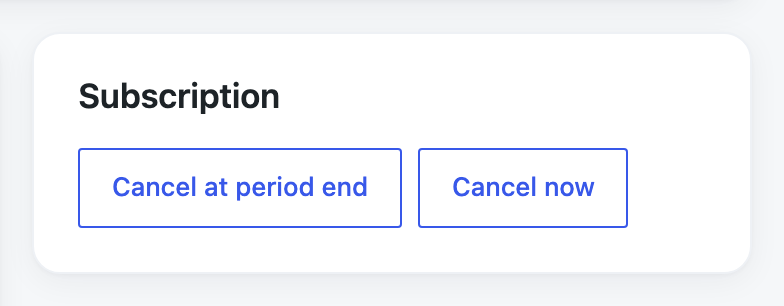
The Subscription card on the right shows the buttons that fit the subscriber’s status. An active subscriber has Cancel at period end and Cancel now.
Cancel at the end of the paid period
Use this when a reader wants to stop renewing but keep what they paid for.
- Click Cancel at period end.
- The page shows “The subscription will cancel at the end of the paid period, in Stripe and here.”
The status changes to Pending cancel. The reader keeps access until the date on the card. Stripe doesn’t charge them again.
Resume a subscription
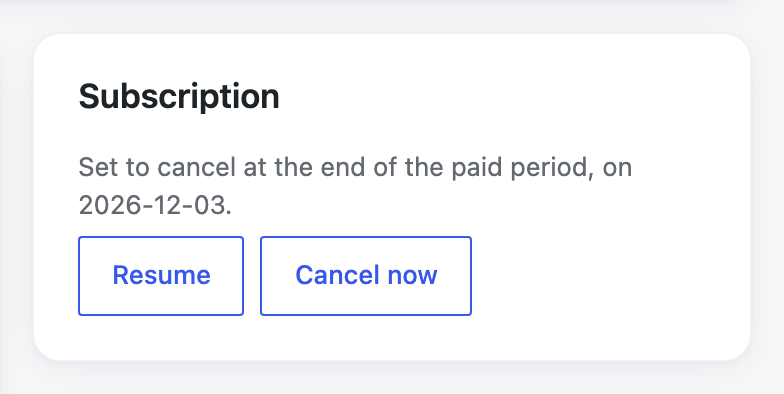
If the reader changes their mind before the end date, click Resume. The page shows “The subscription is active again and renews as normal, in Stripe and here.” Nothing is charged now. Stripe bills the reader at the next renewal date as usual.
Resume only works on a subscription that is set to cancel at period end. A subscription that has already ended can’t be resumed. Reactivate it instead (see below).
Cancel now
Use this when access and billing must stop at once, for example after a refund.
- Click Cancel now.
- Your browser asks “Cancel this subscription now? Access and billing end at once, in Stripe and here.” Click OK.
- The page shows “The subscription is canceled now, in Stripe and here.”
The status changes to Canceled and the reader loses access straight away. Stripe doesn’t refund anything when you cancel. To give money back, refund the payment as well. See How to refund a subscriber in Stripe.
Setting the Status to Canceled in Manual edit and clicking Save changes does the same thing as Cancel now.
Reactivate a canceled or expired subscriber
Reactivating gives a reader access again and, when needed, starts billing them again in Stripe.
- Open the subscriber’s page.
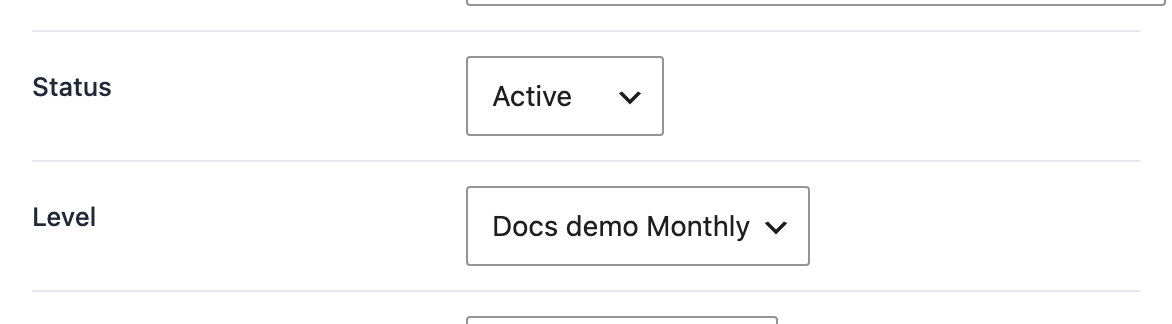
- In Manual edit, set Status to Active.
- Check the Level. A new Stripe subscription uses this level’s price.
- Check Expires (date). Leave it empty to charge the reader’s card now. Enter a future date to start the subscription without charging now. Stripe then charges the reader on that date.
- Click Save changes.
What happens next depends on the subscriber:
- Set to cancel at period end: the cancel is cleared in Stripe and the subscription renews as normal. Nothing is charged now.
- Stripe subscription still running: if the reader’s saved Stripe subscription hasn’t ended, the subscriber becomes active on your site again. No new subscription is started and nothing is charged.
- Canceled or expired, with no running Stripe subscription: PaywallProject starts a new Stripe subscription for the level. With Expires (date) empty, it charges the saved card now, and the subscriber becomes active only after Stripe accepts the payment. With a future date, nothing is charged now. Stripe takes the first payment on that date.
- Stripe not connected, no Stripe customer, or a level with no Stripe price: the subscriber becomes active on your site only. Nothing changes in Stripe and nothing is charged.
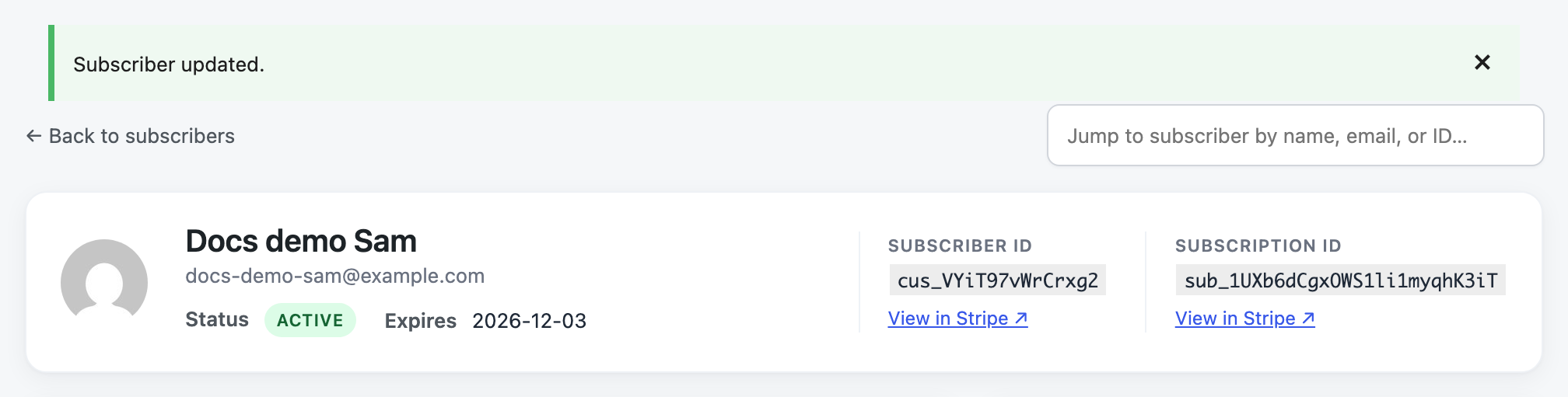
If Stripe declines the card, or the card needs the reader to confirm the payment, nothing is saved and the page shows why. Send the reader a link to update their card, then try again.
Change a subscriber’s plan
There is no wp-admin button that changes a reader’s plan in Stripe with a price preview. You have two options:
- Let the reader switch. On their account page, the reader clicks Change plan, picks the new plan and sees the prorated amount before they confirm. See How to change a subscription.
- Ask your AI assistant. If you connected Claude or another AI app to PaywallProject, ask it to preview a plan change for the reader. It shows what Stripe will charge today and the new renewal price. It changes the plan only after you confirm. The preview is valid for 10 minutes and can be used once.
The Level field in Manual edit changes what the reader can access on your site. It doesn’t change the price Stripe charges.
See who did what
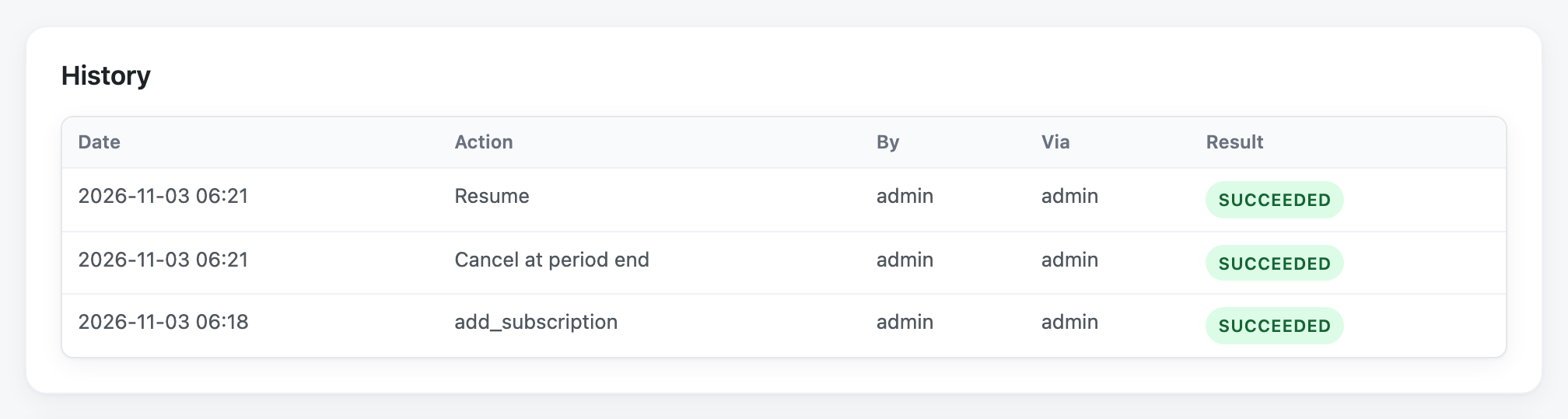
The History box near the bottom of the subscriber’s page lists every cancel, resume and reactivation. It shows the date, the action, who did it, where it came from (wp-admin, the reader’s account page or an AI assistant) and whether it worked. If Stripe refused a change, the error is shown under the result.
Good to know
- Every button changes Stripe first. If Stripe can’t be reached or refuses, your site isn’t changed and the page shows the error.
- If Stripe has no subscription with the saved ID, or Stripe isn’t connected, a cancel is recorded on your site only and the page warns you.
- PaywallProject won’t start a second subscription for a reader who already has an open Stripe subscription. Cancel the other one in Stripe first.
- Clicking a button twice is safe. The second click changes nothing.
- Readers can still cancel and resume on their own account page.