

This guide moves your readers from Leaky Paywall to PaywallProject. Readers who pay with Stripe keep their card, price and renewal date. On the same WordPress site, everyone keeps their login. PaywallProject reads Leaky Paywall’s data directly, even while Leaky Paywall is deactivated.
Before you start
- Update to PaywallProject 4.2.0 or later. You need administrator access to WordPress and to your Stripe account.
- Connect the Stripe account your readers already pay into, under PaywallProject → Settings → Stripe.
- Create one level for each old plan, with the same price and billing interval. Steps 1 and 2 of the walkthrough show how.
- Do a test run on a staging copy of your site first.
Method 1: Import directly from Leaky Paywall (recommended)
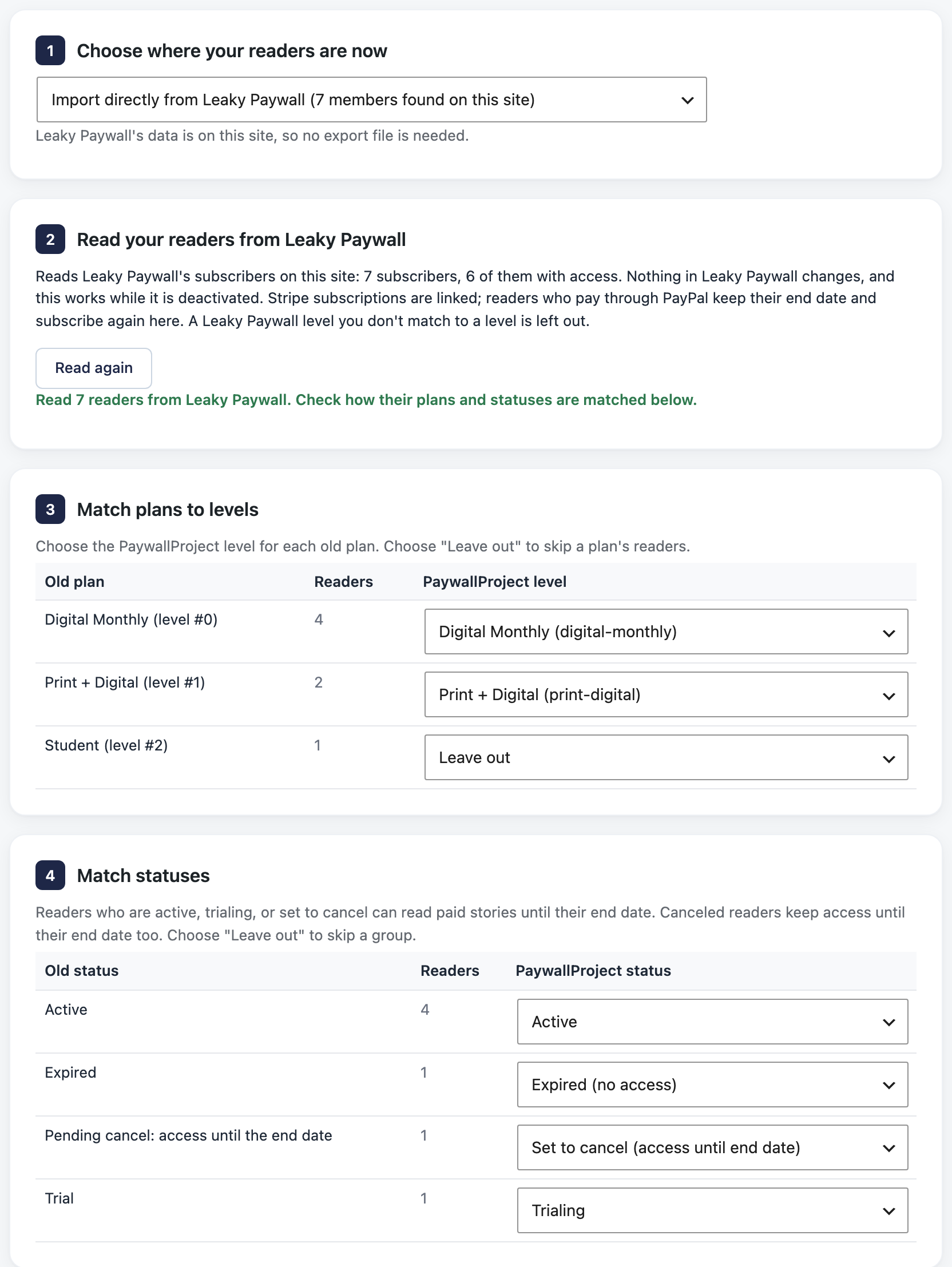
- Go to PaywallProject → Tools. On the Import subscribers card, select Start an import.
- Check that Import directly from Leaky Paywall is chosen. PaywallProject reads your subscribers at once.
- Under Match plans to levels, check the level for each Leaky Paywall level. A level with the same name is chosen for you. Readers on a level left on Leave out aren’t imported.
- Under Match statuses, check the status chosen for each old status. Change any you want.
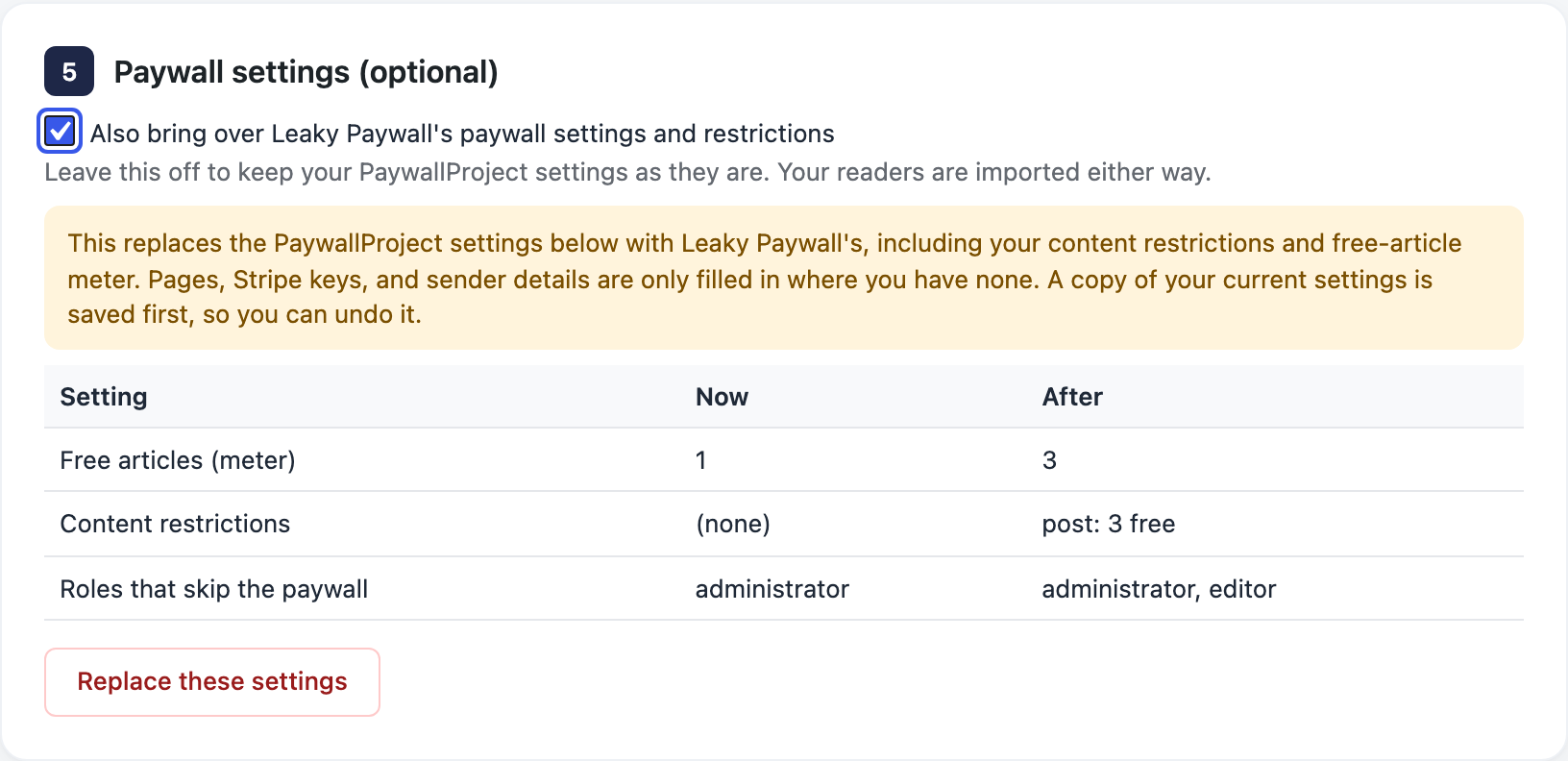
- Under Paywall settings (optional), leave the box off to keep your PaywallProject settings. To copy Leaky Paywall’s restrictions and meter instead, tick Also bring over Leaky Paywall’s paywall settings and restrictions, check the list of changes, and select Replace these settings.
- Select Preview import and read the preview. Nothing is saved yet.
- Select Import now and confirm. Then select Download report (CSV) to keep a record. PaywallProject then recreates your group accounts and adds Leaky Paywall’s payments to Transactions.
Method 2: Import an export file
Use this when Leaky Paywall ran on a different WordPress site. Set up your restrictions and paywall on the new site yourself.
- On the old site, go to Leaky Paywall → Reporting Tool and export your subscribers (Leaky Paywall: subscriber report).
- Go to PaywallProject → Tools. On the Import subscribers card, select Start an import.
- Under Upload an export file, choose Leaky Paywall (on another site).
- Under Add your export file, add the Reporting Tool export.
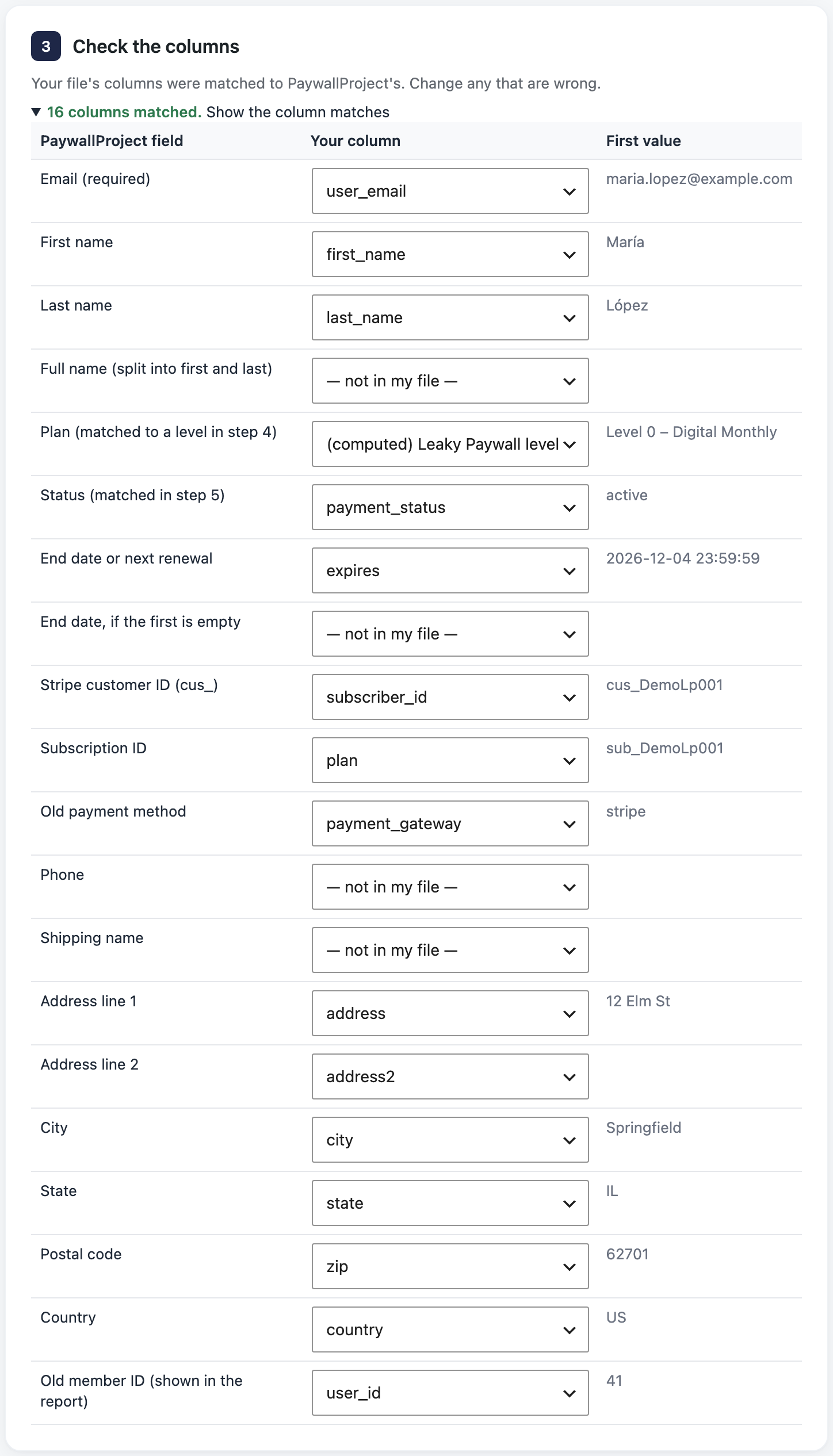
- Under Check the columns, select Show the column matches and fix any wrong match.
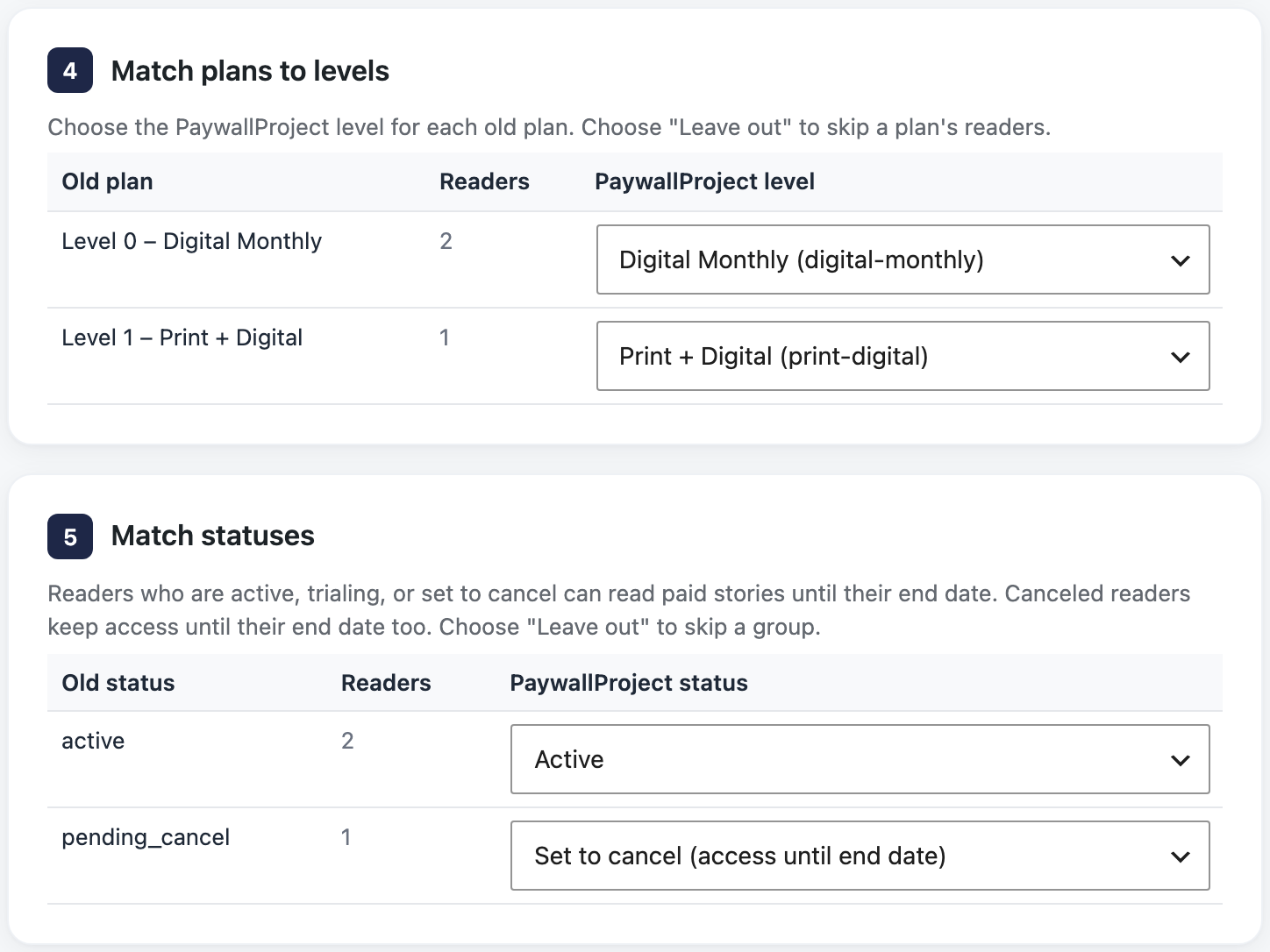
- Under Match plans to levels, check the level for each old plan. A level with the same name is chosen for you. Choose Leave out to skip a plan.
- Under Match statuses, check the status chosen for each old status. Change any you want.
- Select Preview import and read the preview. Nothing is saved yet.
- Select Import now and confirm. Then select Download report (CSV) to keep a record.
After the import
- Deactivate Leaky Paywall.
- In Stripe, under Developers → Webhooks (or Workbench → Webhooks), disable the endpoint that ends in
?listener=stripe. Disable it rather than delete it, so you can roll back. - Cancel the recurring payments of readers who pay with PayPal, in your PayPal account.
- Remove Leaky Paywall’s fee. If you connected Stripe with Leaky Paywall’s Connect button, it set a 10%
application_fee_percenton each subscription it created in live mode. Ask Leaky Paywall to remove it before you disconnect, or Stripe keeps paying it on every renewal (details). - Tell readers their subscription carries over. They sign in as before.
Good to know
- Logins: the import matches readers by email and never changes a username, password or user ID. Moving to a new WordPress site too? See Readers who get a new account.
- Readers who pay with PayPal keep their end date and are marked to subscribe again. PaywallProject sends them the Renewal reminder email before that date (details).
- Group accounts: a group comes over when its owner is imported. Members keep active or invited, and nobody gets an email.
- Settings: a copy of your settings is saved first. Select Undo: put my previous settings back in the same step to restore them. Pages, Stripe keys and sender details are only filled in where you have none.
- A reader with a customer ID but no subscription ID gets their running subscription from Stripe. If there are several, the newest is linked, with a warning.
- Running the import again adds no copies of readers, groups or payments.
- If you connected Stripe with Leaky Paywall’s Connect button, only Leaky Paywall can change its subscriptions through Stripe. If a cancellation or plan change from WordPress doesn’t go through, make it in your Stripe Dashboard (why).
- Read the preview explains every result and warning.
- Prefer an AI app? Claude, ChatGPT or another connected app can run the same import. See Move subscribers with an AI app.