

Sometimes a subscriber’s record on your site stops matching Stripe. A cancellation in Stripe never reached your site, so the reader still has access. Or a renewal was paid in Stripe but your site never moved the expiry date, so a paying reader is locked out. PaywallProject has two tools on the Tools page that find these readers and fix them.
- Reconcile with Stripe: canceled subscriptions finds readers who are active on your site but whose Stripe subscription has ended.
- Reconcile Stripe payments finds readers whose expiry date on your site is behind the period Stripe is billing.
Before you start
- Turn on the Stripe reconciliation setting. It’s off by default, and while it’s off neither tool appears on the Tools page. Go to PaywallProject → Settings → Advanced, tick Show the Stripe reconciliation report on the Tools page. under Stripe reconciliation, and select Save changes.
- Stripe must be connected under PaywallProject → Settings → Stripe. The tools check whichever Stripe mode (test or live) the site is using.
- You need to be a WordPress administrator.

When to run them
- After you import subscribers from Leaky Paywall or another system. Cancellations made in Stripe while the old plugin was gone never reached your site.
- After a period when your Stripe webhook wasn’t working, for example after a site move or a changed webhook secret.
- When a reader says they paid but can’t read, or when Stripe shows fewer active subscriptions than your site does.
Find readers whose Stripe subscription ended
This tool is on the Tools page when the Stripe reconciliation setting is on and Stripe is connected. The scan only reads from Stripe and changes nothing.
- Go to PaywallProject → Tools.
- On the Reconcile with Stripe: canceled subscriptions card, check the Stripe mode is the one you expect.
- Select Scan (dry run). A progress bar shows how many subscribers have been checked. Keep the page open until you see “Scan complete. Nothing has been changed.”
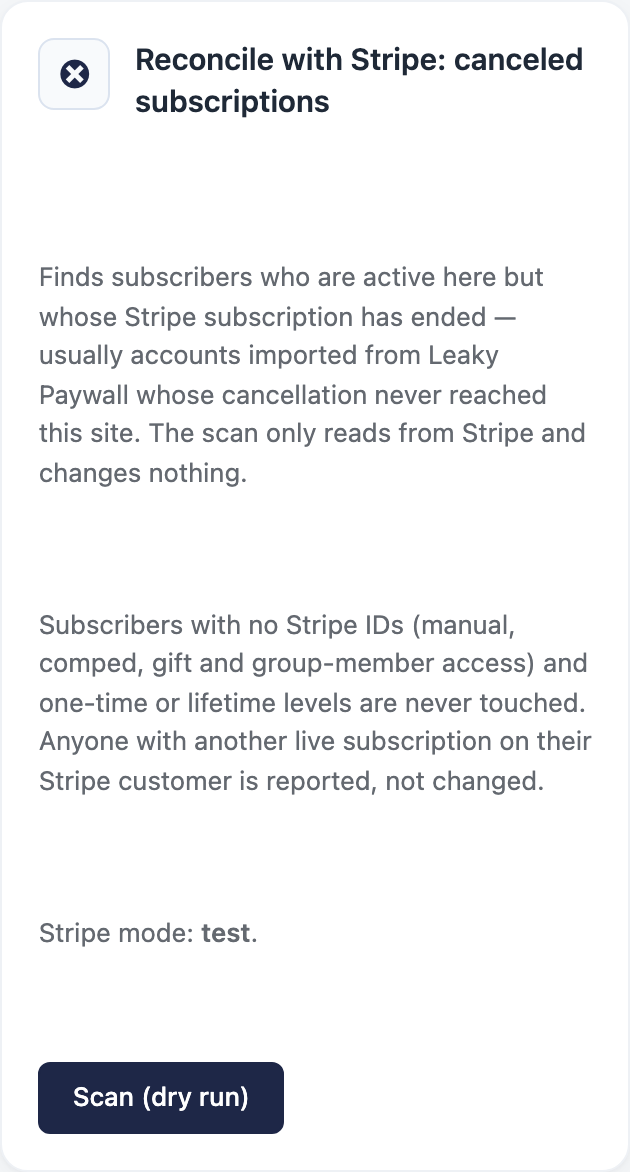
The scan checks every subscriber whose status on your site is active, trialing, pending cancel or past due. A results table appears below the cards, with a summary line at the top.
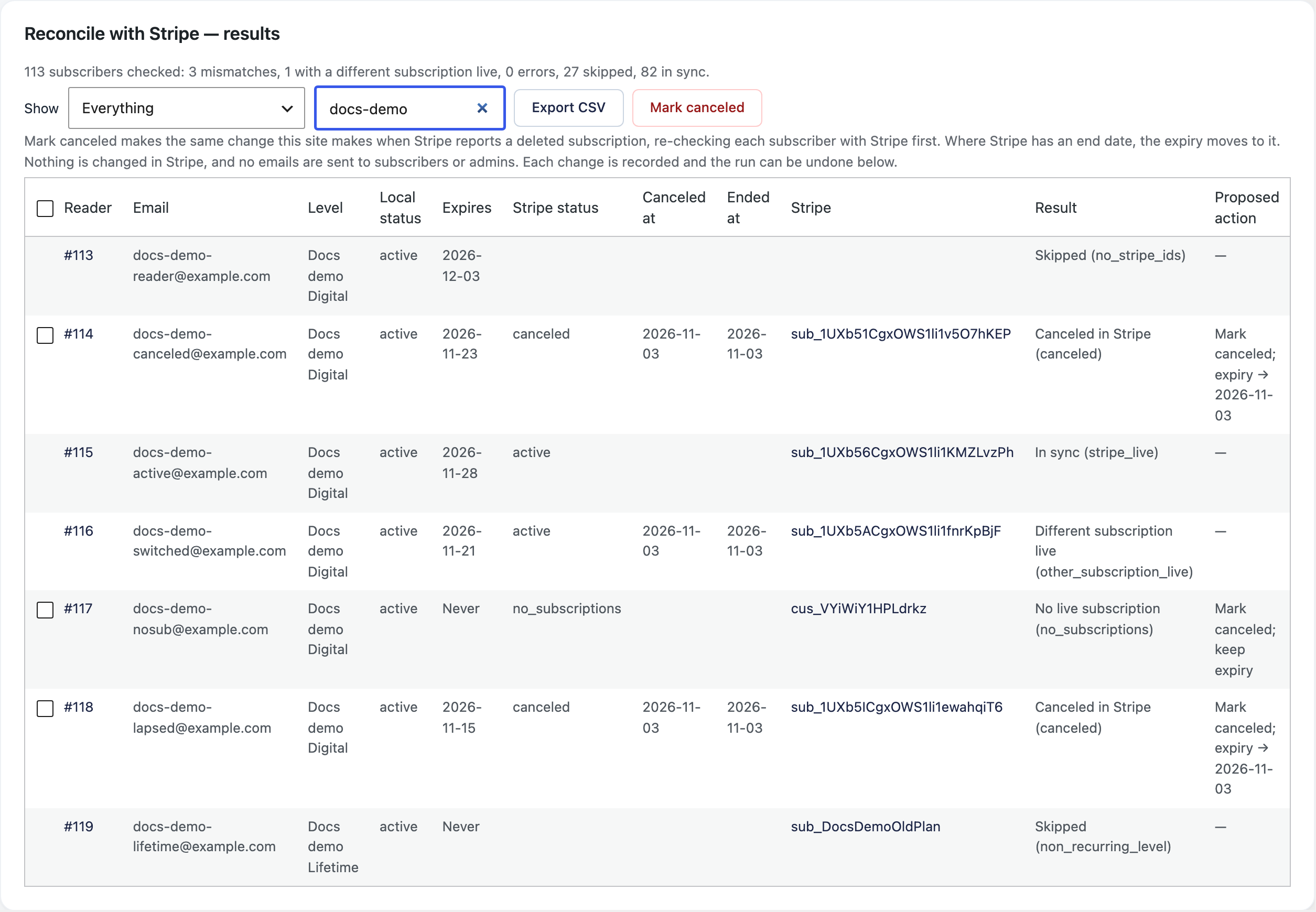
What the results mean
- Canceled in Stripe. The subscription stored on your site is canceled, expired or unpaid in Stripe, or was deleted. This is a mismatch you can fix.
- No live subscription. Your site has the reader’s Stripe customer but no subscription, and that customer has no live subscription in Stripe. This is also a mismatch you can fix.
- Different subscription live. The stored subscription ended, but the same Stripe customer has another live subscription. The reader is still paying, so the tool only reports this. It never changes these readers.
- In sync. Stripe and your site agree.
- Skipped. The tool doesn’t check these readers with Stripe: readers with no Stripe IDs (manual, comped, gift and group-member access), WooCommerce readers, and readers on one-time, lifetime, free or deleted levels.
- Error. Stripe couldn’t be read for this reader. One cause is a Stripe ID from the other mode (a test ID while the site is in live mode). The reader isn’t changed.
Use Show to filter the table and Filter by email to find one reader. Export CSV downloads the rows you’re looking at. The Stripe column links each subscription or customer to your Stripe Dashboard.
Mark readers canceled
- Set Show to Mismatches.
- Tick the readers you want to fix, or tick the box in the table heading to select every mismatch shown.
- Select Mark N canceled. Read the confirmation, then select Yes, mark N canceled.
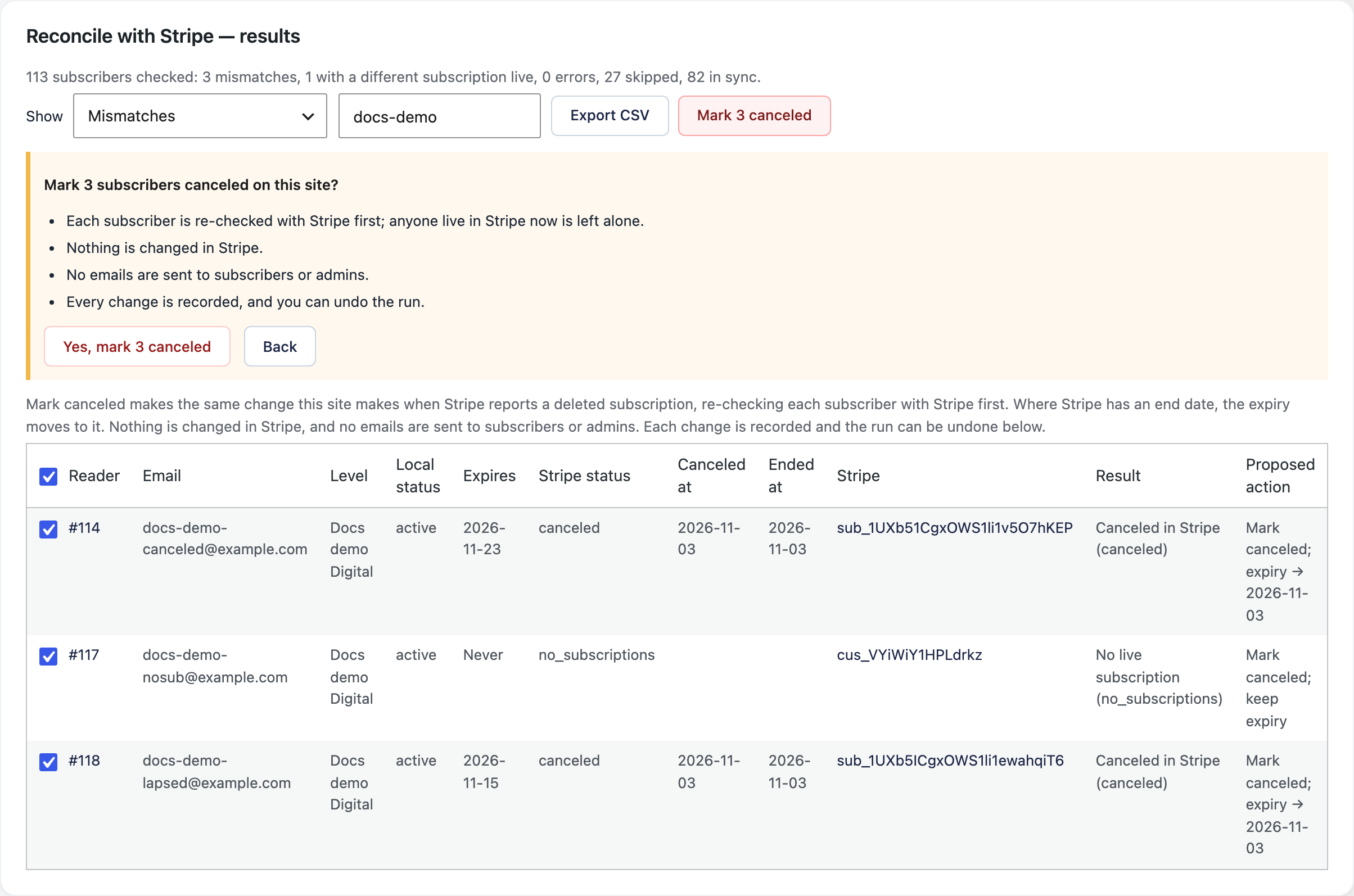
Mark canceled makes the same change your site makes when Stripe reports a deleted subscription:
- Each reader is checked with Stripe again first. Anyone who is live in Stripe now is left alone.
- The reader’s status becomes canceled. For Canceled in Stripe, the expiry moves to the date Stripe ended the subscription. For No live subscription, the expiry stays as it is, because someone may have set it by hand. The Proposed action column shows which applies.
- Nothing is changed in Stripe, and no emails go to readers or admins.
- Every change is recorded. Running it again on the same readers changes nothing.
When it finishes, the Proposed action column shows the outcome for each reader, such as Marked canceled.
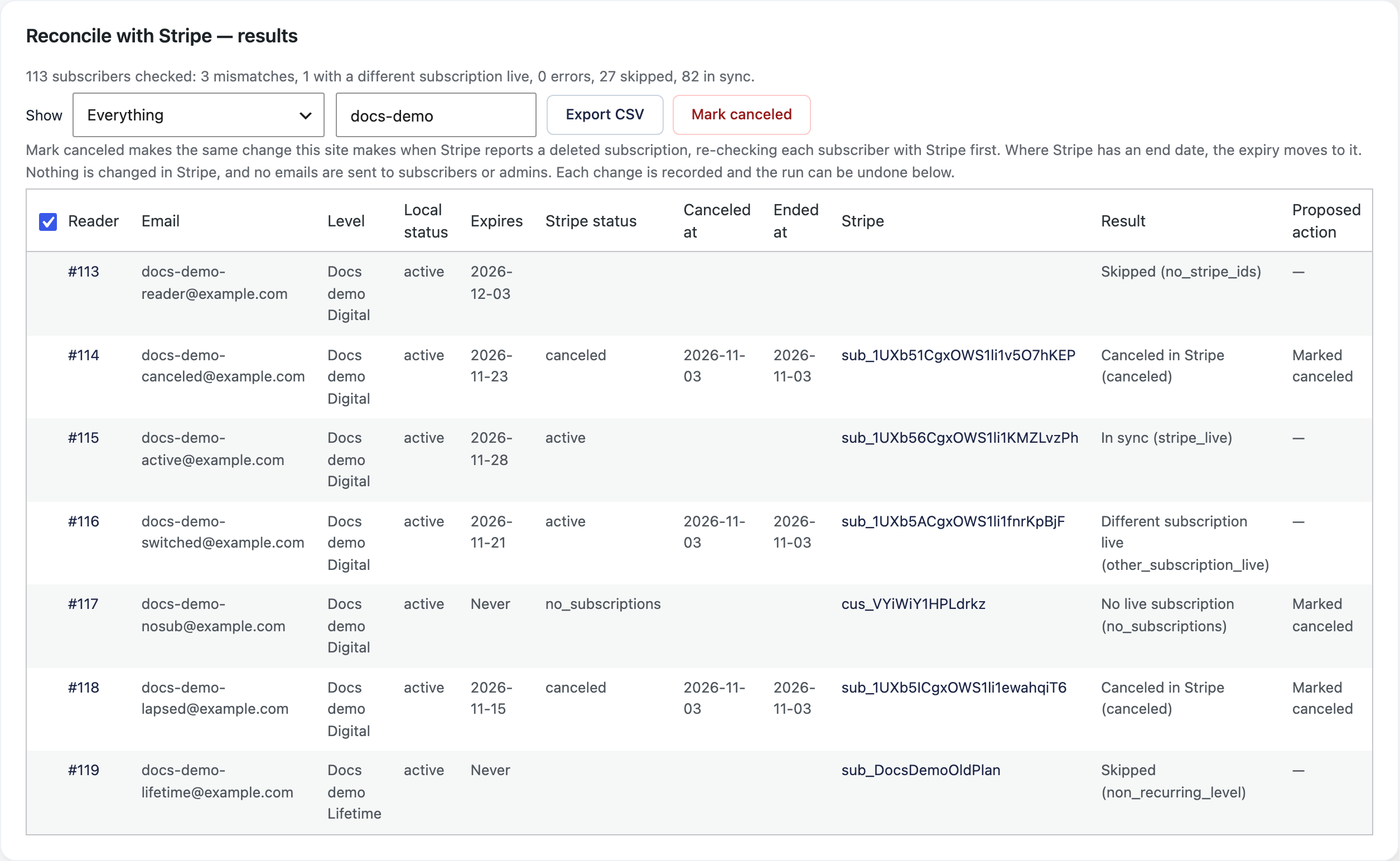
Undo a run
Each run appears in the recent runs table below the results, with how many readers it canceled and how many have been undone. Select Undo run to put every reader in that run back to the status and expiry they had before it. A reader that something else has changed since the run is left as it is. No emails are sent.

Fix expiry dates that are behind Stripe
The Reconcile Stripe payments tool is for the opposite problem: a reader renewed and paid in Stripe, but the expiry date on your site didn’t move, so they lose access. Its card appears on the Tools page once the Stripe reconciliation setting is on and Stripe is connected (see Before you start).
- Go to PaywallProject → Tools and find the Reconcile Stripe payments card.
- Select Download report (CSV). The report changes nothing. The result column shows one of two values. expiry_behind means a live Stripe subscription’s period end is more than a day ahead of the reader’s expiry on your site. no_local_user means a live Stripe subscription’s customer doesn’t match any account on your site. If the file has only a heading row, no mismatches were found among the subscriptions the tool could read. That isn’t a full health check. The tool reads at most 2,000 live subscriptions (20 pages of 100), and it stops quietly if Stripe returns an error. If you expected rows and the file is empty, check the Stripe connection and try again.
- If the report has expiry_behind rows, select Repair expiry dates and confirm. The CSV you get back shows what happened to each row in the repaired column. Repair can’t fix a no_local_user row. Look that customer up in Stripe and find out which account on your site it belongs to, then fix it separately.
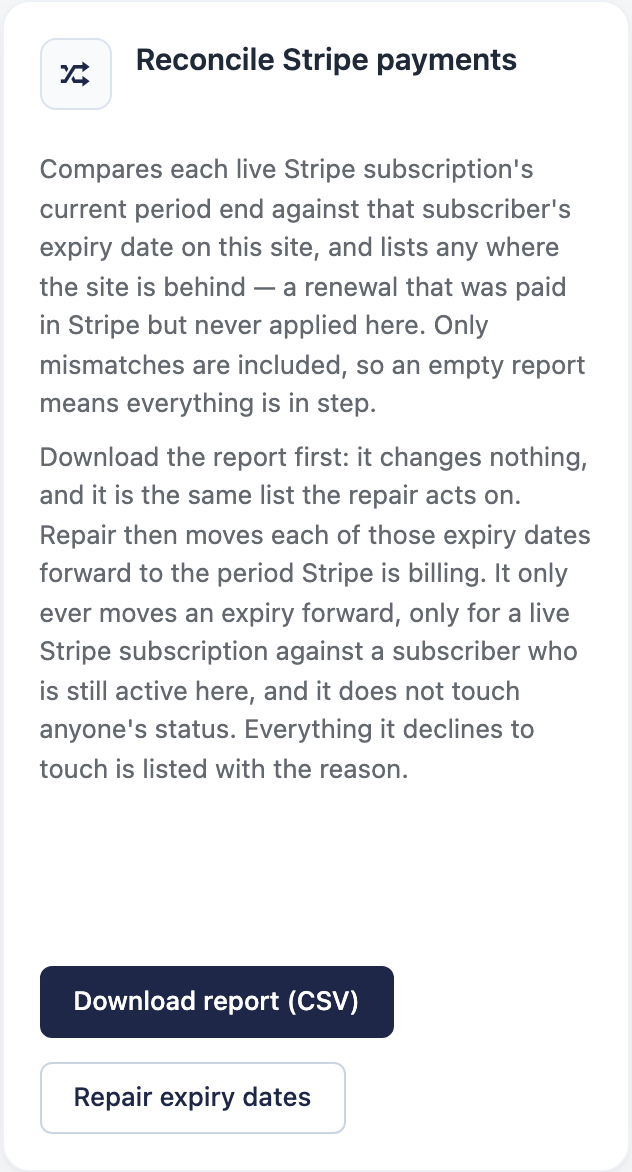
Repair only moves an expiry date forward, to the period Stripe is billing. It only does this for a live Stripe subscription (active, trialing or past due) and a reader who is active on your site. It never changes anyone’s status. Anything it doesn’t touch is listed with the reason.
Good to know
- The canceled subscriptions scan checks readers in small batches and slows down when Stripe asks it to, so a large list can take a while. Keep the page open until it finishes.
- In the canceled subscriptions scan, Stripe customers with many subscriptions are read page by page, so an old live subscription isn’t missed.
- Neither tool sends emails, and neither changes anything in Stripe.
- Gaps of less than a day between Stripe and your site are ignored by the expiry report, so time zone differences don’t show up as problems.
- When you’re done, turn the Stripe reconciliation setting off again. While it’s off, both cards, the scan results and the recent runs table are hidden. To undo a run later, turn the setting back on first.
- While the setting is off, the tools refuse to run even from a page that was already open, and show “Stripe reconciliation is disabled. Enable it under Settings → Advanced.”