

This guide moves paid subscribers from Substack to PaywallProject. Substack uses your own Stripe account, so web subscribers keep their card, price and renewal date. App Store subscribers can’t be moved, because Apple doesn’t transfer billing (Substack: in-app purchases).
Before you start
- Update to PaywallProject 4.2.0 or later. You need administrator access to WordPress and to your Stripe account.
- Connect the Stripe account your readers already pay into, under PaywallProject → Settings → Stripe.
- Create one level for each old plan, with the same price and billing interval. Steps 1 and 2 of the walkthrough show how.
- Do a test run on a staging copy of your site first.
- Never select Disconnect Stripe in Substack. It refunds and cancels all paid subscriptions (Substack: disconnect Stripe). Instead, ask Substack support to disconnect Stripe and remove its 10% fee without canceling or refunding (Ghost: migrating from Substack, Buttondown: Substack).
How to import
Substack has no API for paid subscribers, so you import its export file. Take both exports before Substack disconnects Stripe.
- In Substack, go to Subscribers, open All subscribers, select ⋯ → Export and choose all columns (Substack: export subscribers).
- In Stripe, go to Billing → Subscriptions, select Export, choose All columns and the UTC time zone, and export.
- Go to PaywallProject → Tools. On the Import subscribers card, select Start an import.
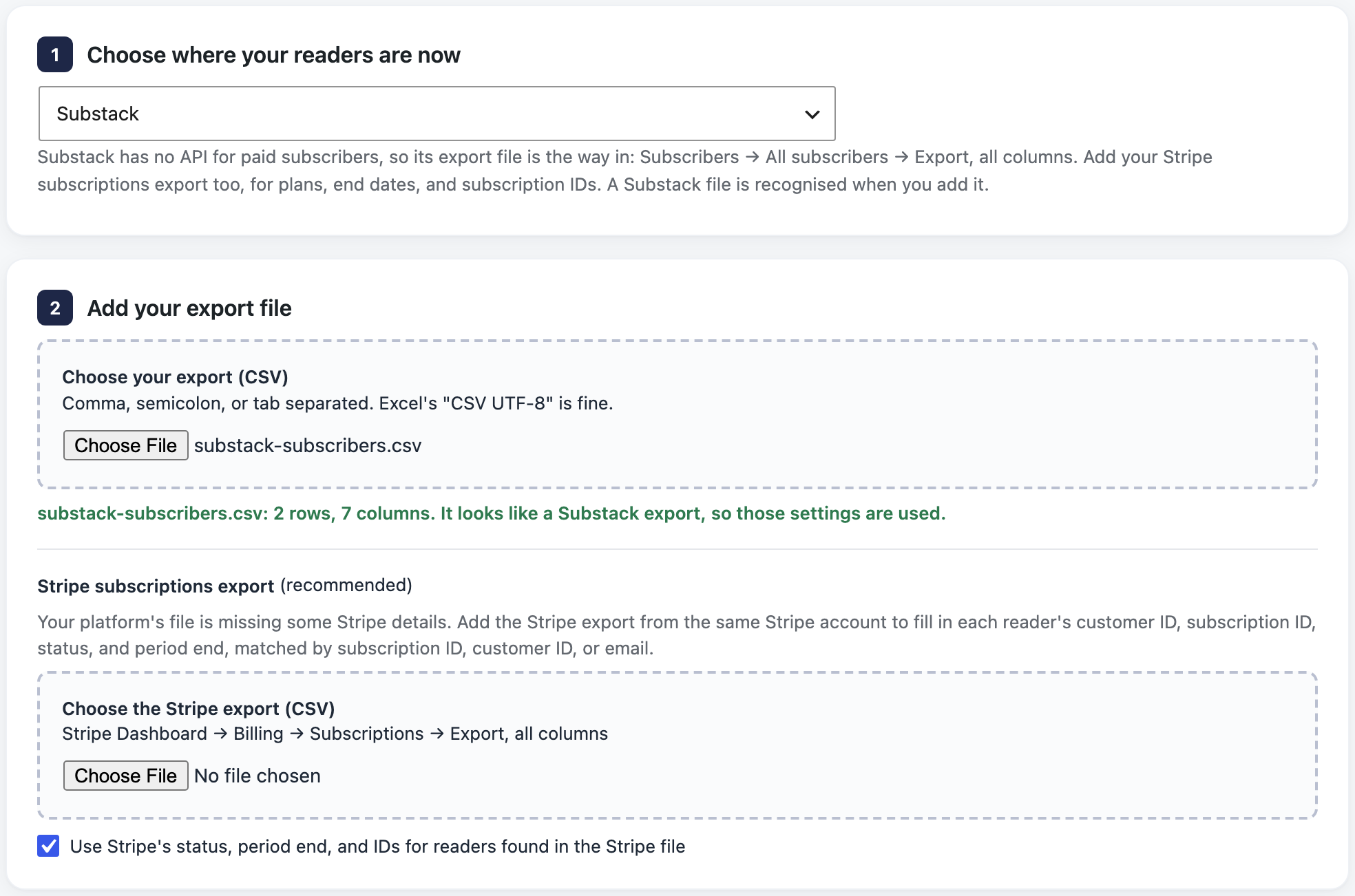
- Under Upload an export file, choose Substack.
- Under Add your export file, add Substack’s file. Add the Stripe export under Stripe subscriptions export.
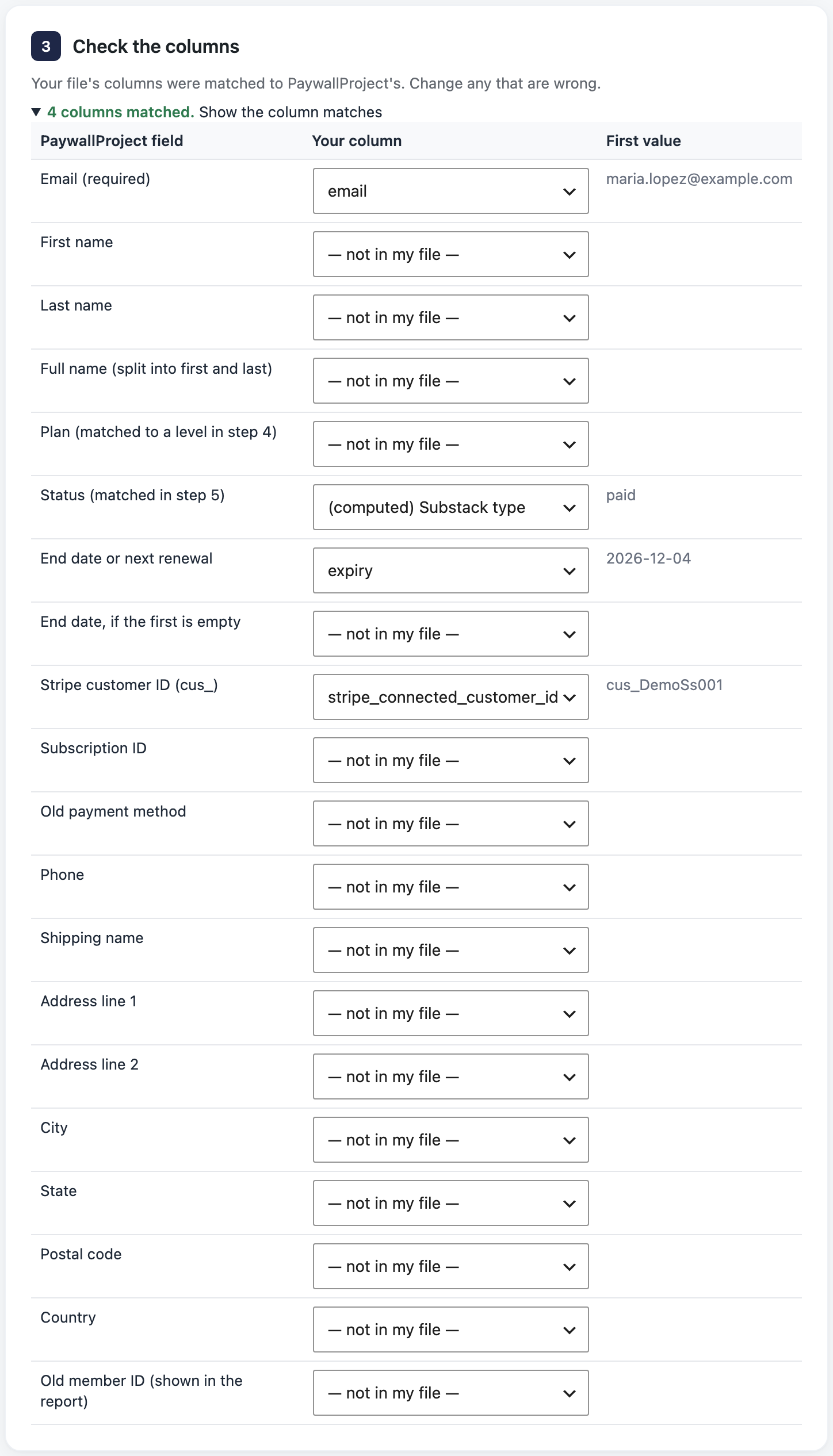
- Under Check the columns, select Show the column matches and fix any wrong match. An unmatched Plan column is fine: the plan and status come from the Stripe export.
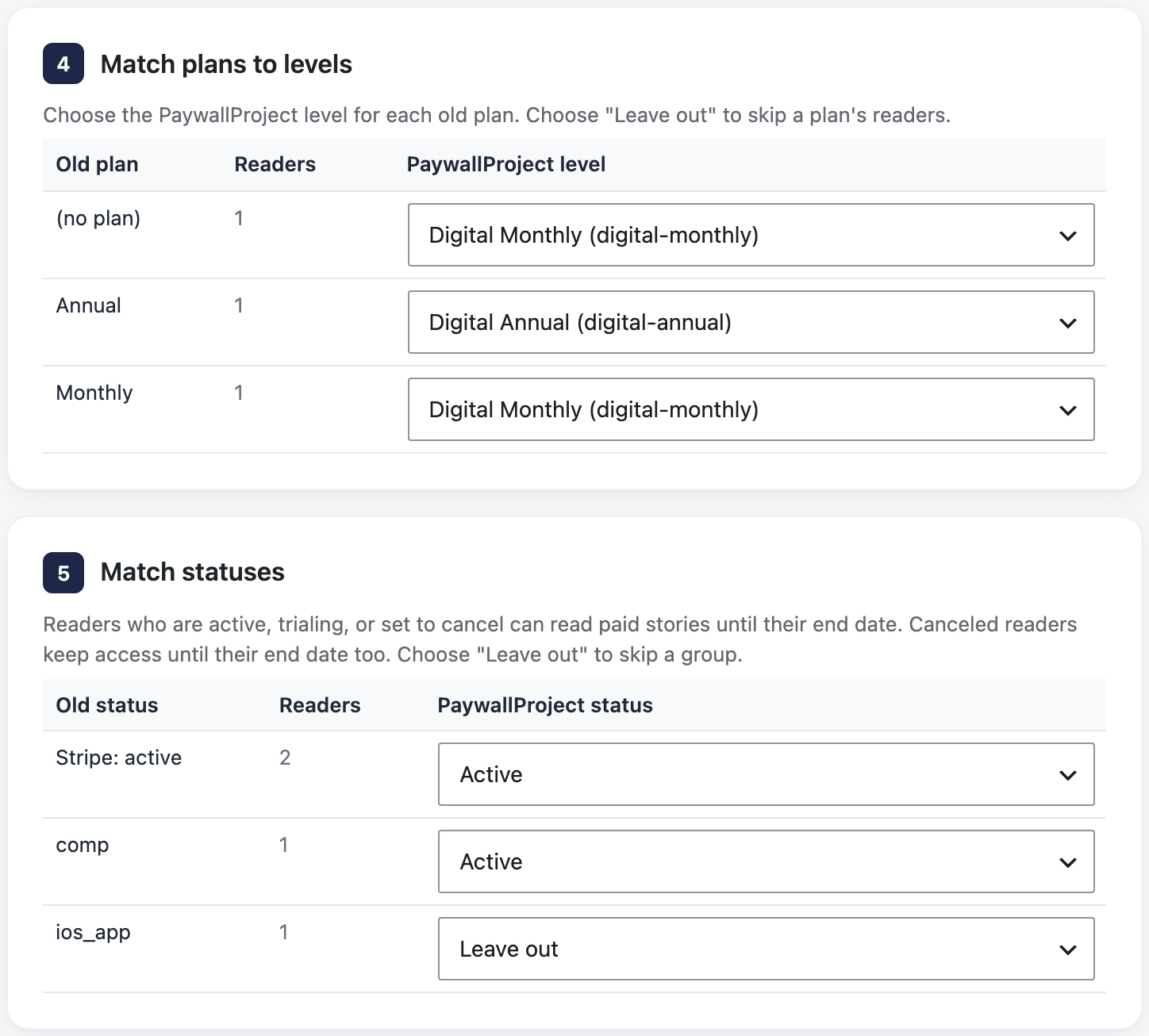
- Under Match plans to levels, check the level for each old plan. A level with the same name is chosen for you. Choose Leave out to skip a plan.
- Under Match statuses, check the status chosen for each old status. Change any you want.
- Select Preview import and read the preview. Nothing is saved yet.
- Select Import now and confirm. Then select Download report (CSV) to keep a record.
After the import
- Wait until Substack support confirms that Stripe is disconnected and the fee removed, with nothing canceled.
- In Stripe, under Developers → Webhooks (or Workbench → Webhooks), disable the endpoint that points at Substack, if there is one. Disable it rather than delete it, so you can roll back.
- Turn off paid subscriptions on your Substack publication.
- Email App Store subscribers a link to your subscribe page before their period ends. Ask them to cancel in their Apple ID settings, so they aren’t charged twice.
- Email readers that their subscription carries over. They sign in with the same email, using Forgot password? (all the ways in).
Good to know
- Comp and gift subscribers are imported with no billing. Free and App Store subscribers are left out.
- Substack doesn’t publish its export columns. If your file looks different, match the columns yourself under Check the columns.
- Substack always connects Stripe through its own Connect app, so only Substack can change its subscriptions through Stripe. If a cancellation or plan change from WordPress doesn’t go through, make it in your Stripe Dashboard (why).
- Read the preview explains every result and warning.
- Prefer an AI app? Claude, ChatGPT or another connected app can run the same import. See Move subscribers with an AI app.