

You can sell your other levels on top of a plan. A reader on your digital plan can add print, puzzles or a sports newsletter, each at its own price. Or you can give a level away free with a bigger plan, so “All Access” includes print at no extra cost.
You set this up on the plan, one choice for each of your other levels. Readers then see the add-ons at checkout, in My Account and on the paywall.
Before you start
- Create each level you want to sell or include as a normal level first, under PaywallProject → Levels. An add-on is just another level, with its own price and its own access.
- In this article the plan is “Docs demo Online” ($9 a month). The other levels are “Docs demo Print” ($12), “Docs demo Puzzles” ($3) and “Docs demo All Access” ($20). Some screenshots also show “Docs demo Print (with Online)”, a special-rate level explained below, and “Docs demo Supporter”, a pay-what-you-want level.
Choose what a plan offers
- Go to PaywallProject → Levels and click Edit next to the plan.
- Scroll to Add-ons at checkout. Under Other levels, each of your other paid levels has three choices:
- Not offered: the default. Readers on this plan aren’t offered the level.
- Sell as add-on: readers on this plan can buy it as its own subscription, at its own price.
- Include free: readers on this plan get what the level opens at no extra cost.
- Optional: under Products, tick any products to offer with this plan. See Sell products and ship them.
- Click Save level.
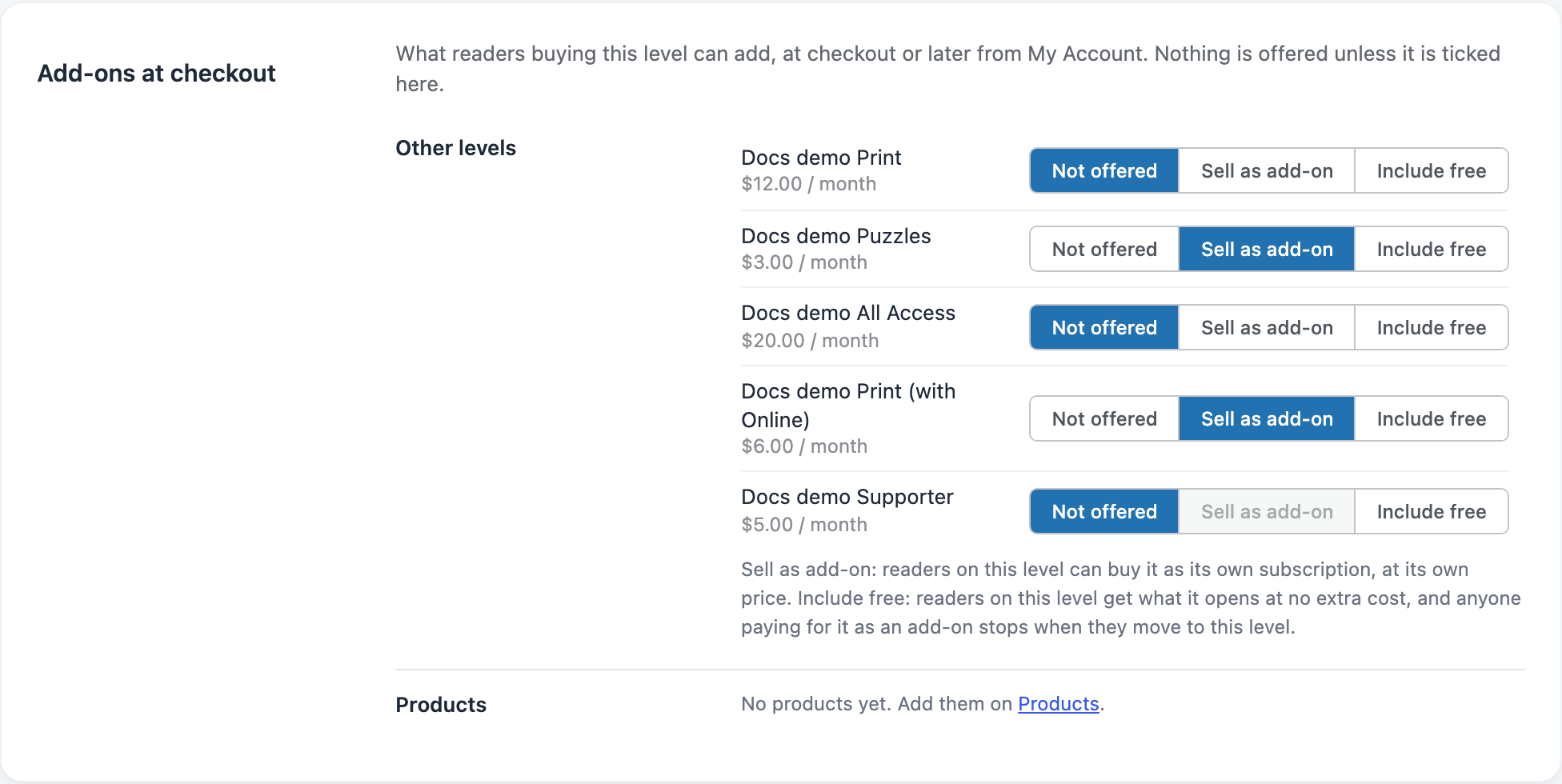
Nothing is offered unless you choose it here. Free ($0) levels aren’t listed, because they cost nothing. Sell as add-on is greyed out for pay-what-you-want levels and add-on-only levels. You can still include them free.
To include a level free in a bigger plan, edit the bigger plan and set that level to Include free. In this article, “Docs demo All Access” includes Print and Puzzles free.
What readers see
At checkout
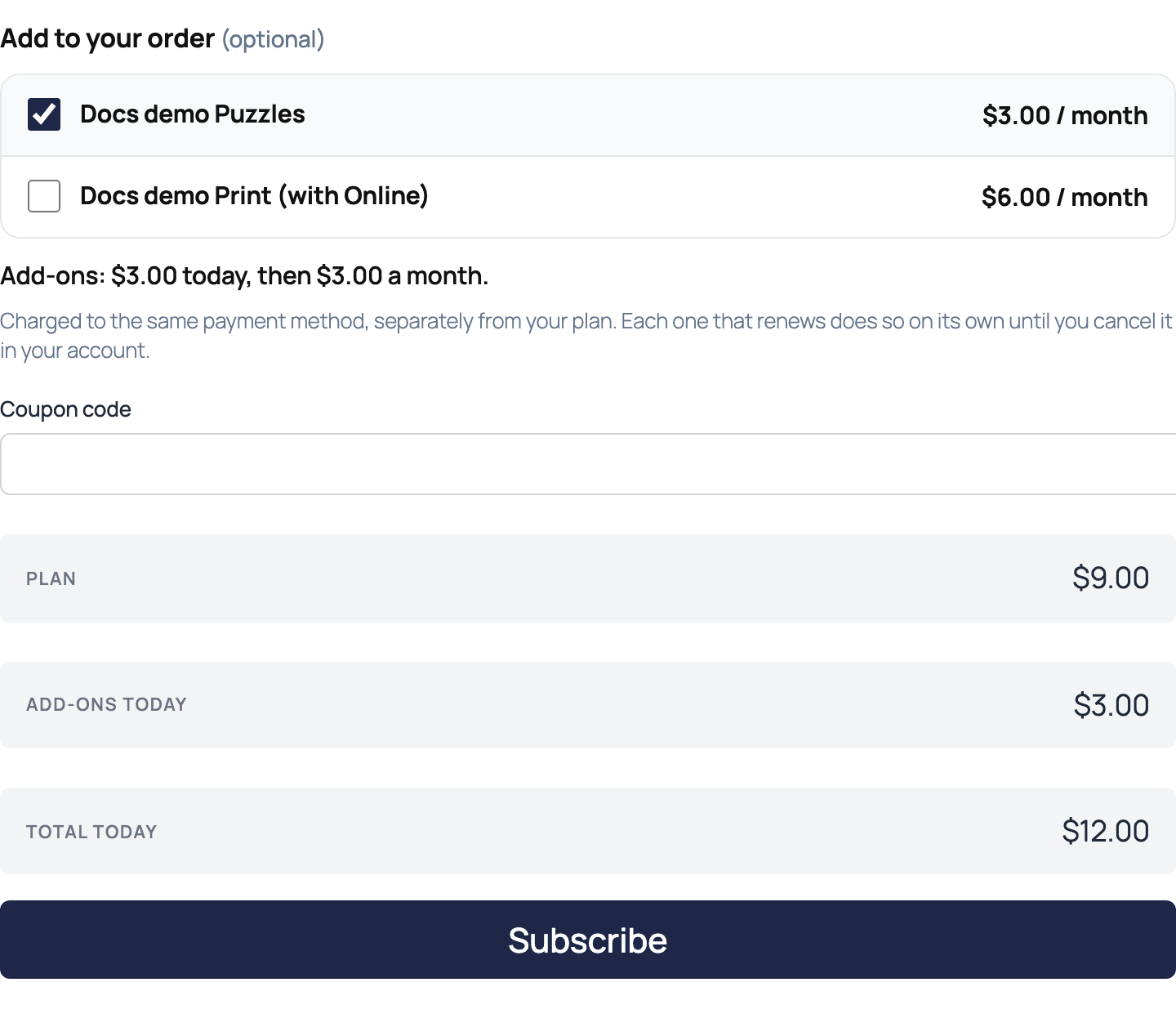
Readers buying the plan see Add to your order (optional), with each add-on and its price. The order summary shows the plan, the add-ons and the total charged today.
In My Account
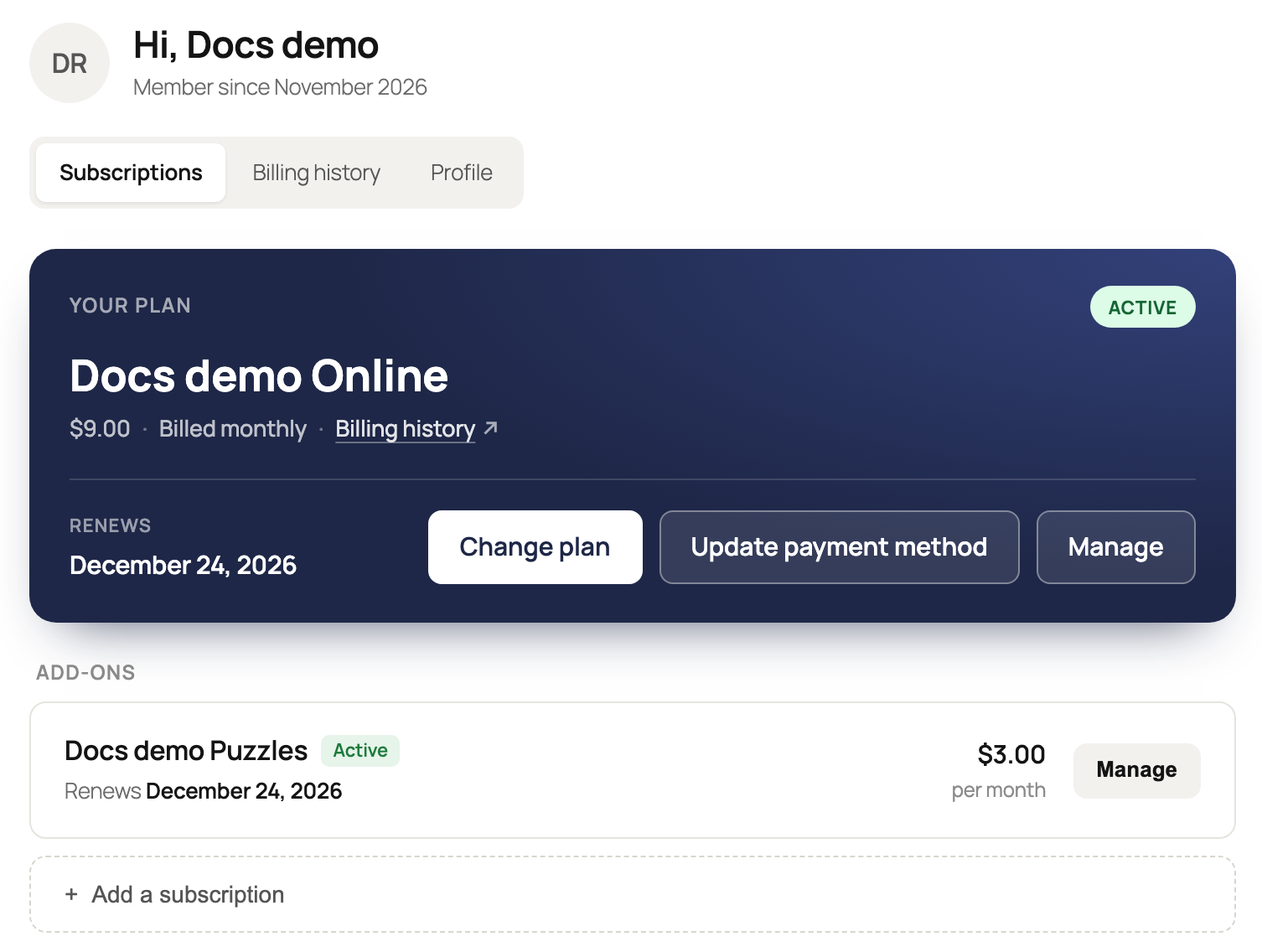
Under the plan, readers see their add-ons, each with its own price, renewal date and Manage button. + Add a subscription opens a list of what their plan offers. It’s charged to the payment method on their plan.
On the paywall
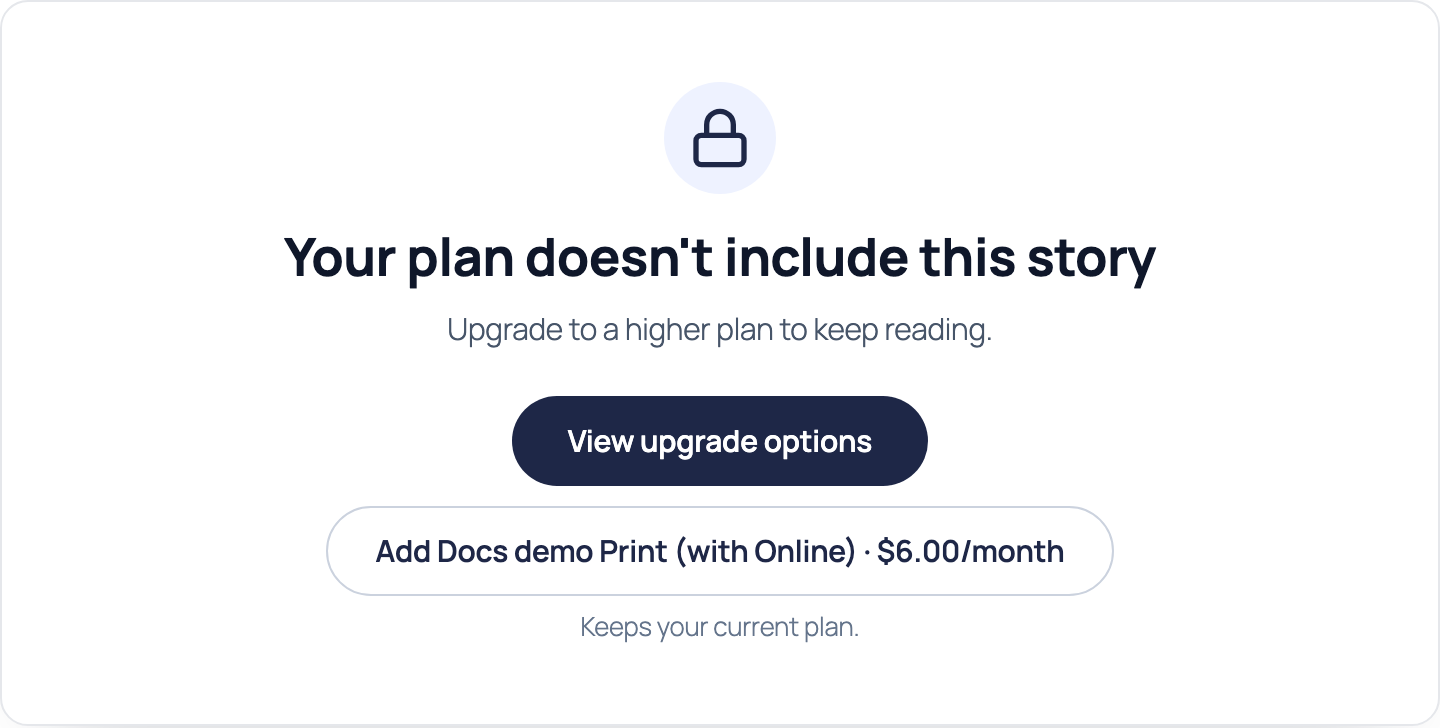
When a subscriber opens a story their plan doesn’t include, and their plan sells a level that does, the paywall shows a second button, for example Add Docs demo Print (with Online) · $6.00/month, with “Keeps your current plan.” under it. The button opens My Account with that add-on already ticked.
Levels you include free
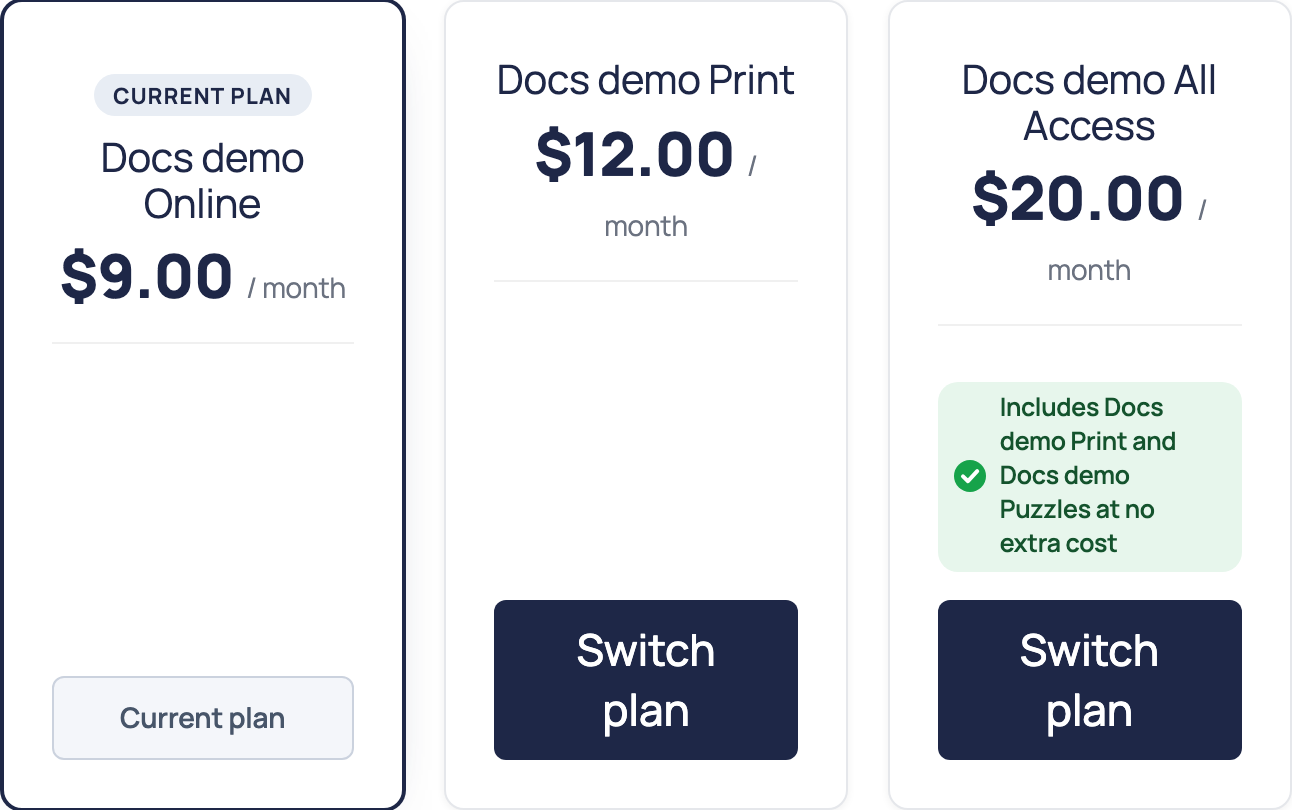
A plan that includes other levels says so on the plans page, at checkout and on the plan in My Account, for example “Includes Docs demo Print and Docs demo Puzzles at no extra cost”.
How add-ons are billed
- Each add-on is its own subscription. It has its own price and renewal date in Stripe. It’s charged to the same payment method as the plan.
- Readers can cancel an add-on on its own. Their plan isn’t affected.
- Cancelling the plan doesn’t cancel add-ons unless the reader ticks Also cancel my add-ons. Each one then stays until the end of the period they paid for.
- Moving to a plan that includes an add-on ends it. On a prorated plan change, the add-on ends right away and the unused time is credited to the reader’s account. With no proration, it simply doesn’t renew. Checkout tells the reader this before they switch. See Subscription Transition Paths: Proration & Billing Behavior.
Charge a special rate for an add-on
An add-on is sold at its own level’s price. To charge plan subscribers less, say $6 a month for print instead of $12, make a second level for the special rate.
- Go to PaywallProject → Levels and click Add level. Name it so you can tell it apart, for example “Docs demo Print (with Online)”, and set the special price.
- In Access, give it the same access as your regular Print level.
- In the same Access section, tick Hide from subscribe page, so nobody buys it as a plan from your plans page.
- Optional: also in Access, tick Disable direct sign-up link, so its direct link doesn’t open a checkout for it either.
- Click Save level.
- Edit your plan. Under Add-ons at checkout → Other levels, set the new level to Sell as add-on. Leave the regular Print level on Not offered, so readers only see the special rate. Click Save level.
Neither checkbox stops add-on sales. Plan subscribers still see the special level at checkout, in My Account and on the paywall, as in the screenshots above.
If a story should open for print readers, add both Print levels to it. Otherwise readers who bought the special rate can’t read it.
Good to know
- Add-ons are set on the plan being bought. Readers on a plan that doesn’t offer a level can’t add it.
- A reader can’t buy an add-on they already have, or one their plan already includes.
- Changing a plan’s choices later doesn’t cancel add-ons readers already have. They keep them, and keep the access they give.
- The paywall’s add-on button shows only to signed-in subscribers whose plan sells a level that opens the story.