

Products are things readers buy on top of their plan: a mug, a T-shirt, a print edition mailed every week, or a monthly contribution. A product can be paid once, monthly or yearly. You add photos, and for things you mail, options like sizes or colours and a stock count.
Products never open content. Levels do that. A product is something extra a reader pays for beside their plan. Readers add products at checkout, later from My Account, or to a gift. Everything you need to mail shows up on the Shipping screen, where you mark it shipped and can email the reader a tracking number.
Before you start
- You need administrator access to your WordPress dashboard.
- Stripe must be connected. Saving a product also creates it in Stripe.
- You need at least one paid level. A product is only offered with the levels you tick it on.
Add a product
- In your WordPress admin, go to PaywallProject → Products.
- Click Add product.
- Under 1. What is it?, type the name, for example “Logo mug”. Below it, you can add one line that readers see under the name.
- Optional: click Add photo to add one or more photos. The first one shows at checkout, in My Account and on the Shipping screen.
- Under 2. Price, enter the price and choose Once, Monthly or Yearly. The lowest price is 0.50.
- Under 3. What does it give?, choose A physical item I mail to the reader or Nothing extra (a contribution).
- For a physical item, two more fields appear:
Options: sizes or colours, separated by commas, for exampleS, M, L, XL. Leave it empty for none.
Stock: how many you have. Leave it empty for unlimited. - Click Save product.
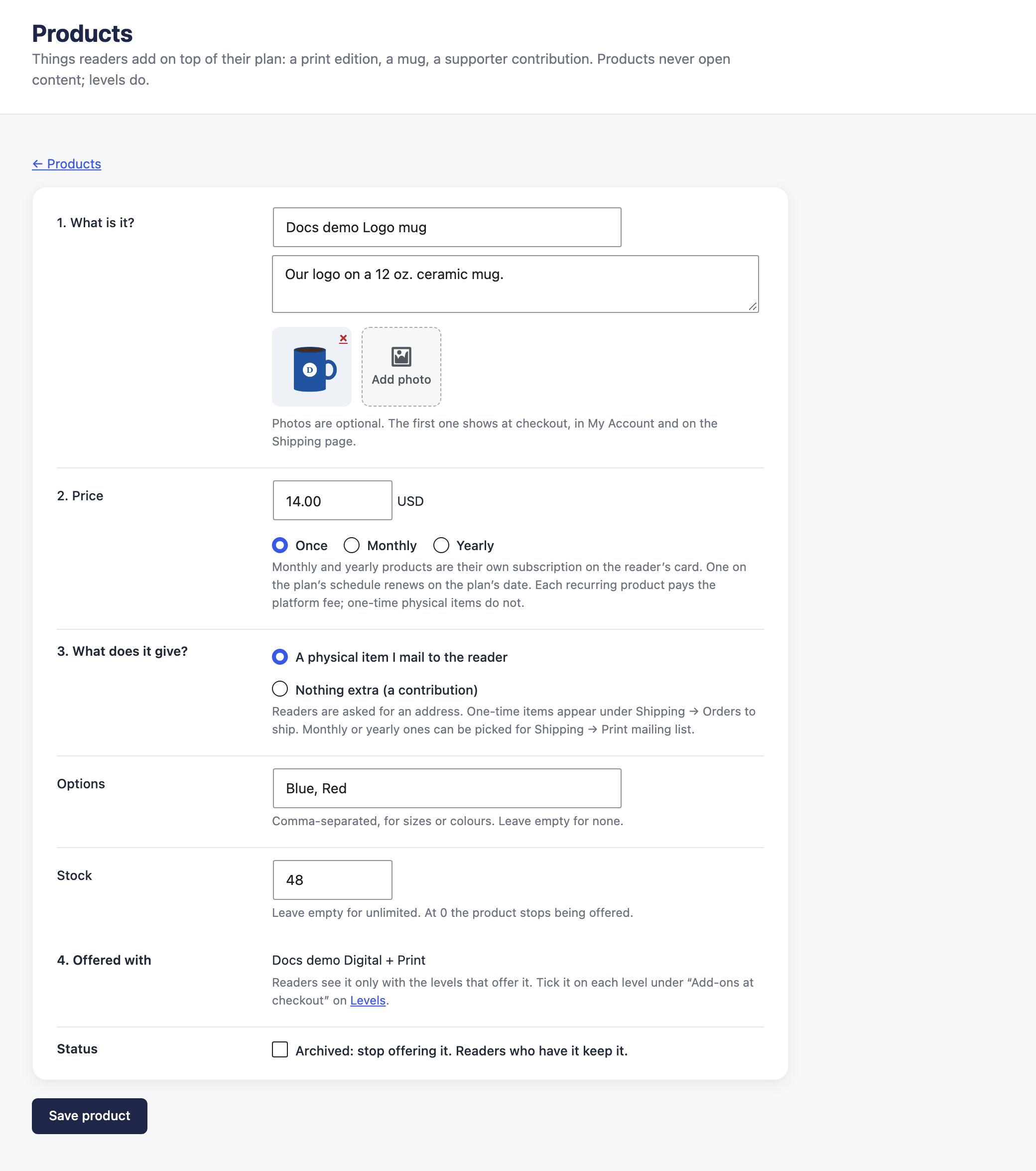
The 4. Offered with line lists the levels that offer the product. You can’t change it here. It reads “No level yet.” until you tick the product on a level (next section).
Options and stock are only for things that ship. If you choose Nothing extra (a contribution), they are cleared when you save.
Offer it on a level
Readers only see a product with the levels that offer it. Nothing is offered until you tick it.
- Go to PaywallProject → Levels and click Edit next to the level.
- Scroll to Add-ons at checkout.
- Under Products, tick each product readers on this level can add.
- Click Save level. Repeat for every level that should offer it.

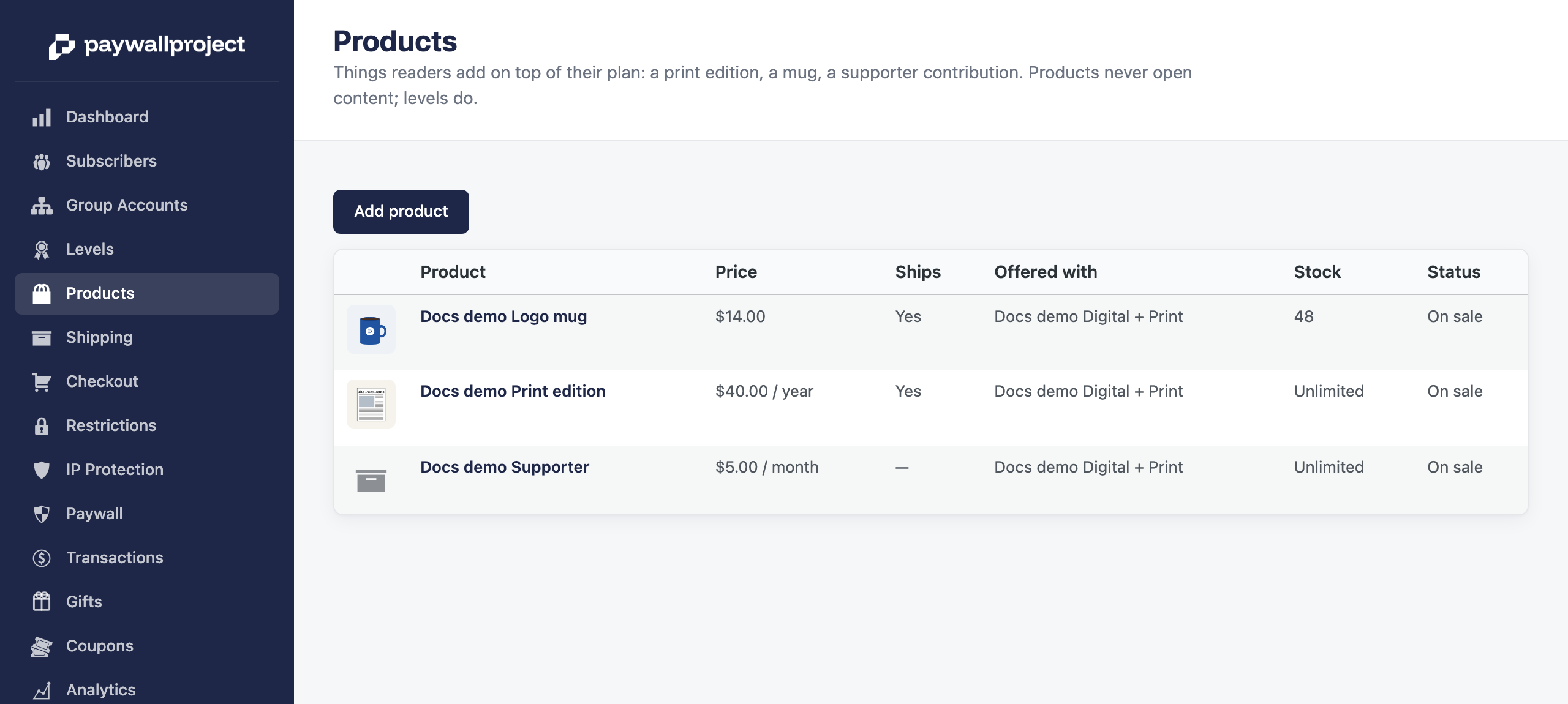
Back on PaywallProject → Products, the list shows each product’s price, whether it ships, the levels it is Offered with (or “Not offered yet”), the stock left and its status.
What readers see
At checkout
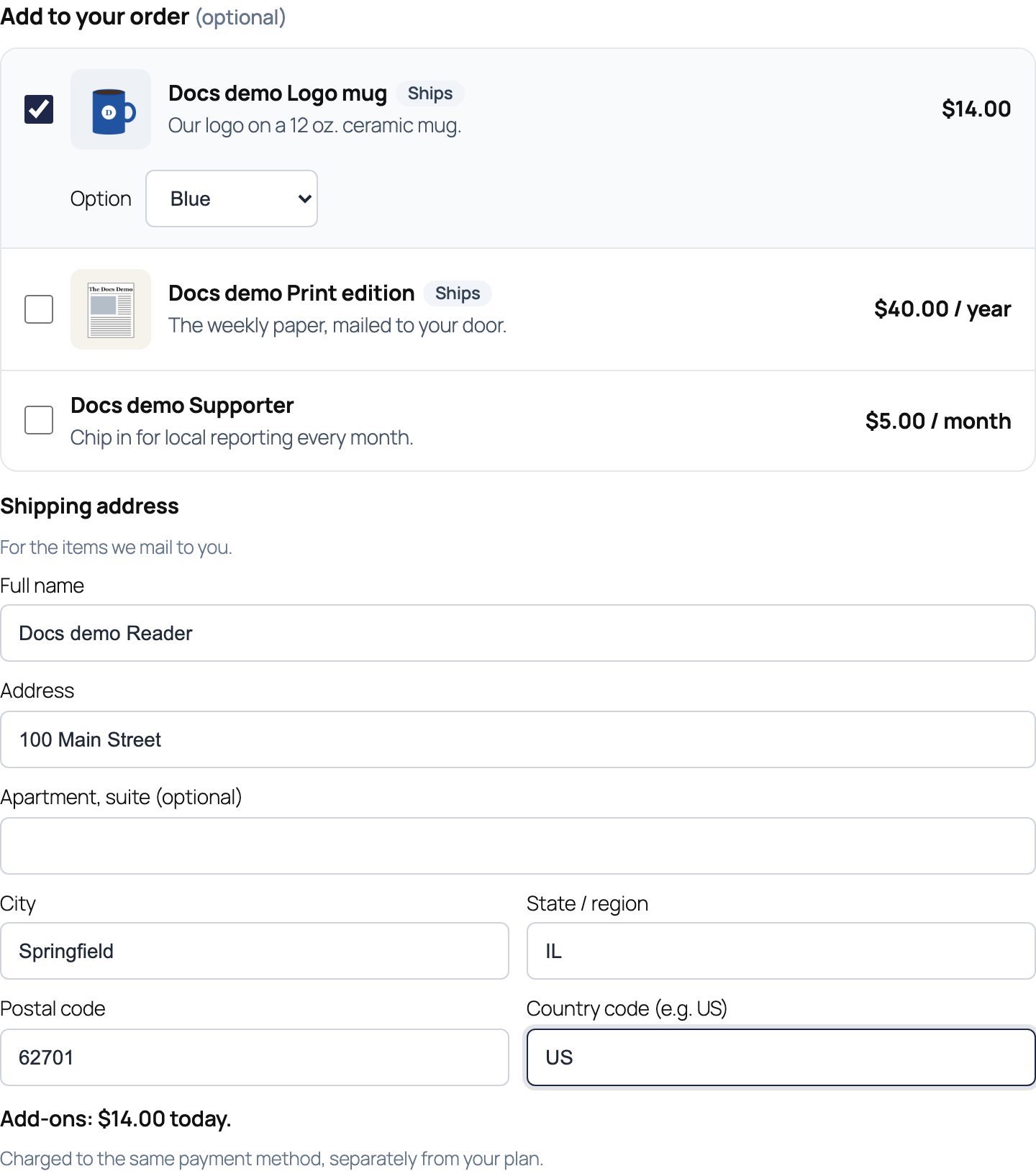
When a reader signs up for a level that offers products, the checkout shows Add to your order (optional). Each product shows its photo, name, line and price. Things that ship carry a Ships tag. If a product has options, the reader picks one.
When the reader ticks something that ships, a Shipping address form appears. The total for the products shows below the list. Products are charged to the same payment method as the plan, separately from it.
In My Account
A reader with an active plan can add products later. On the Subscriptions tab of My Account, they click Add a subscription, tick what they want and click Add to my subscription. It is charged to the payment method on their subscription.
Monthly and yearly products show under Add-ons on the same tab. The reader can cancel one there. They keep it until the end of the period they paid for, and their plan isn’t affected.
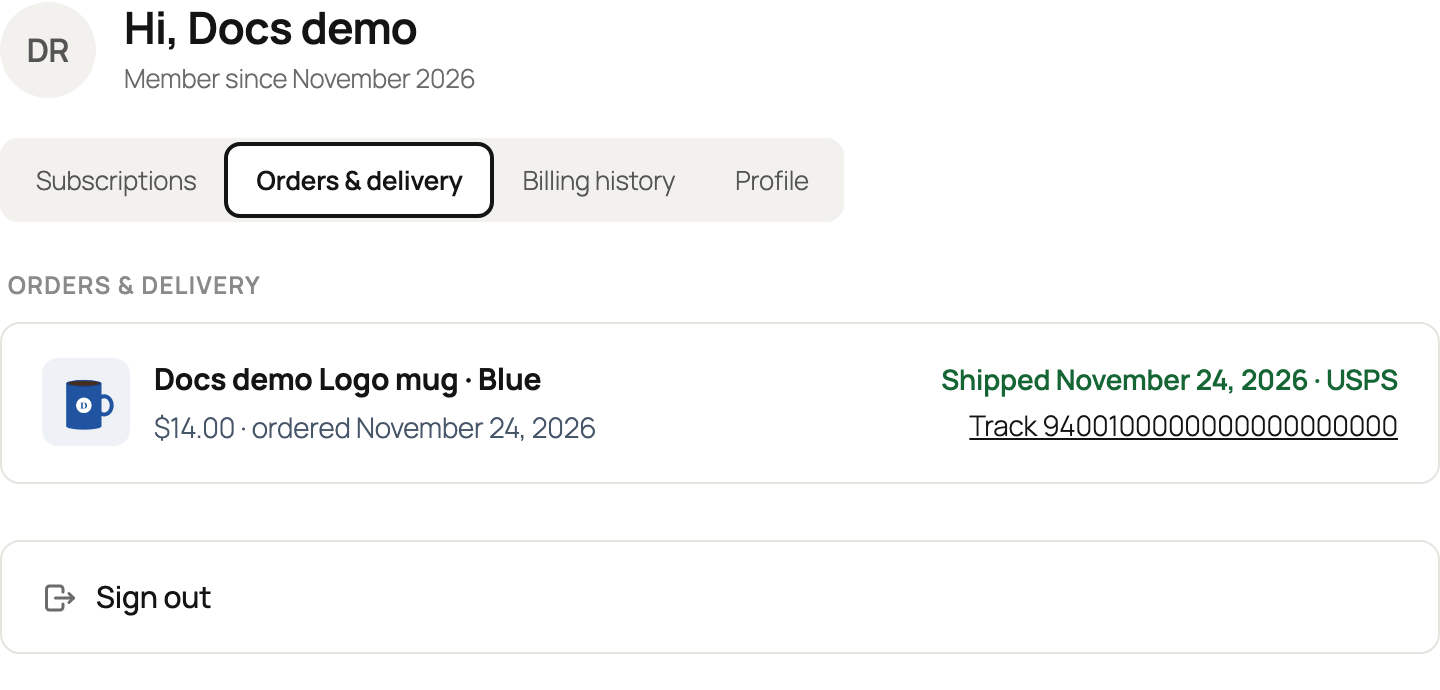
One-time products show on the Orders & delivery tab, with their status: Payment processing while a bank payment clears, Preparing to ship, Shipped with the date and carrier, Paid for an item that isn’t mailed, or Refunded. When you add a tracking number, the reader gets a Track link.
In a gift
The gift form lists one-time products under Add to the gift. Only products the gifted level offers are listed, and monthly or yearly products are left out. They are charged with the gift, in one payment, and mailed to the address the buyer enters. See Setting up gift subscriptions.
Ship orders
When a reader buys a product, you get the Admin: new product order email with what they bought and where to mail it. The order also appears on the Shipping screen. A number beside Shipping in the menu shows how many orders are waiting.
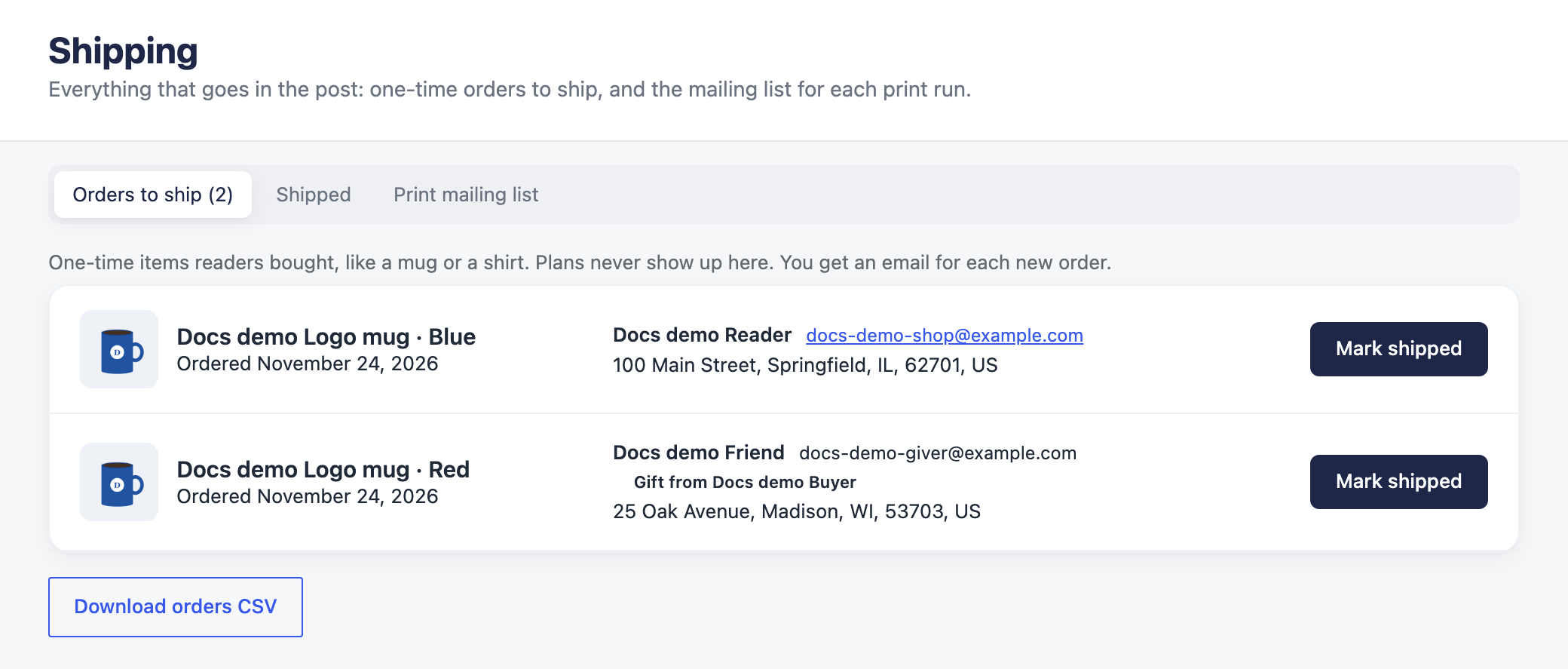
- Go to PaywallProject → Shipping. The Orders to ship tab, with the number of orders waiting in brackets, lists one-time physical items readers bought, with the option they picked, the name and address to mail to, and the reader’s email.
- Mail the item, then click Mark shipped on its row.
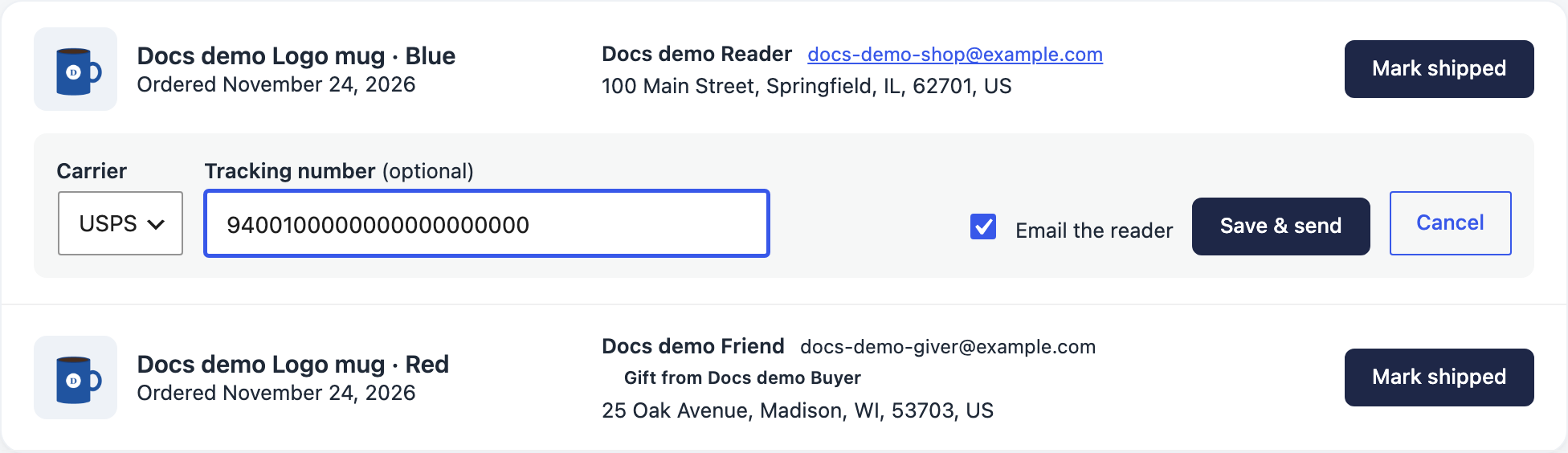
- Choose the Carrier (USPS, UPS, FedEx, DHL or Other) and, if you have one, type the Tracking number. It’s optional.
- Leave Email the reader ticked to send the Order shipped email, with the carrier, the tracking number and a tracking link. Untick it to mark the order shipped without an email.
- Click Save & send.
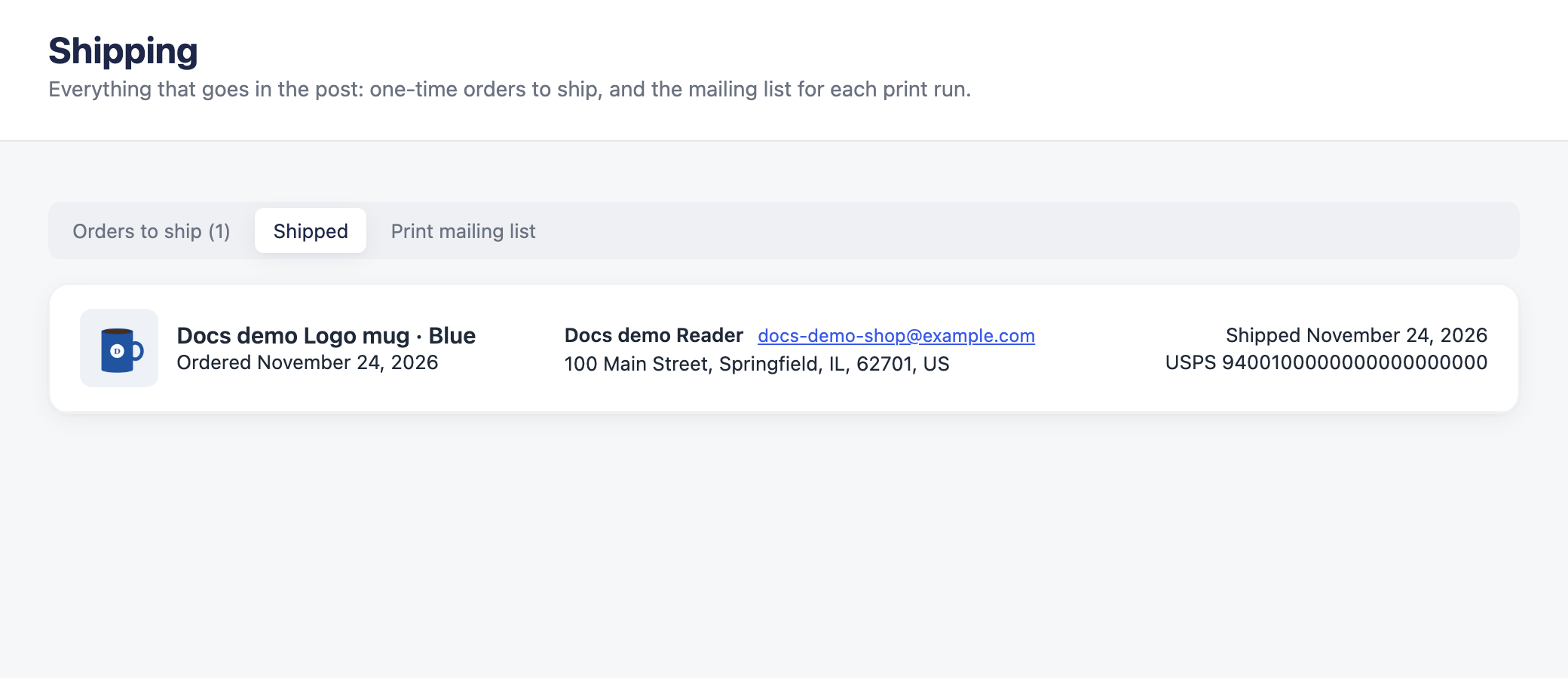
The order moves to the Shipped tab, with the date it shipped and the tracking number.
To work from a spreadsheet, click Download orders CSV under the list on Orders to ship.
Print a mailing list
Monthly and yearly things you mail, like a print edition, don’t create orders. Each print run, you download a list of who gets it instead.
- Go to PaywallProject → Shipping and open the Print mailing list tab.
- Under 1. Who’s in this print run?, tick the plans and products whose readers get this run. Products are listed here when they ship and renew monthly or yearly.
- Under 2. Which statuses?, tick the subscription statuses to include. Active, Trial and Canceling (paid through period end) are ticked at first. Past due and Canceled (ended) are not.
- Click Download mailing list (CSV). You get one row per reader, with their shipping address and what they get.
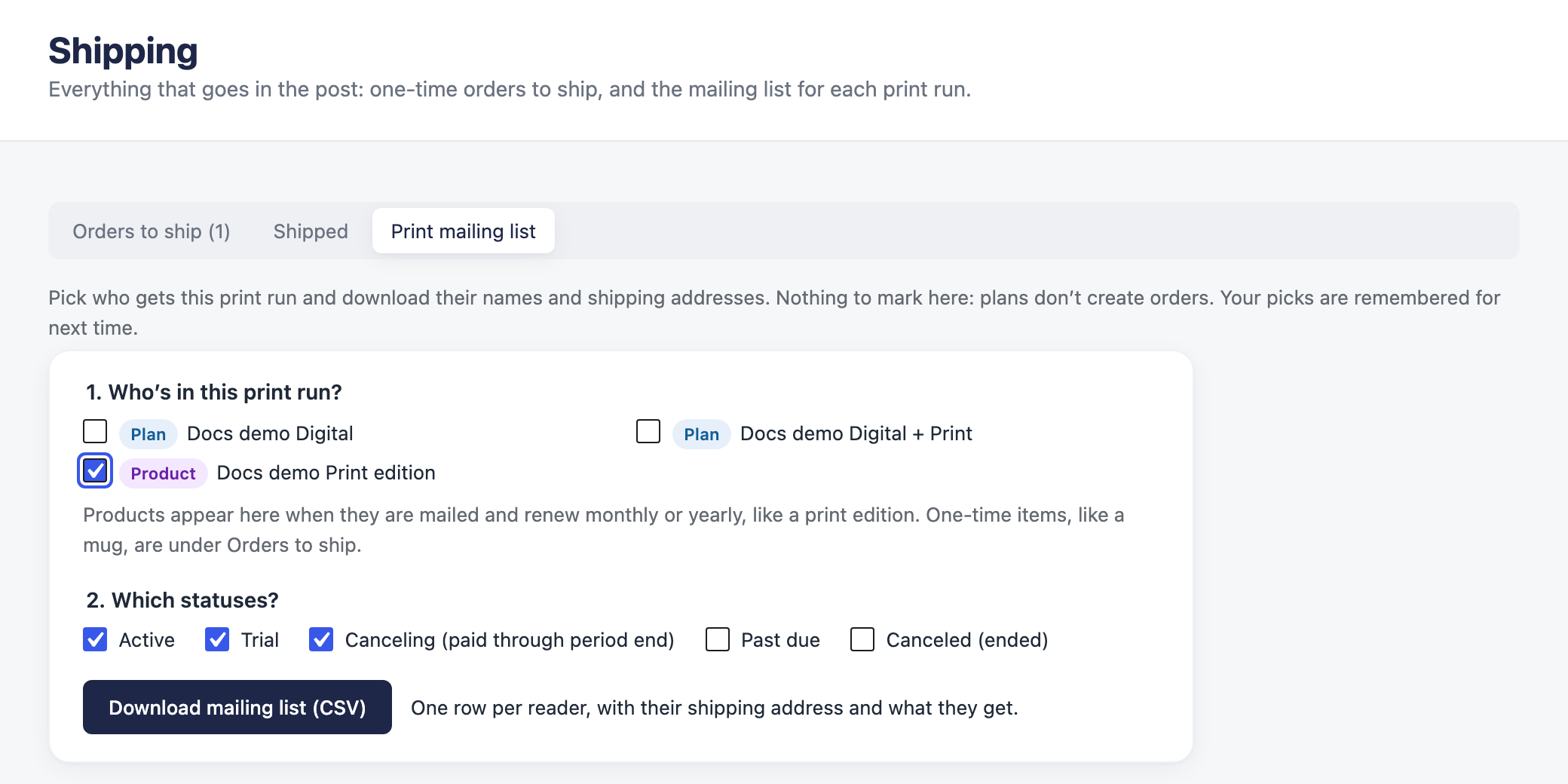
Your picks are remembered for next time.
Sales tax
With Stripe Tax on, products are taxed too, with their own tax codes: one for products you mail and one for contributions. Products that ship are taxed where they ship to. See How to collect sales tax.
Good to know
- Monthly and yearly products are their own subscription. They are charged to the reader’s card beside the plan. A monthly product on a monthly plan renews on the plan’s date.
- Stock goes down with each sale. At 0, the product stops being offered. Leave Stock empty for unlimited.
- To stop selling a product, edit it, tick Archived under Status and save. Readers who already have it keep it.
- Refunds clear the order. If you refund a product order in Stripe, the order is marked refunded and taken off Orders to ship.
- Platform fee. The form says it under 2. Price: each recurring product pays the platform fee; one-time physical items do not.
- Edit the emails under PaywallProject → Emails. Pick Admin: new product order or Order shipped in the Template list. The admin email goes to your admin notification addresses. See How to send admin notifications to one or several addresses.