

If you mail a print edition, your readers can see the shipping address you have for them on their My Account page. You choose whether they can also change it themselves. This article is for publishers who collect a shipping address at checkout.
By default the address is read-only. You can add a short note under it that tells readers how to ask for a change. Or you can let readers change it themselves. Then PaywallProject updates the address in Stripe and emails you the old and new address.
Before you start
- You need administrator access to your WordPress dashboard.
- The address row only appears for a reader who has a shipping address saved, or whose plan asks for one at checkout. A plan asks for one when the Shipping address field is turned on in the level’s form fields.
What readers see
On the My Account page, readers click the Profile tab. Under Your profile there is a Shipping address row with the address on one line. If their plan asks for an address but none is saved yet, the row says Not set.
There’s nothing to turn on for this.
Add a note under a read-only address
When readers can’t change the address, you can show a short note that tells them who to contact. The note is off by default.
- In your WordPress admin, go to PaywallProject → Settings → Stripe.
- Scroll to the Shipping address row.
- Check When readers can’t change it, show a note under their address.
- In the first box, write your note. Put
{email}where the email address should go. Or leave the box empty to use the text shown in it: “To change your shipping address, email us at {email}.” - In the second box, enter the email address readers should write to, for example your circulation desk.
- Click Save changes.
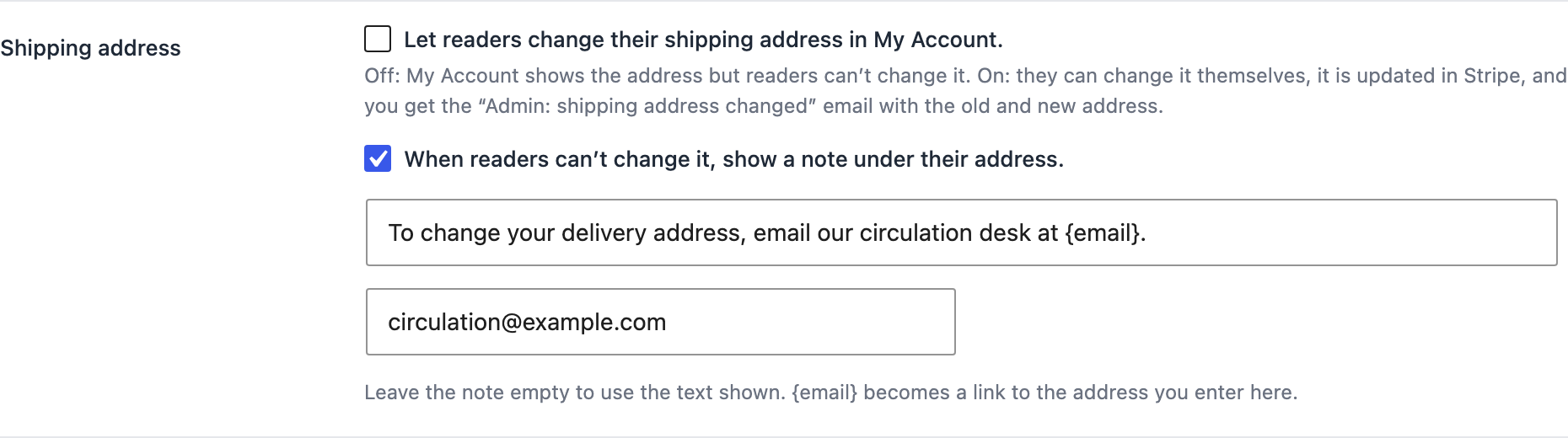
Readers now see your note under their address. {email} becomes a link to the address you entered, so a click opens their email app.

Let readers change their address
- Go to PaywallProject → Settings → Stripe.
- In the Shipping address row, check Let readers change their shipping address in My Account.
- Click Save changes.
The Shipping address row on My Account now has an Update button. The note you set up above no longer shows, because readers don’t need it.

How a reader changes their address
Share these steps with a reader who asks.
- Log in and go to the My Account page.
- Click the Profile tab.
- Next to Shipping address, click Update.
- Change the address. Address, City and Postal code are required. The country is a two-letter code, such as US.
- Click Save. The page reloads and shows the new address.
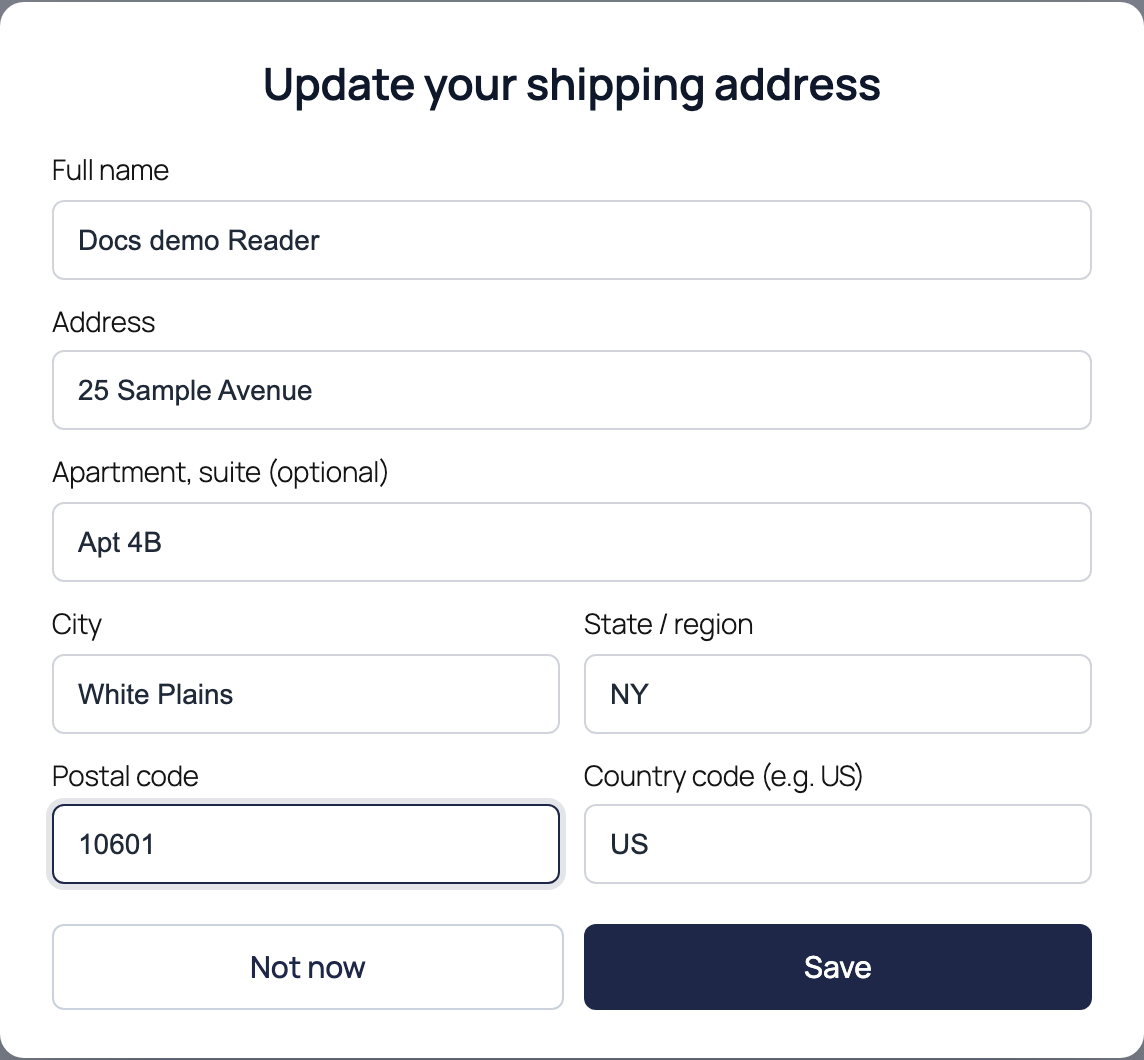
What happens when a reader saves
- Stripe is updated first. PaywallProject changes the shipping address on the reader’s Stripe customer, then saves it on your site. If Stripe refuses the change, nothing is saved and the reader sees “We couldn’t save your address. Please try again, or contact us.”
- You get an email. The “Admin: shipping address changed” email goes to your admin notification address. Its subject is “Shipping address changed:” followed by the reader’s email. It lists the old address and the new address, with a link to the reader’s page in your dashboard.
- The subscription is not changed. If the plan has a shipping surcharge, and the new postal code means the surcharge now applies or no longer applies, the email says so. For example: “The Print and digital shipping surcharge now applies to this address. Their subscription was not changed; add the surcharge in Stripe if it should.” Add or remove the surcharge in Stripe yourself.
The email is only sent when the address really changed. If the reader clicks Save without changing anything, no email goes out.
Good to know
- Who gets the email: the addresses in Admin notification email(s) under PaywallProject → Settings → General. If that’s blank, it goes to the site admin email.
- Change the email wording under PaywallProject → Emails. It’s listed under Admin notifications as “Admin: shipping address changed”.
- The note needs an email address to link. If you leave both note boxes empty, readers see “To change your shipping address, contact us.” with no link.
- Readers without a Stripe customer, such as subscribers you added by hand, can still change their address. It’s saved on your site only.
- You can always change it yourself. To change a reader’s address from your dashboard, see How to manually update subscriber (Stripe) details.
- Charging by postal code? See Make a plan free in some postal codes and paid everywhere else.