

Sometimes a reader who already has an account starts checkout again. Maybe they subscribed before, or they started to subscribe and left before paying. The Step by step checkout layout has always handled this with its Account step. Now the default and hosted layouts do the same: checkout spots the account as soon as the reader enters their email and asks them to sign in right there, with a password or with a link by email. Then they carry on to payment. You don’t need to set anything up.
What the reader sees
This is how the Default checkout layout works, on your site or with Stripe’s payment page:
- The reader types their email on the checkout form and moves on to the next field.
- Checkout looks the email up. If an account already uses it, a sign-in step appears right under the email field: “You already have an account with this email. Enter your password to sign in.”
- The step has a Password field, a Sign in button, a Forgot your password? Email me a sign-in link link and a Use a different email link.
- While the step shows, the rest of checkout is hidden: payment, coupon, amount and the Subscribe button. So nobody pays without signing in first.
- The reader signs in. The same checkout page reloads with them signed in, and they pay as normal.
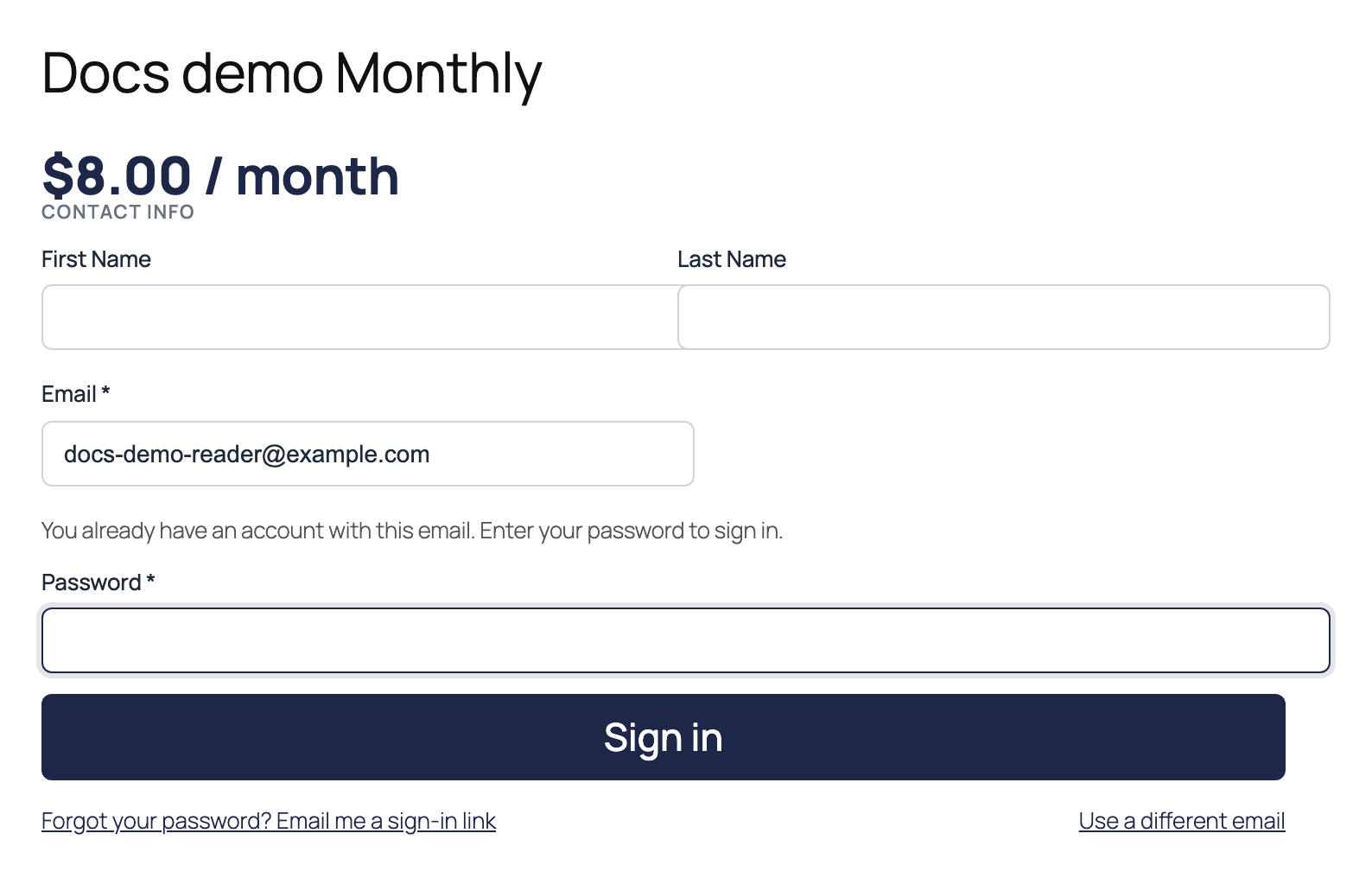
If the reader typed the wrong address, they click Use a different email, or simply change the email. The payment fields come back.
Looking up the email sends nothing. PaywallProject never emails a sign-in link on its own, not even to a reader who left an unfinished checkout. An email only goes out when the reader clicks the link to ask for one.
If the lookup didn’t run, for example because the page was still loading, checkout catches the account when the reader clicks Subscribe. The same sign-in step then appears under the email field.
On the Step by step layout
The Step by step layout works the way it always has. It starts with an Account step, and the steps above match it. When the email has an account, that step shows a Password field, the Forgot your password? Email me a sign-in link link and “Enter your password to sign in.” The reader signs in and clicks Continue.
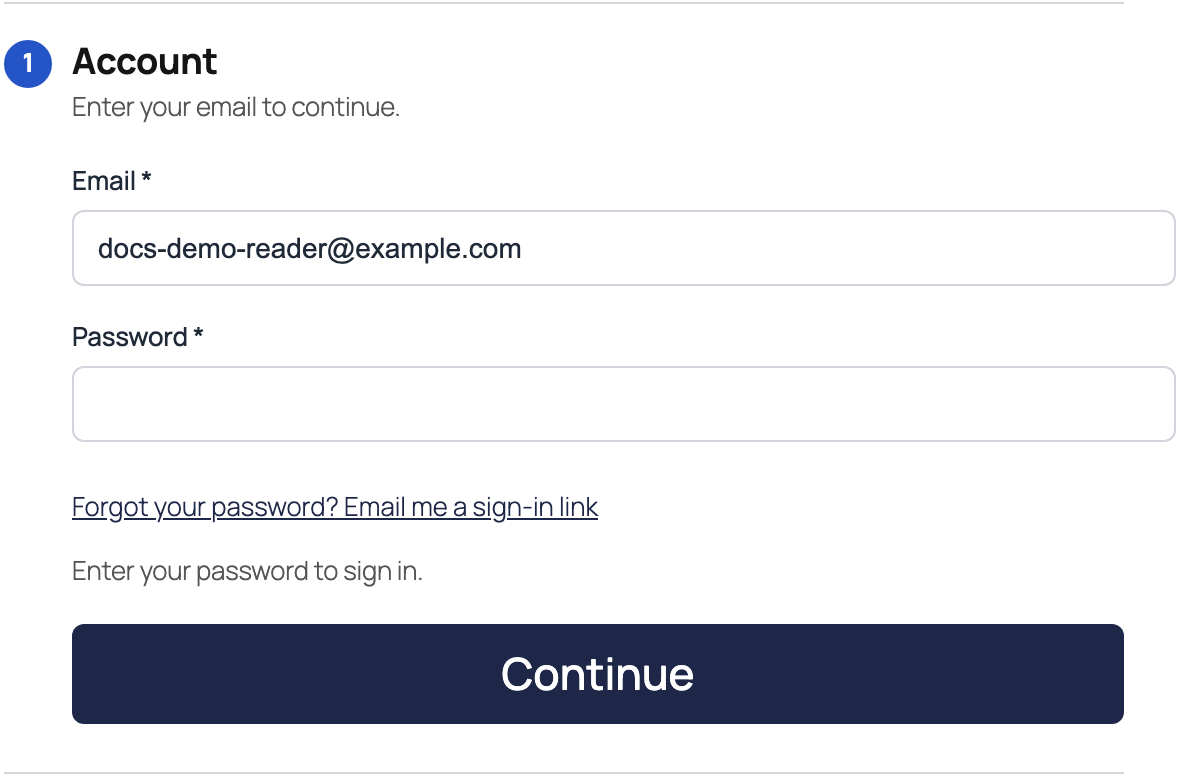
You choose the layout under PaywallProject → Checkout, or for one plan under PaywallProject → Levels.
Sign in by email
Readers who never chose a password, or who forgot it, click Forgot your password? Email me a sign-in link. The step then says “Check your inbox. We sent a sign-in link to” their address.
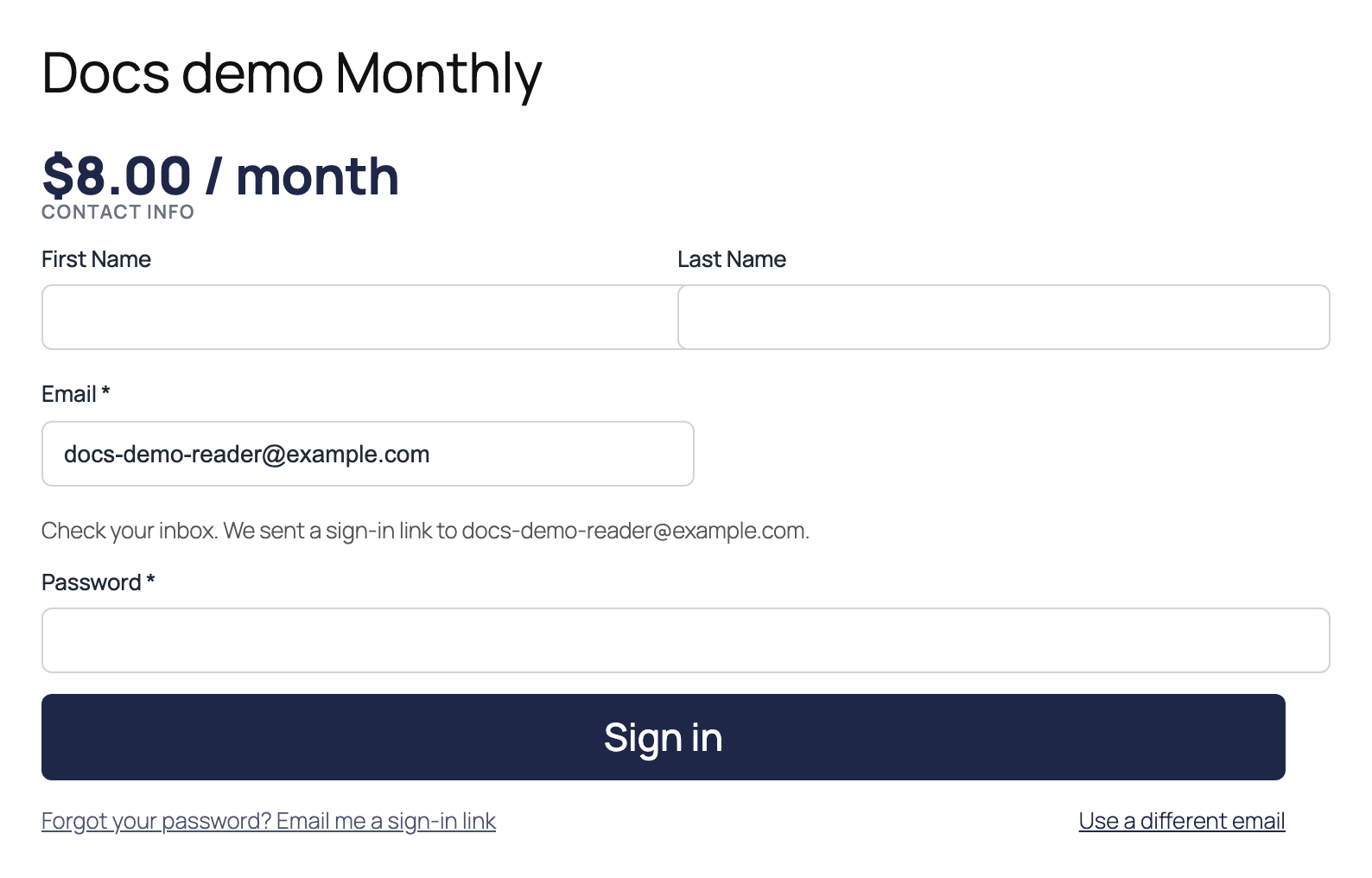
Which email they get depends on the account:
- A reader whose checkout made an account but who never paid gets the Finish checkout sign-in link email. Its link signs them in and takes them back to the same plan’s checkout. A coupon they entered is filled in again.
- Any other reader, for example an active, canceled or expired subscriber, gets a short “Your sign-in link” email. Its link signs them in and returns them to the checkout they were on.
- Staff (administrators, and anyone else who can edit posts) get no link. Staff accounts must sign in with their password.
The response to a sign-in-link request is the same in every case, so that response does not reveal the account type.
About the links
- Each link works once.
- The Finish checkout link expires after 1 hour. The “Your sign-in link” link expires after 30 minutes.
- A Finish checkout link only signs in the account it was sent to. If the account’s email or password changes, or the reader has paid since, it doesn’t sign them in.
- To stop misuse, PaywallProject sends at most one sign-in link per account every 2 minutes, and at most 20 per hour from one internet address. If a limit stops a link, the reader still sees the same message. An earlier link is usually still in their inbox.
Too many wrong passwords
Checkout also guards against password guessing. After 5 wrong passwords for one account, or 20 from one internet address, within 15 minutes, sign-in pauses. The reader sees “Too many sign-in attempts. Please try again later.” They can still ask for a sign-in link. A successful sign-in clears the count for that account.
The same limit applies to PaywallProject’s other sign-in forms. Developers can change it with the ppaccess_login_throttle_limits filter.
Edit the email
Go to PaywallProject → Emails and choose Finish checkout sign-in link in the Template menu. It’s in the Checkout recovery group. The default subject is “Sign in to finish subscribing to {site_name}”. Keep the {resume_link} merge tag in the body. You can also use {link_expires}, which shows how long the link lasts.
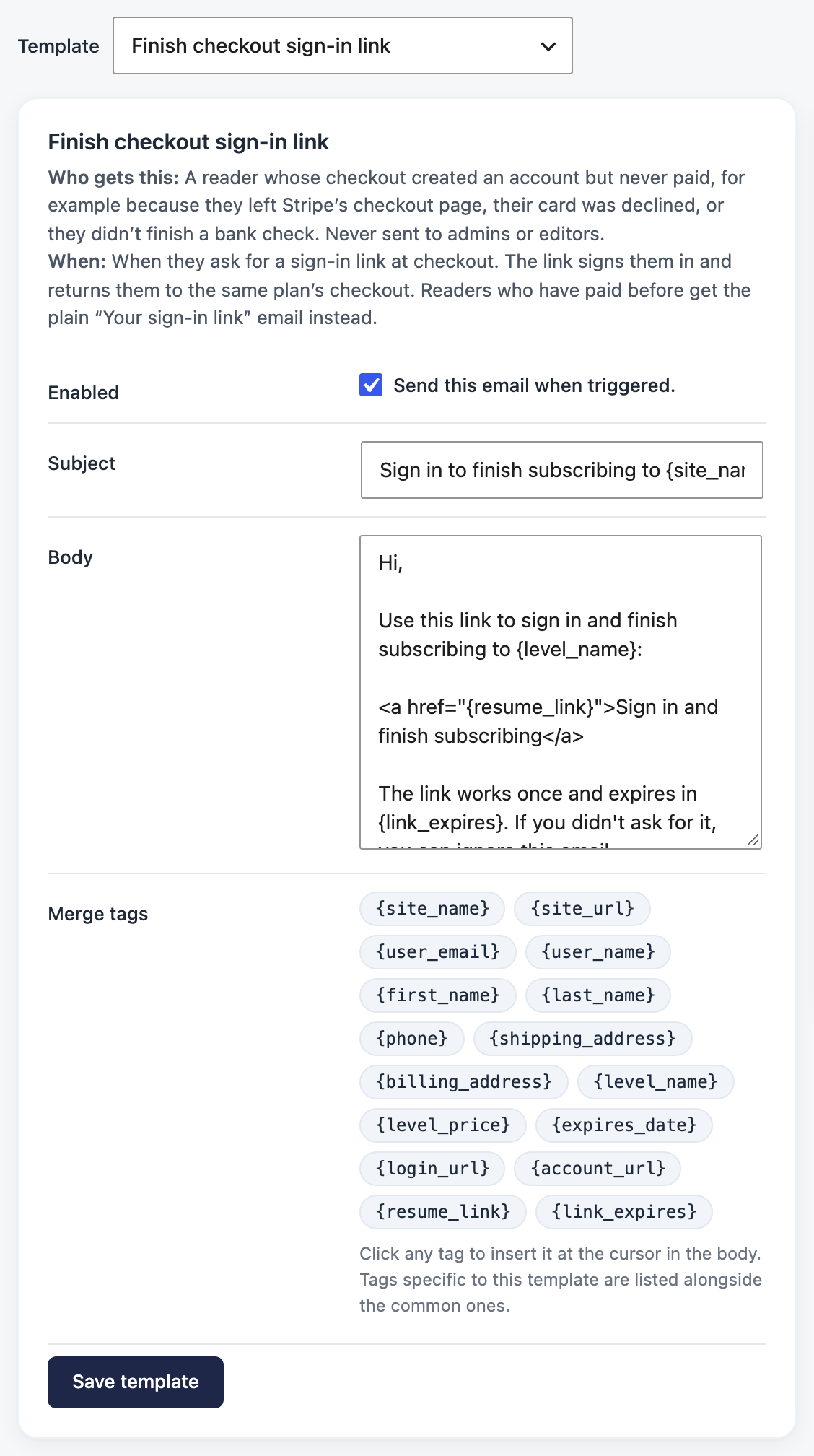
The “Your sign-in link” email is plain text and has no template to edit. Every Finish checkout email appears in the email log.
Related
- Remind readers who leave checkout without paying sends reminder emails with a link back to checkout, so readers don’t need to come back on their own.