

PaywallProject can give each subscriber a personal RSS feed link. With it, they read your full articles, including subscriber-only ones, in a feed reader such as Feedly or Apple News. You choose who gets the link: every active subscriber, or only the subscribers you pick.
Picking readers one by one is useful when the feed is a perk, for example for a few major donors, a partner newsroom or a library.
Before you start
- You need administrator access to your WordPress dashboard.
- The feed only works for readers with an active subscription. That’s true even for readers you pick.
Turn on the subscriber feed and choose who gets it
- In your WordPress admin, go to PaywallProject → Settings → Advanced.
- Find the Subscriber RSS feed row.
- Check Let active subscribers add a personal, full-content RSS feed link from My Account. It’s off by default.
- Choose who gets the feed:
- All active subscribers (the default): every reader with an active subscription gets a link.
- Only subscribers you choose: only readers you grant the feed get a link.
- Click Save changes.
With Only subscribers you choose, the row lists everyone who has the feed under Subscribers with the feed. Click a name to open that subscriber’s page. Until you grant anyone, it says “No subscribers have the feed yet. Grant it from a subscriber’s page under Subscribers.”

Grant a subscriber the feed
- Go to PaywallProject → Subscribers and open the subscriber.
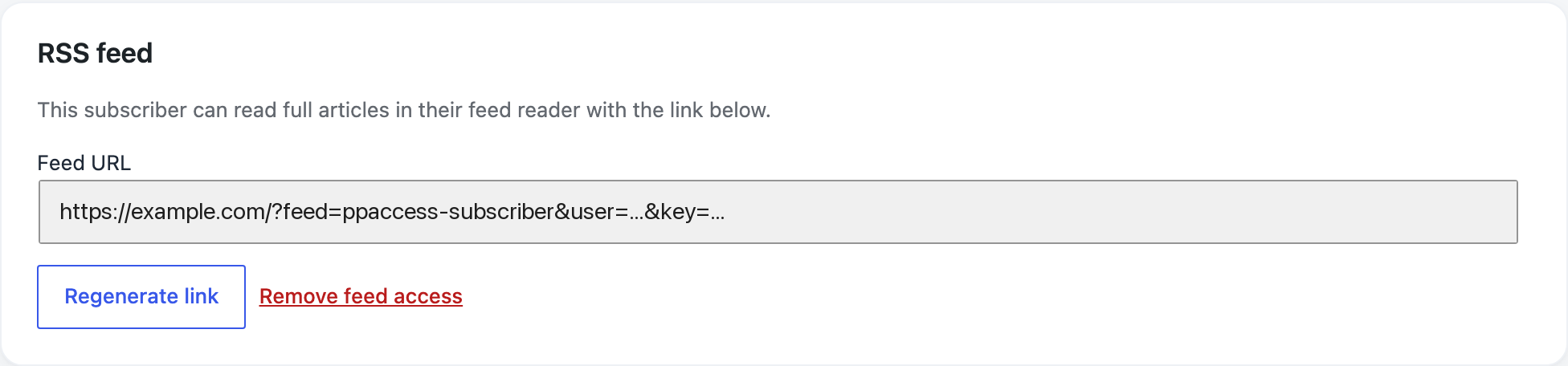
- Scroll to the RSS feed card. It says “Only subscribers you choose get the feed, and this subscriber does not have it.”
- Click Grant feed access. You see “RSS feed access granted.”

The card now shows the subscriber’s Feed URL. The subscriber can copy it from My Account, so you don’t need to send it. If they ask, click the box to select the link and copy it for them.
Make a new link, or take the feed away
On the same RSS feed card:
- Regenerate link: makes a new feed link. The old link stops working straight away. Use it if a link was shared with people who shouldn’t have it. The subscriber needs to add the new link to their feed reader.
- Remove feed access: takes the feed away. Their old link no longer works, and the Personal RSS feed row disappears from their My Account. If you grant the feed again later, they get a new link.
With All active subscribers, the card only has Regenerate link. Grant and remove are for Only subscribers you choose.
What the reader sees
Share these steps with a subscriber who has the feed.
- Log in and go to the My Account page.
- Click the Profile tab.
- Find Personal RSS feed and click Copy link. The button says “Copied!”
- Paste the link into your feed reader as a new feed.

Reset link does the same as Regenerate link on your side. It makes a new link, and the old one stops working.
Readers who don’t have the feed see no Personal RSS feed row at all.
Good to know
- Switching to Only subscribers you choose takes the feed away from everyone you haven’t granted. Links they already added to a feed reader stop showing full articles. Grant the readers who should keep it before you switch, or right after.
- Switching back to All active subscribers gives every active subscriber the feed again. The readers you granted are remembered, in case you switch back later.
- An active subscription is still needed. If a granted reader’s subscription ends, their feed stops giving full articles. The card on their page says “The feed only works while this subscriber has an active subscription.” When they renew, the feed works again with the same link.
- Each feed matches the reader’s plan. It only lists articles their plan can open. A plan that only opens some categories gets only those categories.
- Your public feed doesn’t change. Your site’s normal feed stays the same for everyone else.
- Turning the feed off stops every personal link and hides the RSS feed card and the My Account row.