

When a reader’s card is declined at renewal, PaywallProject tells them right away and sends them straight to the card form. They see a strip at the top of every page, and a locked article asks for a new card instead of a new subscription. Once they save a card, the payment that failed is charged and their access comes back at once. This guide is for publishers and the staff who answer reader questions about payments.
Before you start
- Readers must pay through Stripe. Subscriptions that WooCommerce manages don’t get the strip or the failed-payment box.
- Your site needs a My Account page, set as Account page under PaywallProject → Settings → Pages. The Update card buttons open the card form there. Without one, the strip and the box don’t show.
What the reader sees
A strip at the top of every page
A signed-in reader whose payment failed sees a red strip across the top of every page. It says “Your payment didn’t go through.” and what failed:
- Their plan: “Your renewal on [date] was declined, so reading is paused.”
- An add-on: “Update your card to keep [add-on name].”

The strip has two buttons:
- Update card opens My Account with the card form already open.
- Not now hides the strip for a day in that browser. It comes back after that, until the card is fixed.
The strip doesn’t show on the My Account page itself. My Account already says what failed, with the button right there.
The failed-payment box on locked articles
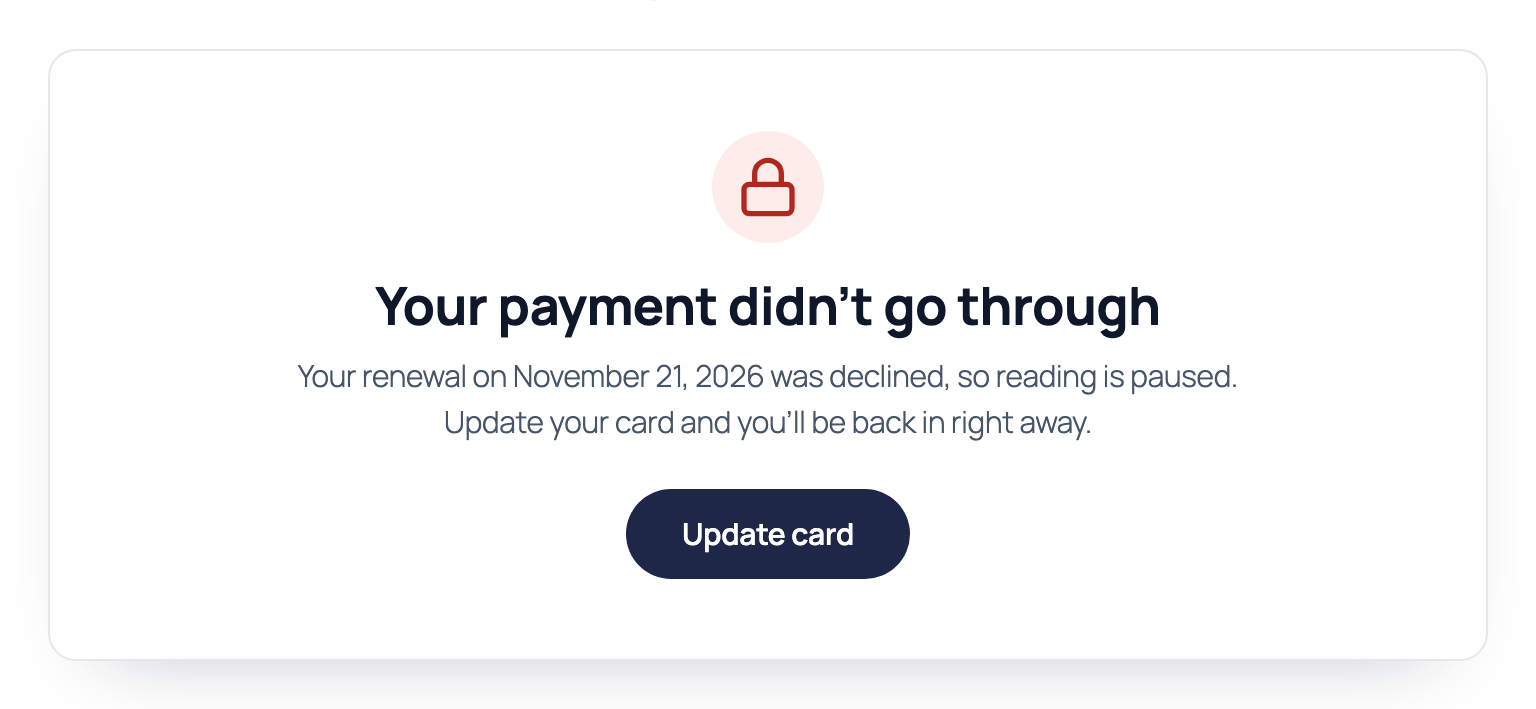
When the reader’s plan payment failed, they lose access until it is paid. On a locked article, the paywall doesn’t ask them to subscribe again. It shows the failed-payment box instead, with an Update card button that opens the card form in My Account.
My Account
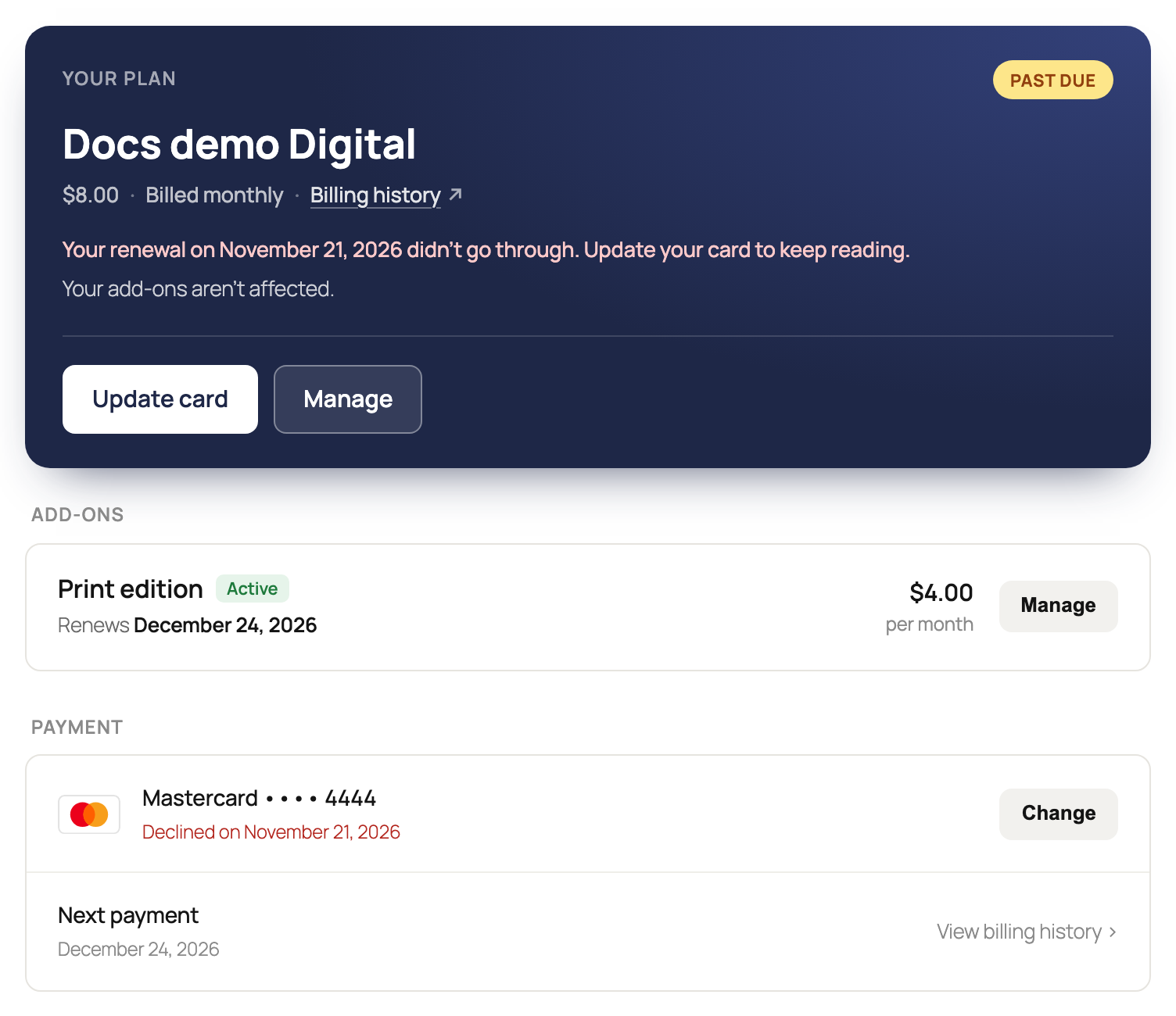
On the Subscriptions tab, the plan card shows a Past due badge, the date the renewal failed and an Update card button. In the Payment section, the card on file says “Declined on [date]”. If only an add-on failed, its box has the Update card button.
How the reader fixes it
- Select Update card on the strip, the paywall box or My Account.
- In Payment details, select Update with card (or Use a bank account, see below).
- Enter the card and select Save.
The new card is saved for the plan and every add-on, and whatever failed is charged to it straight away. The page reloads with a confirmation at the top of My Account, for example “You’re all set. We charged $8.00 to Mastercard •••• 4444 and your access is back.” The plan card shows Active again with its next renewal date.
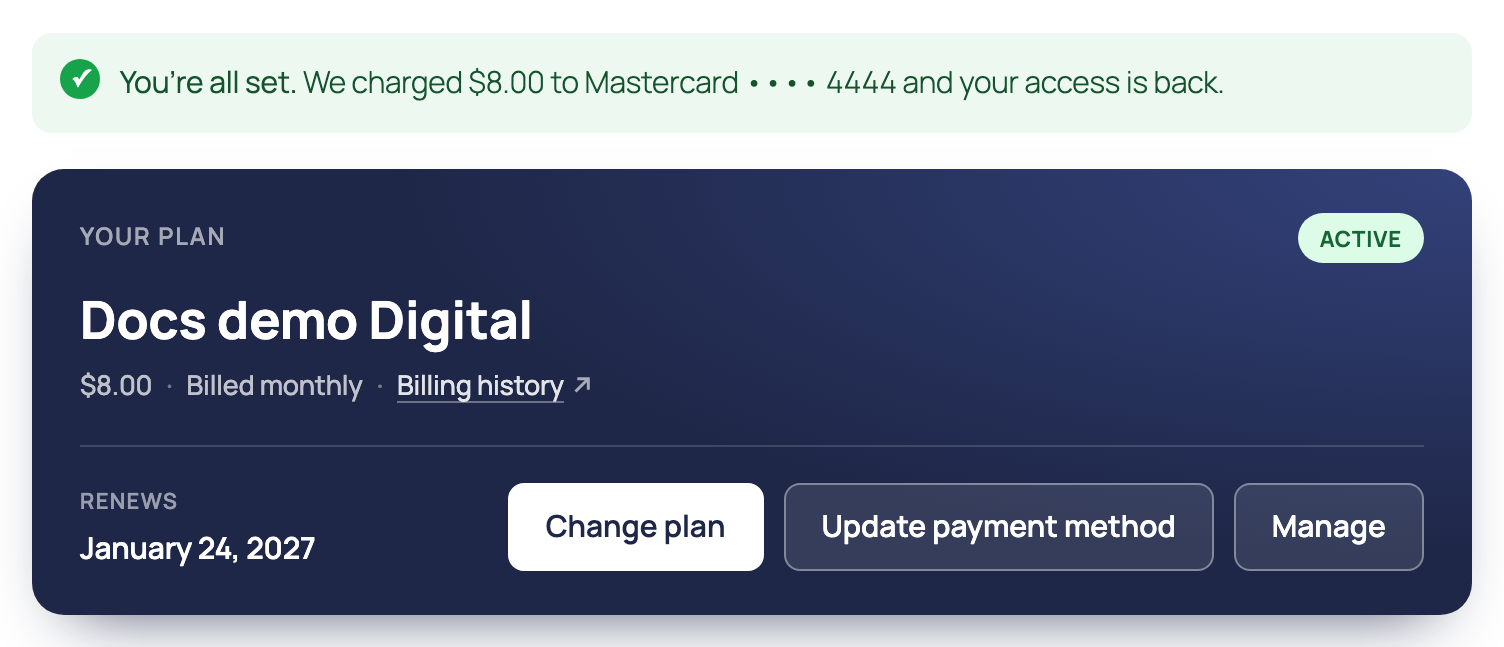
If nothing was owed, the notice says “Card updated.” and when the next payment will use the new card. For the full card steps, see How to update a credit card.
Turn the strip on or off
The strip is on by default.
- Go to PaywallProject → Settings → Stripe.
- Under Failed payments, tick or untick Show a strip at the top of every page when a reader’s payment fails.
- Click Save changes.

This setting only controls the strip. The failed-payment box on locked articles and the notes in My Account always show.
Change the wording of the failed-payment box
- Go to PaywallProject → Paywall.
- Scroll to Failed payment box.
- Fill in any of Heading, Subhead and Button label. Leave a field blank to keep the default shown in grey.
- In the Subhead, type {date} where you want the date the payment was due.
- Click Save changes.
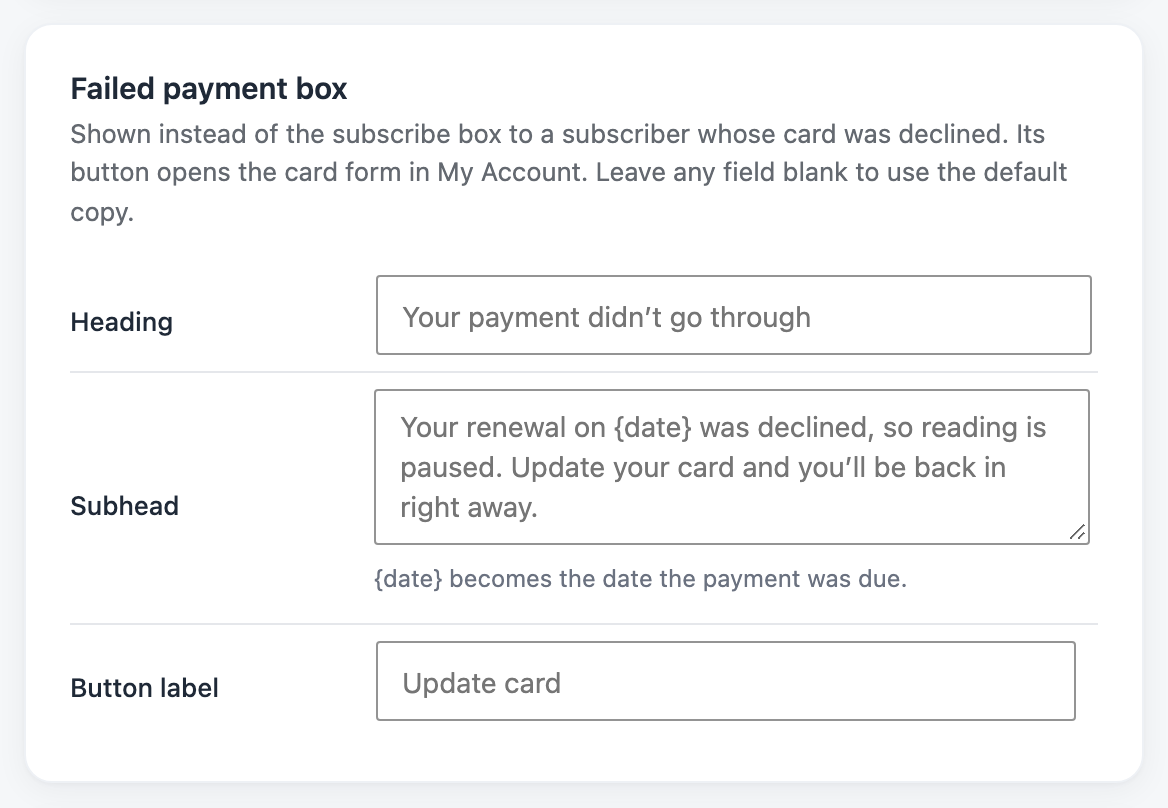
To see your changes, pick Payment failed above the Live preview on the right. The preview uses a sample date.
Bank accounts
In Payment details, a reader can choose Use a bank account instead of a card. Stripe’s form asks for their US bank account and their permission to debit it. The bank account then pays for the plan and every add-on, like a card would.
A bank debit takes a few business days to clear, so access works a little differently:
- When the bank account pays for a failed renewal, the reader sees “Bank account saved.” The notice says the payment usually clears in 3 to 5 business days and that they keep access in the meantime.
- Their access carries on while the debit clears, for up to seven days.
- When the debit clears, the subscription is active again as normal.
- If the debit bounces, access ends and the reader sees the failed-payment strip and box again.
Sometimes Stripe confirms a new bank account with two small deposits. The reader is told to confirm them from Stripe’s email and come back, or to use a card now.
Bank accounts only work if bank debits (ACH Direct Debit) are turned on in your Stripe account. If they aren’t, a reader who picks Use a bank account sees “That payment method is not available here. Please use a card.”
Good to know
- Only the reader whose payment failed sees the strip. Other visitors don’t.
- A failed add-on payment doesn’t pause reading. The plan card says “Your add-ons aren’t affected.” when only the plan failed.
- Not now is remembered in the reader’s browser. On another device, the strip shows again.
- If a reader calls and wants you to update their card, use PaywallProject → Subscribers → Switch to and follow the same steps. See How to switch into a user’s account.