

Which guide do I need?
- Only Stripe subscribers, with no accounts or membership plugin? Move from Stripe Payment Links or Checkout. It creates the accounts for you.
- A membership plugin on this WordPress site? Use that plugin’s guide: MemberPress, Leaky Paywall, Paid Memberships Pro, Restrict Content Pro or WooCommerce.
- A hosted platform? Use its guide: Ghost, Memberful or Substack.
- Something else, or not sure? See all migration guides.
Use this guide when your readers already pay through Stripe and you move to PaywallProject. Keep the same Stripe account, and readers keep their card, price and renewal date. Nobody pays twice or has to subscribe again. This page is the detailed reference the platform guides link to.
What happens to each reader
For each reader, PaywallProject looks for a WordPress account with the same email:
- Found: it updates that account. The login and password don’t change.
- Not found: it creates a new account.
Either way, the Stripe subscription is linked to the account. Readers don’t re-enter a card, and nobody is charged.
Readers with a new account need a way to sign in. You can tick an optional welcome email on the import’s last step (PaywallProject 4.2.0 and later), or tell them yourself. See Step 7: Tell readers how to sign in.
Before you start
- Update to PaywallProject 4.2.0 or later. You need administrator access to WordPress and to the Stripe account that bills your readers.
- Do a test run on a staging copy first. The import changes only the site you run it on, never Stripe.
- Pick a quiet time to switch. Import again just before you switch, so recent renewals and cancellations are up to date. A second import updates the same accounts.
- Moving to a different Stripe account? See Moving to a different Stripe account.
Step 1: Connect the same Stripe account
- Go to PaywallProject → Settings and open the Stripe tab.
- Select Connect with Stripe and choose the account your readers pay into today. On a staging site, use Connect a test account unless you want to test against live data.
You don’t create a webhook: Stripe’s events reach your site through the connection. See Connecting Stripe to PaywallProject.
Step 2: Create matching levels
Go to PaywallProject → Levels and select Add level. Create one level for each old plan, with the same price and billing interval (How to setup subscriptions level). Give it the old plan’s name, and the import matches them for you.
Imported readers stay on their current Stripe price. New readers pay the level’s own price. You don’t change anything in Stripe.
Step 3: Bring in your readers
Use Method 1 when PaywallProject can read your old system. Use Method 2 for everything else.
Method 1: Import directly from your old system (recommended)
This works for MemberPress, Paid Memberships Pro, Restrict Content Pro and WooCommerce Subscriptions on this site, your connected Stripe account, and Ghost and Memberful with an API key. A plugin on your site is read even while it’s deactivated, and nothing in it changes.
- Go to PaywallProject → Tools. On the Import subscribers card, select Start an import. The card names any plugin it found, for example “Found on this site: Paid Memberships Pro (6 members)”.
- Under Where are your readers now?, choose your old system from Read directly, no export file. A plugin found on your site is already chosen. Select Next.
- Read your readers. A plugin on your site is read at once. For Stripe, select Read subscriptions. For Ghost or Memberful, paste the API key and select Connect and read.
- Under Match plans to levels, check the level for each old plan. PaywallProject suggests the level with the same name, the level that already bills that Stripe price, or, for WooCommerce, the level set up for that product.
- Under Match statuses, check the suggested statuses. Readers whose membership already ended are left out unless you change that.
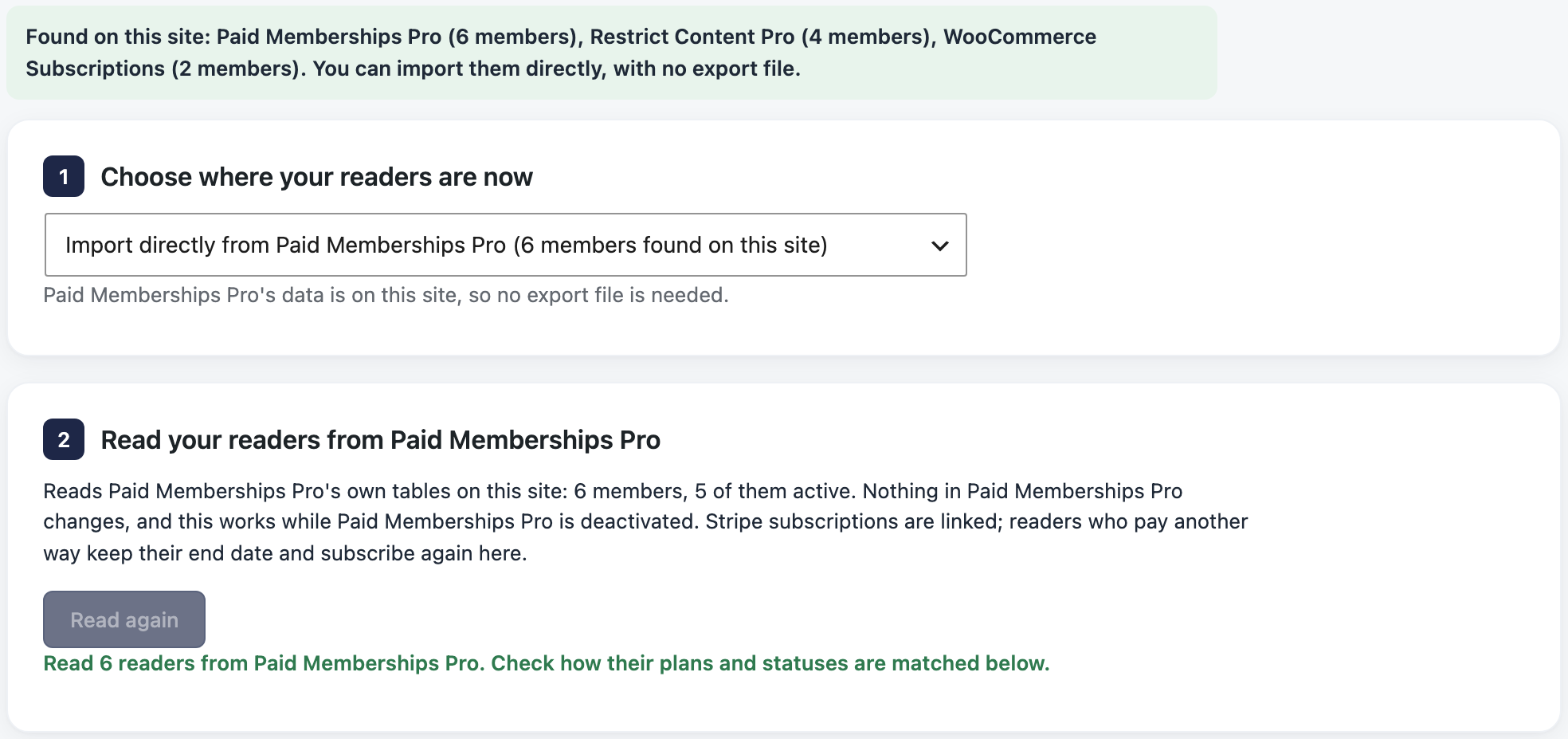
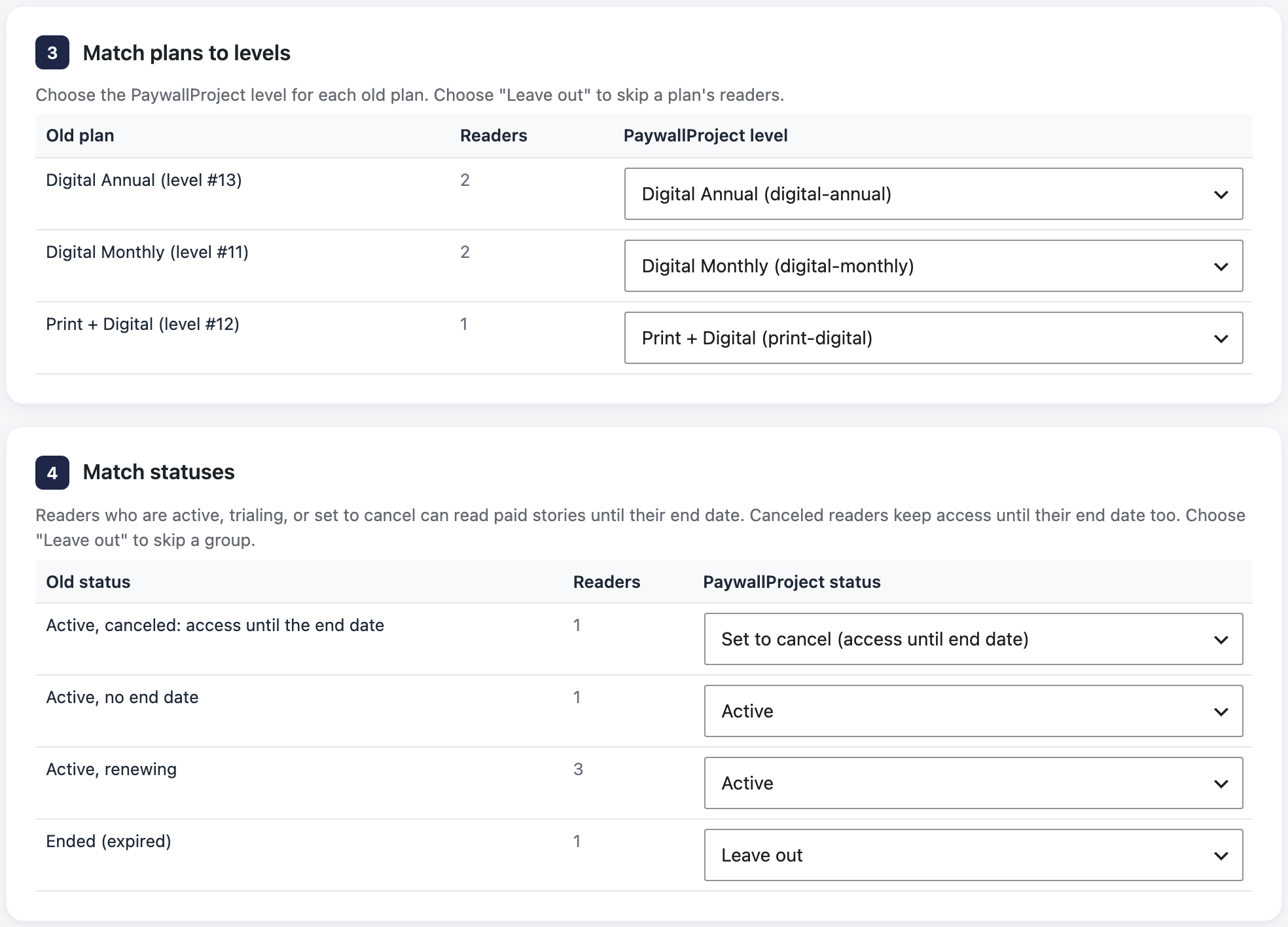
A direct import has no Check the columns step. Each reader appears once: someone with several memberships keeps the one with the best status and latest end date, and the preview names the others. Go on to step 4.
Method 2: Import an export file
Use a file for Substack, WooCommerce Memberships, a plugin on a different WordPress site, or to import only some readers. Your platform’s guide in the platform guides says which file to export. For a Stripe export, go to Billing → Subscriptions, filter to the subscriptions you want (most publishers pick Active, Past due and Trialing), then select Export with All columns and the UTC time zone.
- Go to PaywallProject → Tools. On the Import subscribers card, select Start an import.
- Under Where are your readers now?, choose your old platform from Upload an export file. For a Stripe export alone, choose Stripe only (Payment Links, Checkout, or the Dashboard). Select Next.
- Under Add your export file, add the file. Some platforms also ask for your Stripe subscriptions export, which adds Stripe IDs, statuses and end dates.
- To check how the columns were matched, open More options. Under Check the columns, fix any wrong match, or choose — not in my file —. A missing email, plan or status column shows in red.
- Under Match plans to levels, choose a level for each old plan. Choose Leave out to skip one, such as a free plan.
- Under Match statuses, check what each old status becomes.
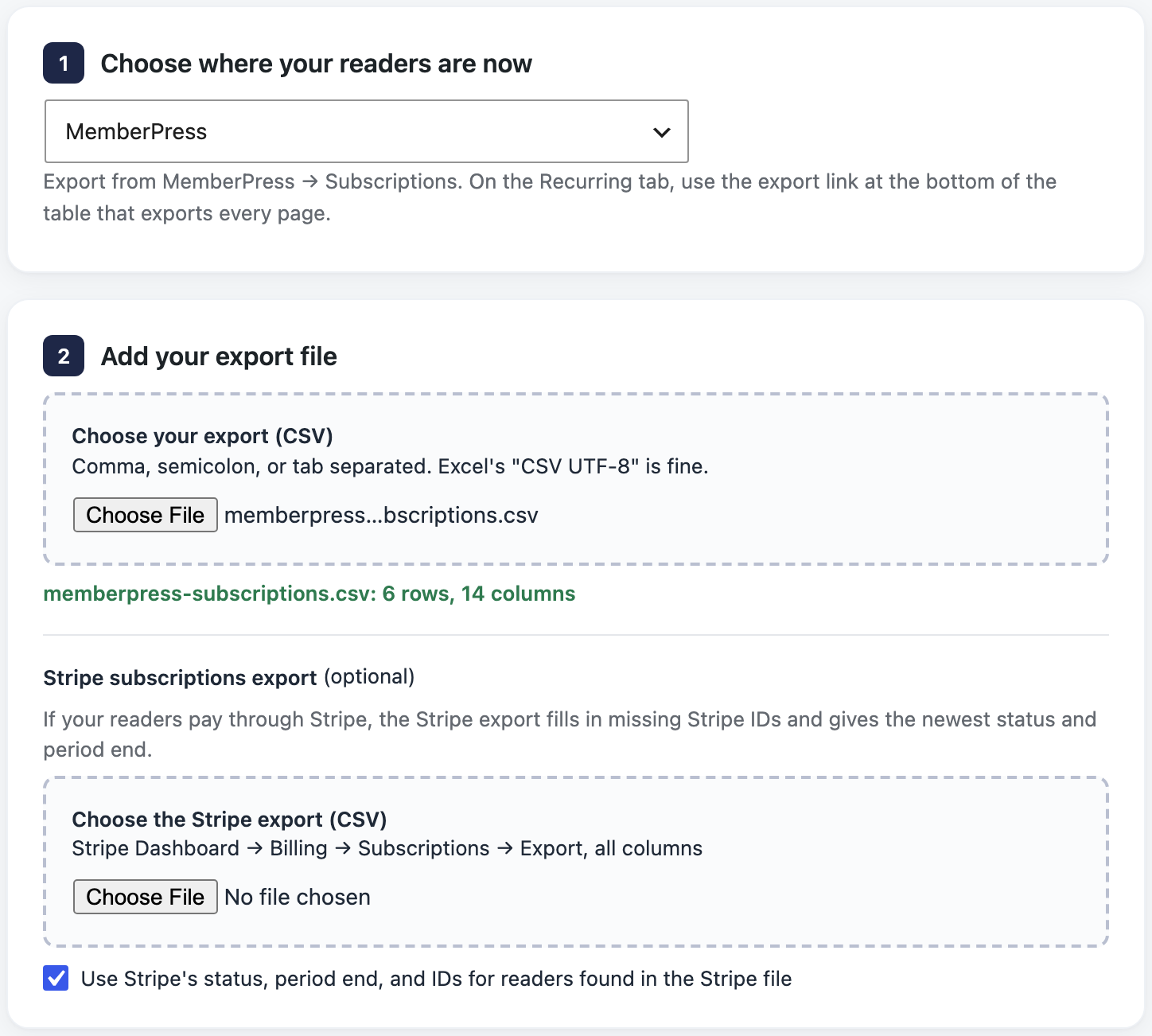
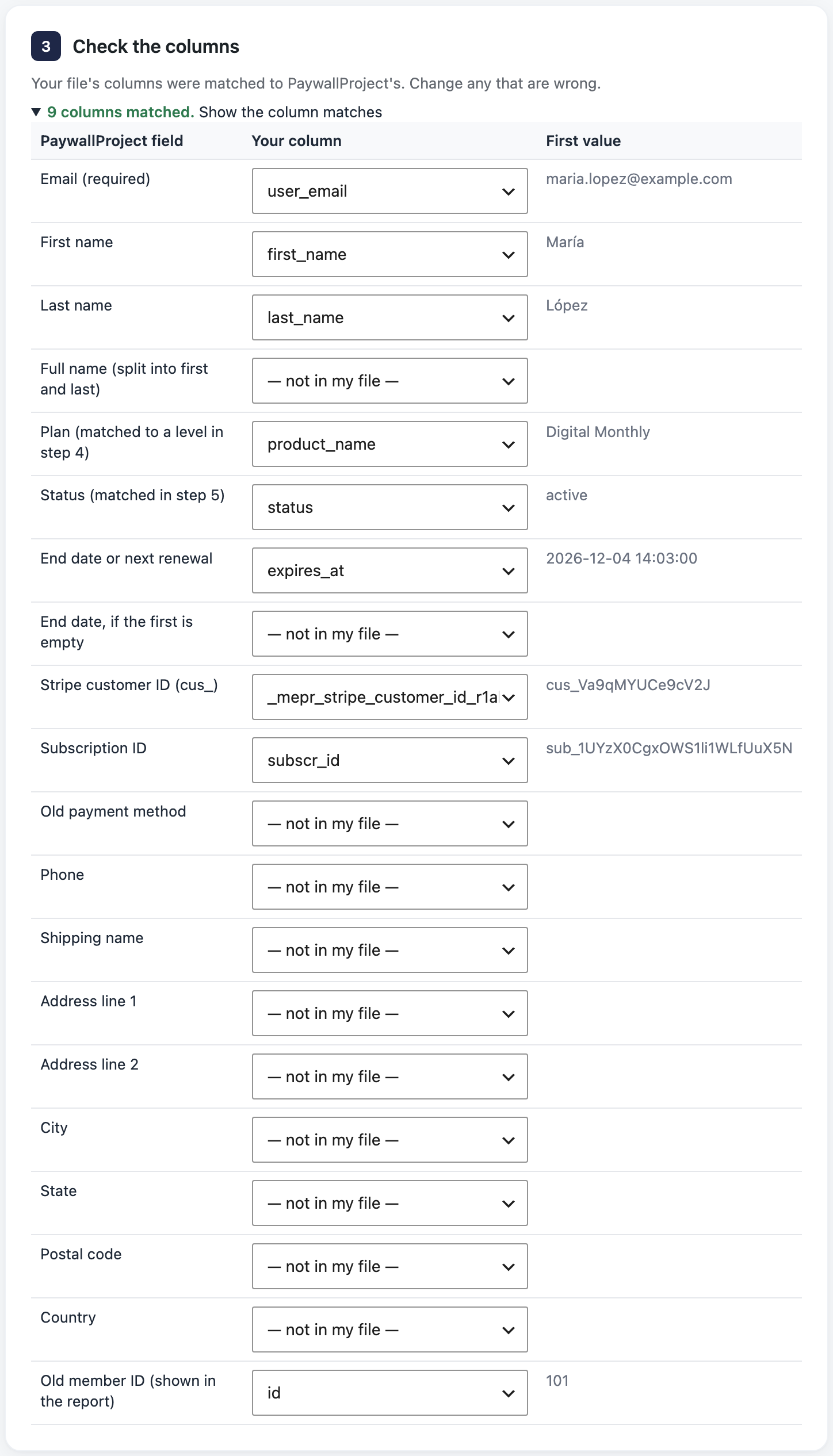
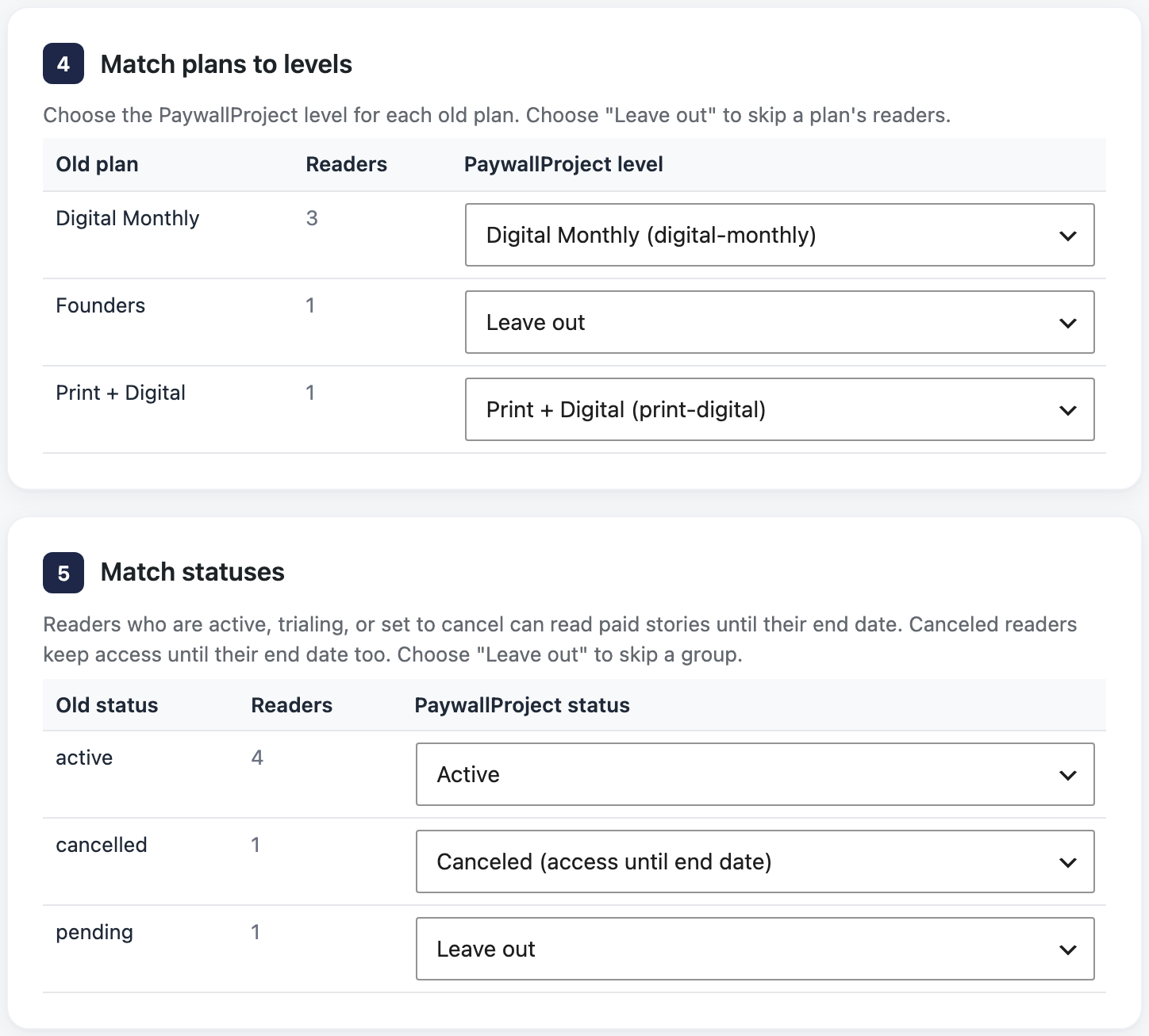
Your file is read in your browser, and only the converted rows go to your site. Before the preview, the page says how many rows it will check and why any are left out. Of several rows for one email, it keeps the one with the best status and latest end date.
Dates: a date without a time, such as 2026-12-04, ends access at the end of that day in your site’s time zone. A date with a time is read as UTC unless it names its time zone. A date like 03/04/2026 is read as month/day/year.
What each status means
Active, trialing and set-to-cancel readers can read paid stories until their end date. Canceled readers keep access until their end date too. Past due and expired readers can sign in but don’t get past the paywall.
Step 4: Read the preview
Select Next until you reach Review. PaywallProject checks every reader against your site and, read only, against Stripe. Nothing is saved yet. Each row gets one result:
- Create: a new account with a random password. It gets an email only if you tick the welcome email on the last step.
- Update: an existing account with the same email. The notes list what changes.
- Skip: the row isn’t imported. The notes say why.
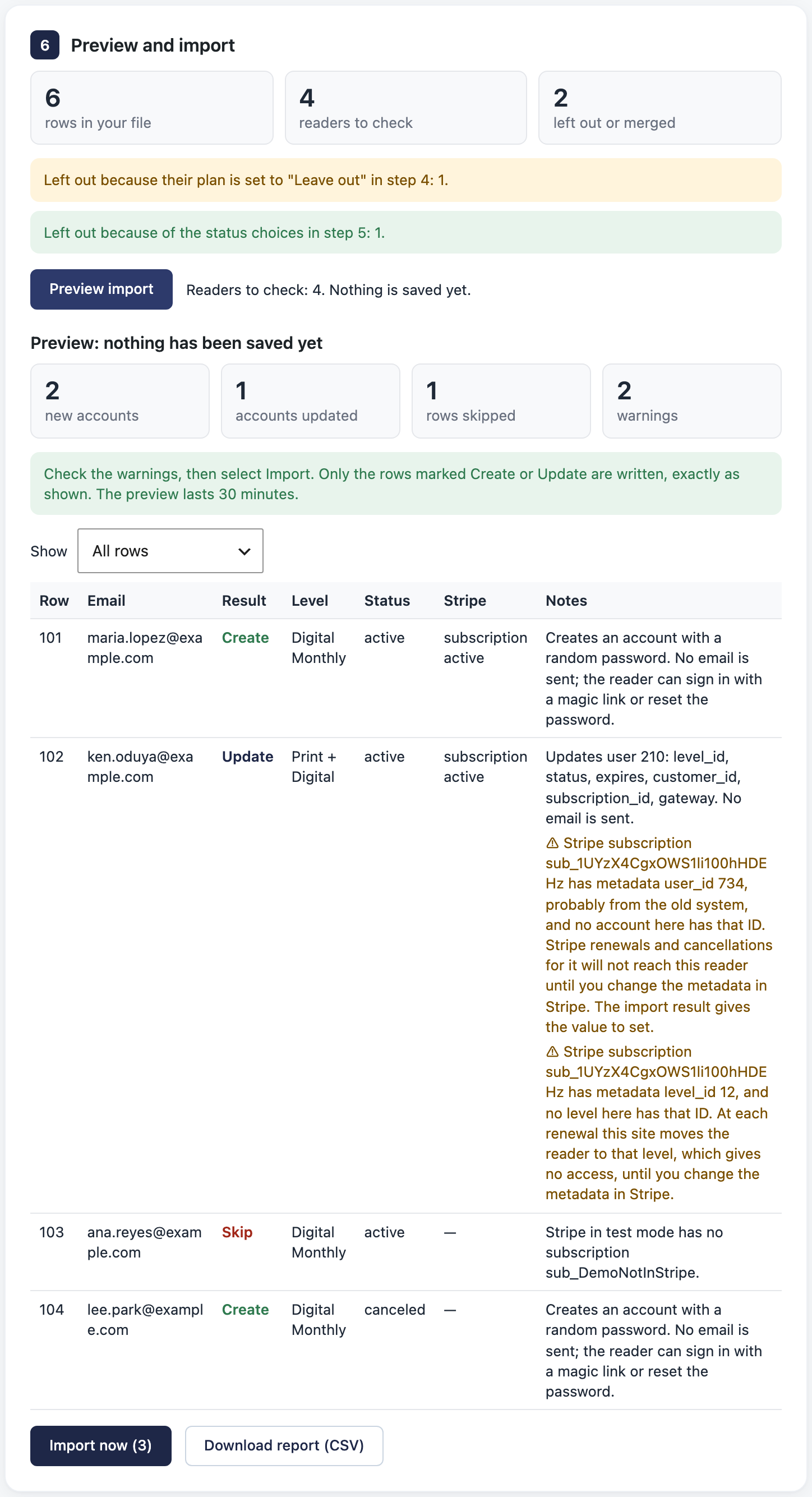
A row with a subscription ID is checked in Stripe, which fills in a missing customer. A row with only a customer ID gets that customer’s running subscription, or the newest one with a warning if there are several.
Why a row is skipped
| Reason | What to do |
|---|---|
| The email is missing or not valid. | Fix the email in your file. |
| Another row has the same email, subscription or customer. | Remove the duplicate. Rows with the same email are already merged. |
| No level has that slug or ID, or the status is unknown. | Check Match plans to levels and Match statuses. |
| The end date can’t be read. | Use a date such as 2026-12-04. |
A Stripe ID doesn’t look like one (cus_…, sub_…). | Check Check the columns. |
| The email belongs to a staff account, such as an editor. | Staff accounts can’t become subscribers. |
| The Stripe customer or subscription is linked to another account. | The preview names that account. Unlink it there, or leave the row out. |
| Stripe has no such subscription or customer in this mode. | Check the ID, and the mode under Settings → Stripe. |
| The subscription bills a different customer than the row says. | Fix the customer or subscription ID. |
| Stripe could not be read. | Preview again in a minute. |
| The account already has these values (“unchanged”). | Nothing to do. This row was already imported. |
Warnings
A warning doesn’t stop the row. Read each one before you import.
| Warning starts with | What it means |
|---|---|
| Stripe subscription … has metadata user_id … | The subscription carries an old user ID, so renewals can miss this reader. After the import, the report gives the exact value to set, for example “user_id = 204 and level_id = 21”. Edit the subscription’s metadata in the Stripe Dashboard. |
| Stripe subscription … has metadata level_id … | Renewals move the reader to this level. Set it to the level ID the report gives. |
| This reader pays through Stripe, but the row has no subscription_id | Renewals won’t extend access. Add the sub_ ID, or a customer ID with a running subscription. |
| This Stripe customer has no subscription | Only the customer is linked. The reader keeps access until their end date. |
| This customer has … running subscriptions | The newest is linked. Put the right sub_ ID in your file to pick another. |
| Replaces … on this account | The account had a different Stripe ID, and the import replaces it. |
| Stripe subscription … is canceled, but the row’s status is … | Nothing will renew this reader. Check the status. |
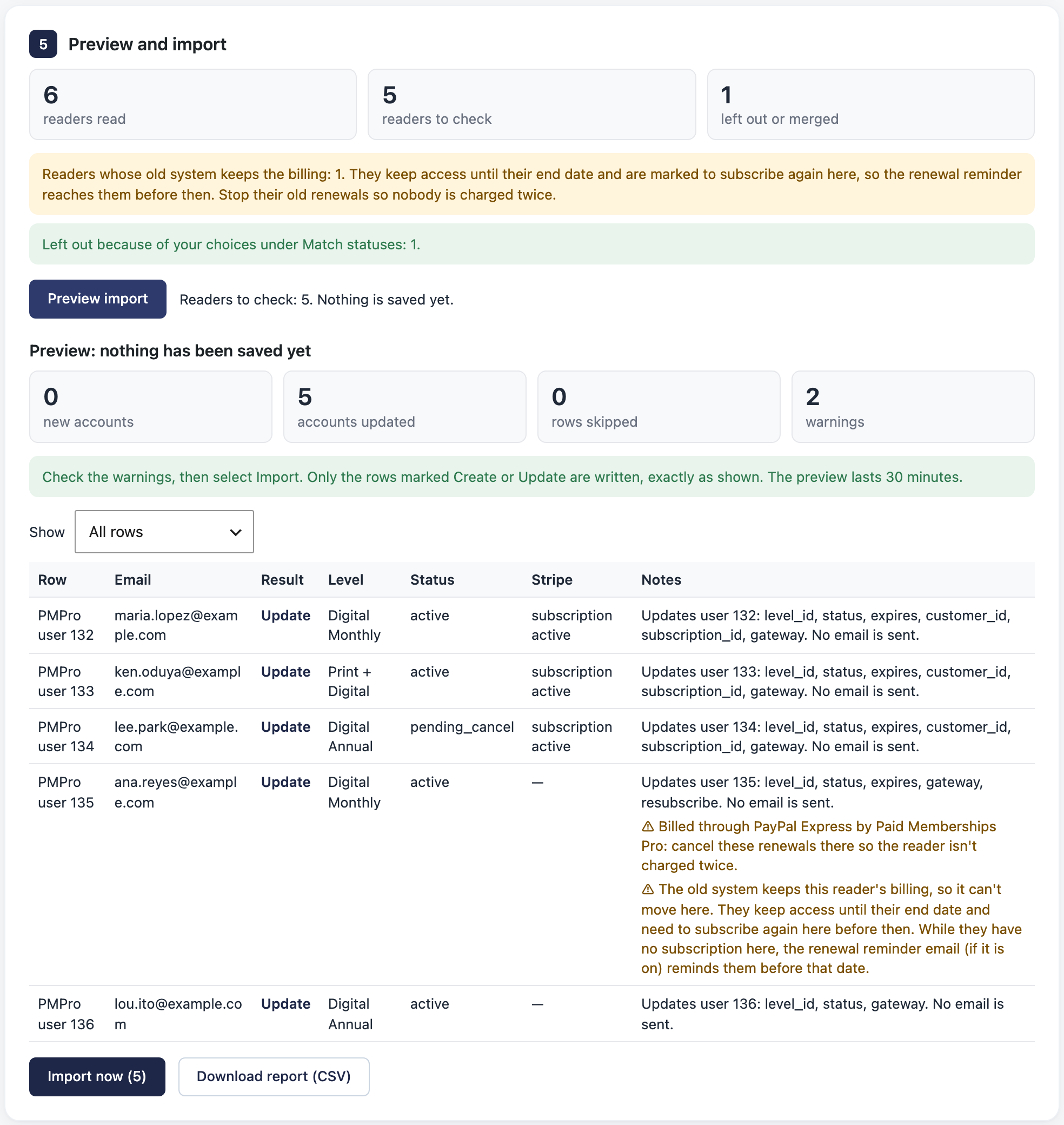
| The old system keeps this reader’s billing | The reader pays outside Stripe and is marked to subscribe again. See Readers billed outside Stripe. |
| Billed through … by …: cancel these renewals there | The old plugin bills this reader through PayPal or another gateway. Cancel that recurring payment after the import. |
| Also had: … | The reader had several memberships. Only the one shown is imported. Change the level by hand if needed. |
| This Stripe subscription is in test (sandbox) mode, but PaywallProject is in live mode | Paid Memberships Pro and PaywallProject use different Stripe modes. Check Settings → Stripe. |
Step 5: Import and keep the report
Select Next to go to Confirm. It lists what the import will do and what it won’t.
- Optional: tick Email new accounts a welcome message with a link to set their password. The list then says how many emails it sends, one per new account with access (details).
- Tick I’ve reviewed the preview and want to import.
- Select the red Import … readers button.
Only Create and Update rows are written, exactly as previewed. A preview lasts 30 minutes; after that, preview again.
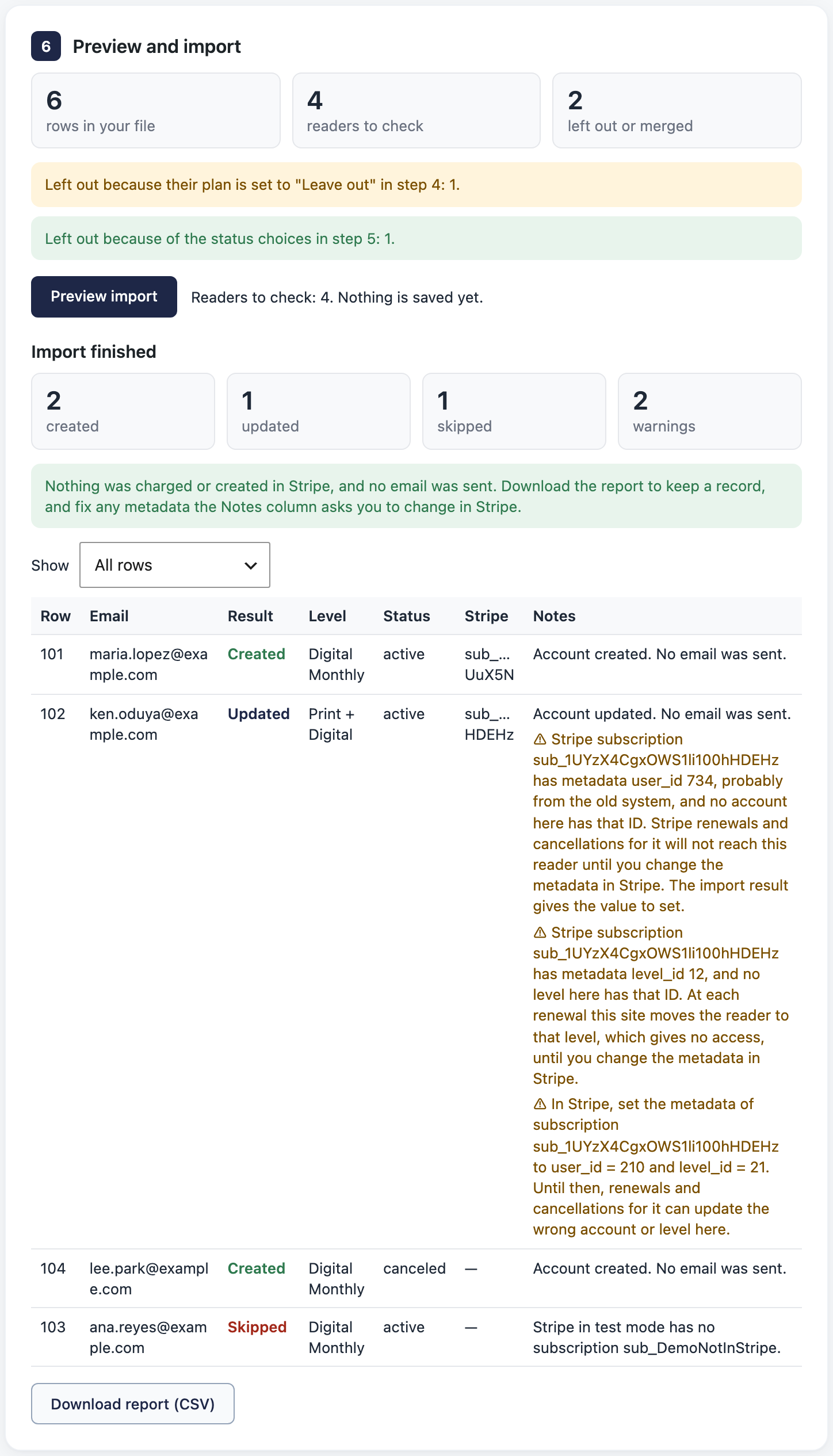
Select Download report (CSV). It lists every row’s result, account ID, skip reason, warnings and any Stripe metadata to change. Then check PaywallProject → Subscribers.
What the import does
- A new reader gets a WordPress account with a random password. An existing account keeps its login and gets the level, status, end date and Stripe IDs.
- It changes nothing in Stripe and charges nobody. It sends no email unless you tick the welcome email, and then only to the accounts it creates.
- Each imported account is recorded in the audit log and in the History box on its subscriber page.
- An account that changed after the preview is skipped. Preview again to import it.
- You can run it again. Rows you already imported come back as unchanged.
- With Sync subscribers to Newsletter Glue on, imported readers join your list like new subscribers.
Step 6: Switch off the old system
- Don’t cancel or delete subscriptions in the old plugin. Several plugins cancel the subscription in Stripe too.
- In Stripe, open Developers → Webhooks (or Workbench → Webhooks). Disable the endpoint that points at your old plugin. Disable rather than delete it, so you can roll back. Leave PaywallProject’s endpoints and other services alone.
- Deactivate the old plugin. Your platform’s guide lists anything else to switch off.
If your old plugin connected Stripe for you
Ghost and Substack always connect Stripe this way. Leaky Paywall, MemberPress, Paid Memberships Pro and Restrict Content Pro do if you used their Connect button rather than your own API keys.
- Changes: Stripe lets only the app that created a subscription change or cancel it (Stripe: restrictions). PaywallProject still receives renewals, failed payments and cancellations. If a cancellation or plan change from WordPress doesn’t go through, make it on the subscription in your Stripe Dashboard.
- Fees: if the old app took a fee, Stripe keeps paying it on every renewal until it’s removed from each subscription. Ask the old provider to remove it before you disconnect. After that, only you can clear it, through Stripe’s API (Stripe: disconnect behavior). To check, open a recent renewal payment in Stripe and look for an application fee.
Step 7: Tell readers how to sign in
Readers who already have an account here
This applies to plugins on the same WordPress site: MemberPress, Leaky Paywall, Paid Memberships Pro, Restrict Content Pro and WooCommerce. The import adds the level to each reader’s existing account. Username, password and user ID stay the same. Tell readers their subscription carries over.
Readers who get a new account
This applies to hosted platforms (Stripe alone, Memberful, Ghost and Substack), and to a move to a new WordPress site without the old users table. New accounts get a random password. Readers have these ways in:
- The welcome email (PaywallProject 4.2.0 and later). Tick Email new accounts a welcome message with a link to set their password on the import’s last step. Each new account that has access (active, trialing or set to cancel) gets your New subscriber welcome email with a link to set a password. The link works once and expires after a day. Accounts that already existed never get it. The emails go out in the background, a few each minute, and each one shows in the email log. If the box is greyed out, switch that email on under PaywallProject → Emails.
- Forgot password. They select Forgot password? on your login page and choose a password from the link.
- A sign-in link at checkout. If they try to subscribe again, checkout offers Forgot your password? Email me a sign-in link (Let readers with an account sign in at checkout).
- A reset email from you. In Users, tick the readers, choose Send password reset from Bulk actions and select Apply.
Without the welcome email, tell readers yourself, for example in your newsletter: their subscription carries over, and they sign in with the same email.
Readers billed outside Stripe
Memberful readers, and readers who pay with PayPal or another gateway in MemberPress, Paid Memberships Pro or Restrict Content Pro, have no Stripe subscription to take over.
- The import gives them their level and end date, with no billing. The preview warns: “The old system keeps this reader’s billing”.
- It marks them to subscribe again. Until they do, PaywallProject sends them the Renewal reminder email before their end date, even on a renewing level. It uses the days under PaywallProject → Emails → Renewal reminder (30, 14 and 1 days by default), if that email is on.
- When they subscribe on your checkout, the reminders stop and Stripe bills them.
- Stop the old billing so nobody pays twice. The preview notes say where each reader is billed.
Moving to a different Stripe account
Stripe can copy customers to another account, but not their subscriptions.
- Copy customers and cards. In the old account, go to Customers and choose Copy customers (Stripe: copy customer data). Subscriptions, invoices, prices and coupons aren’t copied.
- Recreate the subscriptions in the new account. Start each on the old renewal date, for example with a free trial that ends then, so nobody pays twice.
- Stop the old subscriptions. Set them to cancel at the end of the period.
- Connect PaywallProject to the new account (step 1), then import the new subscriptions (steps 3 to 5). Customers keep their
cus_IDs; subscriptions get newsub_IDs.
A mistake here charges readers twice or not at all. With more than a handful of subscribers, contact PaywallProject support first. For a small list, import readers with their end date and no Stripe IDs, and ask them to subscribe again when their time runs out.
A file in PaywallProject’s own format
Already have a file with PaywallProject’s columns, such as the sample CSV on the Tools page? Choose PaywallProject CSV under Upload an export file. Columns are matched by name:
| Column | What to put in it |
|---|---|
| The reader’s email. Required. | |
| first_name, last_name | Optional. |
| level_id | The level ID from PaywallProject → Levels. |
| status | active, trialing, pending_cancel, past_due, canceled, expired or pending_confirmation. |
| expires | The end date, such as 2026-12-04 or 2026-12-04 14:03:00. |
| customer_id, subscription_id | The Stripe IDs (cus_, sub_). For WooCommerce, subscription_id is the WooCommerce subscription number. |
| gateway | stripe, manual or woocommerce. Empty means stripe when the row has Stripe IDs. |
| phone, shipping_name, shipping_line1, shipping_line2, shipping_city, shipping_state, shipping_postal_code, shipping_country | Optional, for print subscribers. Country is a two-letter code, such as US. |
The card’s Or upload a PaywallProject CSV directly imports at once, with no preview and no Stripe checks. It reads a date without a time as midnight UTC. Use Start an import unless you’ve already checked the file.
Good to know
- Charges: the import charges nobody. At the next renewal, Stripe charges the card as before and PaywallProject moves the reader’s end date.
- Emails: the import sends no email unless you tick the welcome email on its last step. After that, readers get the PaywallProject emails you turn on under PaywallProject → Emails.
- Large lists: the page reads, checks and imports in small parts and shows its progress. Keep it open until it finishes. If a part fails, the report says so; preview again to import those rows.
- Wrong level or date: fix the file and import again, or edit the reader by hand (update subscriber details, change an expiration date, change a subscription).
- Canceled readers: import them only if you want their accounts, for example to win them back. Match them to Canceled or Expired.
- Check payments or comped readers: import them with no Stripe IDs, and they get gateway
manual(manage check payments). - AI app: you can run the same preview and import from Claude, ChatGPT or another connected app. See Move subscribers with an AI app.